Home > Demo Guides > Horizon
Horizon Session Collaboration
This article will show you how to start Session Collaboration from within a VDI desktop in TestDrive.
Overview
- Launch a Horizon VDI desktop from the TD-Windows11 or TD-RDS-Desktops pool with your TestDrive account.
- Initiate Session Collaboration and invite a collaborator.
- Experience the Session Collaboration feature.
Before You Begin
In order to access the end to end demo, please ensure you have the following:
- A valid account in the Omnissa TestDrive environment, sign up here if you do not yet have an account.
- Network access from your device and TCP & UDP ports 80, 443, 8443; and if using PCoIP, both TCP & UDP 4172.
- Latest Horizon Client installed, available via direct download here (if desired to use native Horizon Client instead of web browser).
- A second TestDrive user that can join the Session Collaboration. This second user must also have the same access requirements listed above.
Launch a Horizon VDI Desktop Session
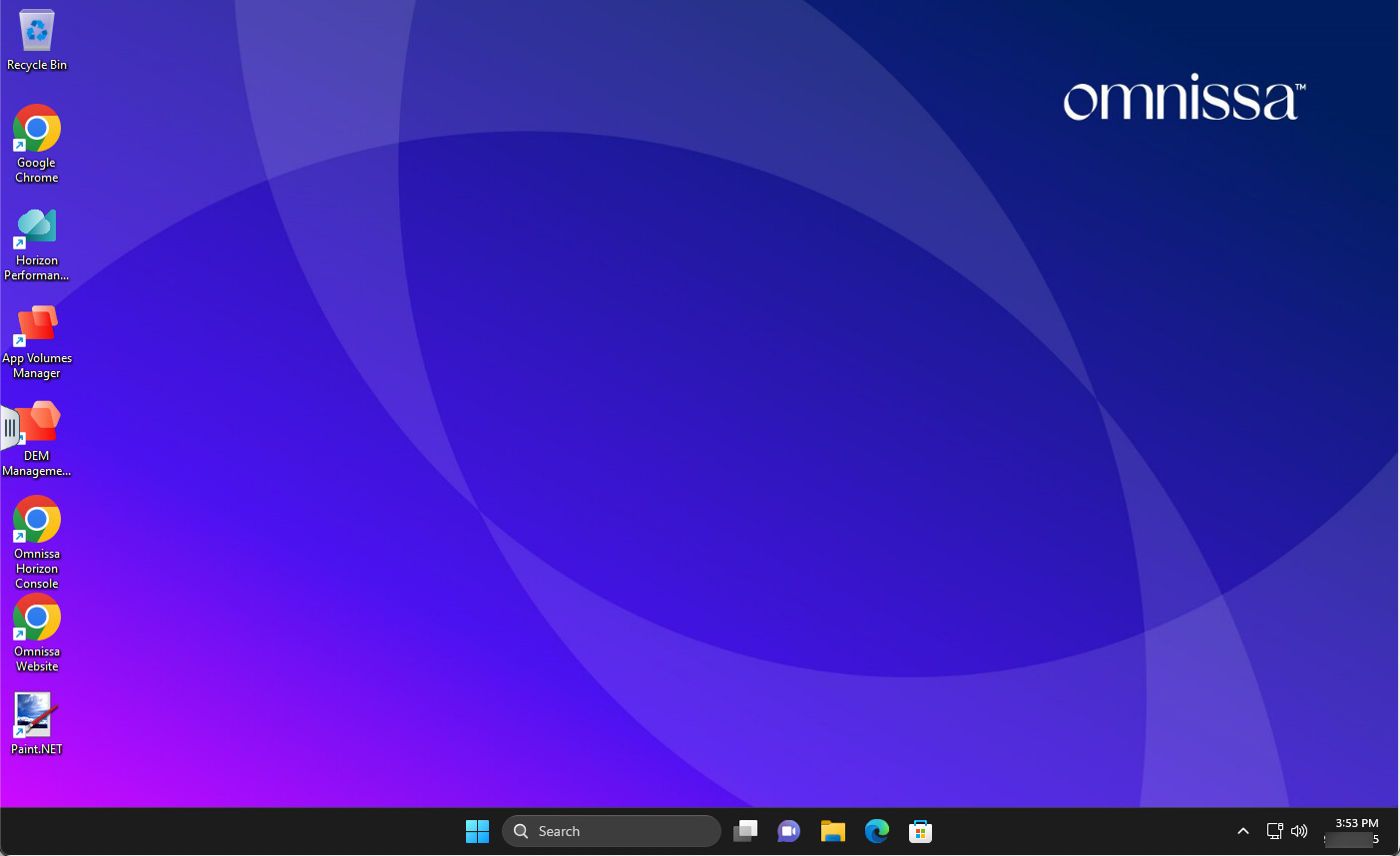
You will first need to launch a Horizon VDI desktop session from either the TD-WINDOWS11 or TD-RDS-Desktops pool.
Please see the Launching Virtual Desktops from Horizon Client or Launching Horizon Resources using HTML Access walkthrough guides for instructions on how to launch a desktop from the TestDrive Horizon environment.
Launch Horizon Collaboration
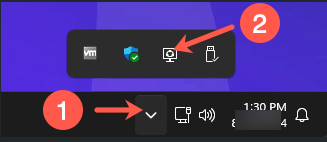
From within the VDI desktop, expand the system tray and then click on the Horizon Collaboration icon.
Look Up a Second TestDrive User
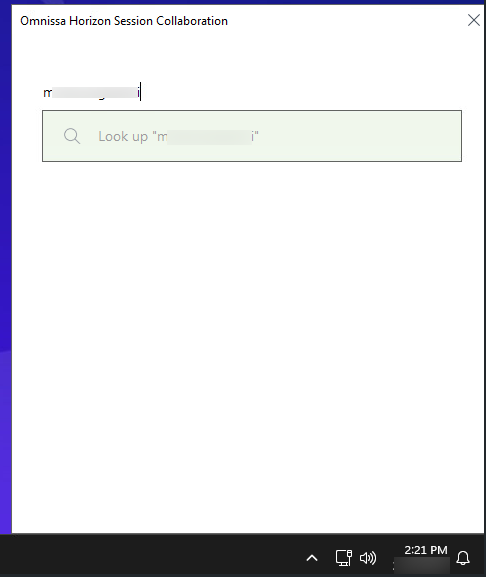
In the Horizon Session Collaboration box that appears, type in the username of a TestDrive user* who you will collaborate with in the VDI session, then click on Look up to add their username.
* NOTE: This must be an existing TestDrive user.
Copy Invitation Link
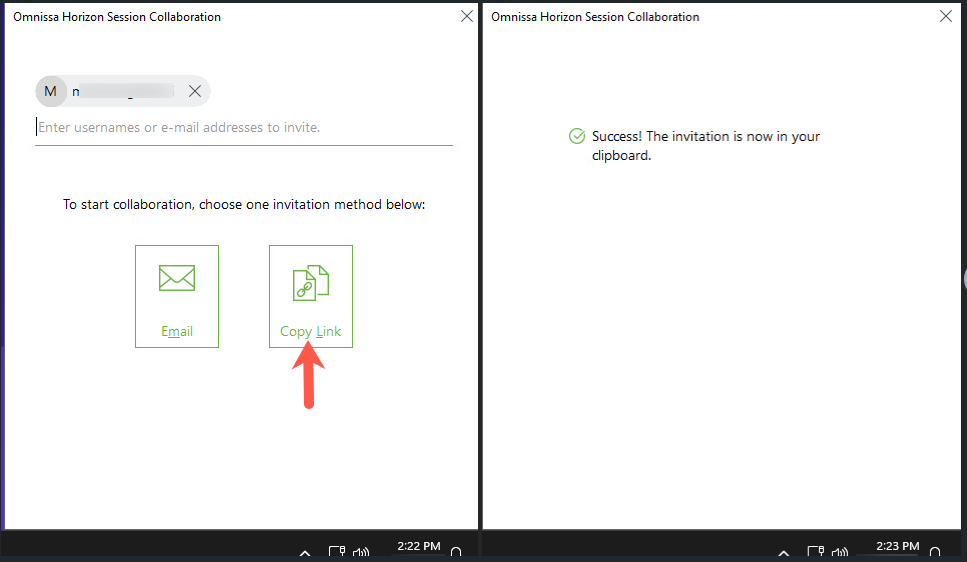
Click on the Copy Link button to copy the invitation to your clipboard.
Provide Link to Collaborator
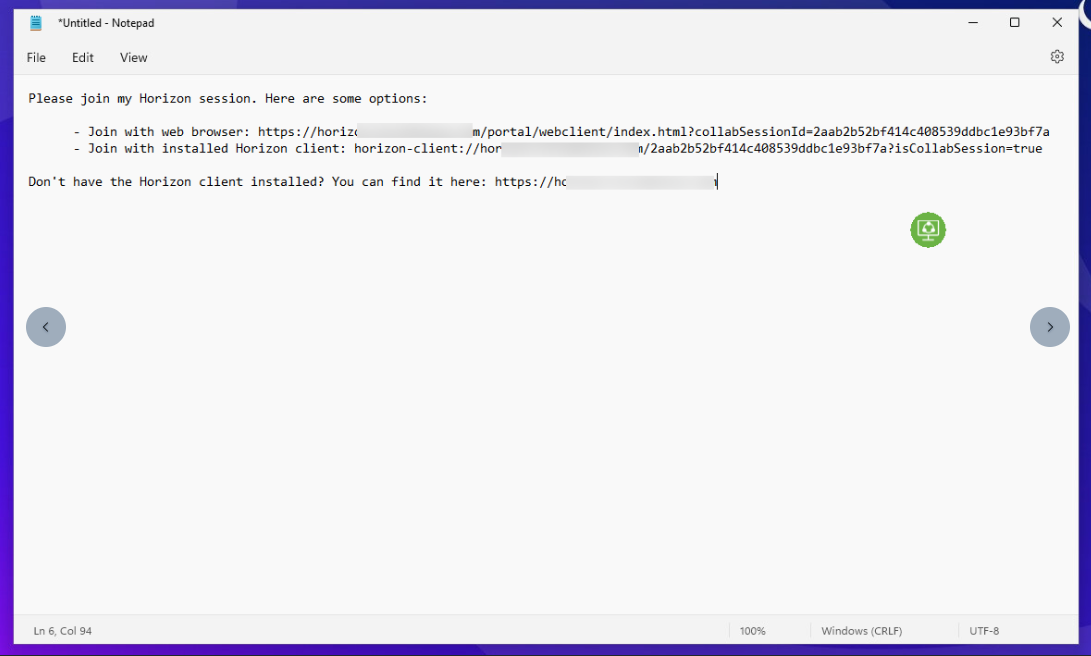
Start the Notepad app within the VDI desktop, then paste the invitation that was copied to the clipboard.
Your collaborator can join your Session Collaboration by using either a web browser or Horizon Client. From the invitation you pasted into Notepad, select and copy either the URL (web browser using https://) or URI (Horizon Client using vmware-view://) link to the clipboard of your local client machine, then provide the link to your collaborator.
Collaborator Access Using Web Browser

On the local client machine of your collaborator, they are to paste the URL into a web browser, then go to the URL destination of the Horizon server.
Collaborator TestDrive Horizon Login
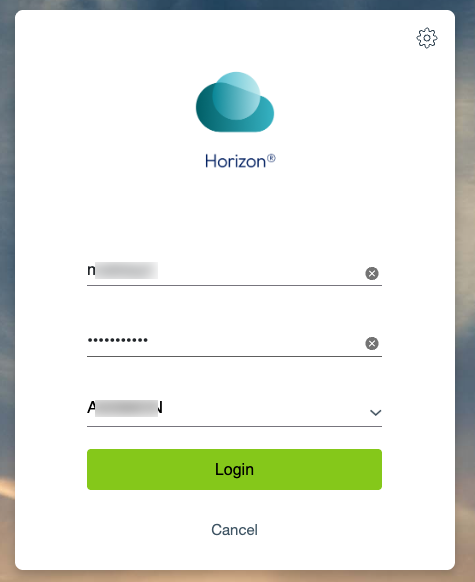
At the Horizon login screen, the collaborator is to enter their own TestDrive username and password.
Joined Session Collaboration
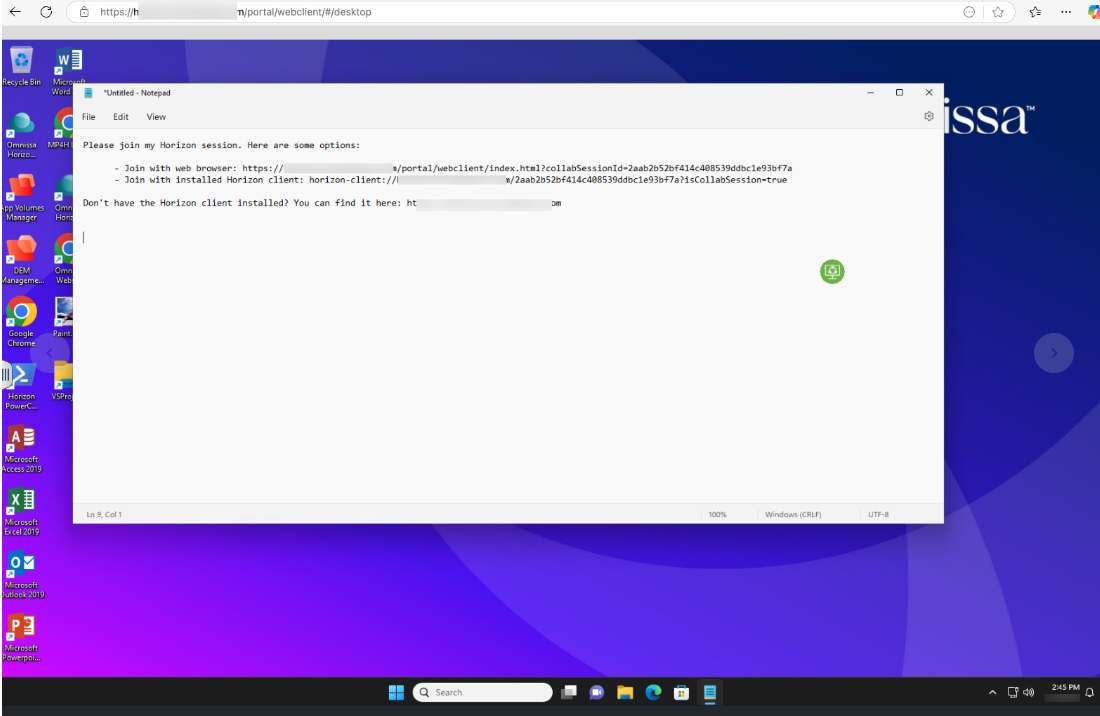
After a successful login, the desktop of the VDI will be displayed in the collaborator's web browser and they are now able to see all actions performed in your desktop.
Give Control to Collaborator
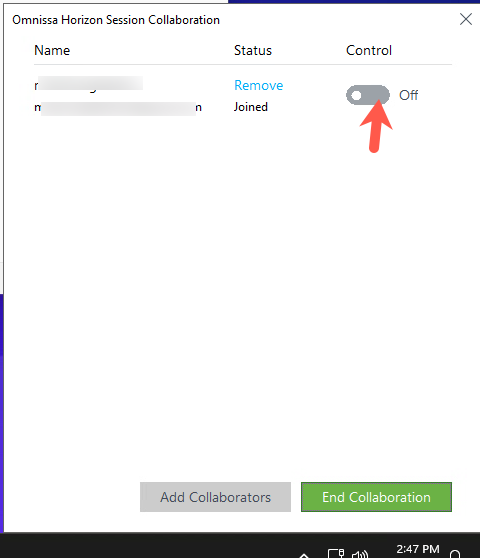
To give control of the desktop to your collaborator, open Session Collaboration from the system tray, then click on the Control toggle.
Give Control to Collaborator
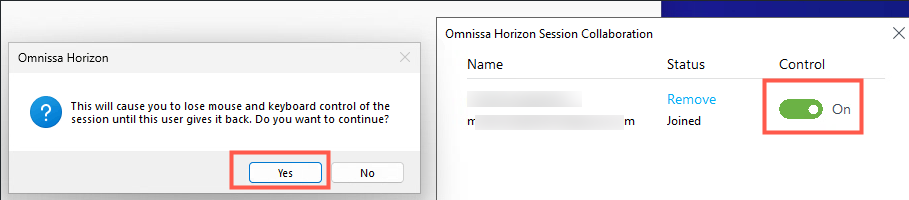
You will be notified that you will lose mouse and keyboard control. Hit Yes to continue.
Once the Control status shows as On, your collaborator is able to control mouse and keyboard movements in your VDI desktop. Have them go ahead and move the mouse around and open an app in the desktop or type some text into Notepad.
Double click within the VDI desktop to take back control.
End Collaboration
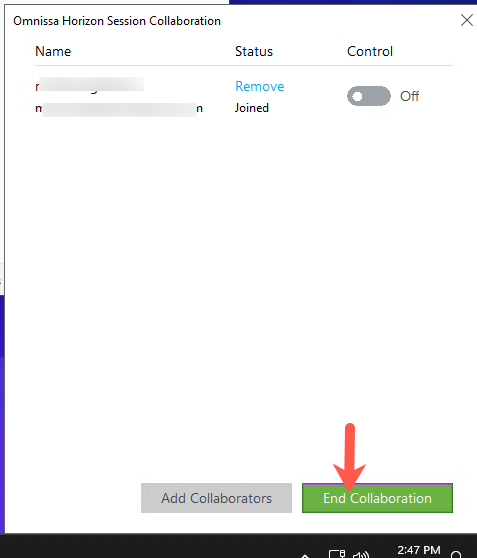
To end the Session Collaboration, open Session Collaboration from the system tray then choose End Collaboration.
For further information on Session Collaboration, visit the Horizon Client for Windows Guide documentation.