Home > Demo Guides > Horizon
Accessing the Horizon Console
- Your TestDrive account has a Read-Only access Administrator role assigned in the Horizon Console.
- To access the console, first launch a TestDrive Windows 11 or RDSH desktop in Horizon as instructed in Launching Horizon Virtual Desktops from Workspace ONE or Launching Virtual Desktops from Horizon Client.
Launching the Horizon Console
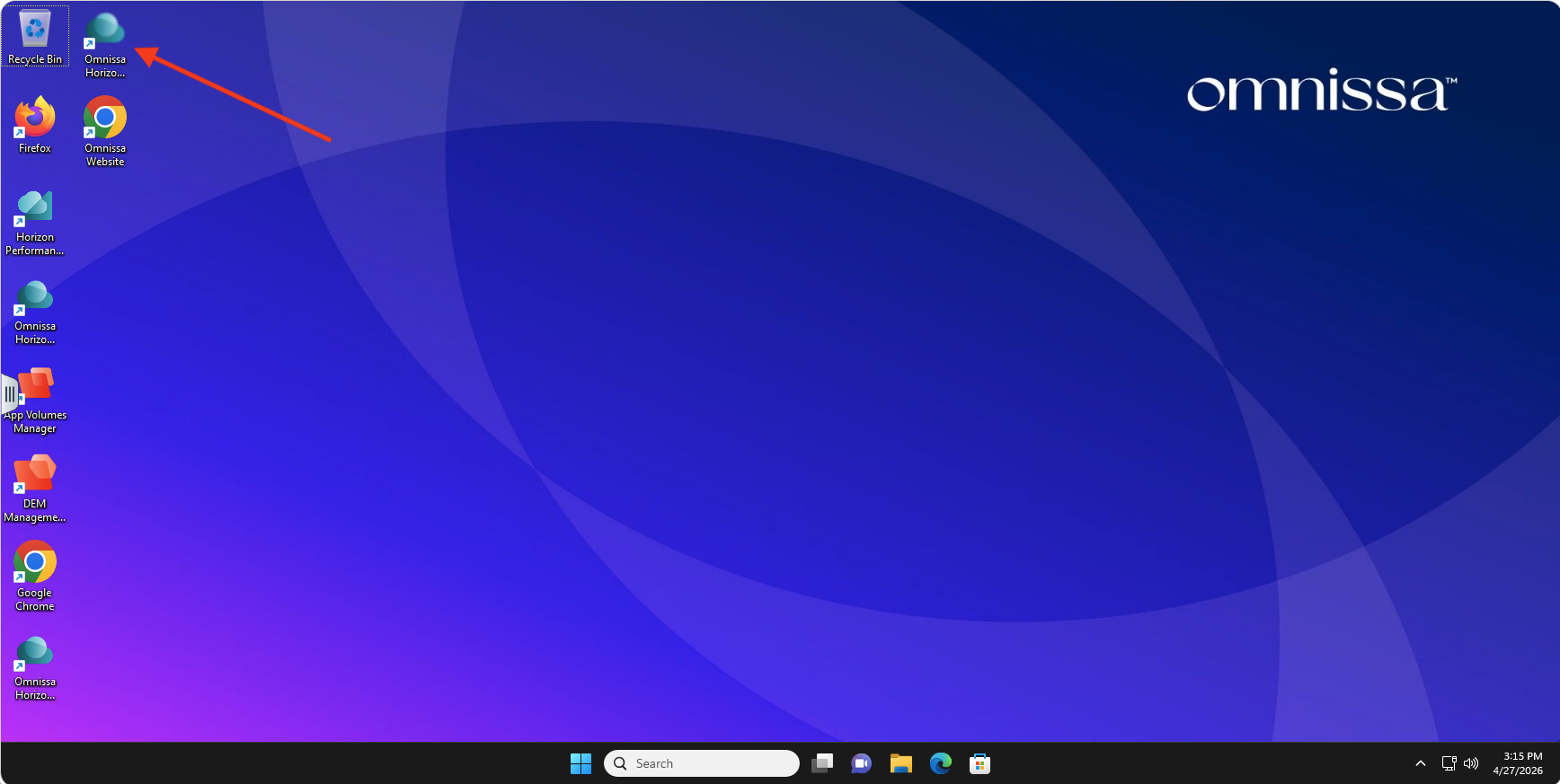
Within the Horizon desktop, launch the Omnissa Horizon Console desktop shortcut to bring up the Horizon Console web page.
Horizon Console Login
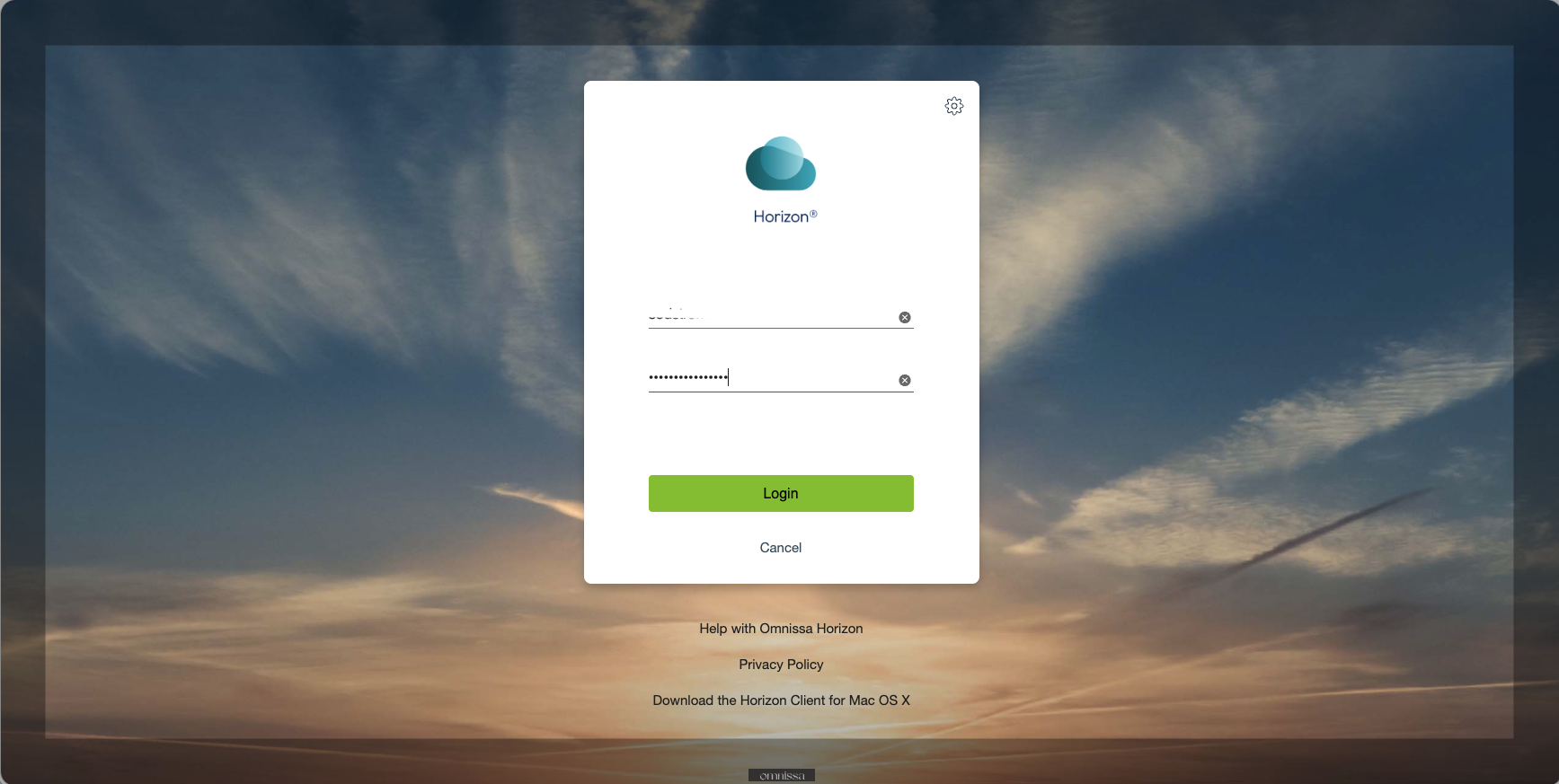
Enter your TestDrive account credentials (same as what you used to launch the virtual desktop).
Dashboard Status
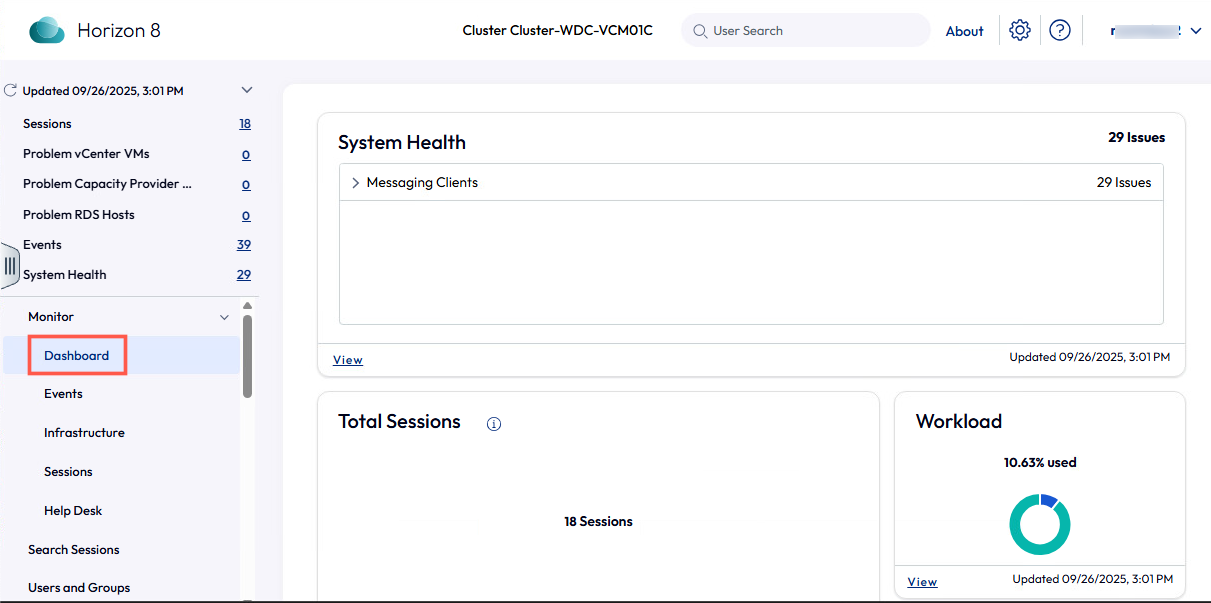
After log in, click around the various menus to explore the Horizon Console interface. Here we see the Dashboard status.
Desktops Pools
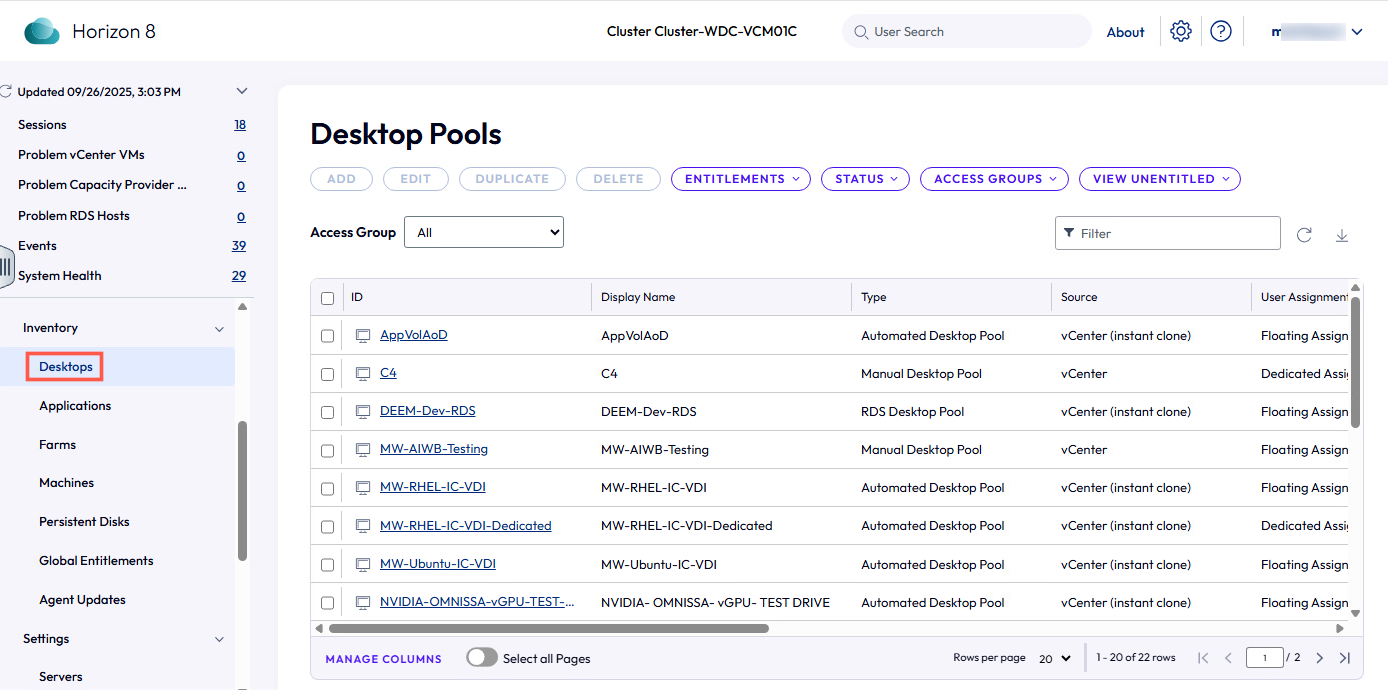
Under Inventory > Desktops, you can see the various VDI and RDSH desktop pools that have been deployed in the TestDrive environment.
Virtual Machines List
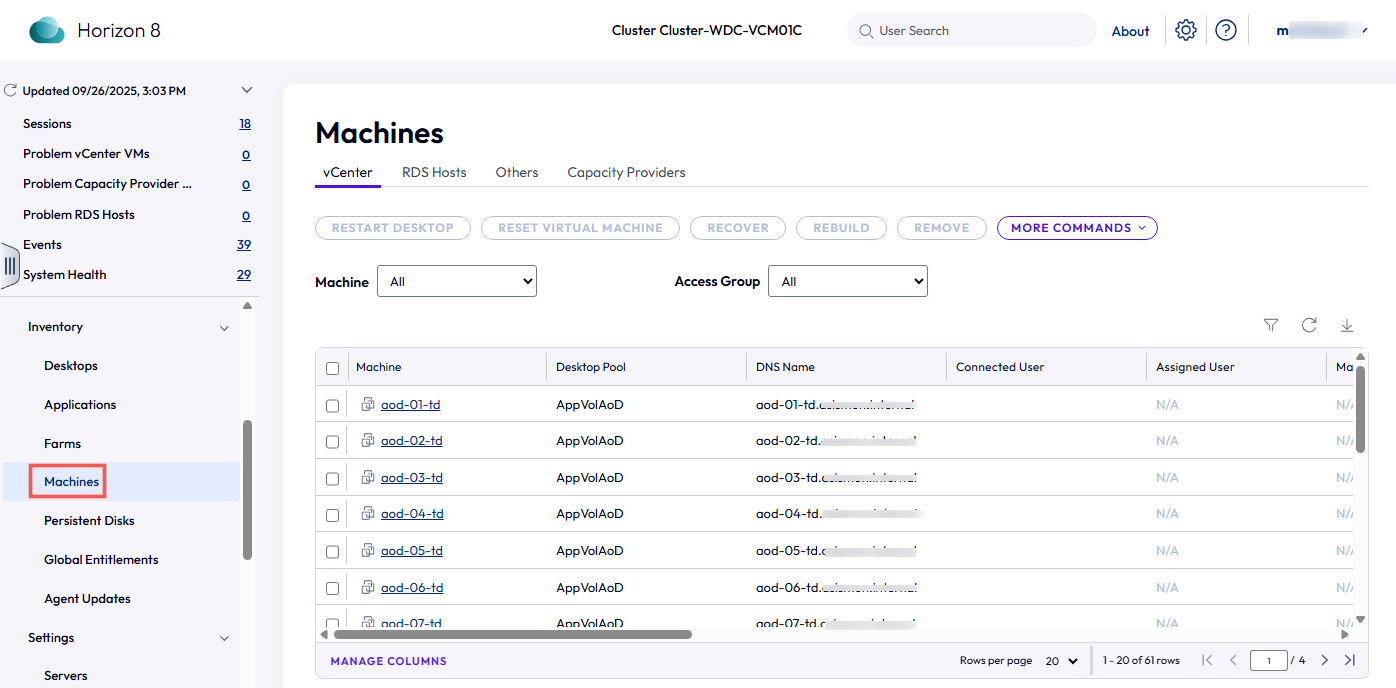
Under Inventory > Machines, you can see the status of all the virtual machines that have been deployed in the TestDrive environment.
Application Pools
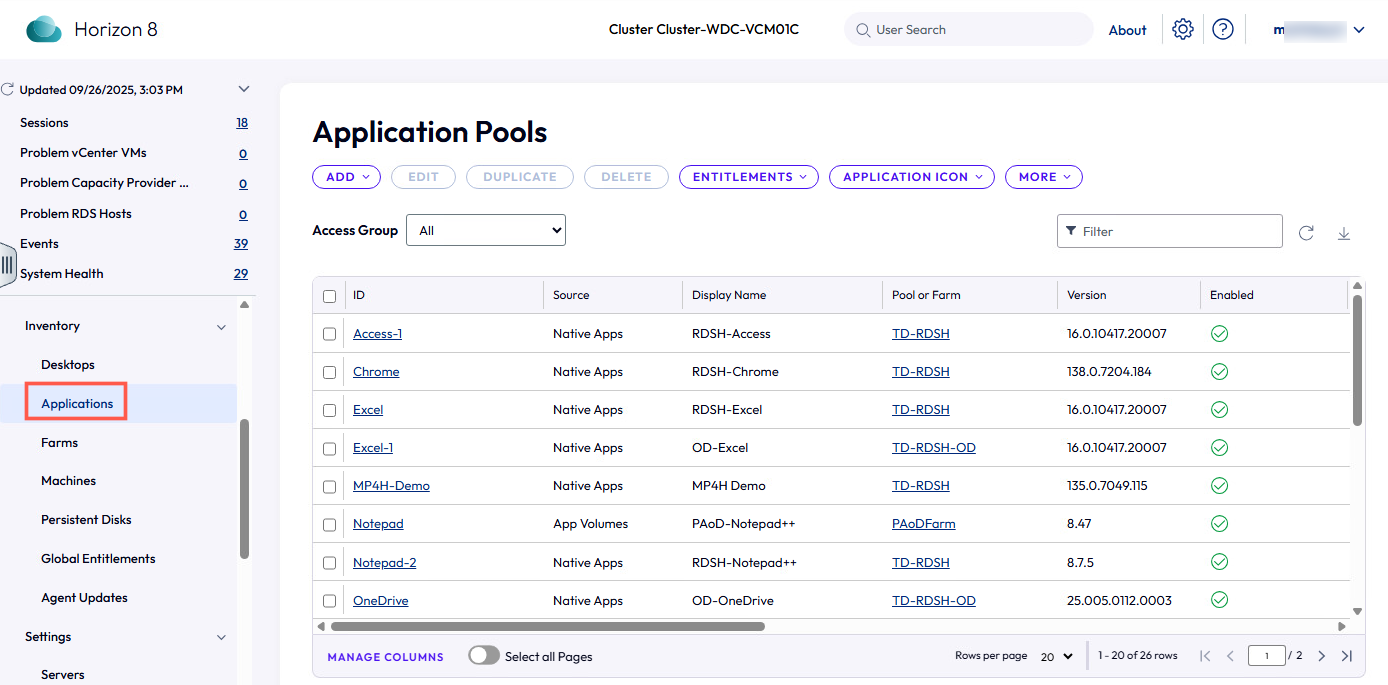
Under Inventory > Applications, you can see the various RDSH Apps and App Volumes Published Apps on Demand that have been deployed.
Explore Other Sections
Feel free to explore the other sections listed in the left menu to get familiar with the various administration options available in the Horizon Console.