Home > Demo Guides > Horizon
Launching Horizon Virtual Desktops from Workspace ONE
This is a walkthrough of launching a Horizon 8 virtual desktop from Workspace ONE Intelligent Hub.
Overview
- Log in to Workspace ONE Intelligent Hub.
- Launch Windows 11 Virtual Desktop from Workspace ONE Intelligent Hub.
Before You Begin
In order to perform the full end-to-end demo make sure you have the following:
- A valid account in the Omnissa TestDrive environment, sign up here if you do not yet have an account.
- TCP & UDP ports 80, 443, 8443; and if using PCoIP, both TCP & UDP 4172.
- Latest Horizon Client installed, available via direct download here (if desired to use native Horizon Client instead of web browser).
TestDrive Portal Login
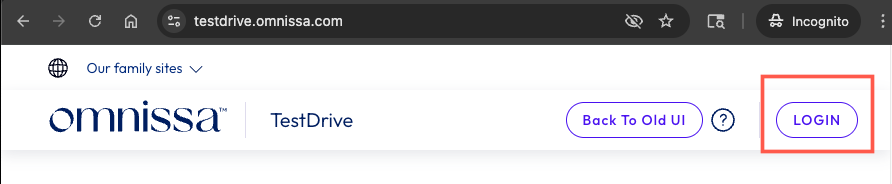
Open a browser window and navigate to the TestDrive Portal at testdrive.omnissa.com.
Log into the TestDrive portal with your Omnissa Connect Account as prompted.
Launch Workspace ONE Intelligent Hub
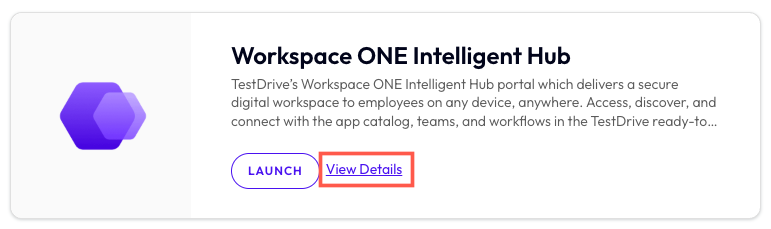
From within DemoZone in the TestDrive Portal, find the Workspace ONE Intelligent Hub product tile, then click the View Details button.
Launch Workspace ONE Intelligent Hub
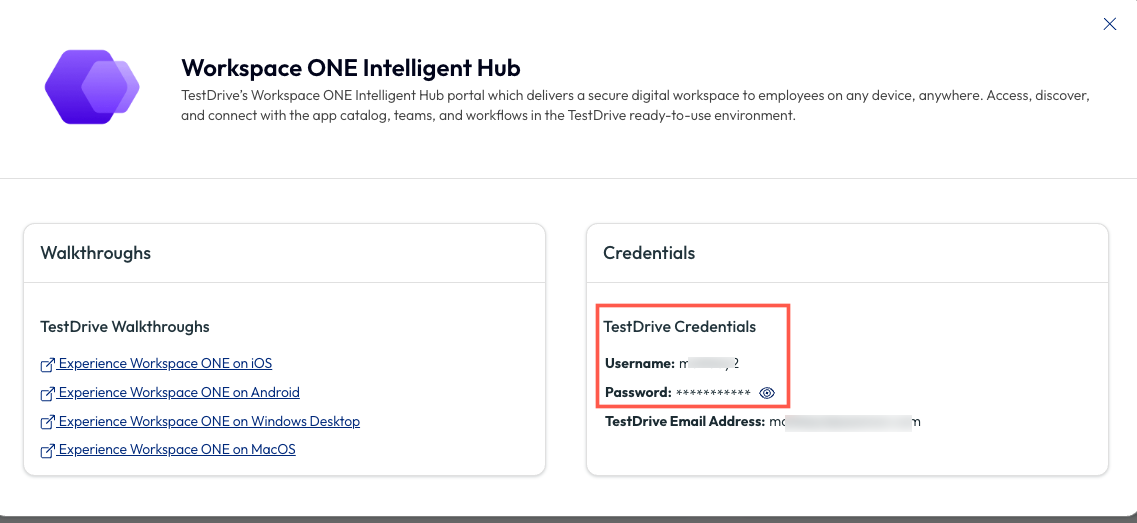
In the Workspace ONE Intelligence Hub Details pop up window, take note of your TestDrive Credentials.
Launch Workspace ONE Intelligent Hub
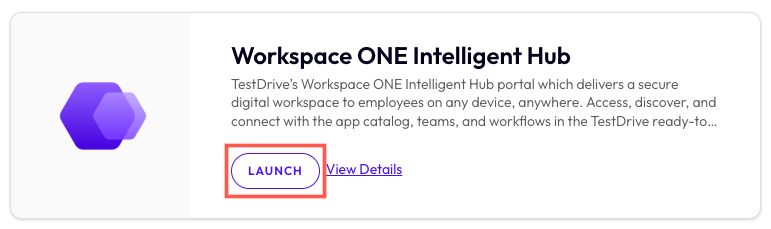
Back in the Workspace ONE Intelligent Hub product tile, click the LAUNCH button.
Workspace ONE Intelligent Hub Login
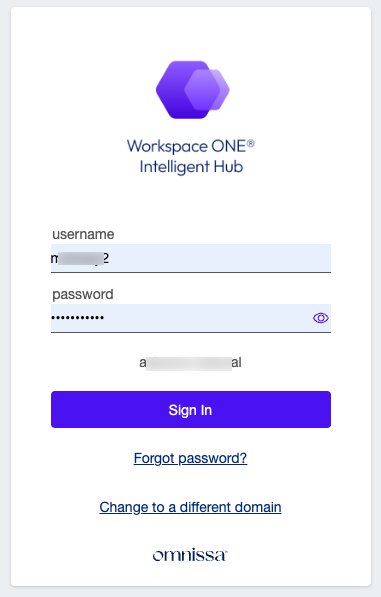
At the login screen, enter your TestDrive Credentials that you noted in previous steps.
Once you have entered your username and password, click Login.
Note: For the username field, enter your TestDrive username, NOT your email address.
Workspace ONE Landing Page
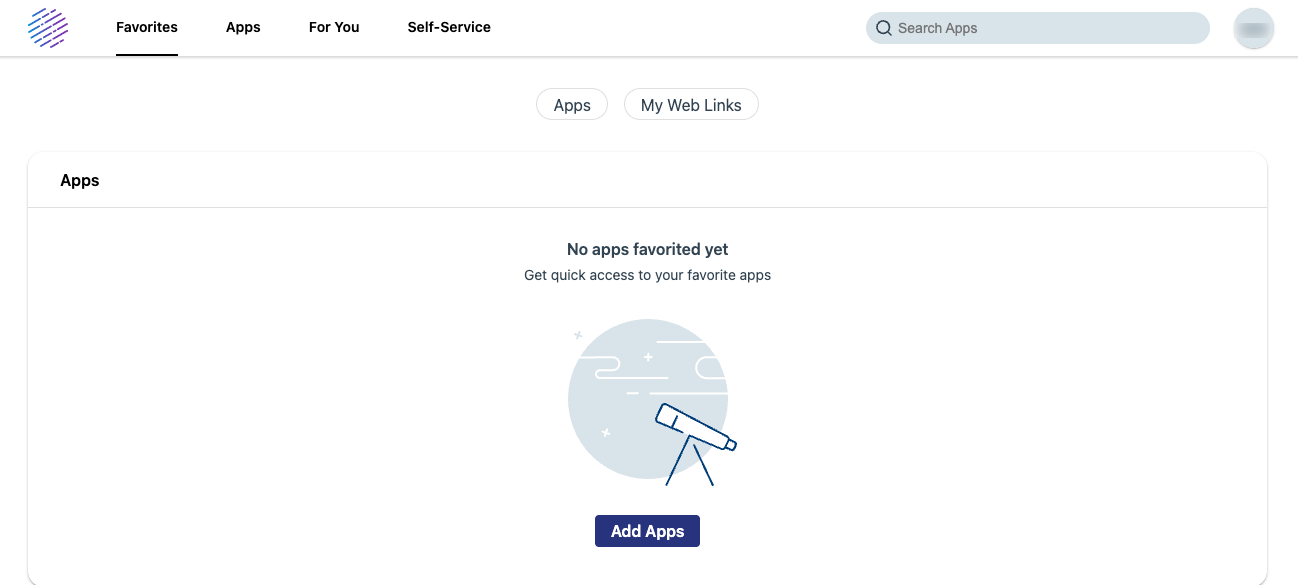
After authentication, you will first be brought to the Favorites section.
Workspace ONE Apps Page
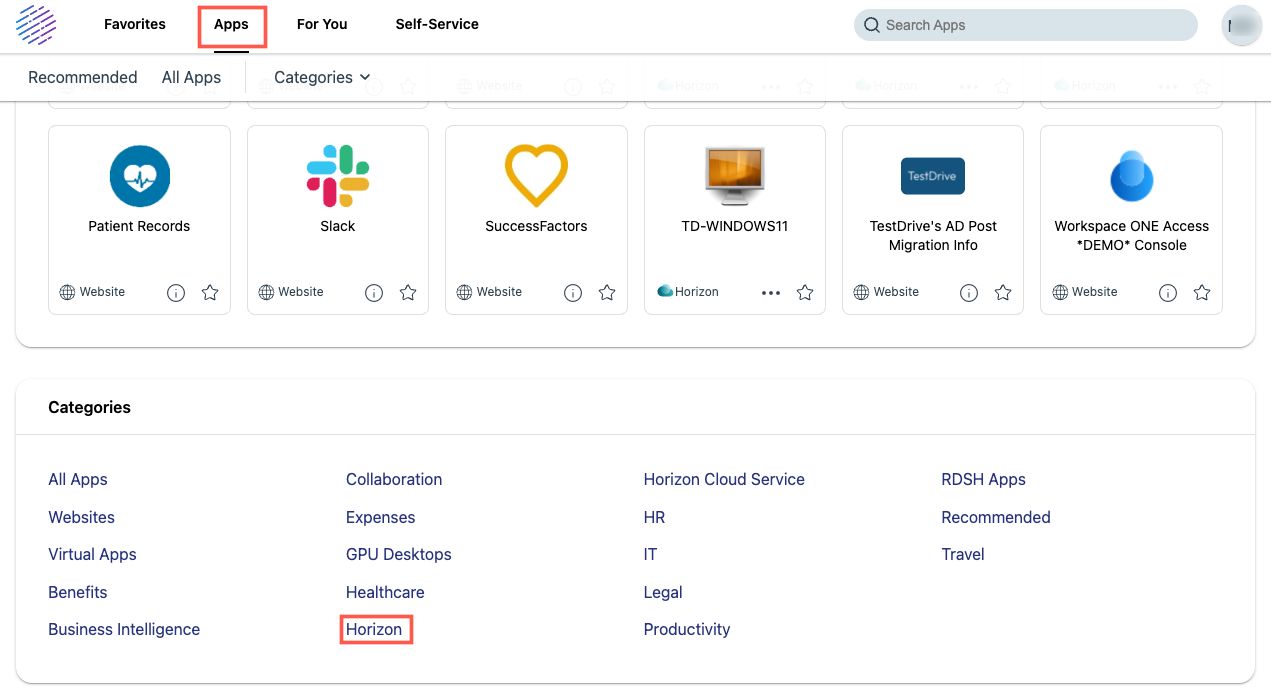
Go to the Apps section at the top of the page, then scroll to the bottom of the page to Categories and click on Horizon.
Launch Horizon Desktop
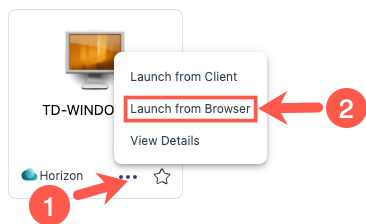
Find TD-WINDOWS11 on the page, then click the three dots in the lower right corner of the icon and choose Launch from Browser.
Note: Launch from Client option is available, but requires Horizon Client already installed on your client machine.
Horizon Desktop Launched
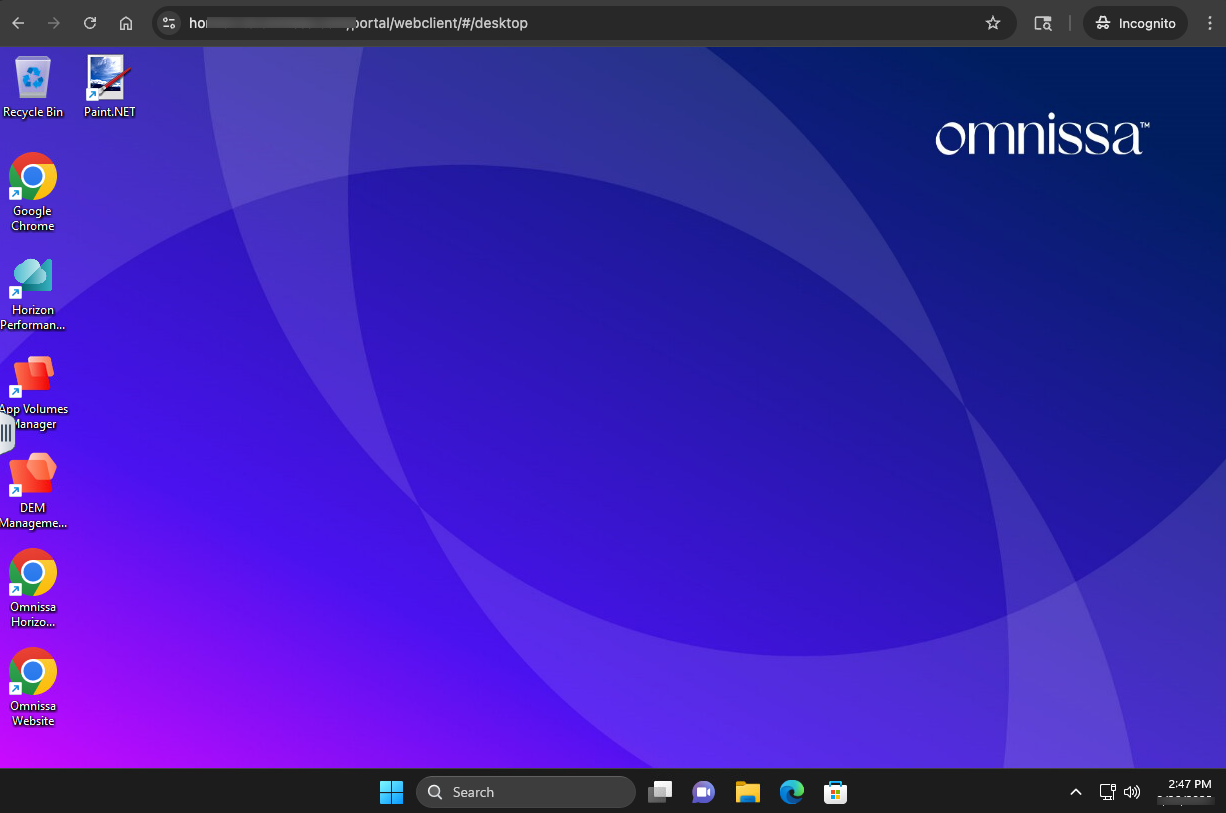
After a few moments, the desktop will launch in your web browser or Horizon Client window.
The desktops in the TD-WINDOWS11 pool have been deployed as non-persistent instant clones, configured with App Volumes writable volumes and Dynamic Environment Manager.
Explore the Horizon Desktop
Explore the Windows 11 virtual desktop functionality and performance.
Feel free to launch other Horizon 8 desktops that are available in Workspace ONE Intelligent Hub.