Home > Demo Guides > Workspace ONE
Workspace ONE ITSM for ServiceNow Demo
ServiceNow Demo Overview
This guide outlines how to use the TestDrive ServiceNow environment to demonstrate Workspace ONE ITSM integration for incident investigation and remediation as a Service Desk agent (SDA).
Intended audience: Omnissa field
Before You Begin
You must be registered in TestDrive. To get registered, go here.
Set Up the Demo
-
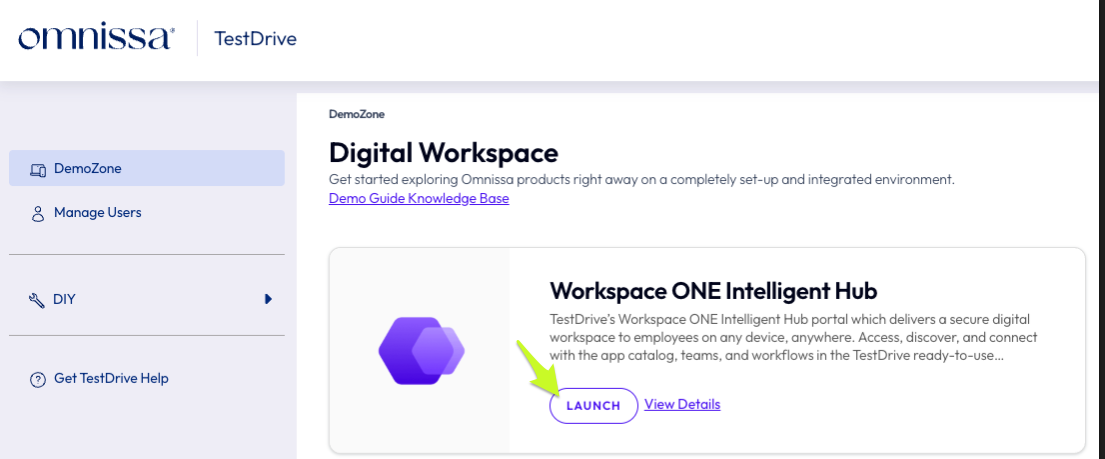
In the TestDrive portal, launch the Workspace ONE Intelligent Hub and log in using your TestDrive demo account.
-
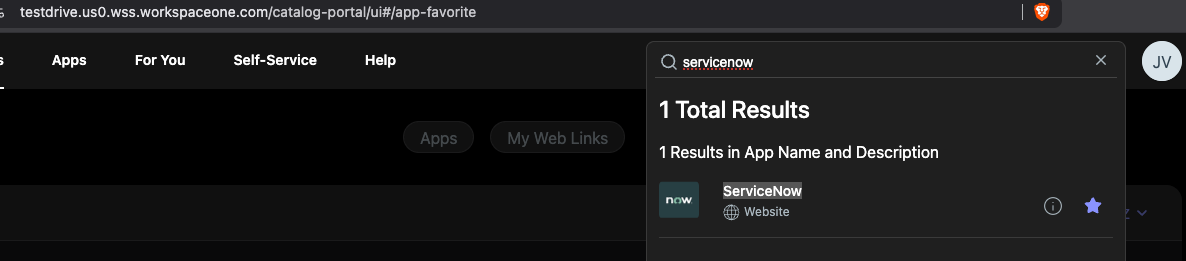
In the Hub, search for "ServiceNow" and launch the ServiceNow web app.
-
You will SSO with the SDC role into the ServiceNow demo instance "testdrive.service-now.com/navpage.do".
-
In UEM, enroll your own test device, or select an available device that is already present in both UEM and Intelligence. Make a note of the device name and serial number.
-
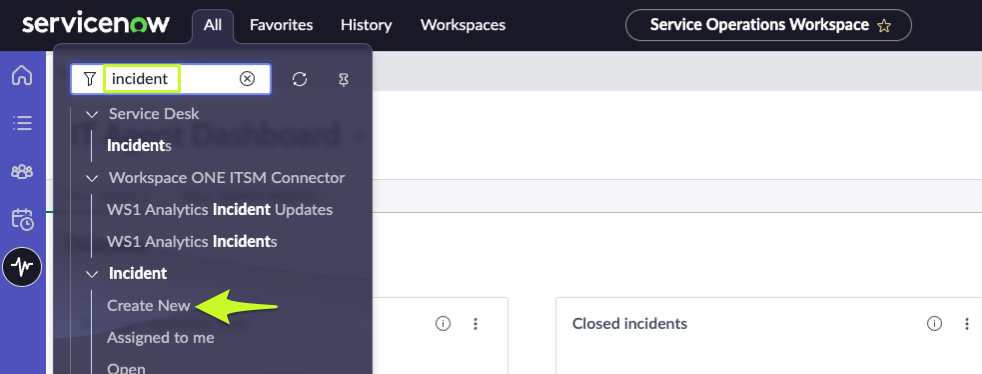
Go to Incident > Create New. If you do not see the Create New option in the UI, log out and log back in before continuing.
-
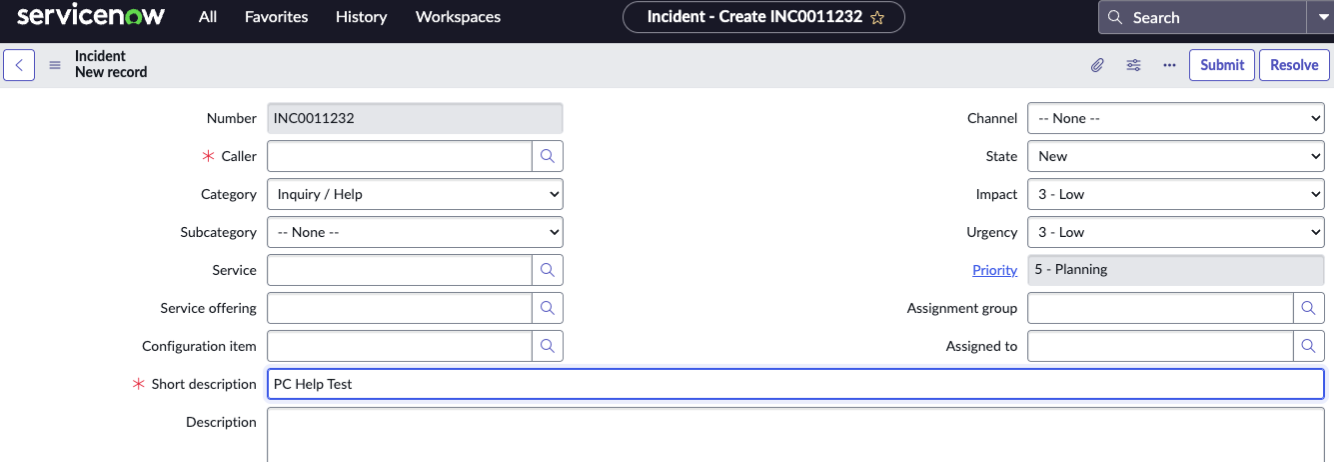
Create a new ServiceNow incident with a short description.
-
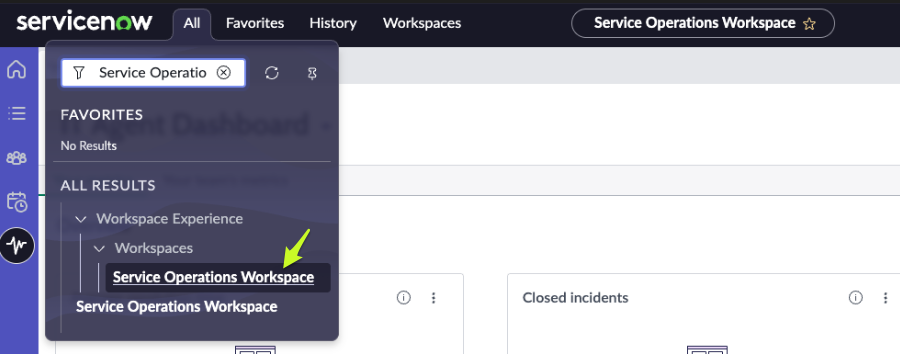
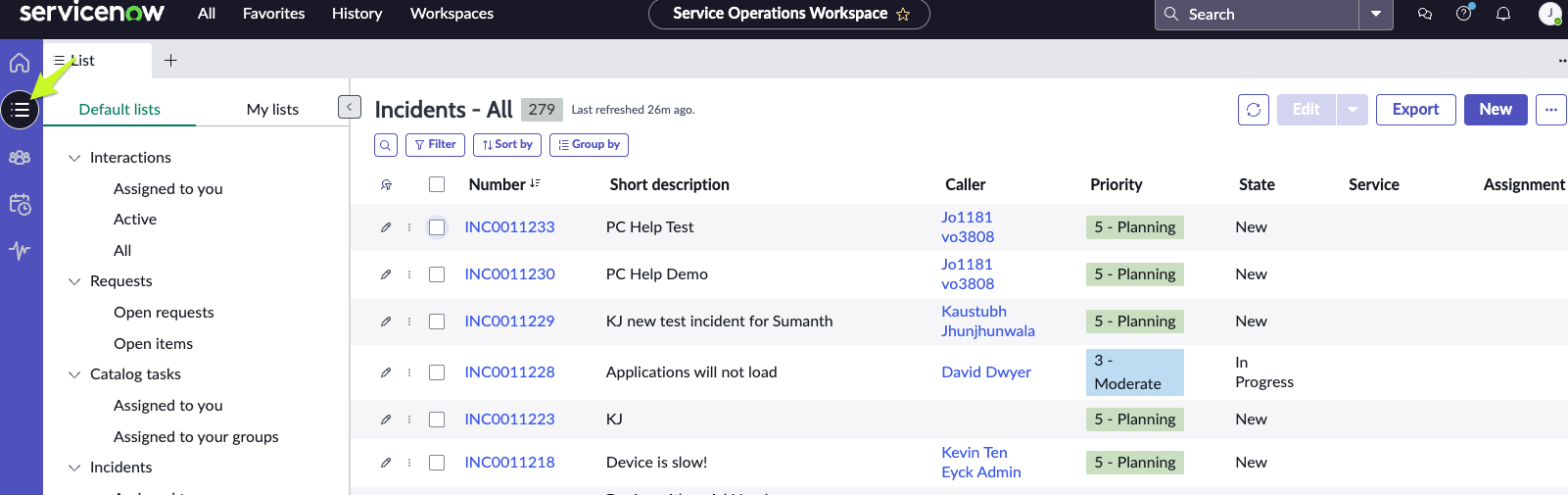
Go to Service Operations Workspace and open the List view.
-
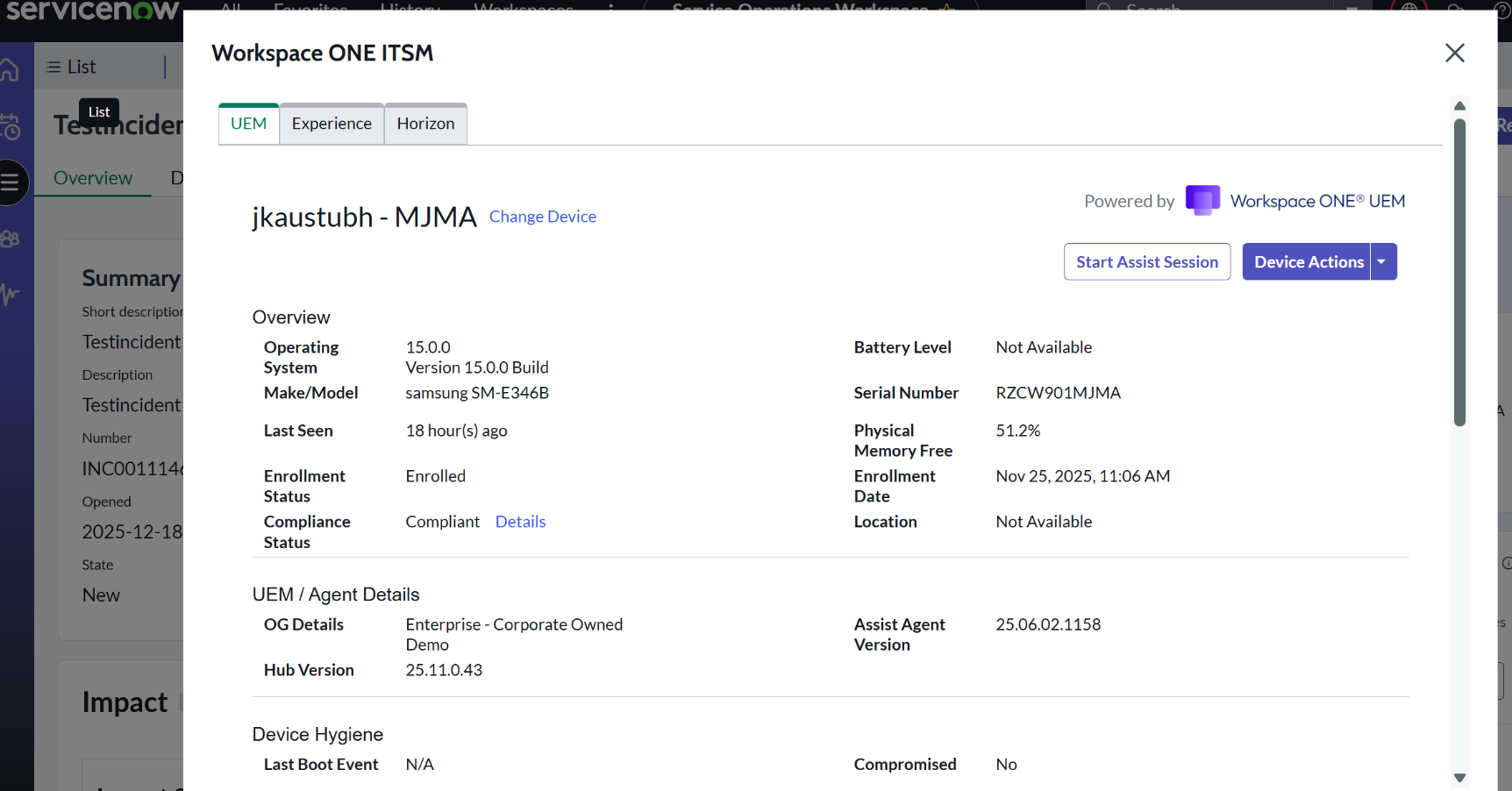
Open any incident and click Workspace ONE ITSM.
-
Search by Username. Add a blank space and click Search. This will display the full list of enrolled devices. Select the appropriate device.
-
You should now see the device details, including the available actions and Experience Score.
Begin Demo
Demo Flow
Use the incident scenarios below to walk through the Service Desk workflow in a realistic order.
"A day in the life of a Service Desk agent (SDA) looks something like this. Various tickets are assigned to the SDA's queue. Let's look at a few incidents."
Scenario 1: Customer looking at mobile use cases
Open the incident with the short description "I forgot my passcode".
"Here the impacted user has reported that they've forgotten their passcode and are hence unable to use the device."
Click on the Workspace ONE UEM tab and open the Actions drop-down. Stay on the page.
"Now without our integration into ServiceNow, the SDA would have to escalate or reroute this ticket to the UEM admin. But as you can see, with our integration the SDA now has the capability to resolve this incident right from within the incident management module of ServiceNow. They don't need to log in to another console. Nor does the SD need any additional training or access."
Scroll through Overview, Agent details, Device Hygiene, and Additional details (Profiles, certificates, applications) and describe the rich information available for investigation and remediation.
Click the Change passcode action and change the passcode.
"Problem resolved within 30 seconds!"
Scenario 2: Customer looking at Windows Desktop use cases
Open the incident with the short description "My computer is too slow".
"Here the user is reporting a broader issue. There could be many reasons why this issue has occurred. There's little information for the SD to begin troubleshooting."
Click on the Workspace ONE Experience tab and stay on the page.
"Again with our integration, the SDA now has reliable information about the device in the incident itself. They can check the Experience score and contributors for the same. Things like OS crashes, boot time, battery health, memory usage, CPU usage, and most used apps. All of this is available without access to multiple tools or platforms, saving time and effort."
Scroll through the contributors and performance scores. Open each tab under Device Events (Application Hang, Boot Time, etc.) and Most Used Apps. Elaborate on one or two low values to relate the reported issue to a possible resolution.
"Now that we see what the problem might be, let's see how the SDA can resolve this incident."
Open the Workspace ONE UEM tab and describe all available information.
"In this particular ticket, the Last OS update was more than a month ago." Go to the Applications tab and look for an update. "So I go and install this update. Once installed, I can verify with the user and solve this ticket."
"In about a minute, we've identified the probable causes, zeroed in on a fix, and executed the remediation. All without leaving the ticket!"
Scenario 3: Remote Assist
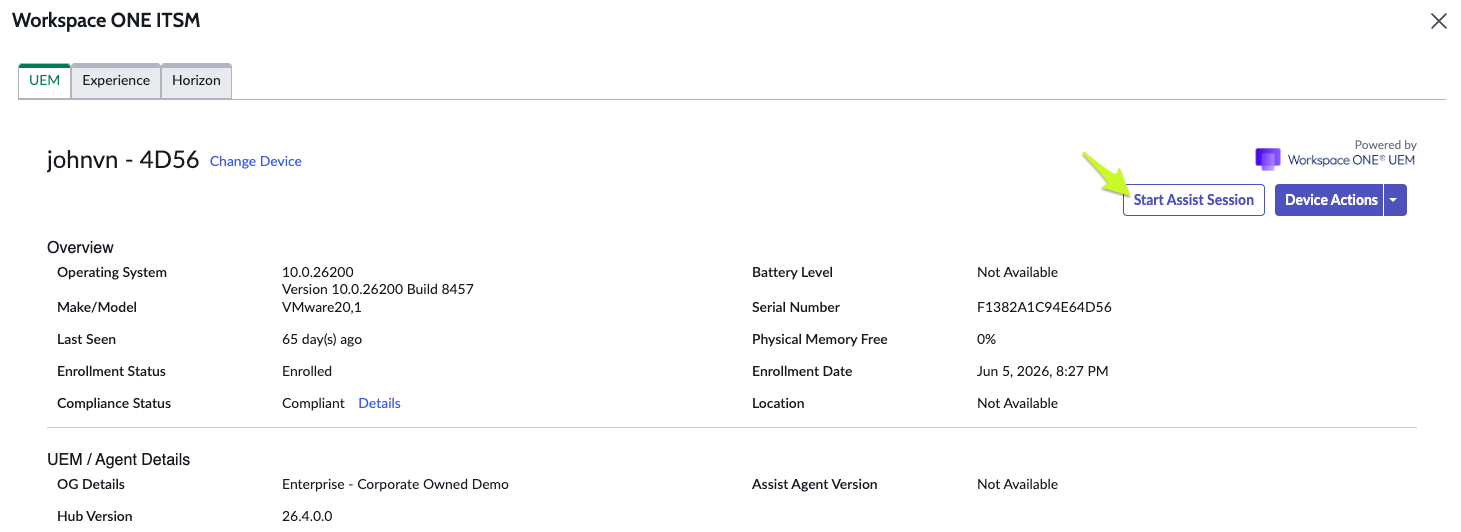
In Workspace ONE ITSM, select your device and click Start Assist Session.
Scenario 4: Instant investigation and remediation capabilities
Open the incident with the short description "can't connect to google".
"This user is reporting a challenge related to network connectivity. Now the troubleshooting of such issues is quite challenging since it requires instant communication between the SDA and the device. Can we investigate without disrupting the user? Let's have a look."
Trigger the Remote Assist action and choose Remote Shell under Assist mode.
"With this capability, I can directly interact with the device and get instant responses without disrupting the user!"
Locate a knowledge article titled "network connectivity".
"Here's a KB that guides the SDA on what they must do to investigate. Let's follow this guidance."
Run commands such as tracert google.com and observe the output.
"As we can see, the real-time investigation and remediation capabilities of Assist allow the SDA to begin troubleshooting and instantly see the results. This primarily demonstrates the efficiency with which the SD can get instant results to resolve tickets quickly."
Scenario 5: Self Service
Go to Service Catalog and open the Workspace ONE Service Catalog.
"We've seen how an SDA can resolve tickets faster with our integration. However, our vision is to deflect tickets by letting users fix their issues themselves. What if there's no need to create the incident, and instead the user helps themselves?"
"Keeping this in mind, we've made available certain actions for users to self-serve through the Service Catalog. A user can now change their device's passcode or find their device from within ServiceNow's Service Portal. That's one less ticket for the Service Desk and faster TAT (turn around time) for the user."
Conclusion
We've now seen how our integration into ServiceNow brings down the MTTR (mean time to resolve a ticket), increases FCR (first call resolution), and enhances the digital experience of employees, regardless of their role (SD or end user).
Additional licensing and CMDB FAQs
Do they need any additional licenses?
ITSM is interesting for the customer; however, we are waiting for their 2024 budget allocation to check if they can get the licenses for the ITSM Connector + DEEM.
- WS1 licensing: If the customer has WS1 UEM or DEEM licenses, they do not need any additional licenses to install, configure, and use our ITSM Connector. It's basically a free add-on for ServiceNow and WS1 customers!
- ServiceNow licensing: If the customer has the ServiceNow ITSM Module, they do not need any additional licenses to install, configure, and use our ITSM Connector. It's basically a free add-on for ServiceNow and WS1 customers!
Is a fully functional CMDB required (pre-requisite) for a customer to use the ITSM Connector?
There have been misconceptions that a CMDB is required to use the ITSM Connector, and that the only way a CMDB can be set up is through the Service Graph Connector (which is a chargeable license).
With the serial number search feature (GA Feb 9, 2024) and the username and serial number based search feature (v5.5 GA July 27, 2024), a CMDB is not a mandatory requisite anymore.
Is the Service Graph Connector (chargeable SKU from ServiceNow) the only way to establish a CMDB?
No! Customers can use manual data uploads and other integrations to populate their CMDB.
Can we get rid of the dependency on a CMDB?
Yes. We have released (v5.5) a feature that reads the username from the incident, searches the username in UEM, and responds with the devices assigned to the user. This way, a customer will never require a CMDB to use our ITSM Connector.