Home > Demo Guides > Horizon
Horizon Help Desk Tool
This article will walk you through the steps to access and utilize the Horizon Help Desk Tool in the Horizon Console.
Overview
- Login to the Horizon Console.
- View information about active sessions.
- Initiate Remote Assistance for an active session.
Before You Begin
In order to complete this walkthrough, the following will be required:
- A valid account in the Omnissa TestDrive environment, sign up here if you do not yet have an account.
- Network access from your device and TCP & UDP ports 80, 443, 8443; and if using PCoIP, both TCP & UDP 4172.
- Latest Horizon Client installed, available via direct download here (if desired to use native Horizon Client instead of web browser).
- Launch two or more VDI or RDSH sessions (use separate clients for the sessions either on your own or along with another TestDrive user). See the walkthrough guide Launching Virtual Desktops from Horizon Client.
Launch the Horizon Console
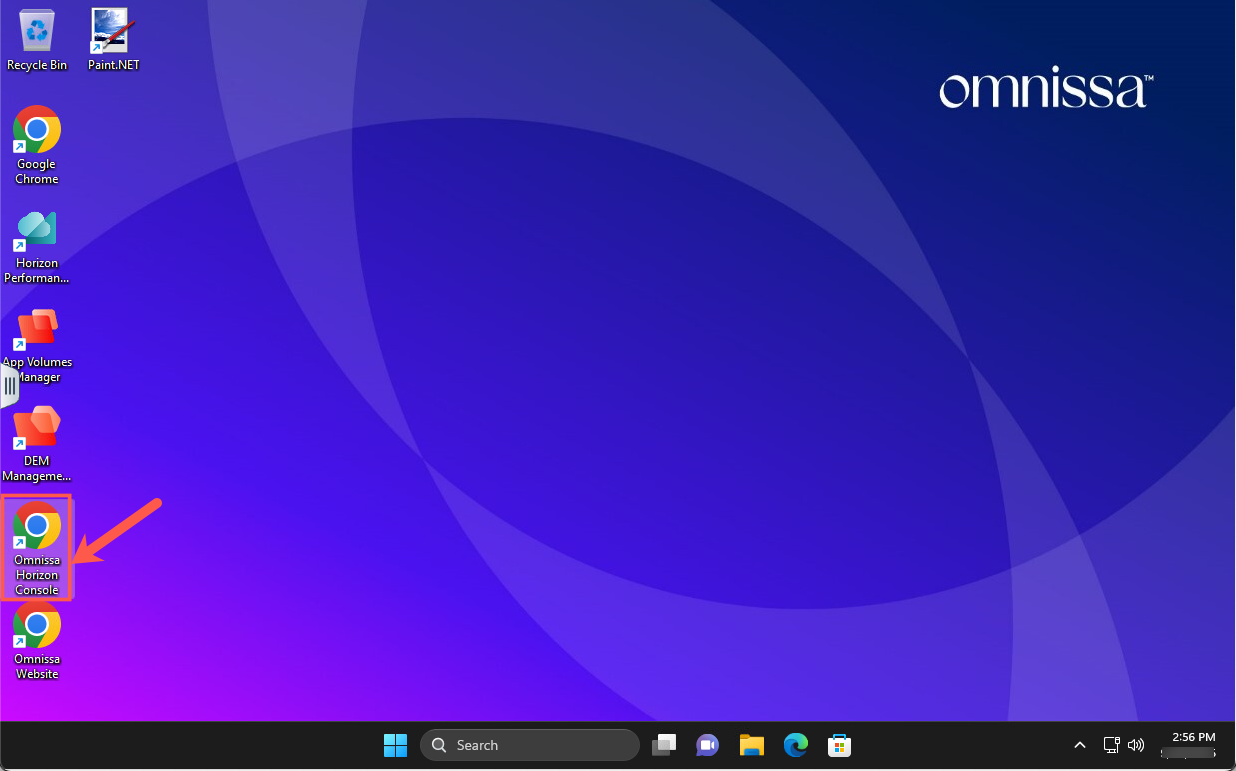
Within one of your VDI sessions, launch the desktop shortcut named Omnissa Horizon Console.
Horizon Console Login
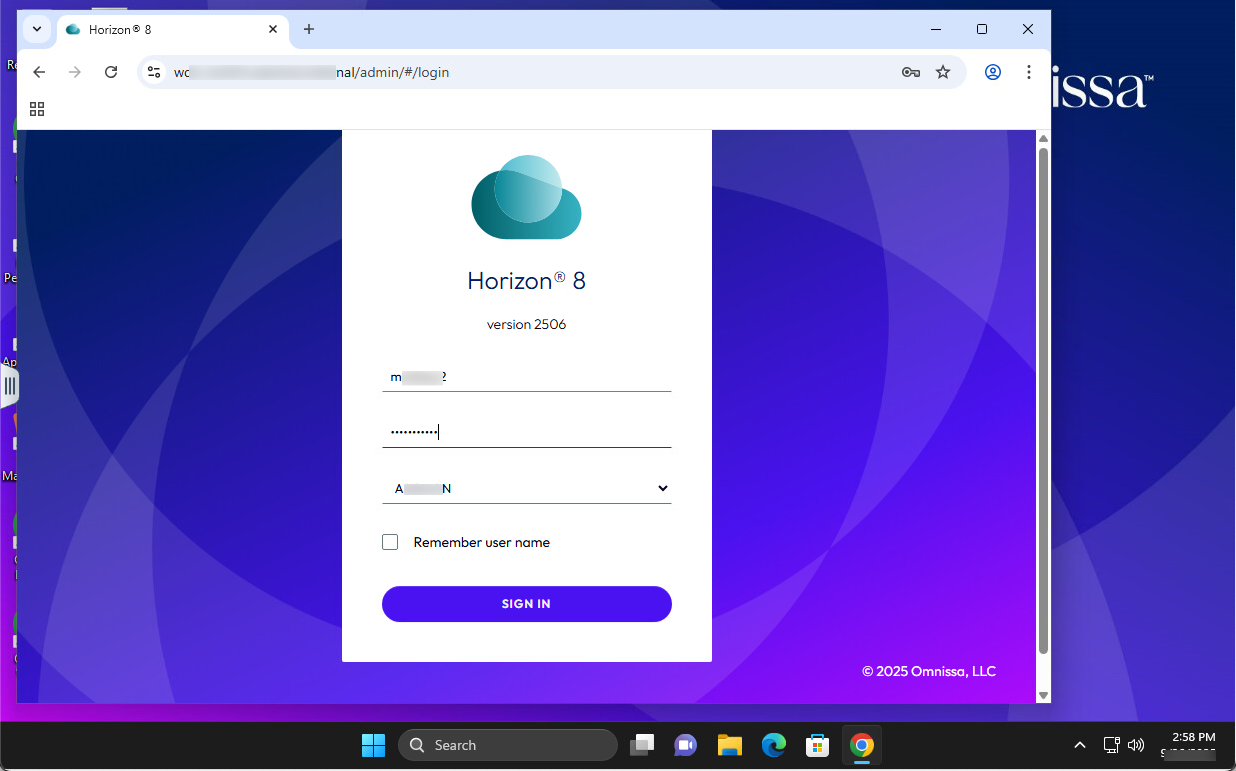
Enter your TestDrive credentials,then hit Sign in.
Horizon Console Interface
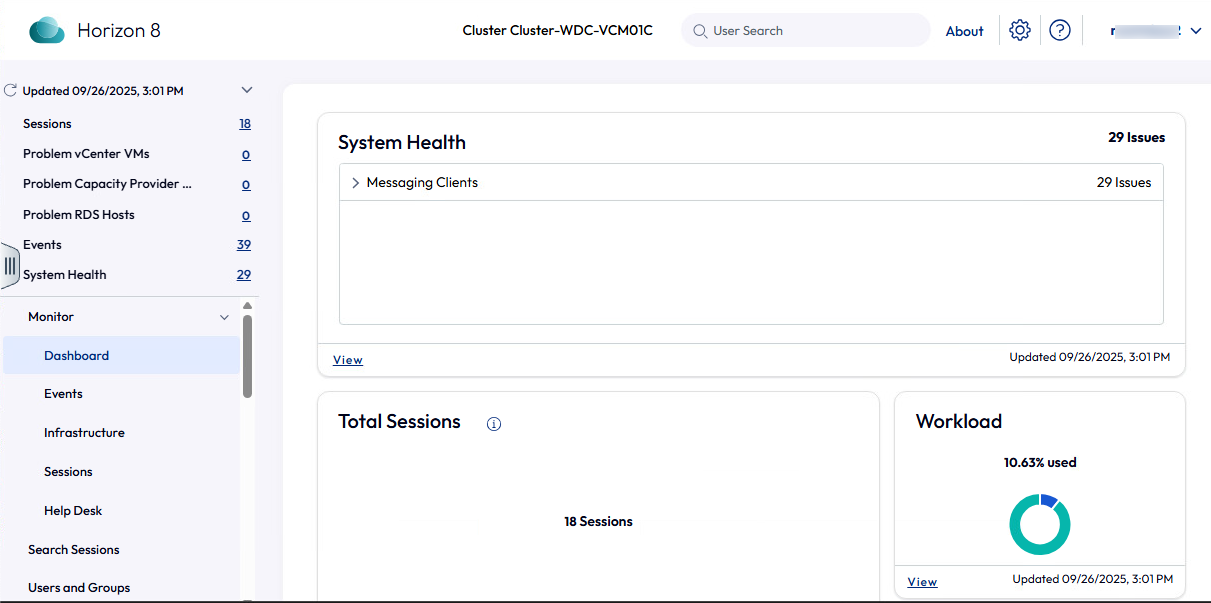
After successful login, you will be presented with the Horizon Console interface.
Access Help Desk Tool
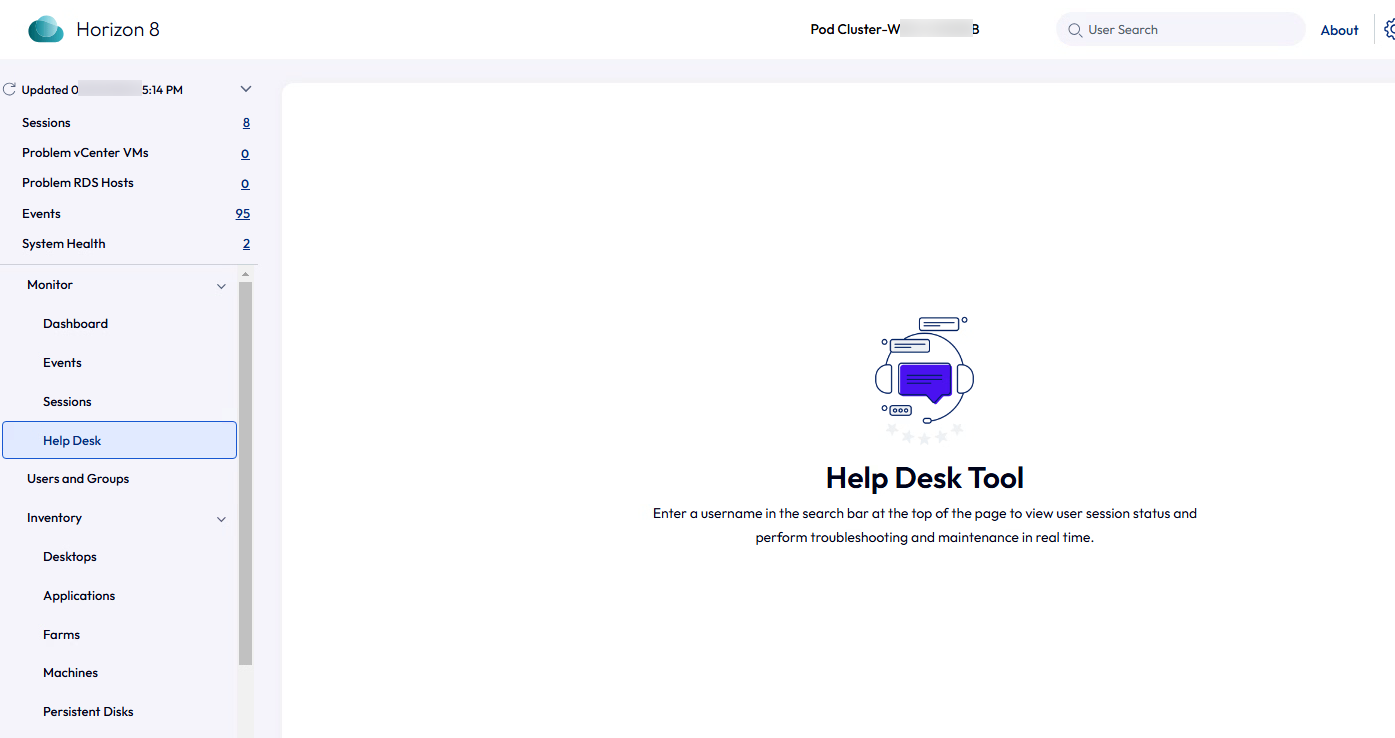
Go to Monitor > Help Desk which will display a page with instructions for using the Help Desk Tool.
User Search
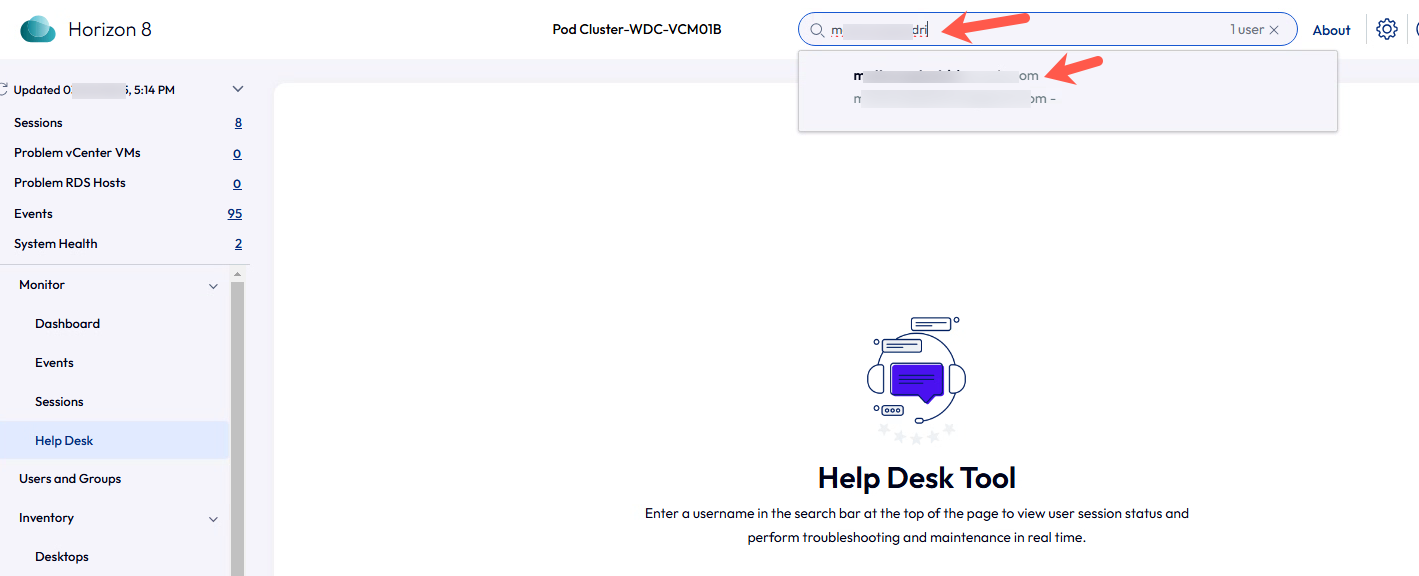
In the User Search field, type in a username that is currently logged in to a VDI or RDSH session. Hit the Enter button on your keyboard and a list of matching username(s) appears. Click on the desired username to choose it.
User Search Sessions Results
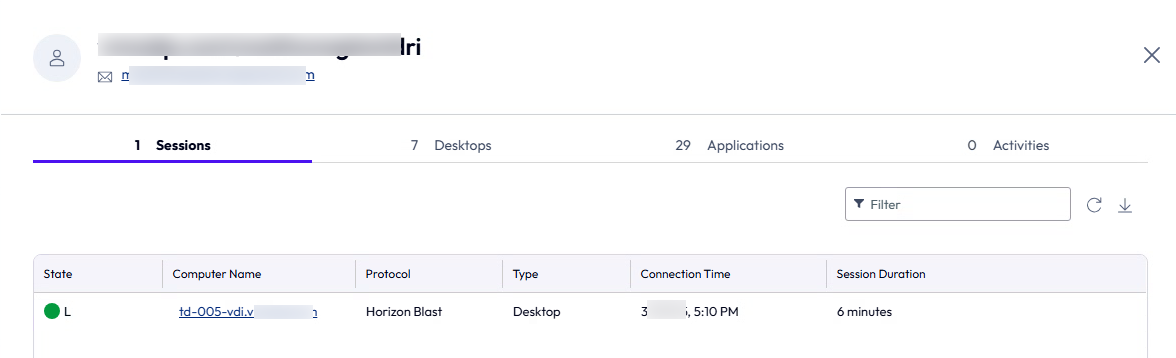
A list of active VDI and/or RDSH sessions will appear. The Sessions tab will display some info about active sessions such as computer name of the desktop, connection protocol, and session duration.
User Search Desktops Results
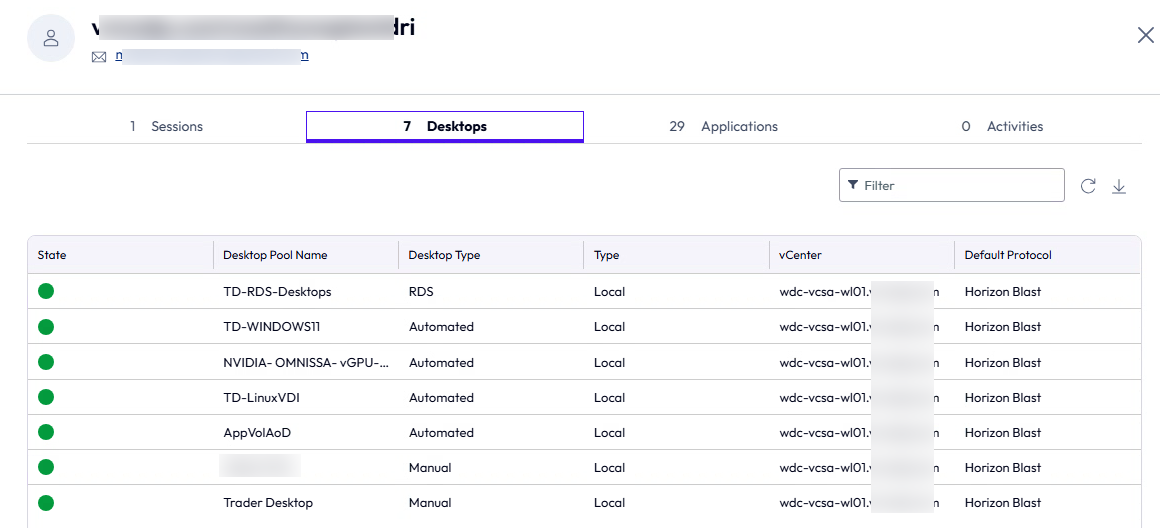
The Desktops shows the pool names and desktop types that have been entitled to the user.
User Applications Entitled
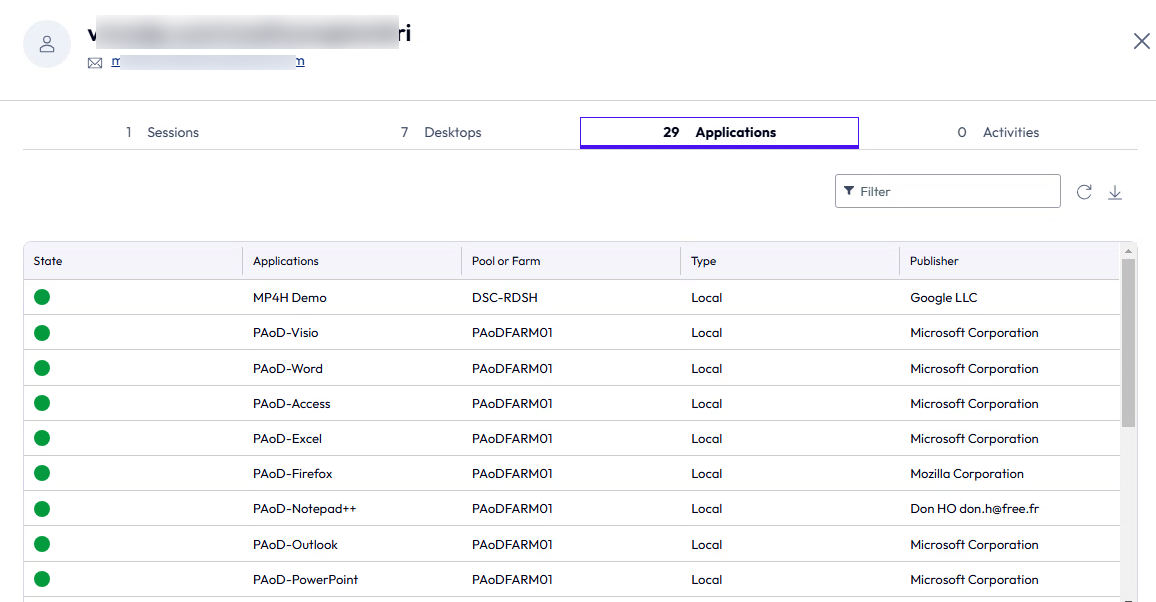
The Applications tab will show the RDSH applications that have been entitled to the user.
Active User Sessions
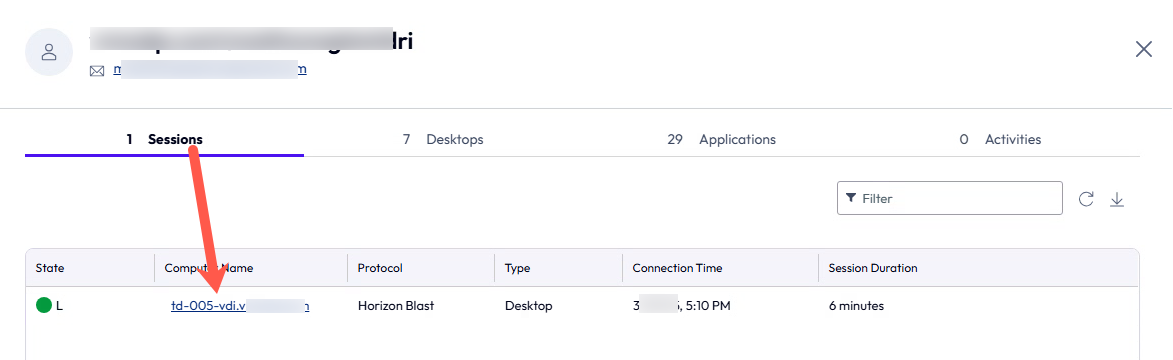
Go back to the Sessions tab and click the Computer Name of one of the active sessions.
Active User Session Details
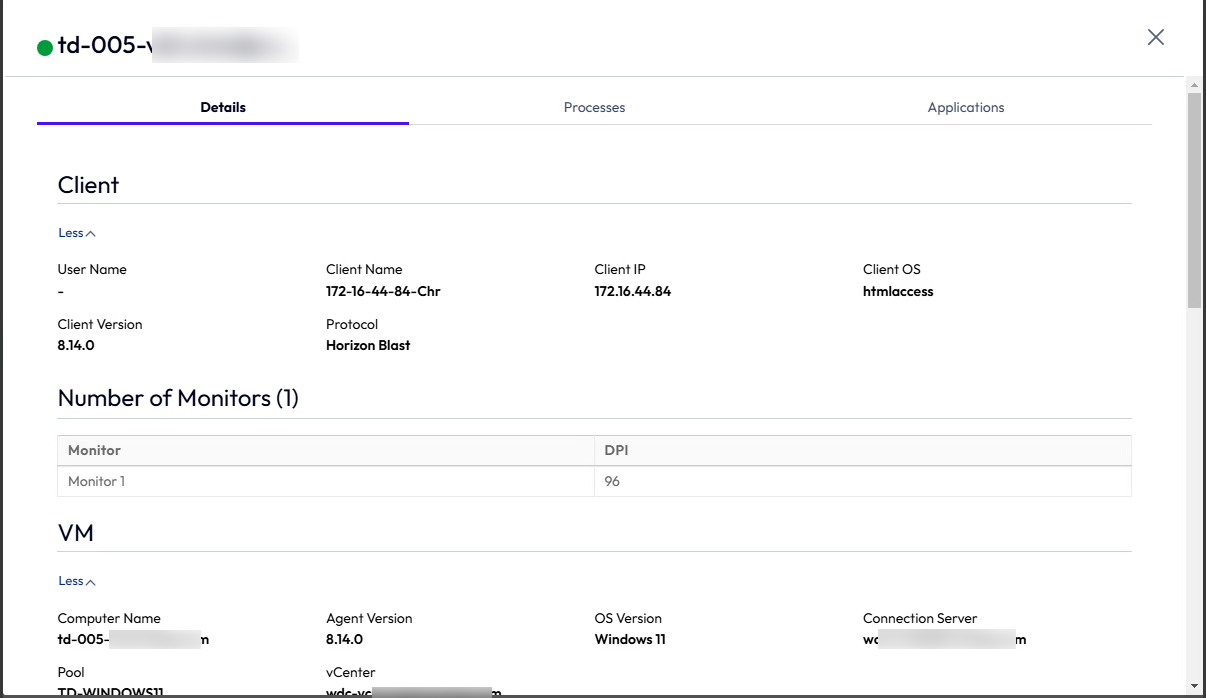
The Details of the session will be presented. Here you can see info about the Client that is connected to it, connection protocol, session duration, and VDI performance info.
User Experience Metrics
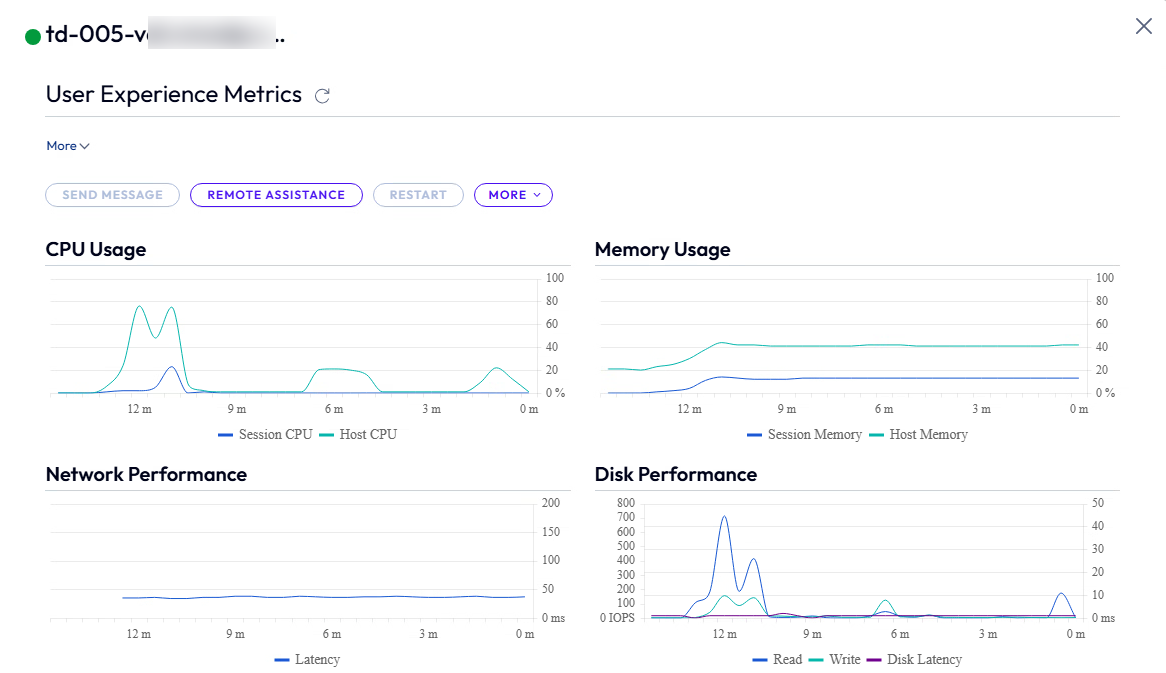
The info under User Experience Metrics may be helpful when troubleshooting a session that is reported as being slow.
User Processes
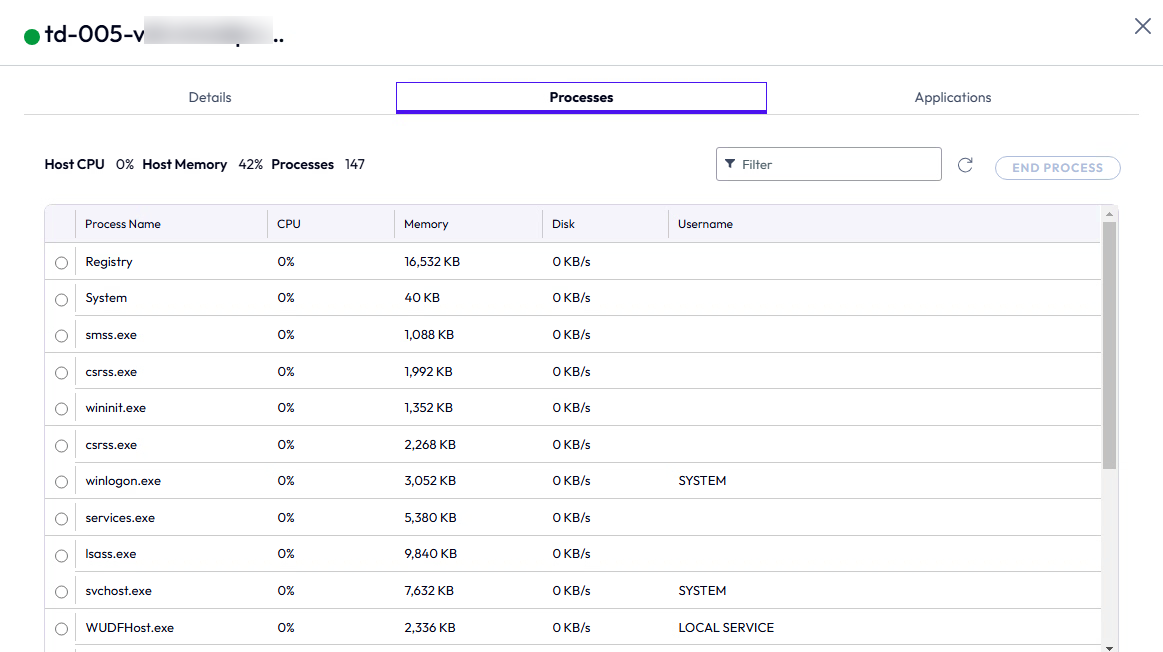
The Processes section provides some other info about the VDI session. This may help you determine what is using up the resources in the VDI.
User Applications
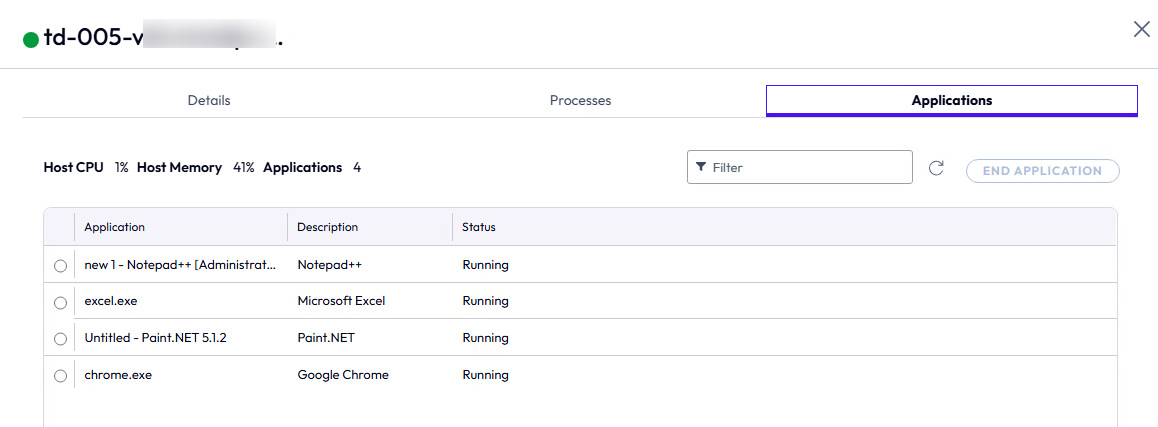
Similar to the Processes section, the Applications section also provides some other info about the VDI session, which may also help you determine what is using up the resources in the VDI.
Remote Assistance Button
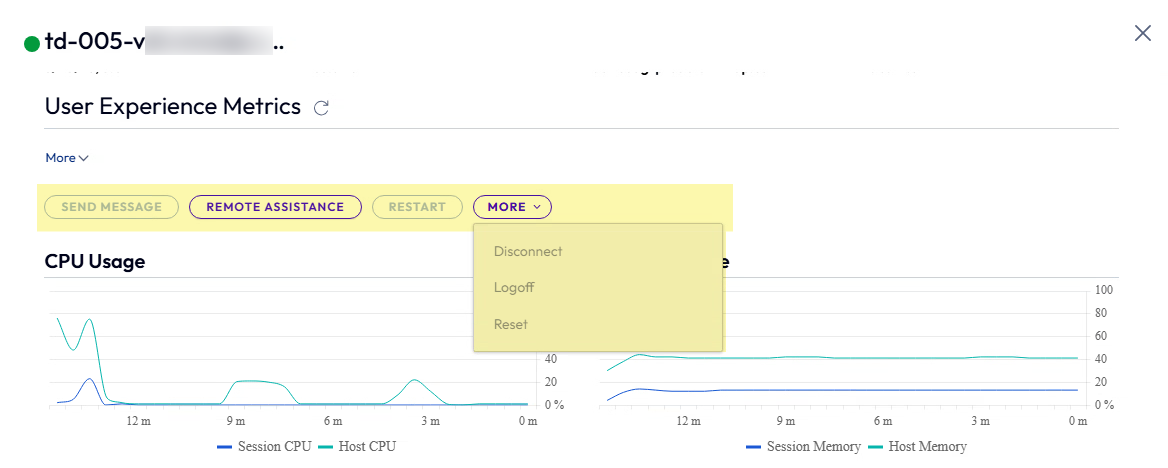
Back on the Details section, the Horizon Console also provides the ability to manage a session with commands Send Message, Remote Assistance, Restart, Disconnect, Logoff, and Reset. Note that TestDrive users have been provide a Read-Only role for the Horizon Console, so all buttons will be greyed out with the exception of Remote Assistance.
Remote Assistance Invitation File
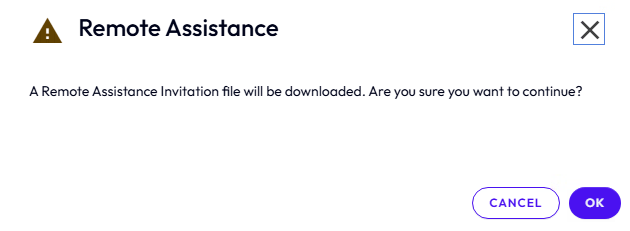
If there is a separate VDI session, repeat the steps above to bring up the Details of that session and click the Remote Assistance button which will prompt you to download the Remote Assistance Invitation file.
Open Remote Assistance Invitation File
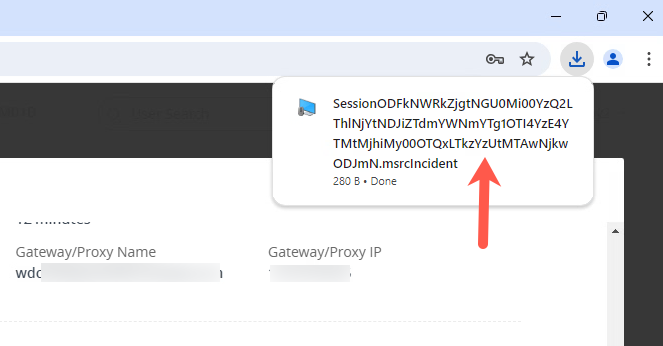
Click on the downloaded file to open it.
Remote Assistance Approval
There will be a prompt in the other user's session, asking them to allow the Remote Assistance. Have the user hit Yes.
Connected Remote Assistance Session
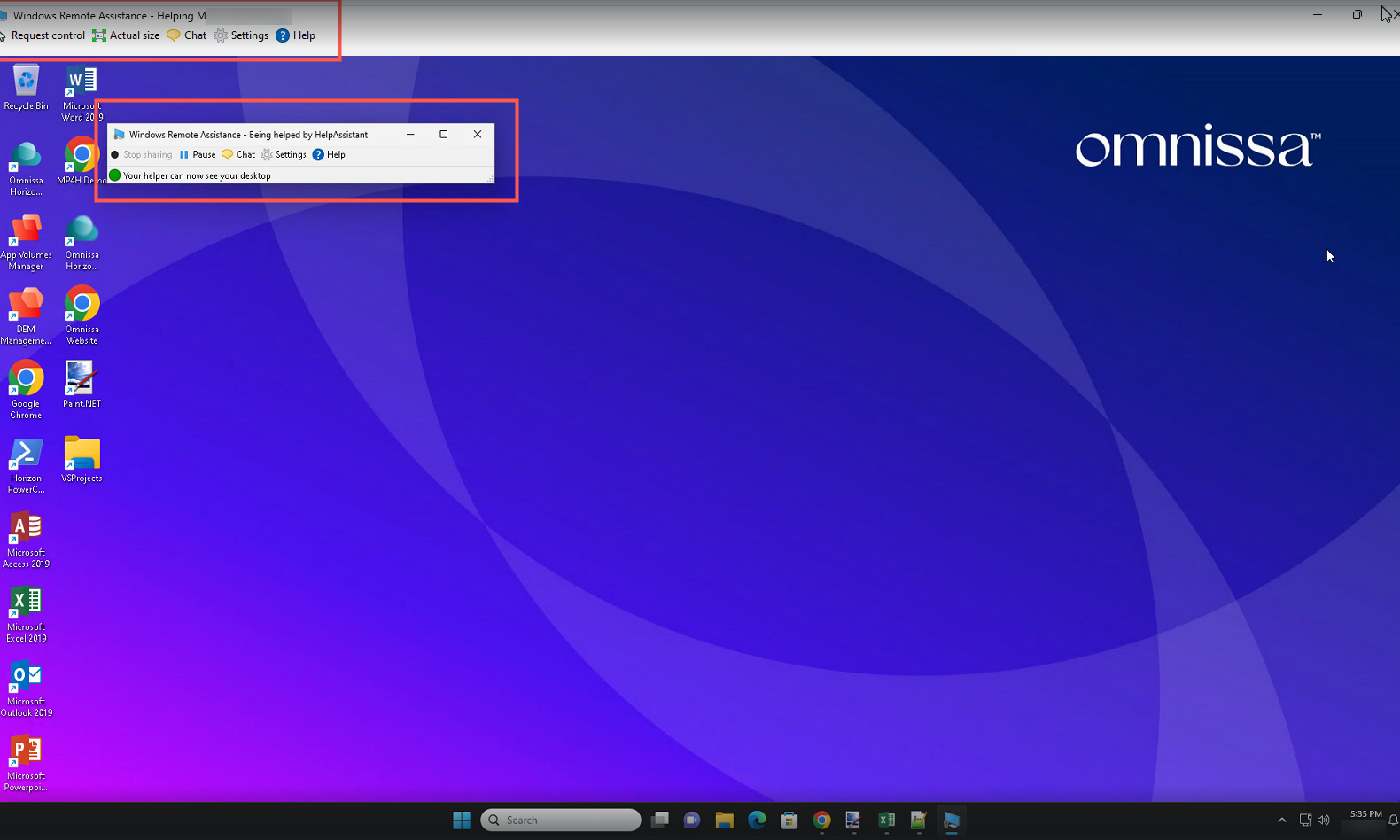
Their desktop session will now be visible to you and can try using the Windows Remote Assistance features such as "Request control" and "Chat".
This concludes the Horizon Help Desk Tool walkthrough.
More detailed info on the Horizon Help Desk Tool can be found in the Omnissa Horizon 8 documentation under the Using Horizon Help Desk Tool in Horizon Console section.