Home > DIY > Sandbox Experiences
Workspace ONE Access Sandbox Walkthrough
Sandbox Enablement
Sandbox enablement is available only to invited customers. If you’re considering enabling one for a customer, first review Essential TestDrive Sandbox Information.
In this quick walkthrough, we’re going to review how to access your own instance of Workspace ONE Access from TestDrive. In your Workspace ONE Access tenant, you will be able to make your own configurations and perform end to end testing.
Workspace ONE Access Sandbox Overview
The Workspace ONE platform is comprised of Workspace ONE Access and Workspace ONE UEM.
Workspace ONE Access is identity management for the mobile cloud era that delivers on consumer-simple expectations like one-touch access to nearly any app, from any device. Empower employees to get productive quickly with a self-service app store while giving IT a central place to manage user provisioning and access policy with enterprise-class directory integration, identity federation and user analytics. A few of the key features of Workspace ONE Access include:
- Self-Service Unified App Catalog- Now, employees can access all their applications regardless of type in one central app catalog across all their devices. This aggregates entitlements to applications, regardless of where those entitlements are managed and allows for provisioning to be user activated or automatic. The app catalog includes applications brokered through Workspace ONE UEM from the Google, Microsoft or Apple app stores, remotely hosted Windows apps entitled through Horizon or Horizon Air, remote Citrix apps, internal web apps, packaged Windows apps and more.
- Enterprise Single Sign On - Enable your employees to launch directly into the apps they need without requiring multiple sets of credentials or needing to continuously authenticate. Through Workspace ONE Access and Workspace ONE UEM a seamless Single Sign-On (SSO) experience can be achieved for web, mobile, SaaS, and legacy applications.
- Conditional Access Policies- Apply conditional access policies, denying or allowing access to individual apps, by user security group, network, and authentication strength.
Important
- A Workspace ONE Access sandbox is your own, personal tenant.
- Your tenant will get deleted when your TestDrive account expires.
- The tenant is not convertible to production.
- The ability to simply reset a tenant is not readily available.
Before You Begin
You must be an invited customer of an Omnissa employee or partner and have completed TestDrive registration. Click here for 'getting started' information.
Enable an Access Sandbox
After completing TestDrive registration, a sandbox is enabled inside the TestDrive portal in DIY → Sandboxes.
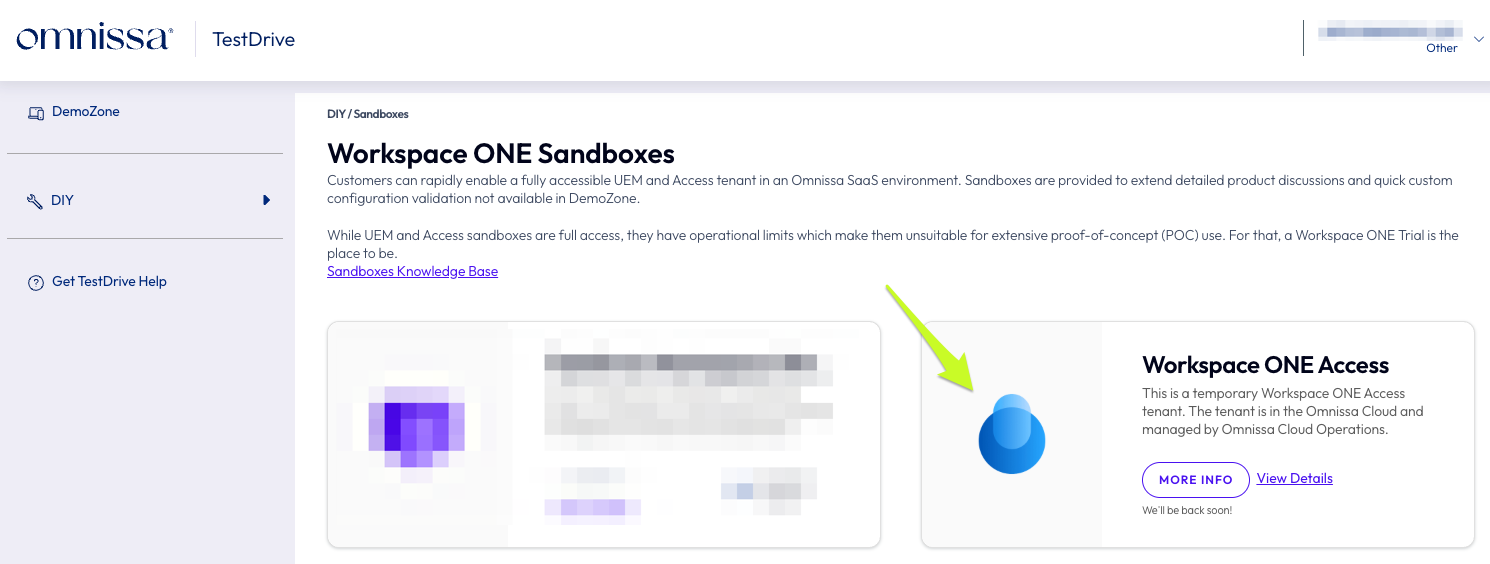
To enable the sandbox, use the available toggle feature. Upon enablement, you'll be prompted to review the TestDrive Sandbox Terms of Use. You need to accept them to proceed.
TestDrive will then (1) provision the tenant and (2) create a basic admin account in the tenant. You'll know the sandbox is ready when tile's state changes.
Drill into the tile to display the sandbox URL and your credentials.
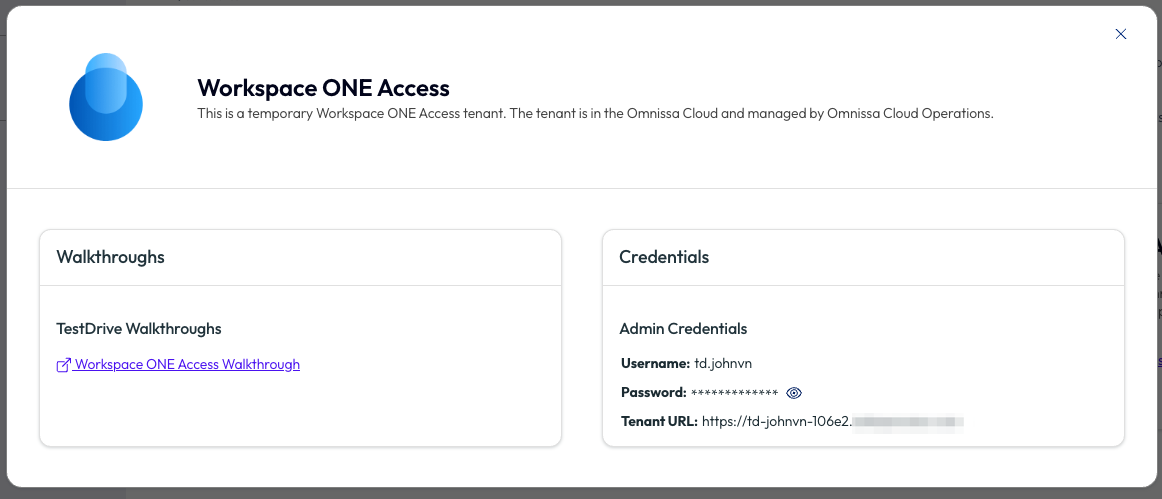
Launch the Access sandbox using the 'launch' function on the main tile.
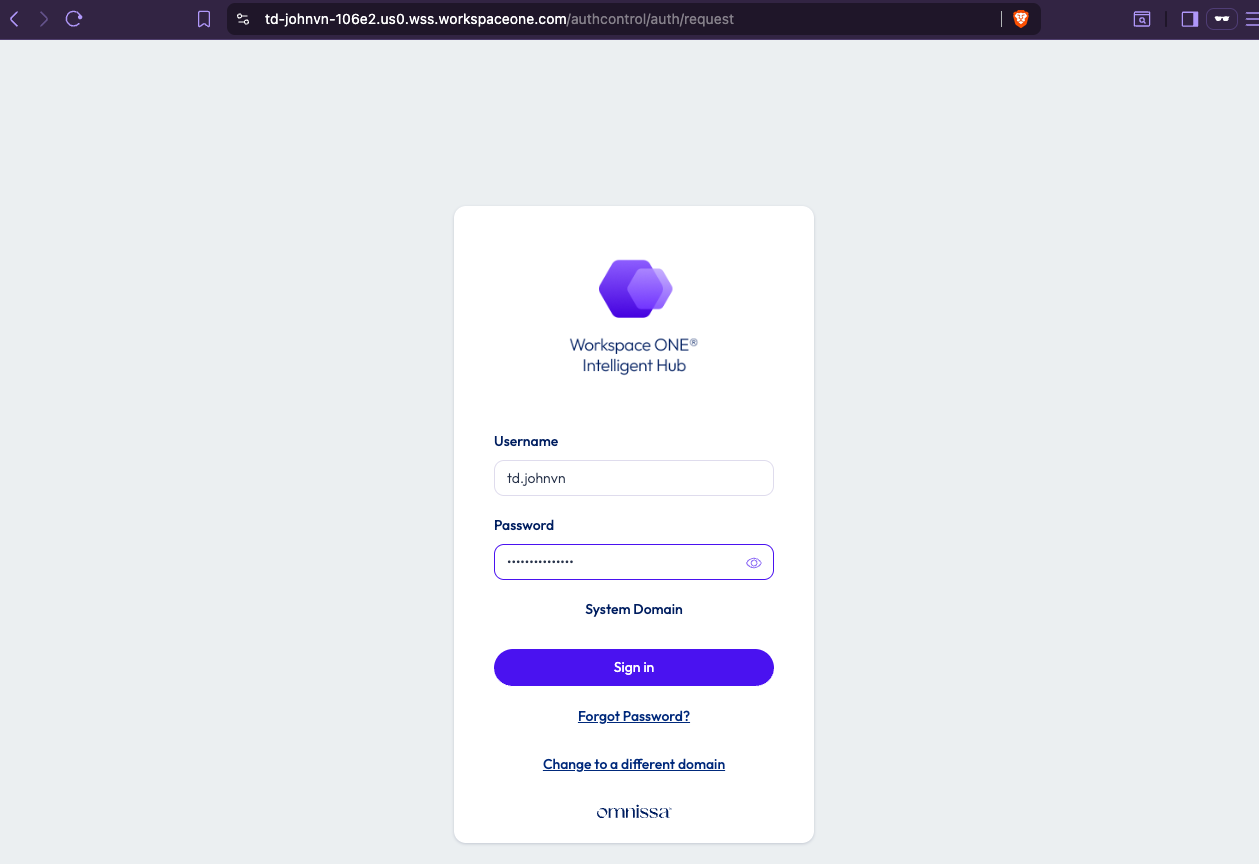
Log in using the provided Access sandbox credentials.
After logging in you'll see the Dashboard view. Note that your Dashboard view only contains data pertaining to your provisioned user. No other users, integrations, or resources have been configured. The sandbox tenant is a blank tenant where you have full admin access.
Use the top menu bar containing monitor, accounts, resources, integrations, and settings to navigate between the key areas of Workspace ONE Access administration
At this point, refer to Workspace ONE Access product documentation to configure the tenant.
Reset Password
Navigate to the Workspace ONE Access User Portal and open the Tenant Admin dropdown and click Account.
Use the change password link to initiate the reset process.
For more information on the features of Workspace ONE Access, refer to the full product documentation in docs.omnissa.com.