Home > DIY > Proving Ground Guides
The Proving Ground Guide
This document is the essential Proving Ground overview and setup guide. It includes the details on what a PG is, who can have one, how to request it, how to onboard it, access it, and manage it.
Overview
The Proving Ground (PG, formerly known as a DWPG) is intended to provide Omnissa's valued partner organizations with a single lasting testing and demonstration environment for Omnissa Workspace ONE and Horizon Cloud Service SaaS products.
What is a Proving Ground?
For active partners, employees, and Tech Insiders, a PG is a long-lived environment for Workspace ONE and Horizon Cloud services. It does not expire, has no built-in usage restrictions, and runs generally available (GA) code with enterprise-level entitlements.
Every PG is provisioned with the following fully functional, full-access products:
- Omnissa Intelligence
- Experience Management
- Freestyle Orchestrator
- Omnissa Workspace ONE UEM with Workspace ONE Assist
- Omnissa Access Cloud
- Omnissa Workspace ONE Hub Services
- Omnissa Horizon Cloud Service - Next-Gen
- Omnissa Identity Service
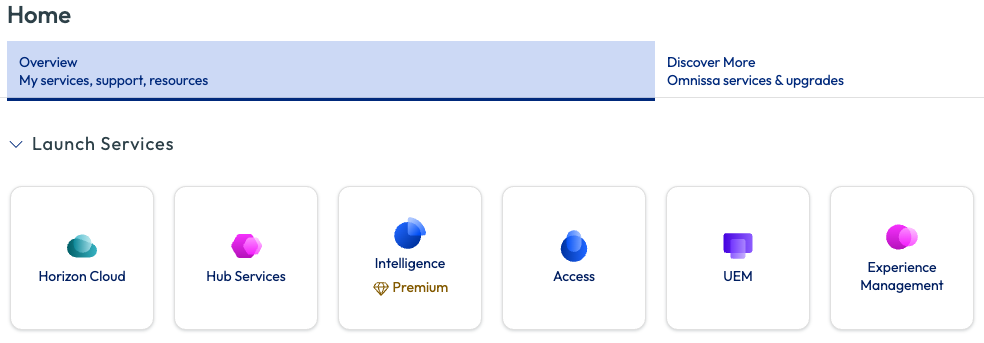
Notes on Provisioned Services
- Horizon Cloud Service consists of the Control Plane and the Universal Console. You need your own Capacity Provider and pod.
- Workspace ONE Assist is integrated into UEM.
- Mobile Threat Defense is not currently available in a Proving Ground. However, if you require MTD, it can be added. Contact your Omnissa pre-sales representative for details.
TestDrive's Role
TestDrive authorizes and provisions PG requests, but it does not operate or administer the environment after setup. The production services run in Omnissa's cloud and are accessed through a dedicated Omnissa Connect organization. See TestDrive, Cloud Provisioning, and Omnissa Connect Architecture for a diagram showing how these components relate.
Prerequisites
- Eligibility: You are an active Omnissa partner employee, Omnissa employee, or Omnissa Tech Insider.
-
Omnissa Account: You have an Omnissa Account, which is required to own an Omnissa Connect organization. Requirements vary by user type:
User type Omnissa Account requirement Partner Must use your partner organization's email domain (no suffixes). Omnissa employee Must use your username@omnissa.com address. This account is separate from your federated corporate account. Review the SSO notes in step 4. Tech Insider You should already have one. Your email is validated as a Tech Insider at login. Don't have one? Create an Omnissa Account.
-
Knowledge: You are an advanced administrator of Workspace ONE and Horizon Cloud services, able to configure and troubleshoot them without guidance, and you know how to manage Omnissa Connect organizations. A PG is a full production environment, not a guided lab.
Proving Ground Setup
PG setup is a one-time procedure authorized by TestDrive and consists of two brief parts: request and onboarding. You first request a PG in TestDrive, and then subsequently onboard the environment into a new, dedicated Omnissa Connect organization. After onboarding is completed, the PG is managed and accessed through its dedicated Omnissa Connect organization.
Do not begin until you can complete the entire process uninterrupted. Finish both parts right away. Onboarding is the primary part and is time-sensitive. The complete process should take no more than a few minutes total.
PG Request
1. Request in the TestDrive portal → DIY → Proving Grounds
Partner Experience
Here is how it works. The initial partner user who requests the PG becomes the team's PG owner. After that, other partner users view details in the PG tile and can click the "email owner" button to send a preformatted email request to the listed owner. The owner invites them to the existing Omnissa Connect organization.
The owner manages team membership through the normal Omnissa Connect organization controls. TestDrive creates the PG, but it does not manage owners or members in an existing organization. The owner has the keys to the organization.
Log in to TestDrive then go to DIY → Proving Grounds. (Click here for TestDrive authentication information.)
- Review the Proving Ground tile's presented information.
- Locate “request access” on the tile.
- Click the switch to make the PG request.
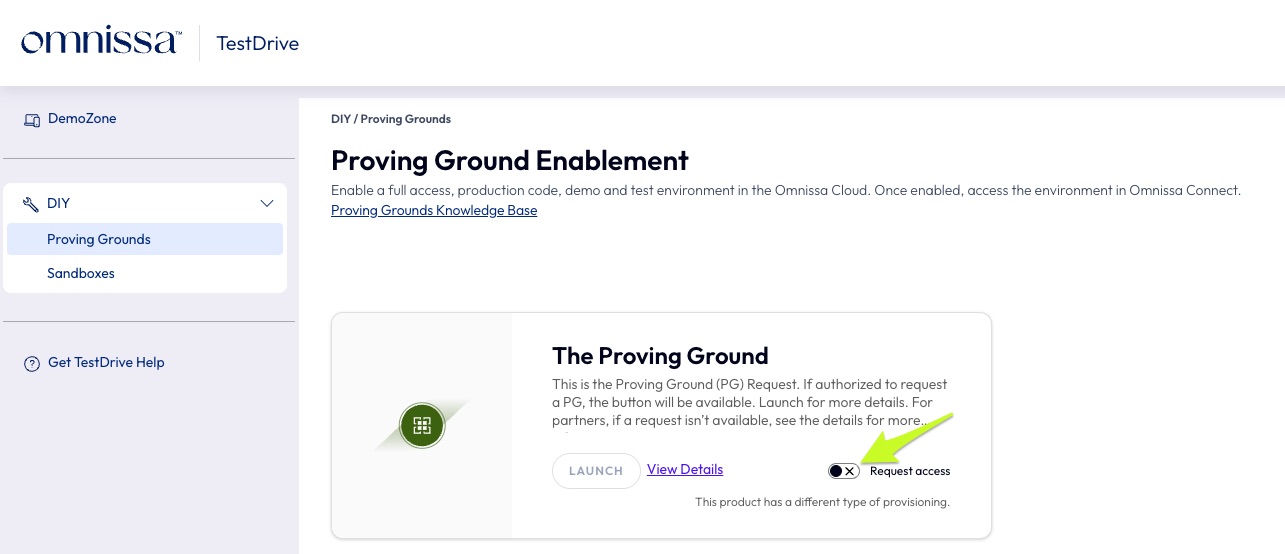
2. Review the Proving Ground Disclaimer
For TestDrive to provide the environment, you must accept the presented Proving Ground Disclaimer’s conditions (copy here) before you can proceed. Carefully read it. It contains important information about service support and the proper way to use a Proving Ground.
After a few moments, you should receive the invitation email. Please watch for it.
PG Onboarding
Critical: Create a New Omnissa Connect Organization
In the next few steps, you are setting up a new Omnissa Connect organization. The following is a standard, guided Omnissa Connect process; but is not one you'll likely be familiar with.
Take your time here and follow each step in order.
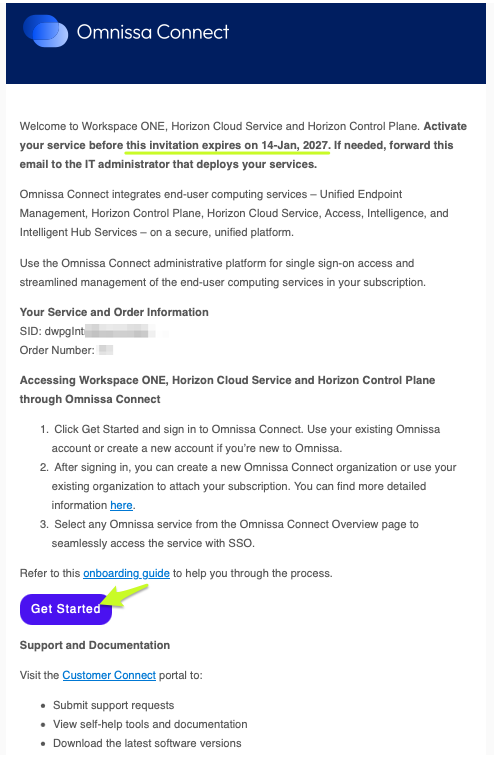
3. Find the invitation email and locate the "Get Started" link
Use the "Get Started" link to begin the Omnissa Connect onboarding flow.
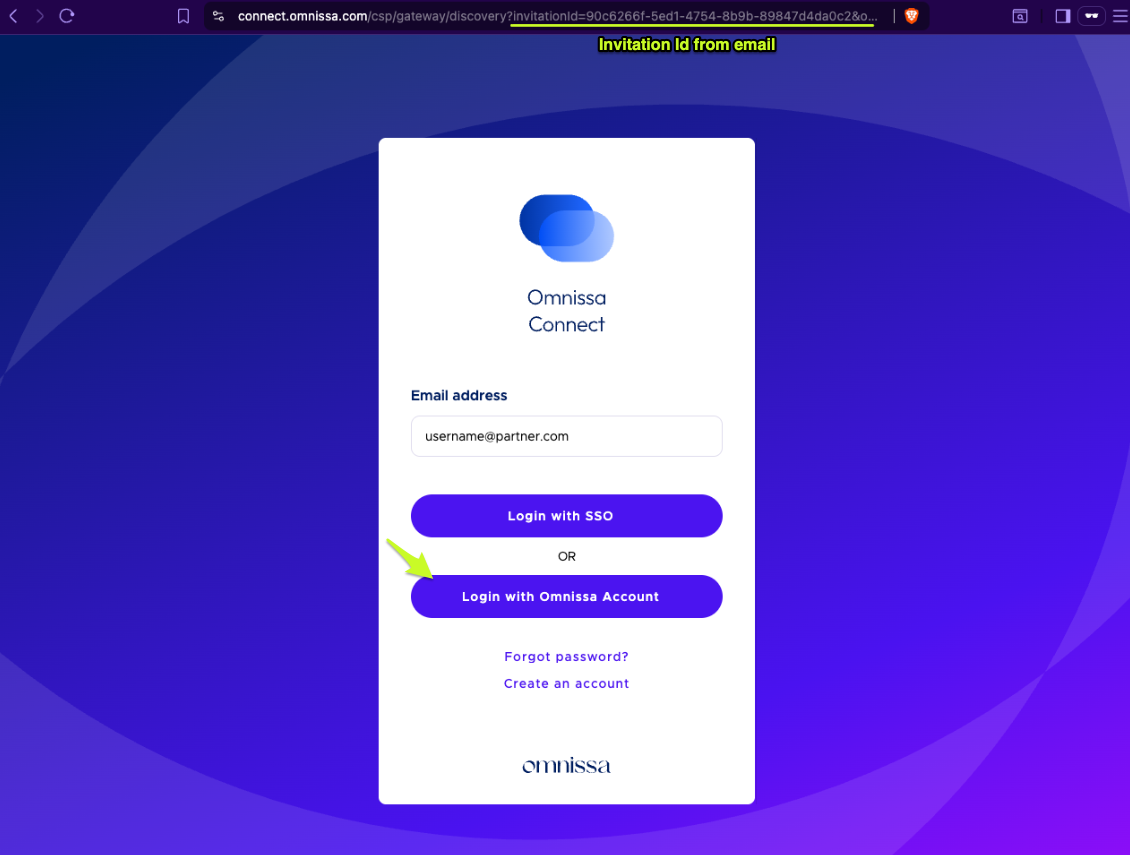
4. Log in to Omnissa Connect using the invitation link
You must sign in to Omnissa Connect through the invitation link to begin the onboarding flow. If you don't get the flow (step 5), restart from the original link in a private browser window (to eliminate browser autofill or cached data from interfering with invitation redemption).
To sign in, for most users, choose Log in with Omnissa Account. If your company uses a federated directory, choose SSO. SSO should fall back to Omnissa Account authentication if not federated.
Prompted to link your Omnissa Account?
Your Omnissa Account is a separate account from the authentication account and a core prerequisite here. If after Omnissa Connect SSO sign-in you're prompted to link your Omnissa Account, complete this step before onboarding.
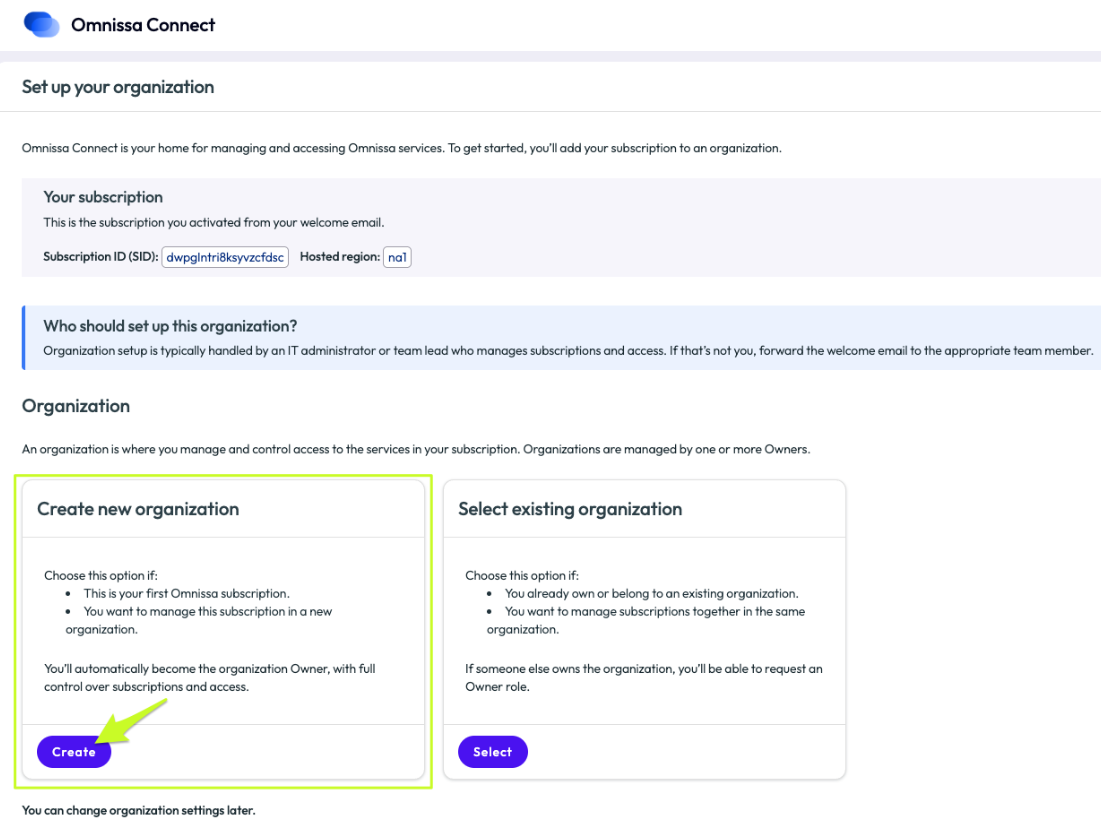
5. Create a new Omnissa Connect organization
DO NOT ADD TO AN EXISTING ORGANIZATION. Selecting an existing organization will break the onboarding flow. You must create a new organization.
Click "Create" on the "Create new organization" card.
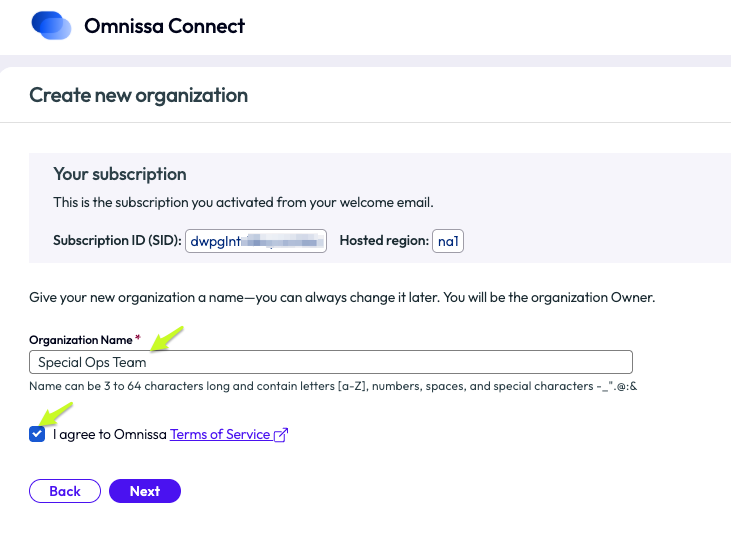
Next, give the organization a unique friendly name...agree to the Omnissa Terms of Service...and save.
6. Button up
You should land in Omnissa Connect at the organization level with a view like below. Pay attention to the notification bar at the top as the information will likely be relevant to your immediate experience.
Optionally, you can customize the Access URL now. You can do it later, but do it before the Access tenant is configured (details).
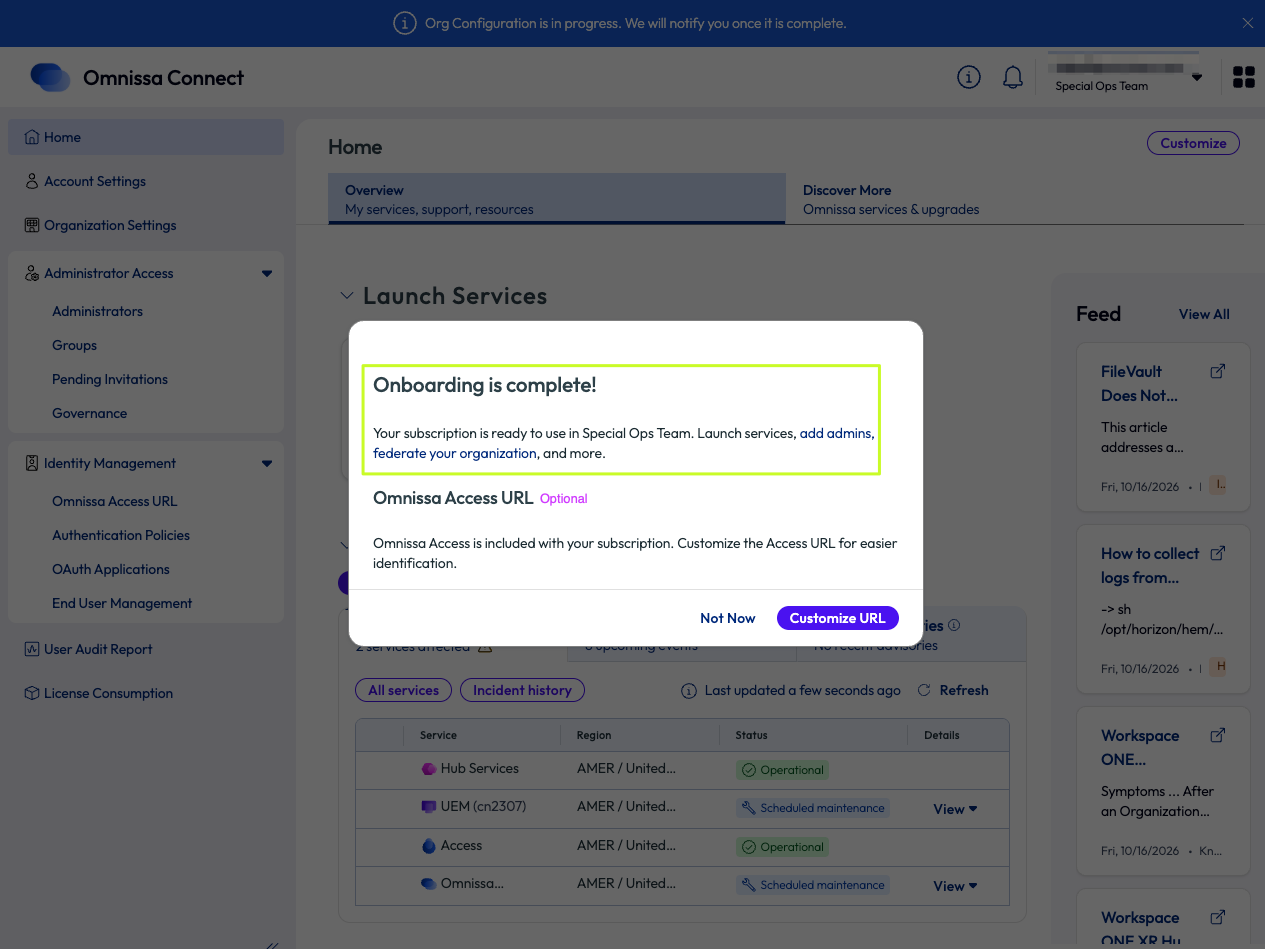
New PG Notes
- You'll see a Mobile Threat Defense (MTD) tile, but the MTD service itself isn't entitled yet for a PG. If you need it, contact your MTD pre-sales representative.
- Horizon Cloud Service may take a little longer to become available while setup finishes in the background. Once it is ready, on first launch select your region and agree to the Terms of Use.
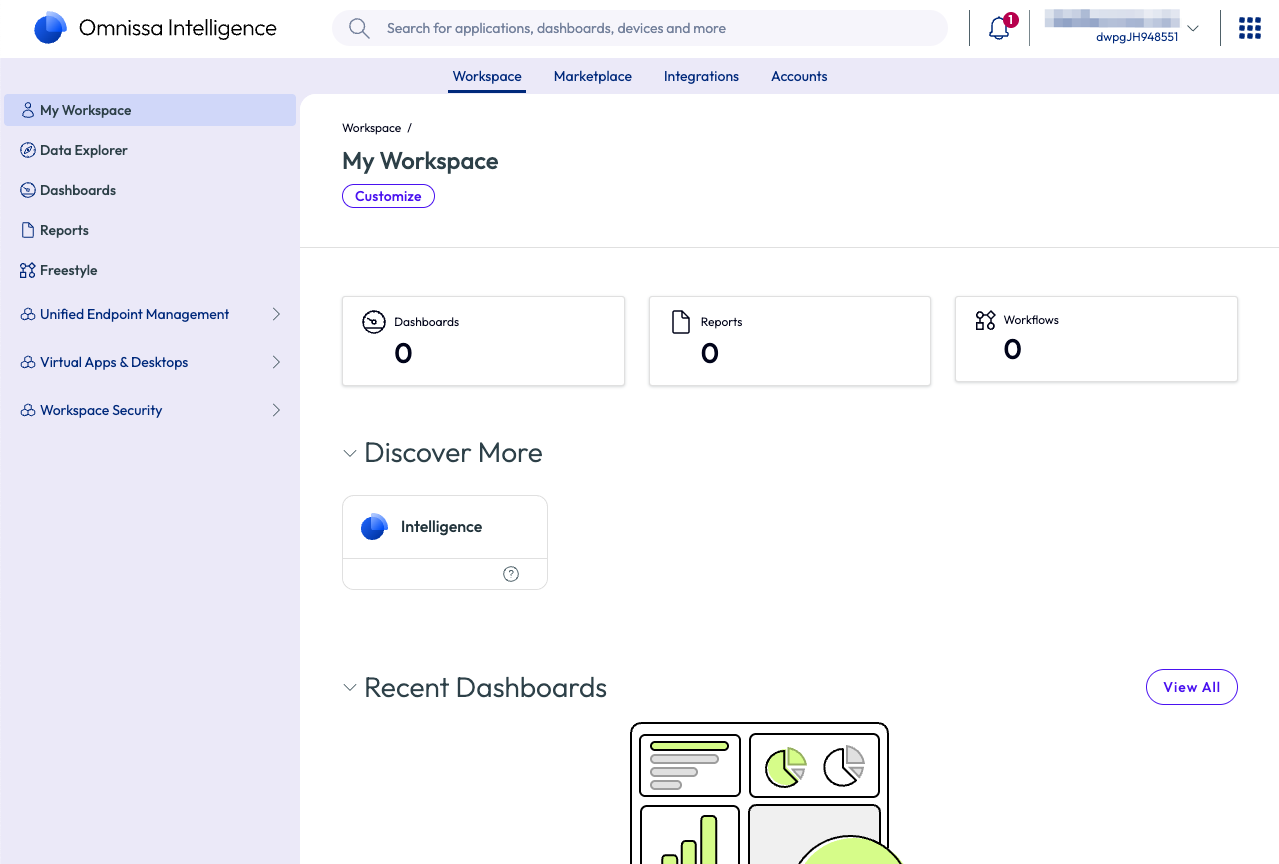
From Launch Services, click any service tile to enter that service. You'll be automatically signed in. For example, click the Intelligence tile to enter Intelligence.
Success After Onboarding
Protect your access and get the most from your Proving Ground. Before you begin, review these essential guides:
- Add a backup owner. You're the organization's only owner at first. Invite a trusted coworker to help maintain access. See Manage administrators in Omnissa Connect.
- Know where to get help. The Proving Ground Support guide explains support responsibilities and where to go for assistance.
- Understand the setup. The TestDrive, Cloud Provisioning, and Omnissa Connect Architecture guide shows how the components work together.