Home > TestDrive Fundamentals > TestDrive Portal Usage
TestDrive Authentication
This guide covers authentication into TestDrive and the various activities within.
Summary
- Omnissa Connect authenticates you into the TestDrive portal.
- Tiles contain specific demo account information.
- To rotate your demo user password, in the portal go to user settings (upper right) > profile.
TestDrive Portal Authentication
Omnissa Connect authenticates all users into the TestDrive portal. Begin Omnissa TestDrive sign-in at testdrive.omnissa.com. During sign-in, you’ll be validated as a permitted user, and you’ll be redirected to Omnissa Connect for authentication.
Omnissa Connect authentication is either with your Omnissa Account or SSO (if your organization is federated). You at least need to have an Omnissa Account. If federation is not set up, Omnissa Connect authentication will fall back to using an Omnissa Account.
If you can’t log in to TestDrive, you'll need to validate your Omnissa Connect login.
Get an Omnissa Account here.
Reset your Omnissa Account password here.
DemoZone
In DemoZone, formerly known as ready-to-use, most activities are supported by a enterprise hybrid cloud environment where users are authenticated by an Active Directory (AD) account, a.k.a. the “demo user account”.
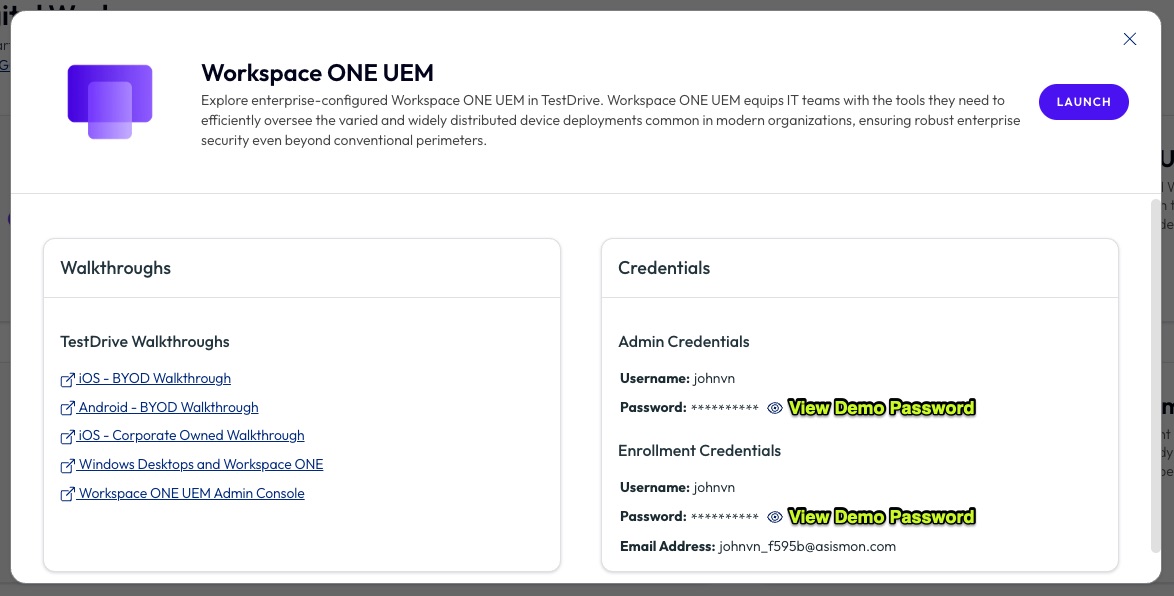
This demo user account has a unique password which is visible in a DemoZone activity tile under credentials. The demo user account password expires or rotates every 30 days for customers, based on customer account lifespan, and every 90 days for employees and partners.
Some DemoZone activities, such as ‘Experience Management’ and ‘Horizon Cloud Service’, have all or part of their access via Omnissa Connect.
View DemoZone Activity Credentials
To view a DemoZone demo password, drill into the activity and look in Credentials.
DemoZone activities ‘Experience Management’ and ‘Horizon Cloud Service’ are authenticated through Omnissa Connect and will specify this.
Change DemoZone Password
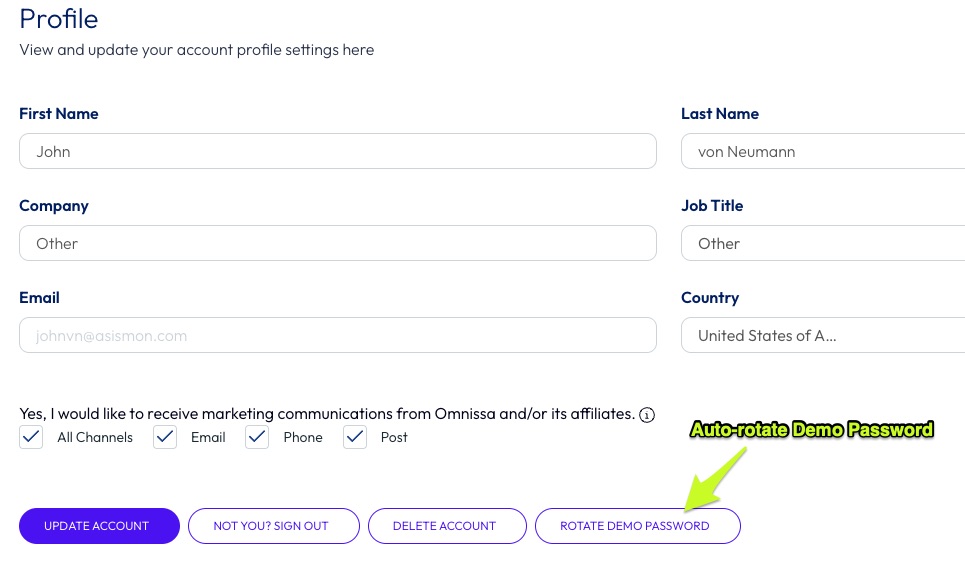
To update your TestDrive DemoZone “demo password”, go to User Settings (upper right) → View My Profile → Rotate Demo Password.
TestDrive will automatically update the demo password to a random one and sync it.
TestDrive DIY
DIY contains areas to spin up Omnissa services for building your own demo and test environments. User entitlements to the DIY sub areas are based on your relationship with Omnissa. The following notes describe differences in accessing the various sub environments.
Proving Grounds
An onboarded PG is accessed through Omnissa Connect, not the TestDrive portal. TestDrive's PG request lists the owner and Omnissa Connect organization information in the details.
Sandboxes
Your Access and UEM admin accounts are listed within each tile. See this sandbox guide.