Home > TestDrive Fundamentals > TestDrive Portal Usage
Omnissa Customer Invites & Extensions
Omnissa customers register for TestDrive through an invitation from either an Omnissa employee or Omnissa partner.
This guide provides instructions for both inviting customers as well as extending a customer's TestDrive account.
Requirements
To manage customers in Omnissa TestDrive:
- You need to be either an Omnissa employee or an Omnissa partner.
- You need to be registered to use TestDrive. Click here if you're not registered.
- You need an active Salesforce opportunity ID for the customer.
Salesforce Opportunity
Without a Salesforce opportunity ID, customers can still register, however instead of the account being active for 30 days (default), a 5-day activation period is set. An opportunity ID can be added later to extend the account.
Invite a Customer
TestDrive Customer Registration Summary
- An Omnissa employee or partner sends the customer an email invitation using Invite User in DemoZone > Manage Users.
- The customer selects the registration link in the email and starts the TestDrive registration flow, including creation of an Omnissa Account (OA).
- After OA creation and authentication, the customer is passed back to TestDrive, accepts the TestDrive Terms of Use, and completes account creation.
To begin, log in to the TestDrive portal: testdrive.omnissa.com.
Go to DemoZone > Manage Users.
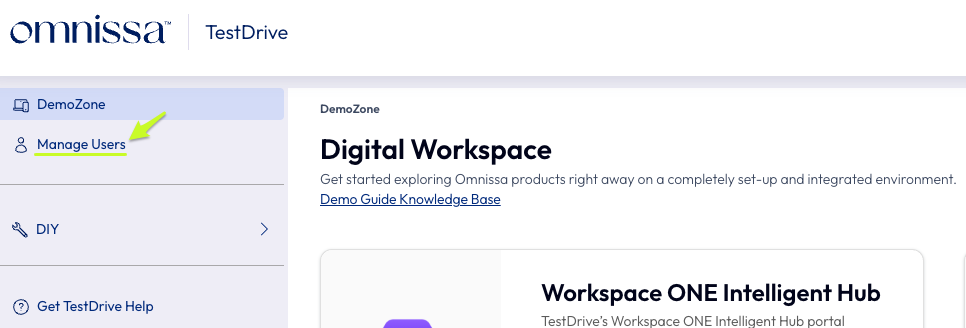
In Manage Users > Invite User.

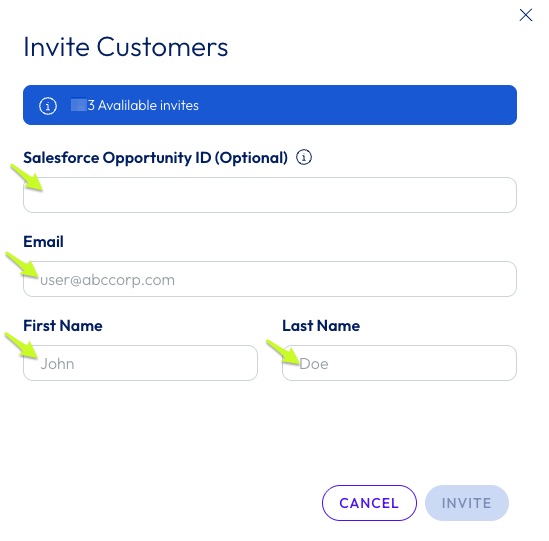
Enter the customer’s:
- Salesforce Opportunity ID (see below)
- Organizational email address
[Public domains, like gmail.com, are not supported for customers.] - First name
- Last name
Locate Salesforce Opportunity ID
Omnissa Partner Instructions
- Sign in to Partner Connect.
- Select Opportunity Registration on the top menu bar.
On this page you will see a "Manage Your Opportunities" button. Go here to search for the opportunity.
Each opportunity has a ORTN number. Enter the ORTN number into the "Salesforce Deal Registration ID" field within the TestDrive portal. Use the format ORTN-#######. - Enter the user's info and click Next. If you try to submit the form without providing a valid SFDC ID, you'll get a warning dialog.
- Continue with the registration and enter a username for the users along with job title, region, and industry segment.
- Next, you can pick and choose which products and integrations you want your customer to have access to.
If Display to user is checked ON the user will be able to view the service and turn it on if it is not already turned on.
If Display to user is OFF the user will not see it in the products page.
If Start Enabled is ON, the service will automatically be turned on for the user before they login for the first time.
If Start Enabled is OFF, the user will not see the service and will not be able to turn it on either. - On a successful submission, you'll get a 'Invitation successfully sent' message.
Omnissa Employee Instructions
- Go to Omnissa's Workspace ONE and launch Salesforce.
- Locate the opportunity.
-
Enter the Opportunity ID into the "Salesforce Deal Registration ID" field.
After the customer accepts the invitation, they must complete their brief user profile form, and confirm their account.
Only after the account is confirmed by the user will it list as active in TestDrive.
You can invite a customer that does not have an active Salesforce opportunity, however the account will be active for five (5) days. You can keep the account active for the standard 30-day period by adding an opportunity ID during the 5-day time period.
Extend a Customer Account
By default a TestDrive account with a valid Salesforce Opportunity ID is valid for 30 days. Also, as noted, without a valid Opportunity ID a TestDrive account is limited to 5 days.
After the customer has completed registration, you can extend their account to a maximum of 60 days with a valid Salesforce Opportunity ID (employees) or Advantage+ ID (partners).
To extend a customer account’s activation period, go to Manage Users > find your user> click the user menu > Extended Period.
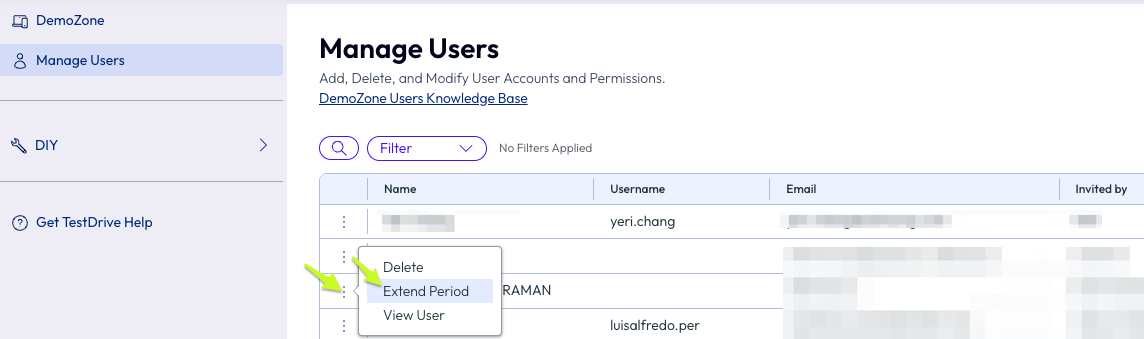
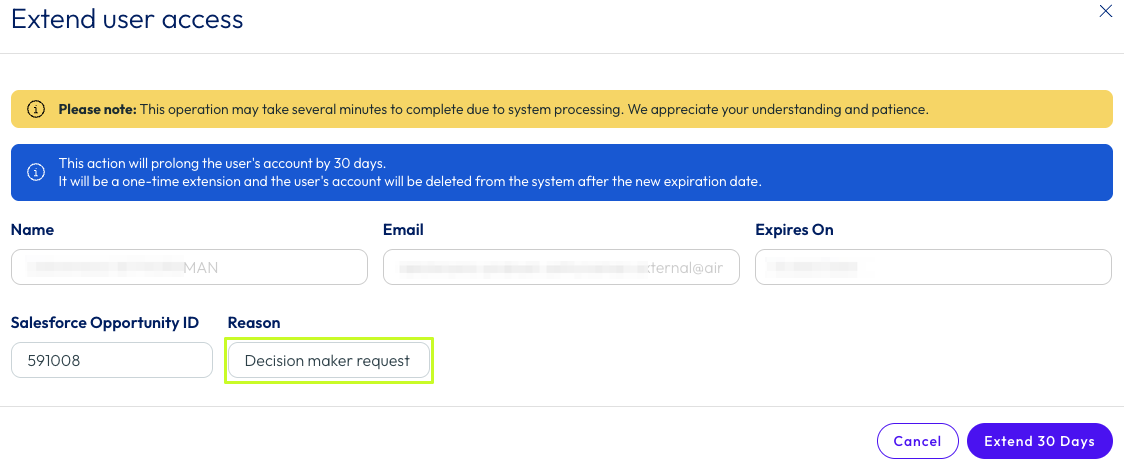
The user’s contact fields, future expiration date, and Salesforce opportunity ID will be presented along with a “reason” field.
To proceed, provide a reason to extend the account record.
For special circumstances, a TestDrive administrator can manually extend a TestDrive account. Send a support case with the reason for an extension beyond default limits.