Home > Demo Guides > Workspace ONE
Workspace ONE and Office 365 Walkthrough
In this walkthrough we're going show you how to activate Office 365 and access mail through Workspace ONE on your desktop.
Before You Begin
In order to complete this demo please make sure you have the following:
- A valid account in the Omnissa TestDrive environment, sign up here if you do not already have an account.
TestDrive Login
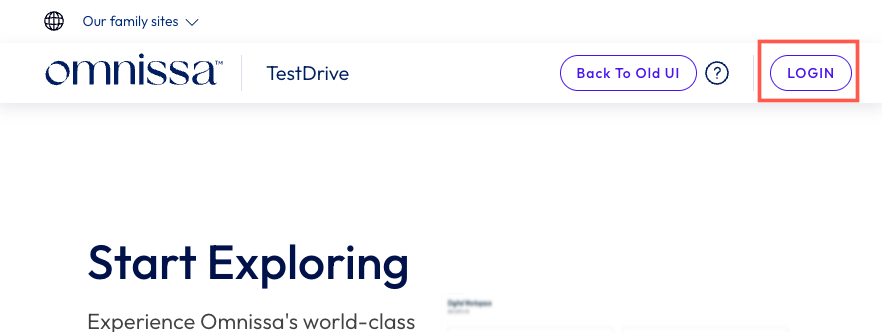
First, open your favorite browser and navigate to testdrive.omnissa.com. Click LOGIN.
Log into the TestDrive portal with your Omnissa Connect Account as prompted.
TestDrive Dashboard
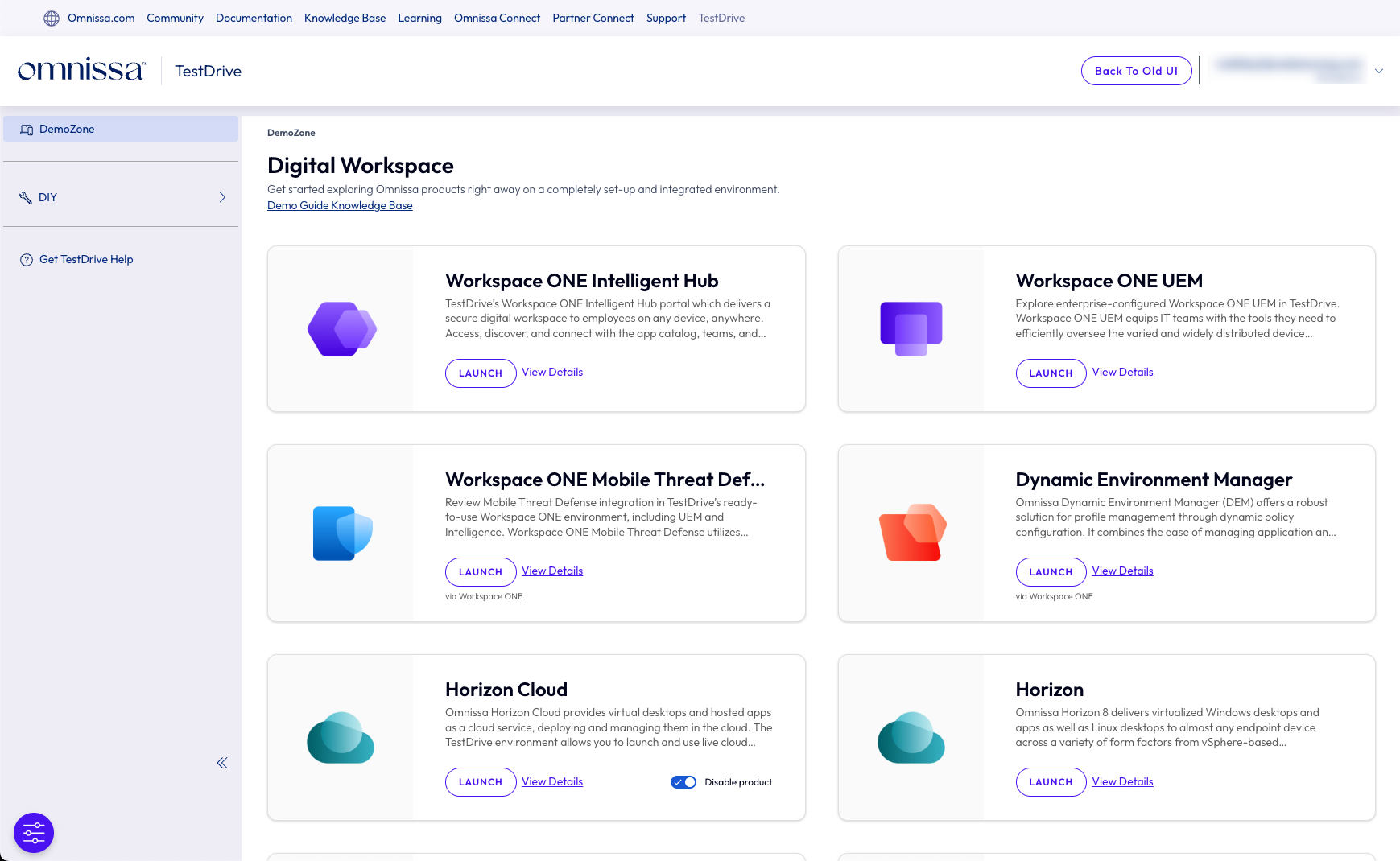
Now, you will land on the TestDrive DemoZone where you will see the Digital Workspace products.
Toggle Product to enable
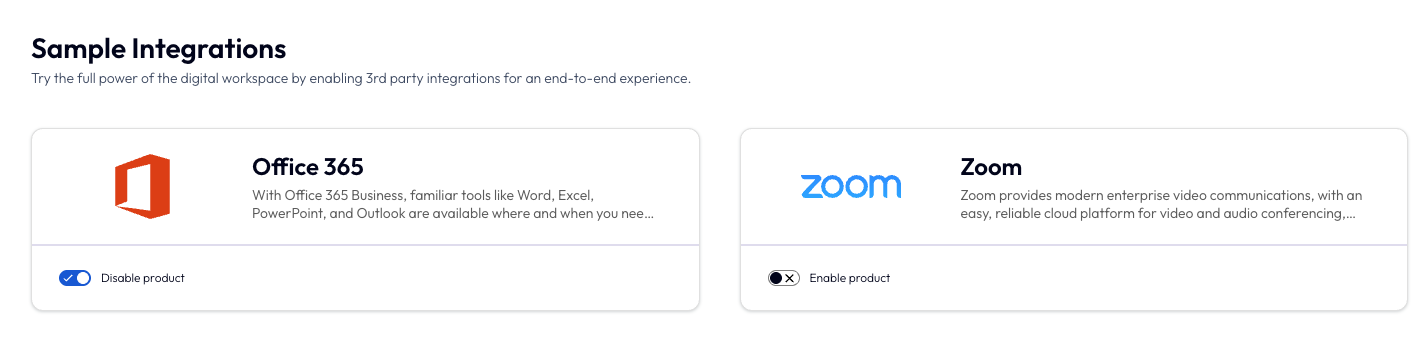
Scroll down to the Sample Integrations section, and toggle on Office 365 by clicking the Enable product slider. You'll see Office 365 change to "Provisioning" and after a few minutes, the service will be enabled. After a few minutes do a manual refresh of the screen to see Office 365 is now turned on.
Office 365 Provisioning
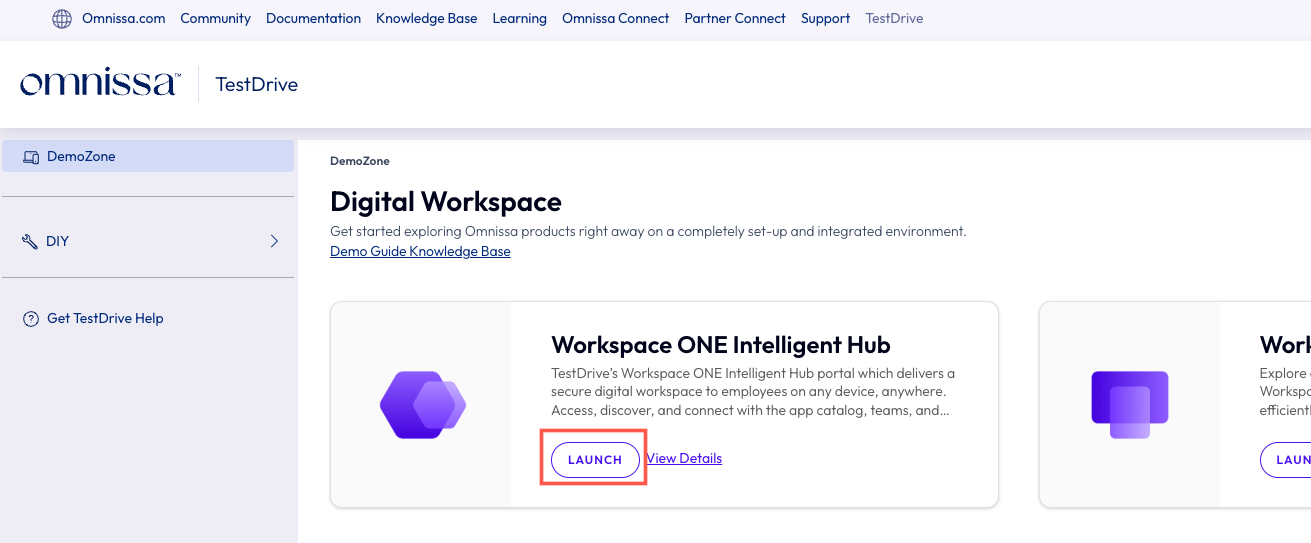
Next, locate Workspace ONE Intelligent Hub at the top of the DemoZone Digital Workspace section on the homepage and click Launch to launch into Workspace ONE.
Enter your Credentials
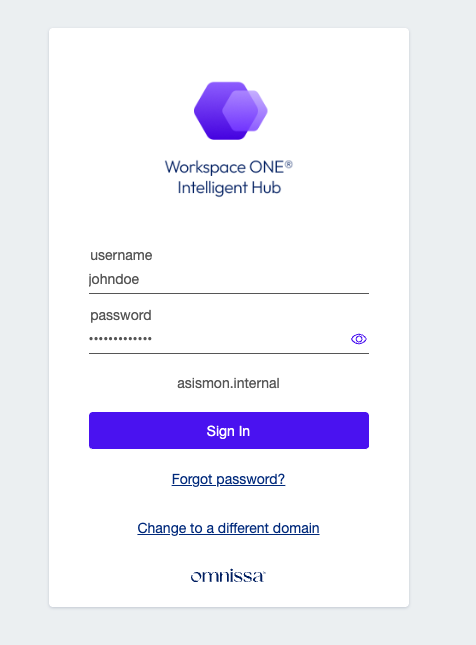
Enter your TestDrive username and password and click Sign In.
You can find your TestDrive credentials by clicking View Details in the Workspace ONE Intelligent Hub section of the TestDrive Portal.
Launch Office 365
In the Search Bar, type Office 365. Click the icon to SSO into the service.
Seamless Login
A new tab will open and your user will be seamlessly logged into the service.
Click Outlook
Next, click Outlook to view the Office 365 email associated with your account.