Home > Demo Guides > Workspace ONE
Audience
This this guide is intended for customers. It uses an Access sandbox.
Workspace ONE Access Console Walkthrough
In this walkthrough we're going to show you how to access the sample Workspace ONE Access Console availble in an Access sandbox. Customers enable a sandbox in the TestDrive portal > DIY > Sandboxes.
Before you Begin
In order to complete this demo please make sure you have the following:
- A valid account in the Omnissa TestDrive environment, sign up here.
- Access to DIY > Sandboxes in the TestDrive portal.
Workspace ONE Access Overview
Workspace ONE Access is identity management for the mobile cloud era that delivers on consumer-simple expectations like one-touch access to nearly any app, from any device, optimized with Workspace ONE UEM Conditional Access. Empower employees to get productive quickly with a self-service app store while giving IT a central place to manage user provisioning and access policy with enterprise-class directory integration, identity federation and user analytics. A few of the key features of Workspace ONE Access include:
- Self-Service Unified App Catalog- Now, employees can access all their applications regardless of type in one central app catalog across all their devices. This aggregates entitlements to applications, regardless of where those entitlements are managed and allows for provisioning to be user activated or automatic. The app catalog includes applications brokered through Workspace ONE UEM from the Google, Microsoft or Apple app stores, remotely hosted Windows apps entitled through Horizon or Horizon Air, remote Citrix apps, internal web apps, packaged Windows apps and more.
- Enterprise Single Sign On - Enable your employees to launch directly into the apps they need without requiring multiple sets of credentials or needing to continuously authenticate. Through Access and UEM a seamless Single Sign-On (SSO) experience can be achieved for web, mobile, SaaS, and legacy applications.
- Conditional Access Policies- Apply conditional access policies, denying or allowing access to individual apps, by user security group, network, and authentication strength.
Section 1: Enable a Workspace ONE Access Sandbox
To get started, in TestDrive > DIY, enable the Access sandbox.
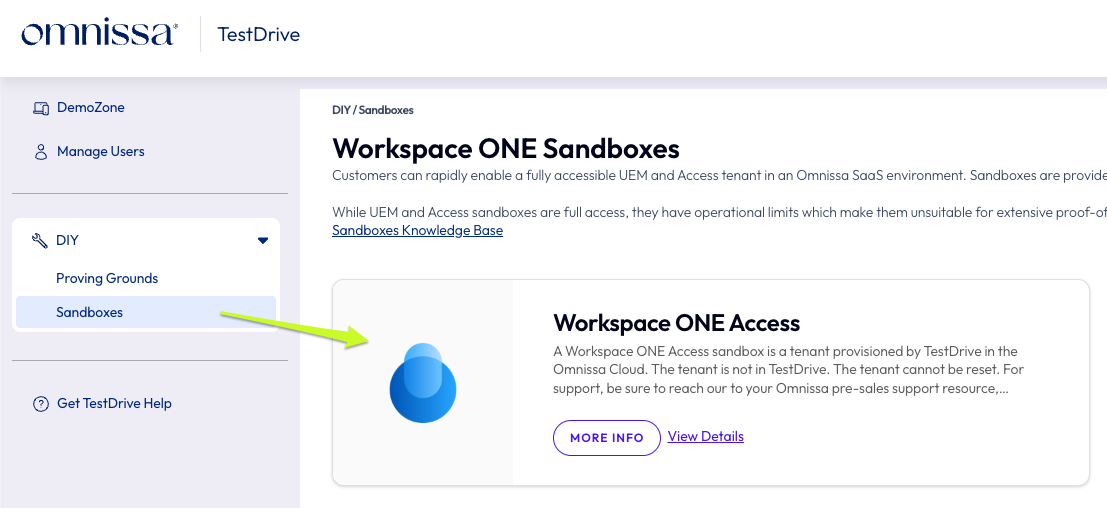
Wait a few moments for the sandbox to provision. When it's ready, the tile will indicate it's enabled by presenting a "launch" button on the tile and listing your dedicated credentials inside the tile.
Launch the sandbox and log in using your Access sandbox credentials.
Go to the console. In the upper right > your username's initials > Access Console.

Section 2: Console Feature Walkthrough
User and Group Management
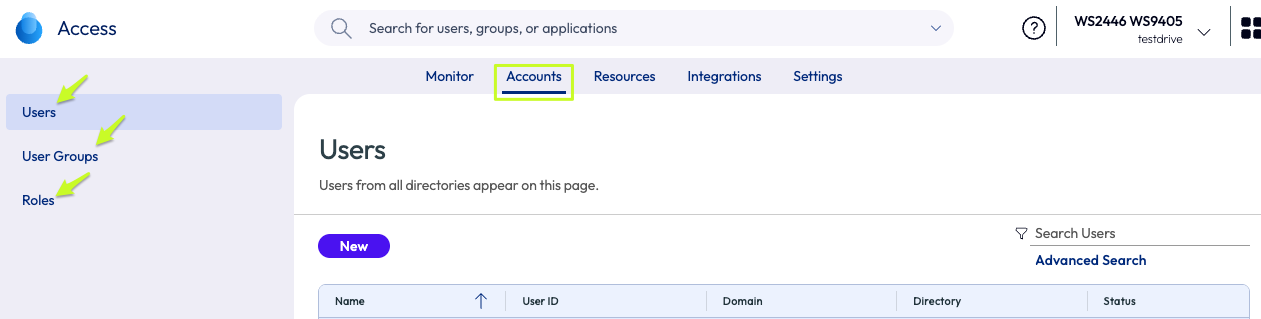
Use connectors to sync and manage users in Accounts. User and Groups typoically come from directories in the cloud or on-premises (Active Directory, Azure AD, LDAP, Okta, Ping, etc.).
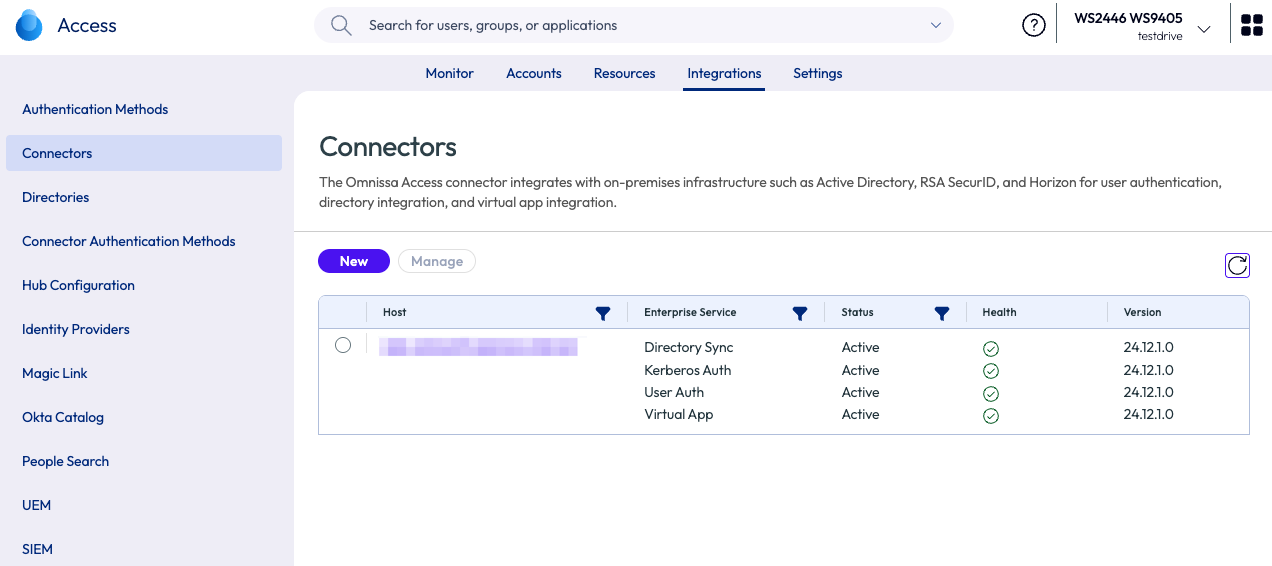
Integration and Connector Management
Set up and monitor connectors for directory sync, UEM integration, Horizon, and other services. Supports multi-site and clustered deployments.
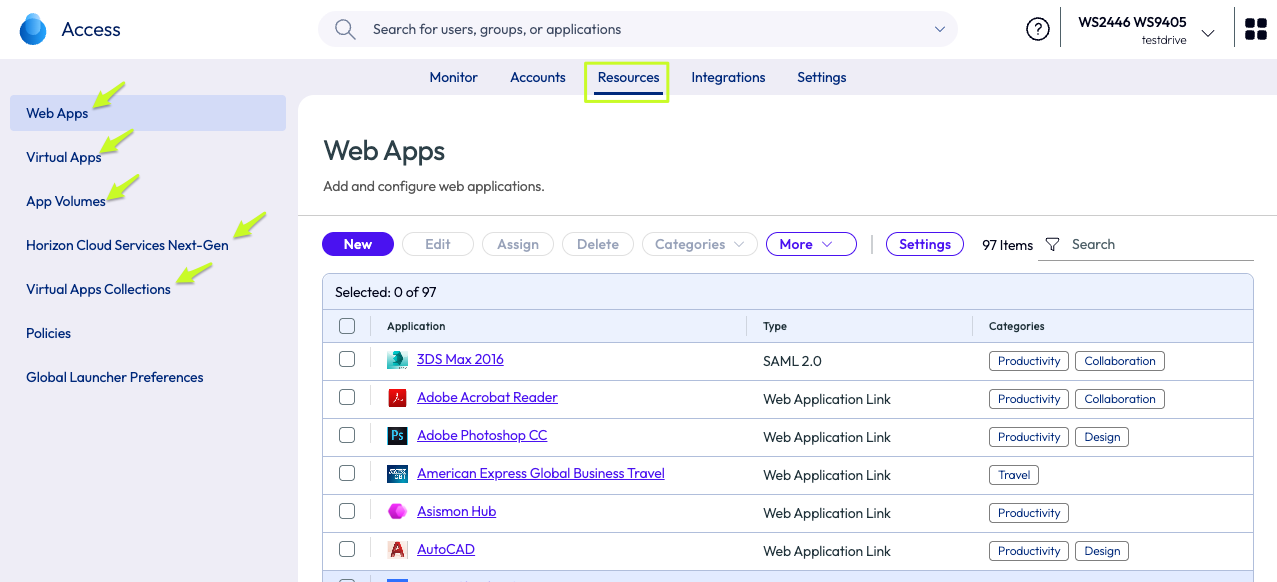
App Management
Add, organize, and entitle applications and resources in a unified catalog. This includes SaaS apps, web apps, native mobile apps, Windows/macOS apps, ThinApp packages, Horizon virtual desktops and apps, and Citrix resources.
Users access these via a self-service app store in the Intelligent Hub.
Authentication and Identity Management
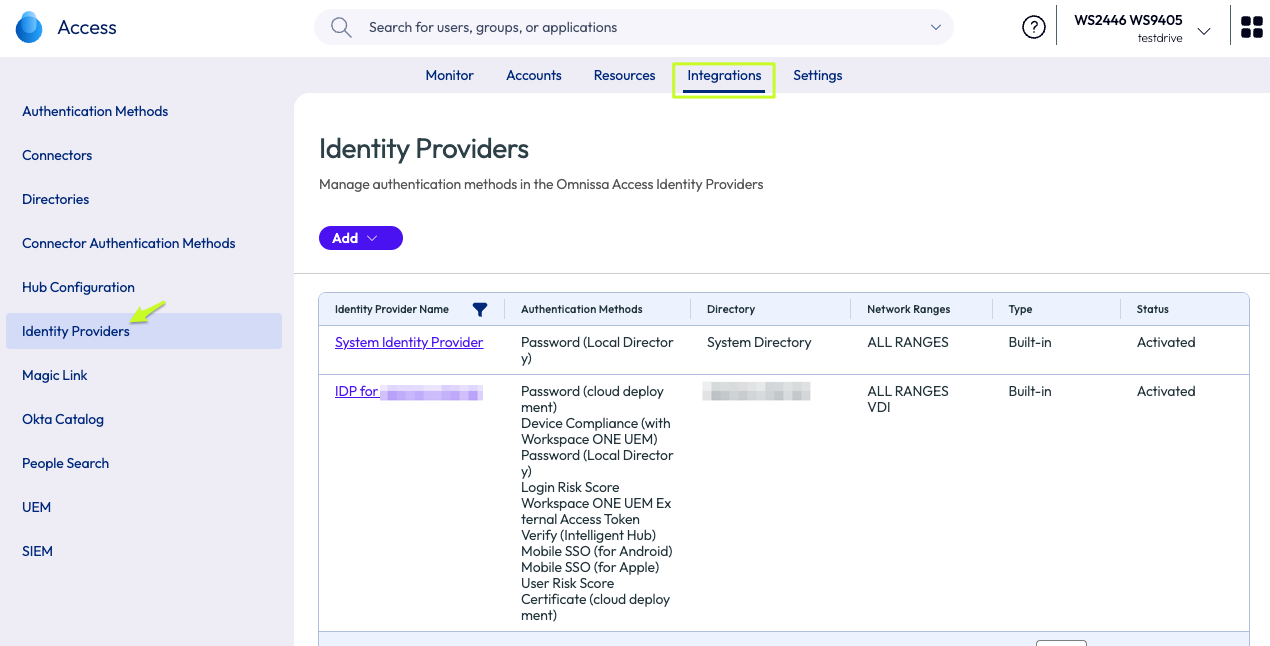
Configure the built-in Identity Provider (IdP), integrate with external IdPs, set up federated and Mobile SSO, multi-factor authentication (MFA), and passwordless options.
Access Policies and Conditional Access
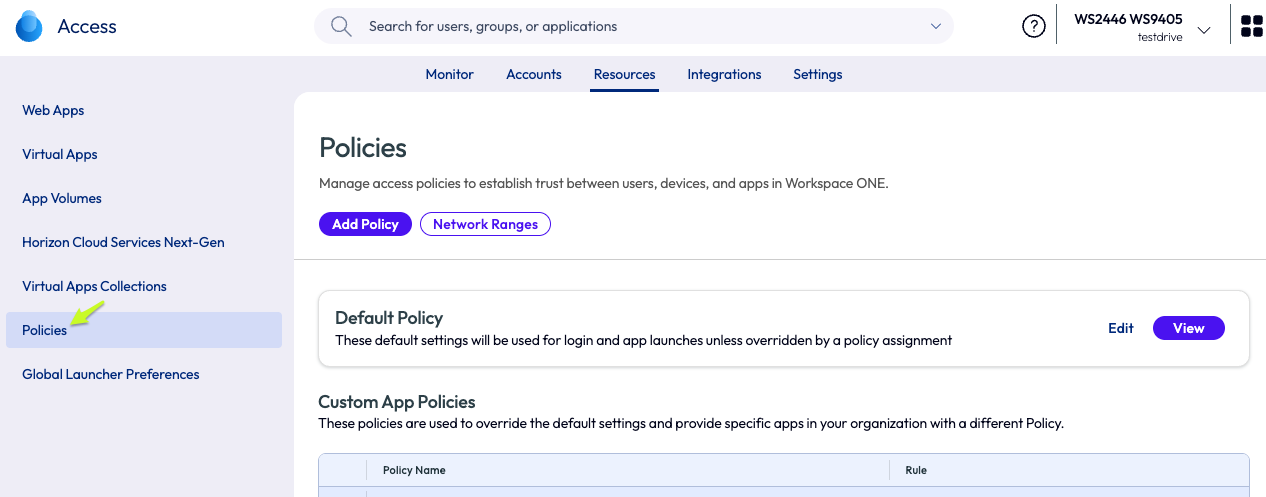
Create detailed policy rules based on user identity, device posture/compliance, network range, network location, risk scores, Active Directory groups, and more. This supports Zero Trust principles by enforcing context-aware access, e.g., only compliant devices can reach sensitive apps.
Monitoring and Analytics
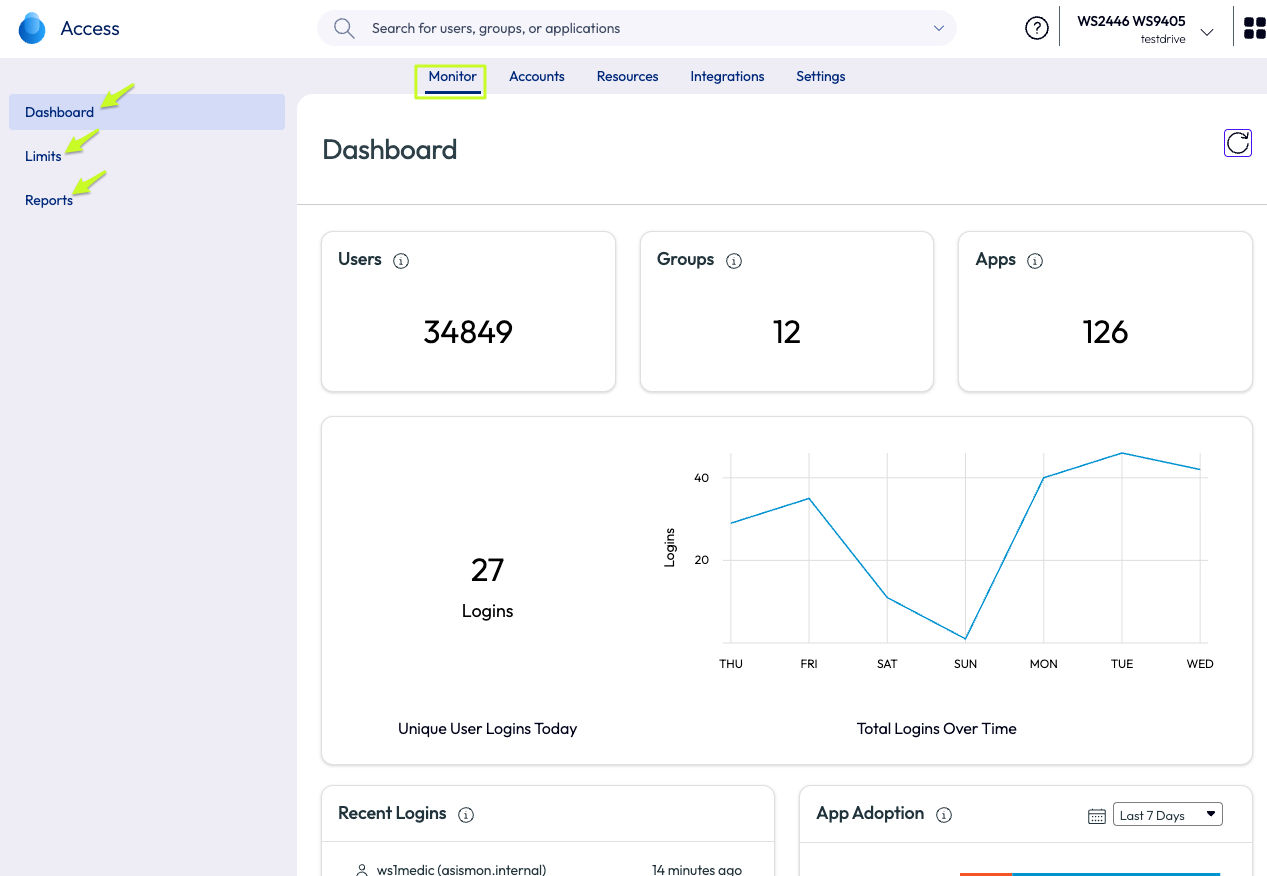
Monitor service health, connectors, and system status. Access the User Engagement Dashboard for usage analytics (per-user and per-app), device-level insights, audit events/logs, and exportable reports on administrative changes, app access, and security events.
Other Capabilities
Customization, branding, role-based access control (RBAC) for admins (including read-only roles), audit logging, and configuration of networking and tunneling policies.