Home > Demo Guides > Workspace ONE
Managing Linux Devices with Workspace ONE UEM
Use Workspace ONE UEM to manage and secure your enterprise Linux devices. With Workspace ONE UEM, you can build on the flexibility and ubiquity of Linux devices and manage them alongside your other enterprise devices in one central location.
This guide will walk you through enrolling and managing Linux in TestDrive's Workspace ONE UEM environment.
See this product guide for Workspace ONE UEM and Linux enrollment details.
Before You Begin
Before you begin, you need:
- A TestDrive account. See Getting Started.
- A Linux desktop device. A VM is recommended. This guide uses Ubuntu (Debian).
Enroll
An organization with a large Linux device fleet typically, i.e., IoT devices, would script for the command line Hub-based enrollment. TestDrive, however, supports the Linux web enrollment method.
On your Linux device, open Firefox and go to testdrive.awmdm.com/enroll.
| Enter Group ID: corp |
Next, at the Workspace ONE authentication prompt, enter your TestDrive credentials.
| Next, select your Linux Agent Install package. Here we chose the Deb Installer for Amd 64, since we’re using a Ubuntu machine. Consult the Linux enrollment guide for details. |
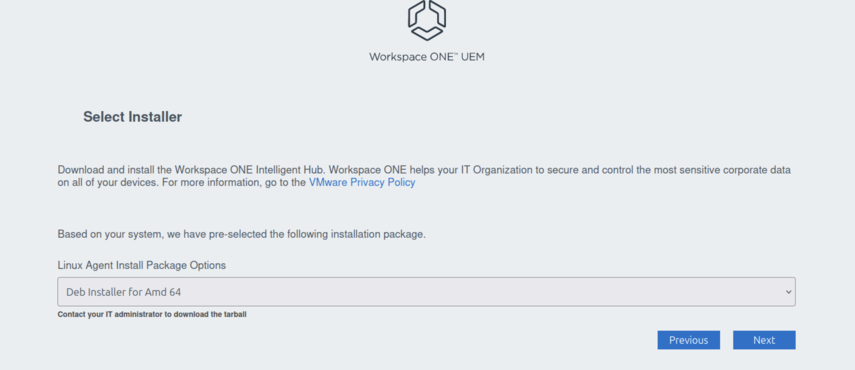 |
UEM will then build your Workspace ONE Intelligence Hub agent package and your browser will download it.
Verify the download has been completed. Then, close the browser.
You must close the browser for a cookie to be written that is used for enrollment.
On the device, open the terminal.
At this point use the Linux enrollment guide for details on terminal commands for your distribution.
Enter the sudo command to enroll your device.
After entering the command, prerequisites such as Ruby and Puppet are installed, Workspace ONE Intelligent Hub and ws1HubUtil are installed, and the device is enrolled into Workspace ONE UEM using the credentials entered in the wizard.
Managing Linux
After a successful enrollment, the Linux device will be listed in TestDrive's Workspace ONE UEM console.
Launch UEM from the TestDrive portal.
Go to Devices → List View. Your device record should be at the top of the list.
Drill into the device record.
Review the device details. Then go to Profiles.
A few profiles are set to demo.
Assist is deployed, but may not show up green. You can verify Assist is ready because the Remote Assist button is displayed.
Initiate the Manage Files command.
Your file manager should look like this.
Next, try the Remote Shell function. Your view should look like this.