Home > Demo Guides > Workspace ONE
Advanced Endpoint Security with Workspace ONE Mobile Threat Defense
Mobile platforms and their operating systems have proliferated in both public and private sectors. The Windows OS has even taken a back seat to their numbers. In turn, nefarious forces are targeting these mobile platforms to take advantage of potential vulnerabilities.
Deeply integrated with Workspace ONE, Workspace ONE Mobile Threat Defense, powered by Lookout's advanced mobile endpoint security technology, greatly enhances mobile device security by protecting from threats like phishing, root and jailbreak, malicious applications, malware, and many more device, application, and network originated threats.
Mobile Threat Defense (MTD) deeply integrates with the Workspace ONE platform including Workspace ONE UEM (UEM) and Omnissa Intelligence (Intelligence), making Mobile Threat Defense best-of-breed for deployment and management.
This guide outlines Workspace ONE Mobile Threat Defense demo flows available in TestDrive.
- Before You Begin
- Enroll Device
- Dual MTD Enrollment for Android Work and Personal
- MTD in the Hub
- MTD in the Consoles
- MTD in Action
- Android Riskware Triggered Demo
- iOS MitM Triggered Demo
- Phishing and Content Protection
- Mobile Threat Defense & Workspace ONE Integration
- More Info
Before You Begin
Before you begin you need:
- A Omnissa TestDrive account. See this guide for more information.
- TestDrive's ready-to-use (RTU) Workspace ONE UEM activity.
- An Android or iOS device.
Enroll Device
Talking Points
- By enrolling into Workspace ONE UEM, due to tight integration between Mobile Threat Defense and Workspace ONE, your device becomes fully managed in both Workspace ONE UEM and Workspace ONE Mobile Threat Defense.
- Mobile Threat Defense support is baked into the Workspace ONE Intelligent Hub app. No additional app is required*. Even Hub-registered mode supports Mobile Threat Defense (more details).
- Mobile Threat Defense is supported on iOS, Android, and Chrome OS.
Enroll your device in TestDrive's Workspace ONE UEM environment. For device enrollment details, click the appropriate header.
| Android Enrollment | iOS Enrollment |
|---|---|
| Download the Intelligent Hub from Google Play. Enroll using your TestDrive enrollment email address and TestDrive credentials. Enrollment OG: Enterprise - BYOD Demo |
Download the Intelligent Hub from the App Store. Enroll using your TestDrive enrollment email address and TestDrive credentials. Enrollment OG: Enterprise - Corporate Owned Demo |
Dual MTD Enrollment for Android Work and Personal
You can also protect the personal side of a work profile enrolled (or COPE) device.
While this need might seem odd at first, it's actually an important use case. Consider that many attacks come through text messages or personal email accounts, it's critical to also secure the personal side. With the Workspace ONE MTD solution, this level of protection is now possible.
Expand for dual MTD enrollment instructions
On your work-enrolled Android device, open the Hub > My devices > current device.
Under Mobile Threat Defense, select the option to “Enroll for Personal Profile”.
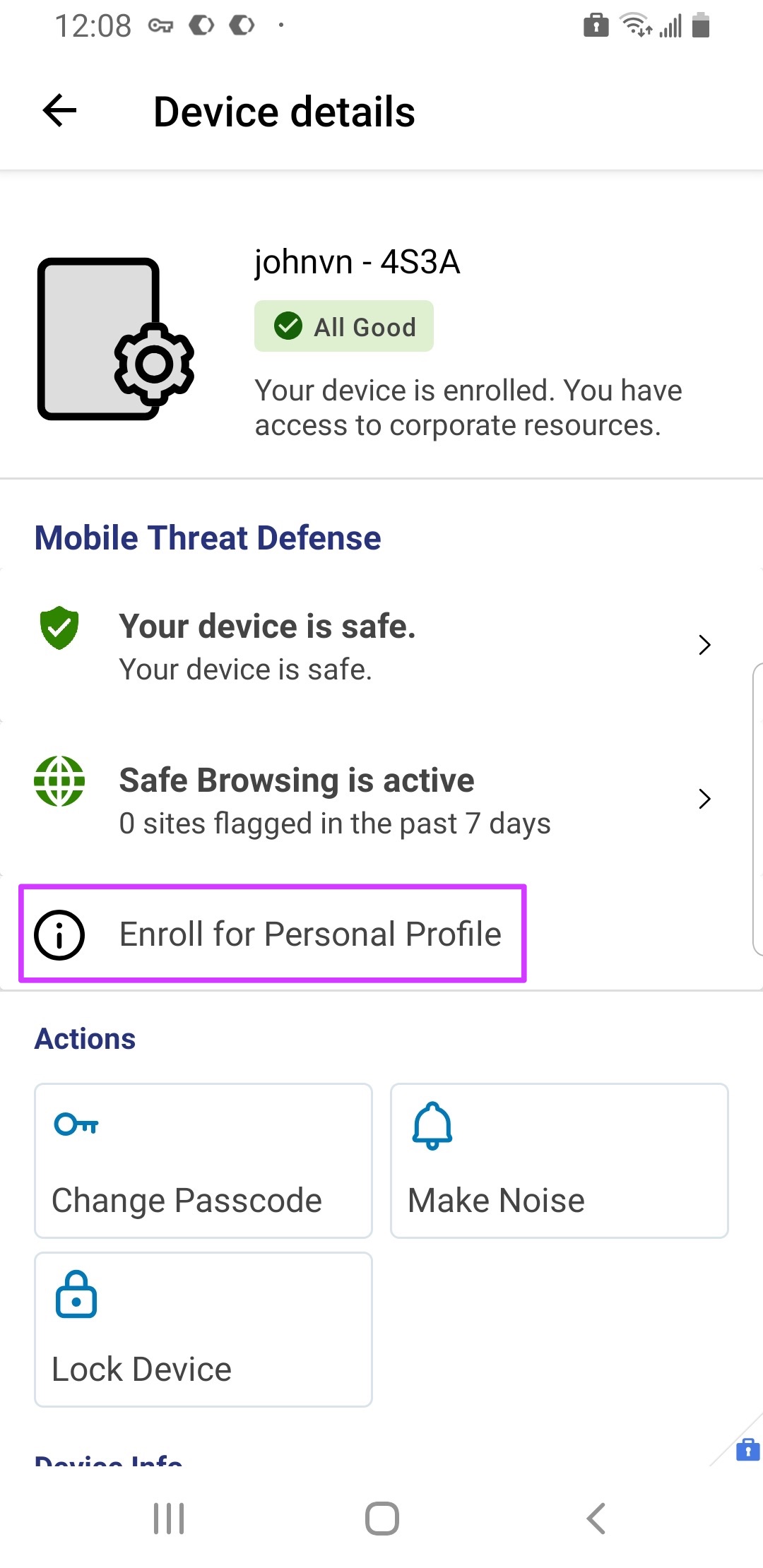
The Hub provides handy in-app instructions to enroll the personal profile.
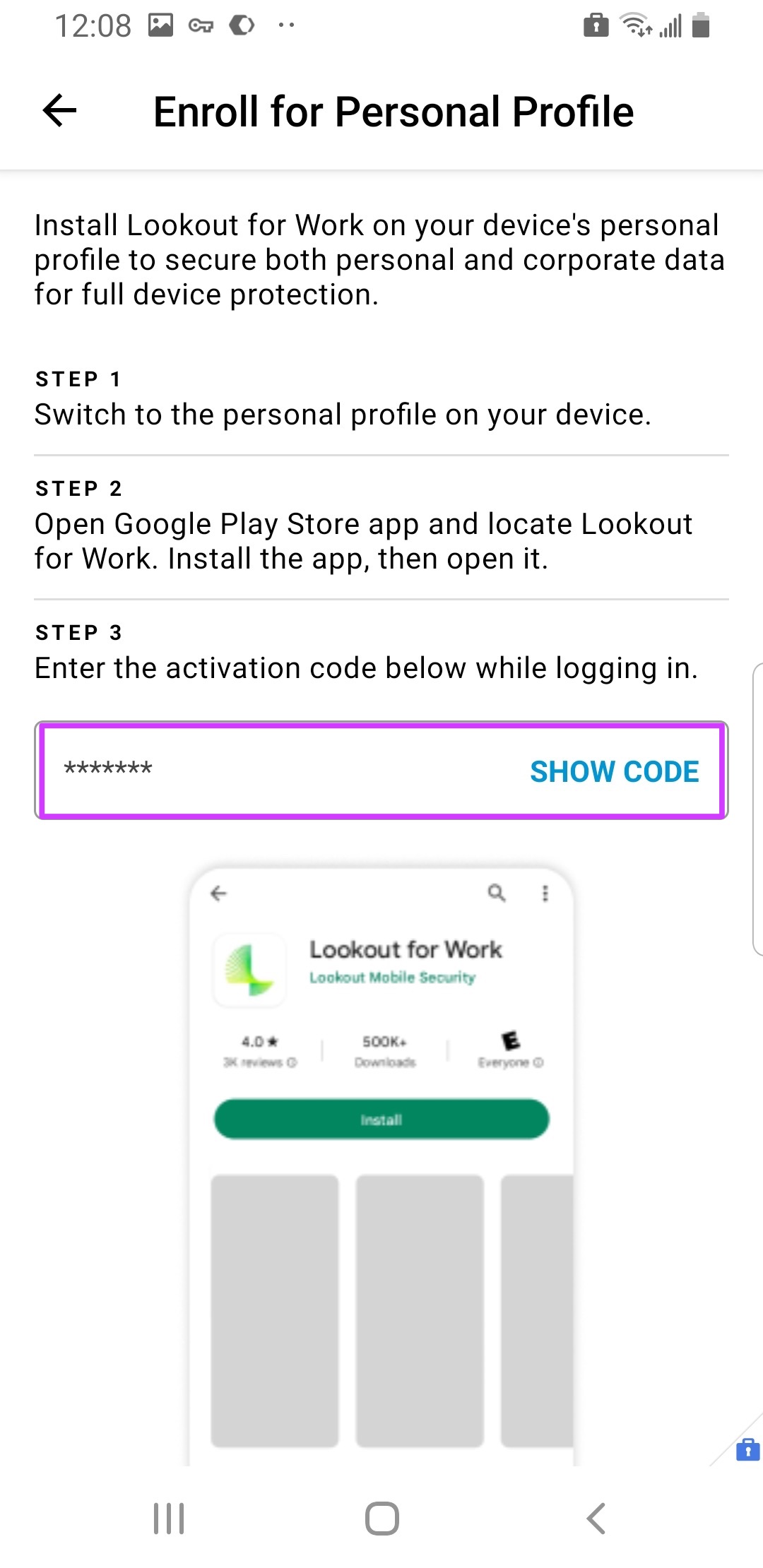
Following the instructions. Enter the provided activation code when prompted.
The activation code is provided by the UEM configuration for the organization’s MTD tenant.
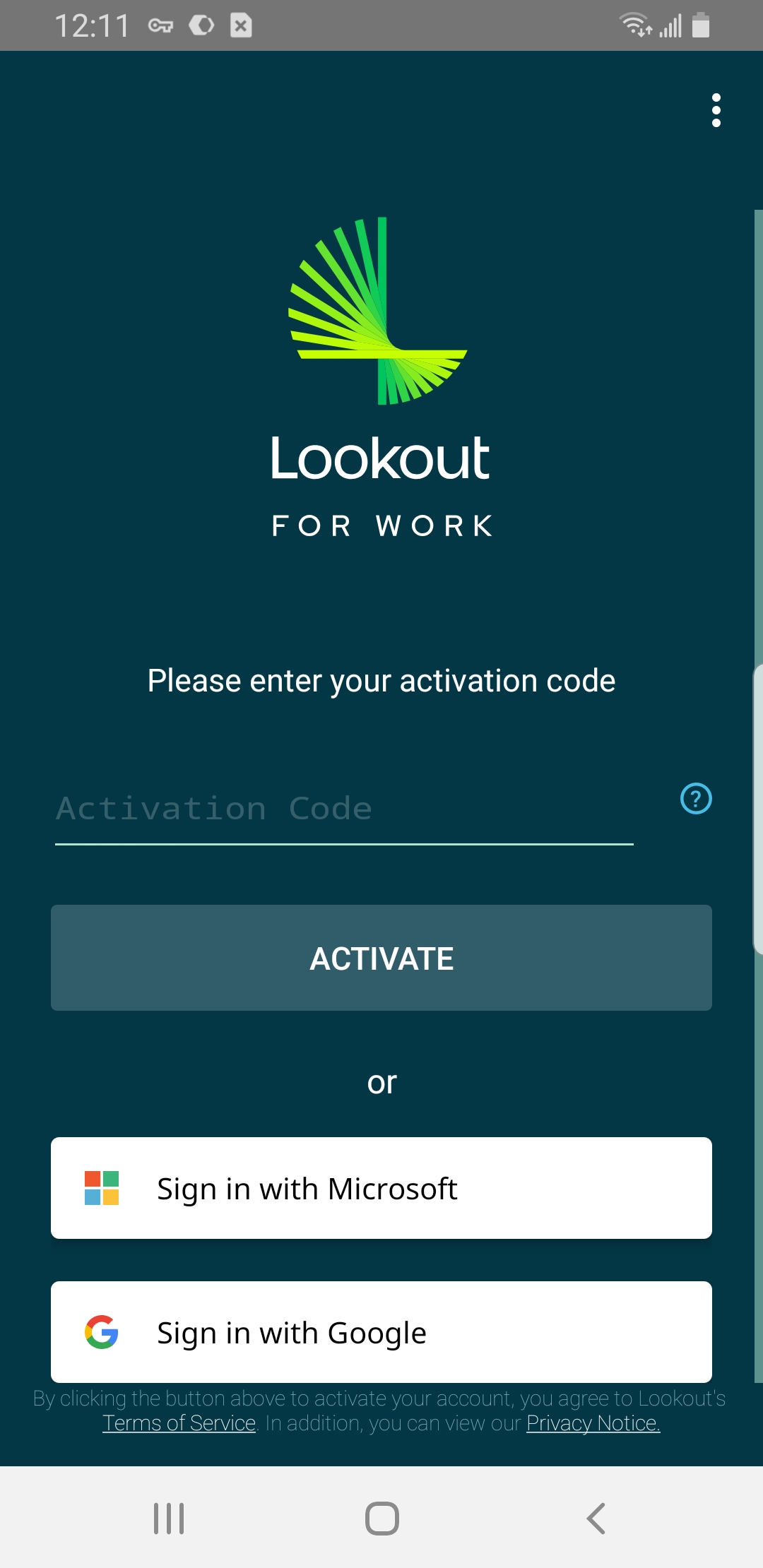
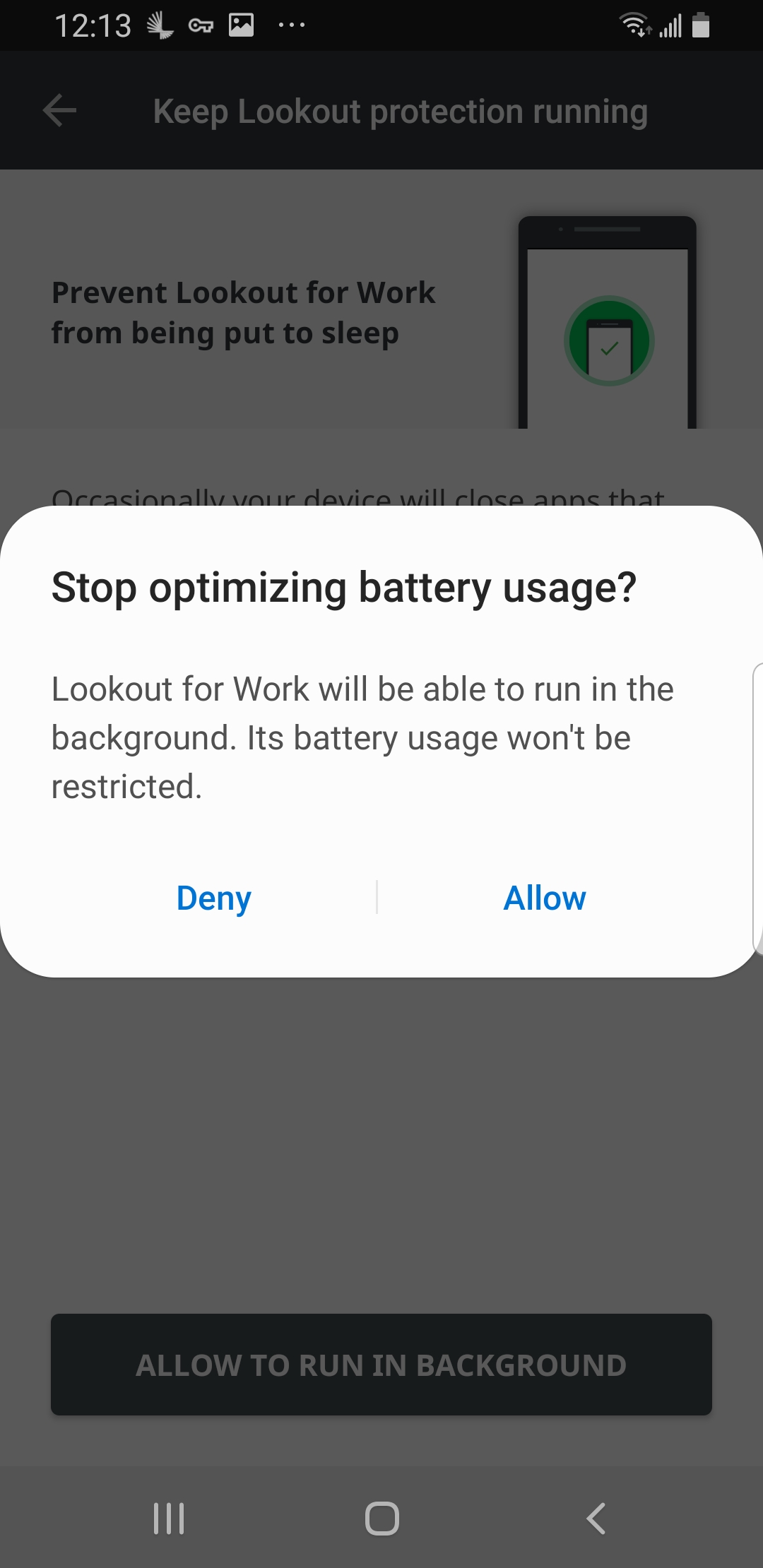
Depending on your Android version, you may be presented with different screen prompts regarding optimizing app performance.
One the personal Lookout app is installed, it’ll fetch your organization's policies.
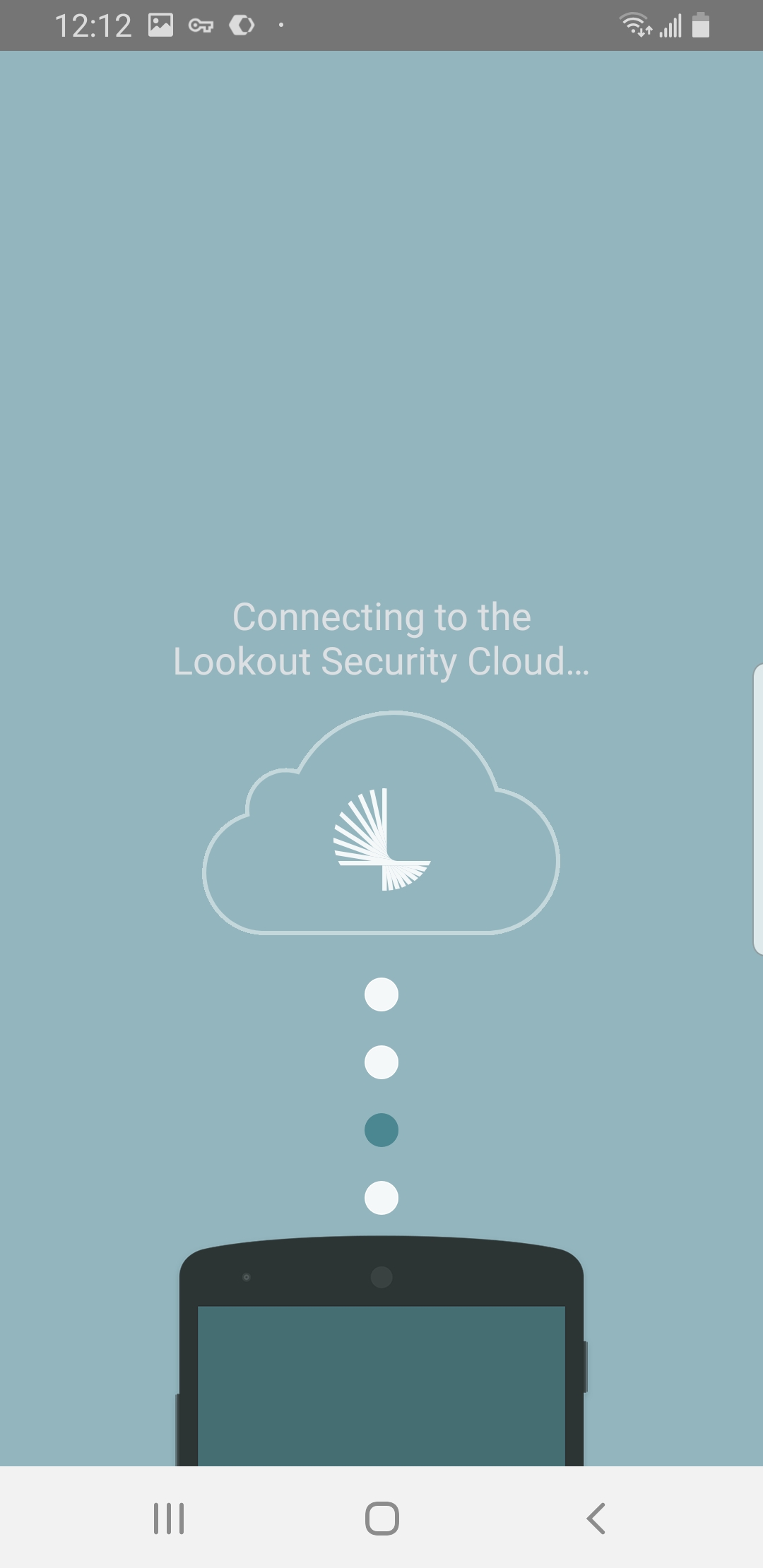
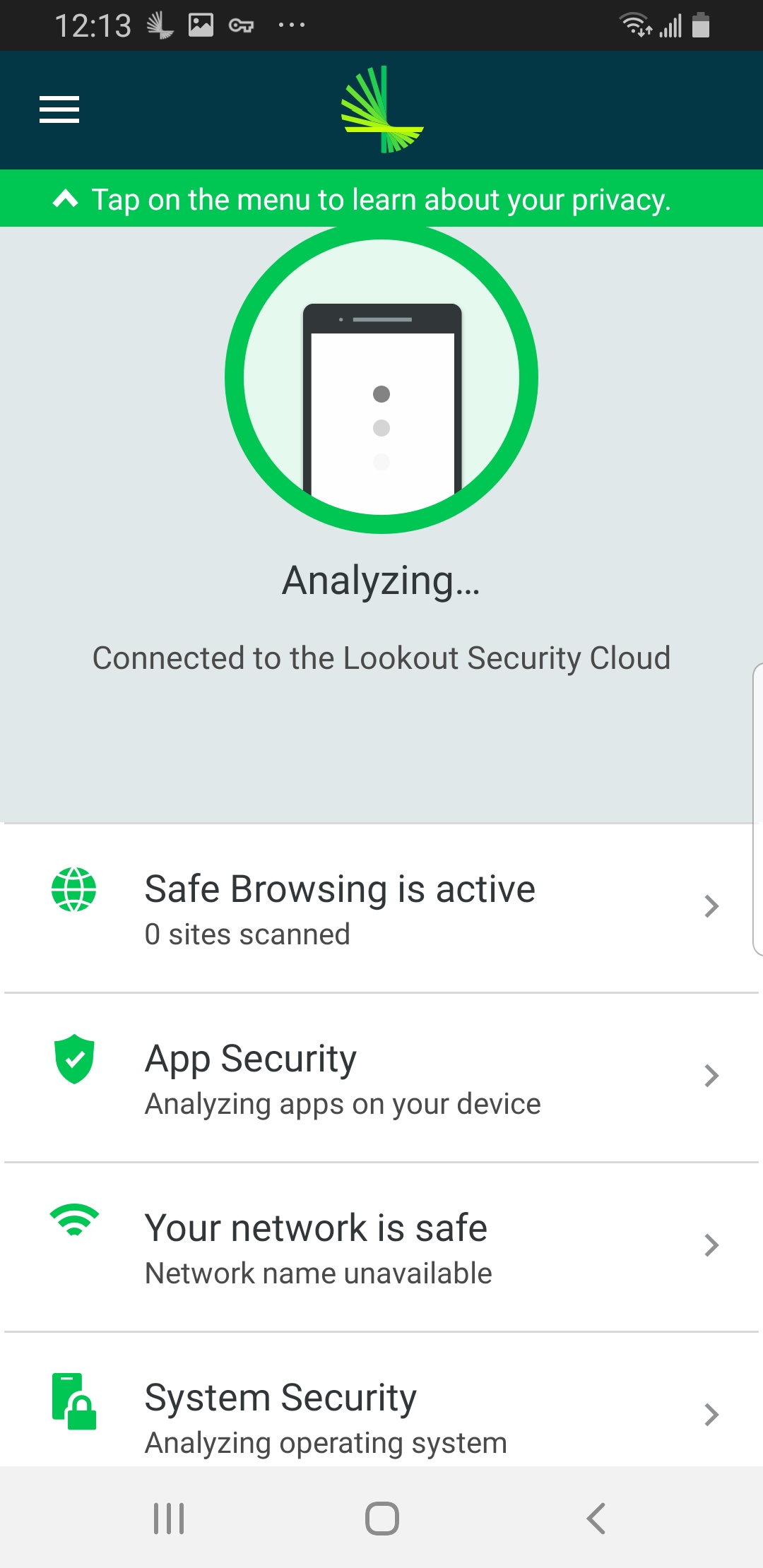
The app will also rebrand to Workspace ONE Mobile Threat Defense.
MTD in the Hub
After enrollment, on your device, through deep and powerful integration between Mobile Threat Defense and Intelligence Hub Services, the Mobile Threat Defense device status will be instantly reflected on your device.
On your device, go to the Intelligent Hub > Self-Service area.Self-Service is where you can view various device status, and perform certain functions, for all of your enrolled or registered devices.
In Self-Service > My Devices, your enrolled or registered devices will be listed with an overall status.
If you have multiple devices listed, choose the device labeled "current" to view its device details, where Mobile Threat Defense status is displayed.
Drill into the Mobile Threat Defense section for more details.
Since the device is safe, UEM provisions the device with all assigned apps and profiles. In turn, the device will be permitted to access corporate resources through its UEM-managed VPN connection(s).
MTD in the Consoles
Next, log in to TestDrive’s Workspace ONE.
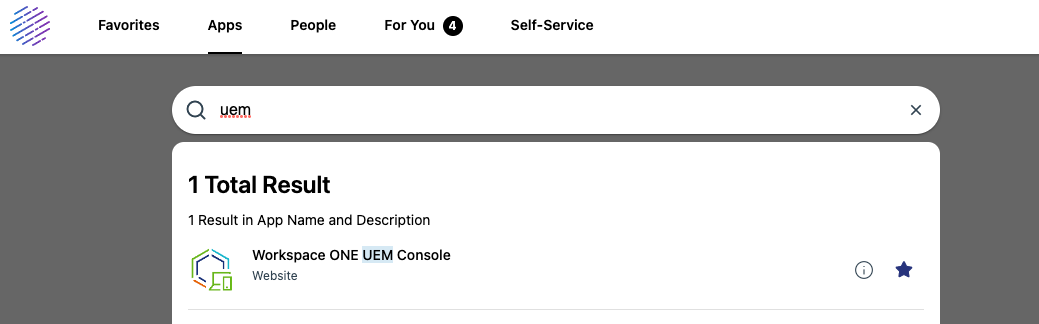
Launch the Workspace ONE UEM console. Click the star to save Workspace ONE UEM console to your favorites.
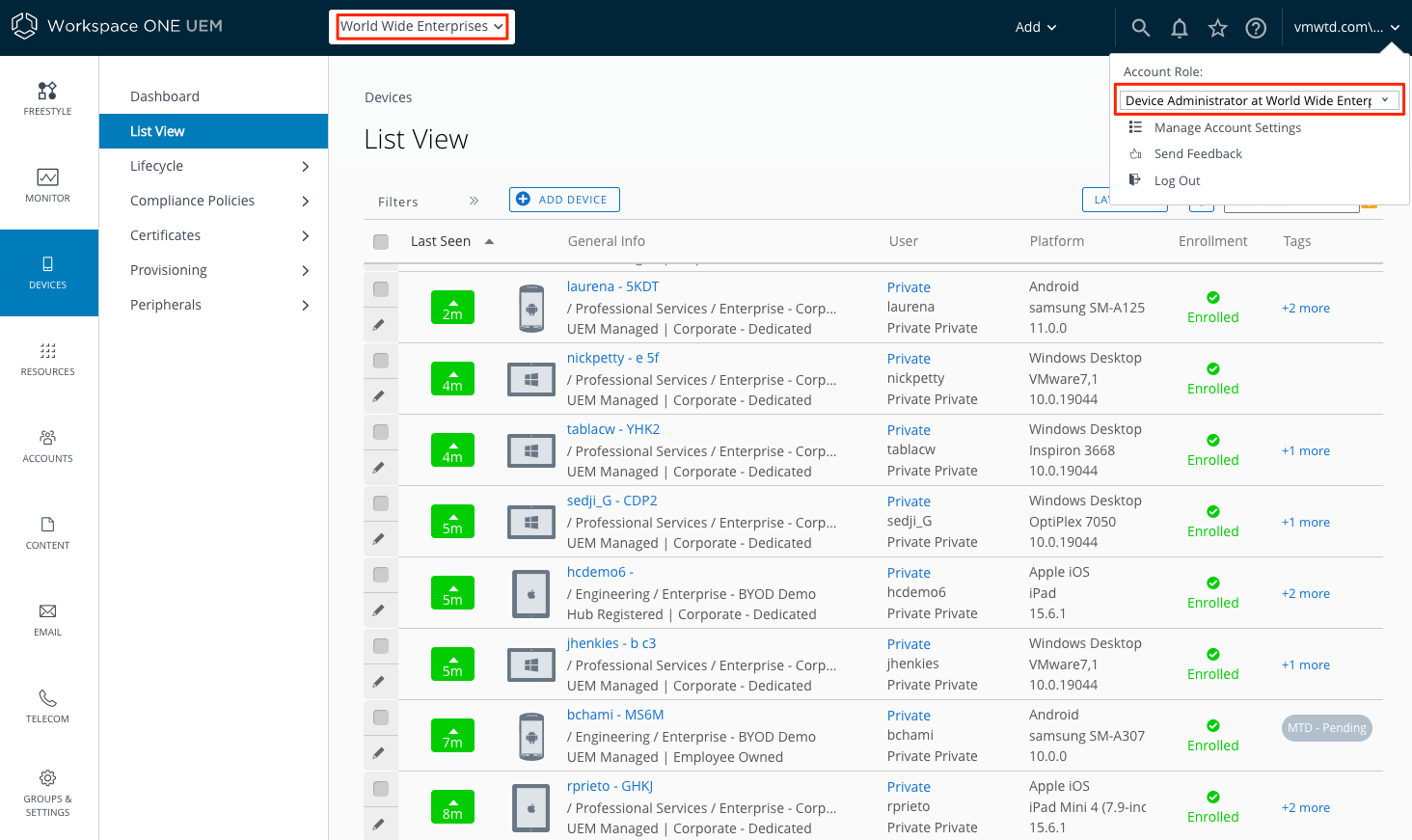
When logged in to Workspace ONE UEM, first verify you're using your Device Administrator and World Wide Enterprises admin role.
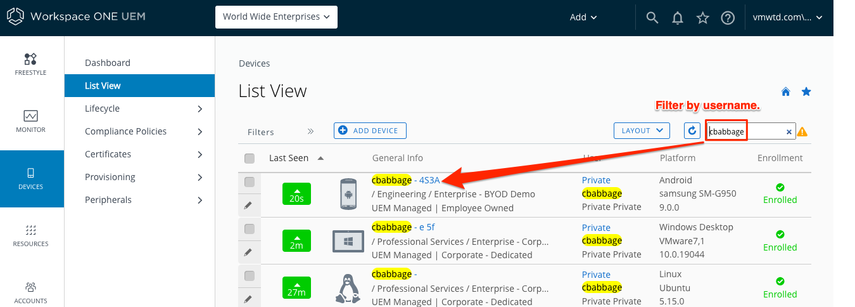
Initially, after enrollment, Mobile Threat Defense's device state may take up to five (5) minutes to sync with Workspace ONE UEM and tags will soon show up.
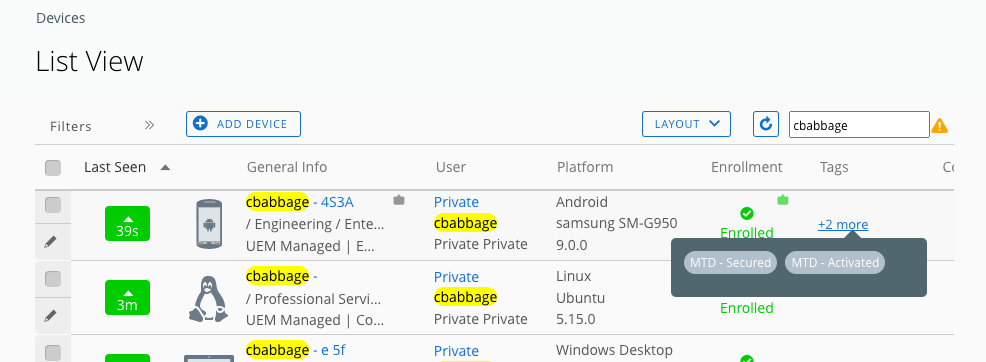
Your UEM device record should show MTD has (1) been activated and (2) determined the device to be secure. Accordingly, the device has been tagged with "MTD - Secured" and "MTD - Activated" tags.
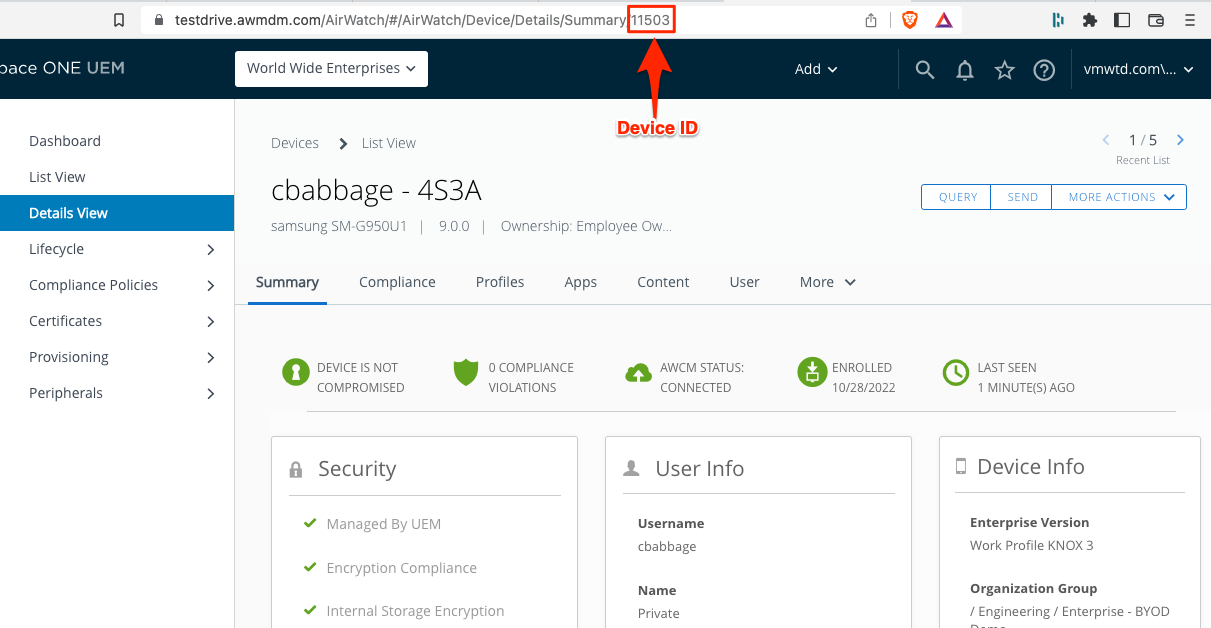
Devices that are determined to be secure by MTD will be fully provisioned with device profiles and apps by UEM. Devices that are not secure, are classified as either high, medium, or low risk and will have configured triage measures performed by Workspace ONE.
Drill into your device record. Inside the record you find the device details.
Make note of your UEM device ID. The UEM device ID is found in the URL of your device record.
In Intelligent Hub, find and launch the Workspace ONE Mobile Threat Defense web app. Again, click the star to save the app in favorites.
Workspace ONE Access provides SSO into the Mobile Threat Defense console where you will have read only access.
Go to Devices.
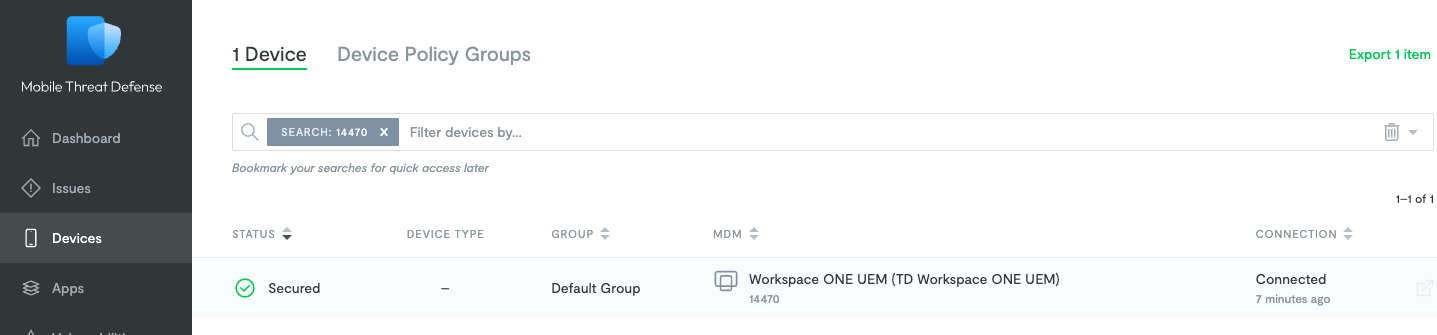
Find your device by filtering the device list by the UEM device ID you made note of earlier.
Due to potential privacy issues in the TestDrive demo environment, the user's email address is not passed from UEM to MTD. In a production environment, email privacy would typically not be configured as it is in TestDrive and you could look up a device by friendly name or email address.
Device status will be listed as either High Risk, Medium Risk, Low Risk, or Secured. This status is passed to UEM through UEM's MTD tagging configuration and, again, deep integration between MTD and UEM.
This Android demo device is identified as secure, just as it is in UEM and the Hub.
Drill into the device to see its details. Note any issues listed for your device. In the case of this demo device, one low risk issue—the passcode not being present during enrollment—was detected and quickly resolved when the passcode was set.
Review the device details.
Next, we'll trigger a MTD detection which will initiate device remediations.
MTD in Action
Talking Points
- Workspace ONE UEM's device remediation measures are configurable, so that administrators can mirror an organization's security policies. For example, an app or profile can be temporarily removed until the device is brought back into compliance.
- Custom remediation policies can include the ability to block access to containerized apps, even on unmanaged devices, based on Mobile Threat Defense risk level.
Mobile Threat Defense, Workspace ONE UEM, and Omnissa Intelligence together provide a myriad of methods to remediate device threats. The measures taken herein are just a sampling.
Platform-specific demos are outlined. Each device platform has pre-configured threat triggers so that you can see MTD in action. Triggering time may vary depending on backend system synchronizations, device state, device and network performance, etc.
Android Riskware Triggered Demo
In TestDrive, benign riskware apps IKARUS TestVirus or F-Secure AV Test are configured to test Mobile Threat Defense actions.
Expand for riskware demo flow
In the first few steps, Android’s post-enrollment device state is reviewed.
Go to theHub > Self-Servicearea.As previously noted, presuming you have a device that is secure, the device's Mobile Threat Defense status will be safe.
Also, in Workspace ONE UEM the device should have secured status.
However, if you're enrolling an already-compromised device, Mobile Threat Defense will detect it and UEM will tag it accordingly.
Launch the Mobile Threat Defense console.
Go to Devices. Find your device by filtering for your UEM device ID.
Note the device is reporting as secured with no issues.
Next, either in the Intelligent Hub (device) or in the web portal (browser), install IKARUS TestVirus or F-Secure AV Test.
Again, IKARUS TestVirus and F-Secure AV Test are benign test apps built with a suspect SDK.
Soon the test appinstalls and Mobile Threat Defense will detect the riskware. The Intelligent Hub will receive the threat detected notification.
In the Mobile Threat Defense console, you should see your device reporting a medium risk.
Drill into the device record to see its complete Mobile Threat Defense posture details.
In the UEM console, the device will be properly tagged.
Simultaneously, Workspace ONE UEM will automatically remediate the device. To protect sensitive corporate data, Workspace ONE UEM will remove several apps.
Again, Workspace ONE UEM's remediation measures are configurable and should mirror an organization's security policies. An admin can remove all managed apps and profiles if that's what's required.
Following the instructions provide in Intelligent Hub, manually remove the threat. Long-press the app and tap uninstall.
Workspace ONE UEM will re-provision the apps.
Depending on device and network states, re-provisioning may take a few moments.
Back in the Mobile Threat Defense console, you'll see the device issue is now resolved.
iOS MitM Triggered Demo
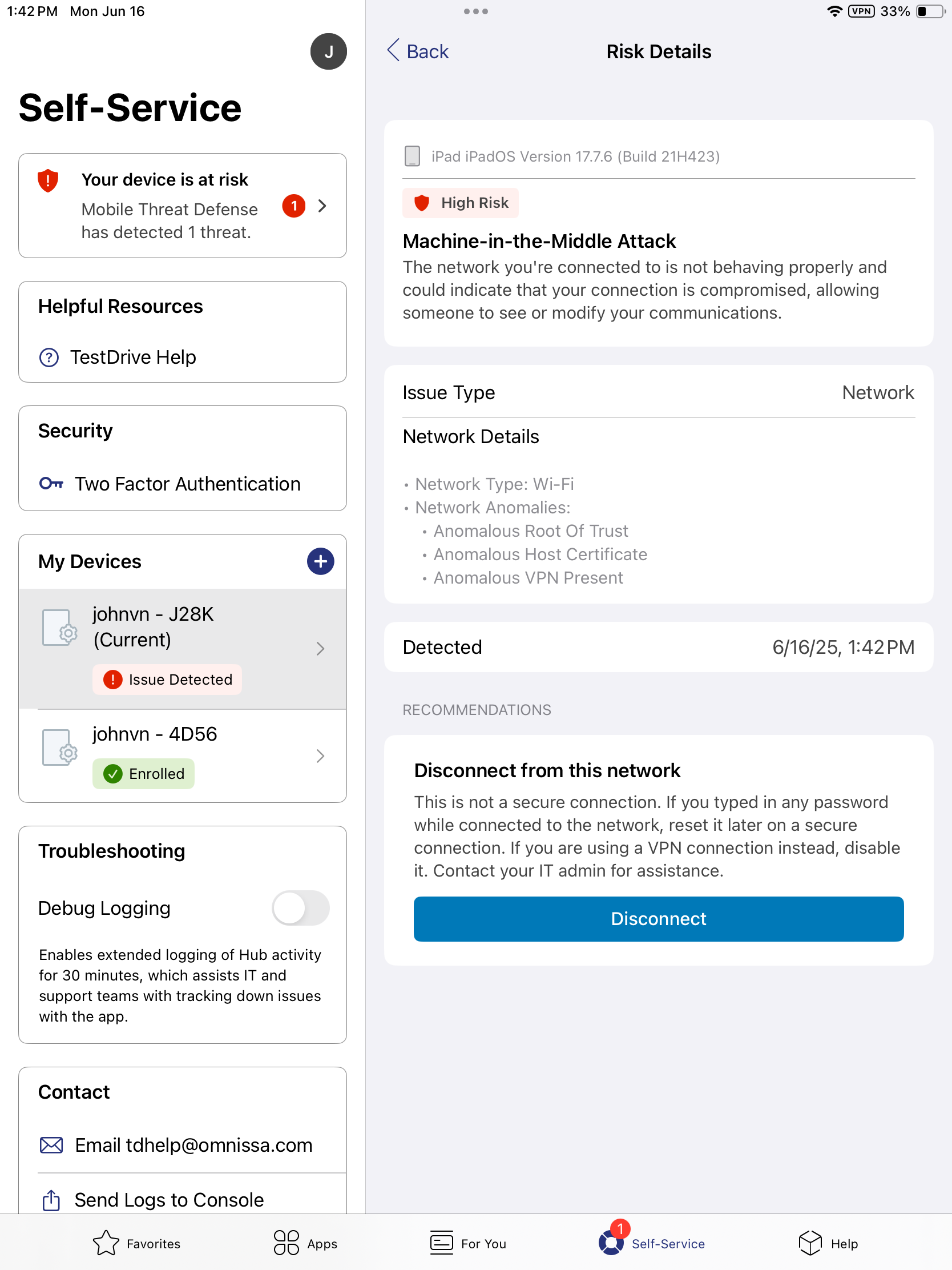
Mobile Threat Defense actions for the iOS demo are triggered using a simulation of a Machine-in-the-Middle Attack (MitM) attack. TestDrive’s MitM attack is made possible by a VPN app designed to test a MitM attack.
Expand for MitM demo flow
In the first few steps, post-enrollment iOS device state is reviewed Then, you'll initiate the MitM attack.
On the iOS device, go to theHub > Self-Servicearea.As previously noted, presuming you have a device that is secure, the device's Mobile Threat Defense status will be safe.
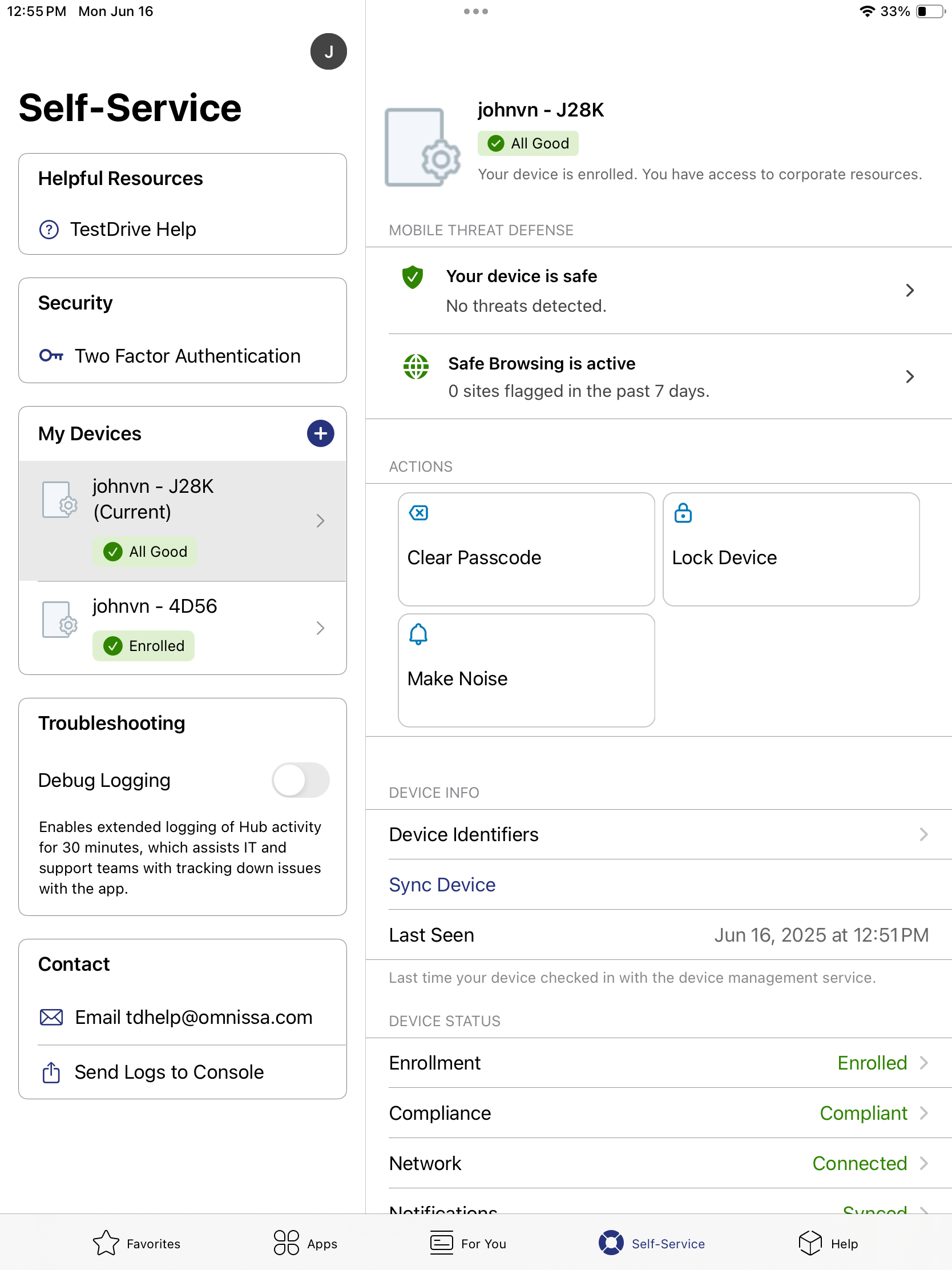
Also, in both UEM and the Mobile Threat Defense consoles, the device will be appropriately tagged and list as secured.

The iOS demo simulates a Machine-in-the-Middle Attack (MitM), a.k.a. Man-in-the-Middle Attack. A demo VPN app and its VPN profile need to be set up on the iOS device. Don't worry, the MitM setup does not actually do anything bad. It's a dummy setup.
On the device, go to the Hub > Exploreand search for WireGuard (demo VPN app).
Install and launch Wireguard.
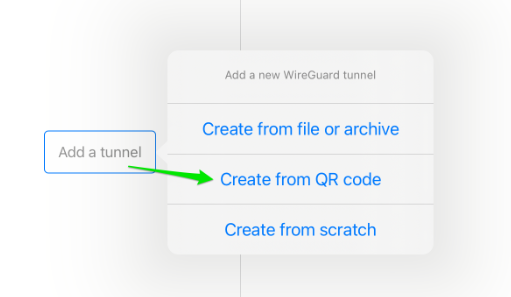
Click Add a Tunnel > Create from QR code.
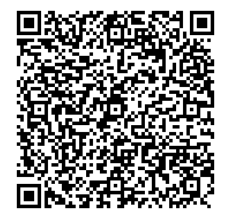
Scan this QR code to create the tunnel profile:
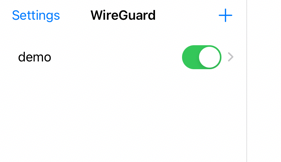
When prompted, give the tunnel profile a friendly name.
iOS will prompt you to create a VPN connection. Allow the profile to be created.
Turn on the demo tunnel.
Launch the Hub.
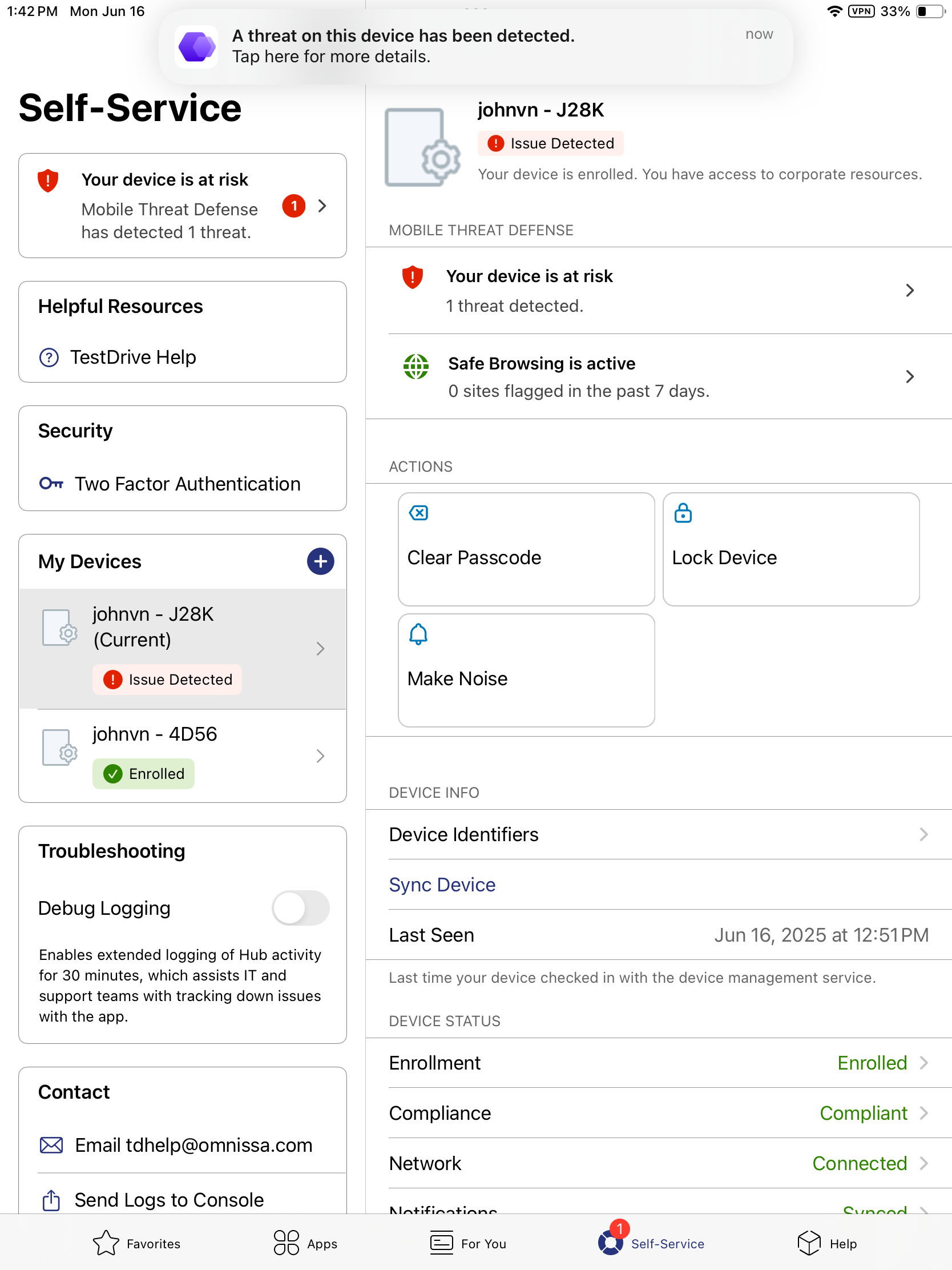
You should receive a MTD notification. If you tap the notification, you'll be taken directly to a detailed description of the threat where you can take action.
Also, in the Hub's Self-Service area, the MitM threat is focused.
Attention Wi-Fi-only Device Users
TestDrive's MitM VPN setup is not nefarious and is for demo purposes only. However, on Wi-Fi only iOS devices, the MitM demo VPN will hinder device communications. Since network communications are blocked when the demo VPN is on, to permit the remediation measures' communications, you may need to toggle the demo VPN off/on.
In WireGuard, turn the VPN off...wait for apps to be removed...turn the demo VPN back on.
On devices with Wi-FI and cellular, MTD will look for a back channel (cellular) and use it to communicate with MTD and UEM management endpoints, rather than over the Wi-Fi.
Mobile Threat Defense and Workspace ONE UEM integration will instantaneously work in unison to remediate the device as configured by the administrator. With Mobile Threat Defense and UEM, remediation measures are fully customizable based on the threat level.
As noted above, depending on your device's communication channels, remediation times can vary.
On the device, to protect sensitive corporate data, Workspace ONE UEM has quickly taken action and removed the following apps:
- Salesforce
- Dropbox
- Workspace ONE Web
- Workspace ONE Content
- Boxer
- WSO App Analytics
If you have Office 365 enabled on your TestDrive account, you can log in to http://mail.office365.com , or Boxer if you're quick before it's removed, and see the email notifications sent by Mobile Threat Defense.
To correct the issue, follow the suggested action in the Hub's Mobile Threat Defense notification by turning off the demo tunnel profile.
Alternatively, you could also uninstall WireGuard to achieve the same corrective result.
The Hub will very quickly notify and reflect the status of the threat's removal.
After the threat has been removed, the device will be detected as secure, the Hub will reflect the secured state, and Workspace ONE UEM will quickly reinstall all of the apps.
Phishing and Content Protection
Mobile Threat Defense phishing and content protection are now GA. The functions are enabled in TestDrive. Demo flows are in development, however, you can try it by typing "gambling.com" into Safari on the enrolled device. The site will be blocked and the device record in the Mobile Threat Defense console will show the issue's resolved status.
Phishing is real in the enterprise. It's not coming. It's here. Also, it's not just showing up in email. 85% of phishing attacks are coming outside of email. Text, LinkedIn messages, and anywhere people are consuming data are potential phishing platforms.
Because users do not expect to be targeted in the enterprise their guard is down, and those who create phishing attacks now see the enterprise with a bullseye on it.
Mobile Threat Defense & Workspace ONE Integration
Talking Points
-
Workspace ONE integration simplifies mobile threat management:
- Automatically syncs UEM's mobile devices into Mobile Threat Defense
- When MTD classifies devices as safe or low/medium/high risk, those devices are tagged in UEM so appropriate UEM policies can be automatically applied, such as removing corporate resources on a high-risk device.
Launch the Mobile Threat Defense console from Workspace ONE. Workspace ONE Access provides SSO into the MTD console. Your TestDrive account has read-only access to view the MTD console; however, the integrations are not viewable.
Review theIntegrations > Enrollment Management section as configured in TestDrive.
Above is a view of part of the Integrations > State Sync settings as configured in TestDrive.
More Info
Mobile Threat Defense on TechZone!
Check out the MTD Tech Zone page for more information including demo videos.