Home > Demo Guides > Horizon
Horizon Published Apps on Demand (App Volumes Integration)
In this walkthrough we are going to experience an overview of Horizon Published Apps on Demand (PAoD), delivered through the App Volumes integration, in the Omnissa TestDrive environment.
Overview
Connect to Workspace ONE Access and set up your Favorites
- Connect to Workspace ONE Access
- Search for PAoD and favorite the PAoD apps
- Search for Horizon Console and favorite it
- Search for App Volumes Manager and favorite it
- Confirm the four Favorites
Access the App Volumes Manager and confirm the app settings
- Launch the App Volumes Manager
- View RDSH-Microsoft Office 2024 LTSC Application settings
- View RDSH-Microsoft Office 2024 LTSC Package Settings
Access the Horizon Console and check the configuration
- Launch the Horizon Console
- View the registered App Volumes Manager
- View the Published Apps on Demand settings
Launch the Published Apps on Demand
- Launch PAoD-Notepad++
- Note absence of RDSH-Microsoft Office 2024 LTSC in Program Files (x86)
- Note absence of RDSH-Microsoft Office 2024 LTSC in Program Files
- Confirm there are no attachments in the App Volumes Manager
- Launch PAoD-Excel
- Return to PAoD-Notepad++ and note the RDSH-Microsoft Office 2024 LTSC installation
Confirm the attachment in the App Volumes Manager and Horizon Console
- View the RDSH-Microsoft Office 2024 LTSC attachment in the App Volumes Manager
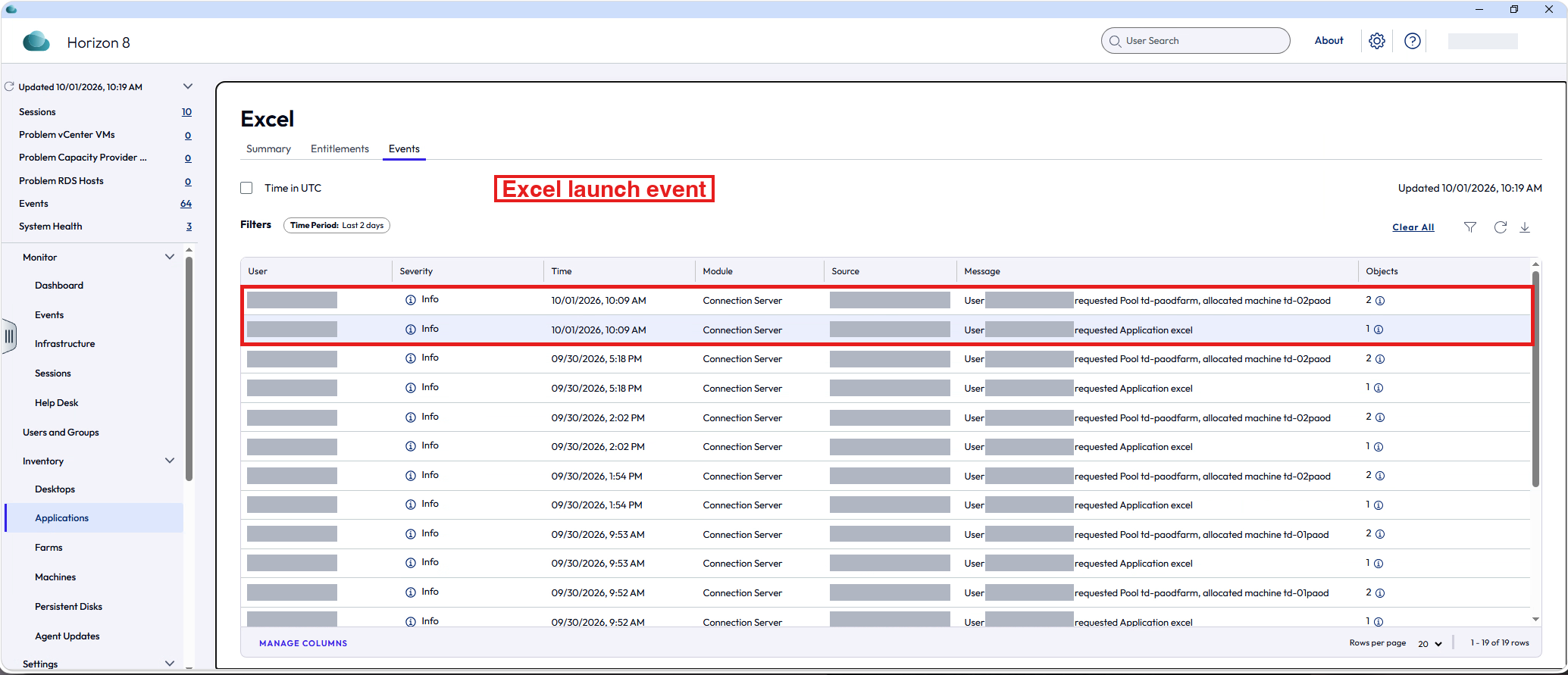
- View the Excel launch event in the Horizon Console
- Demo Complete, close Applications and log out
Before You Begin
Before you begin this walkthrough please ensure that you have the following
- A valid account in the Omnissa TestDrive environment, sign up at https://testdrive.omnissa.com/signup if you do not yet have an account
- TCP & UDP ports 80, 443, 8443; and if using PCoIP, both TCP & UDP 4172
- (Optional) Latest Horizon Client installed on your local client machine, available via direct download at https://customerconnect.omnissa.com/downloads/info/slug/desktop_end_user_computing/vmware_horizon_clients/horizon_8
Task 1: Connect to Workspace ONE Access and set up your Favorites
Step 1: Connect to Workspace ONE Access
Workspace ONE Access is the launch point for every app in this walkthrough.
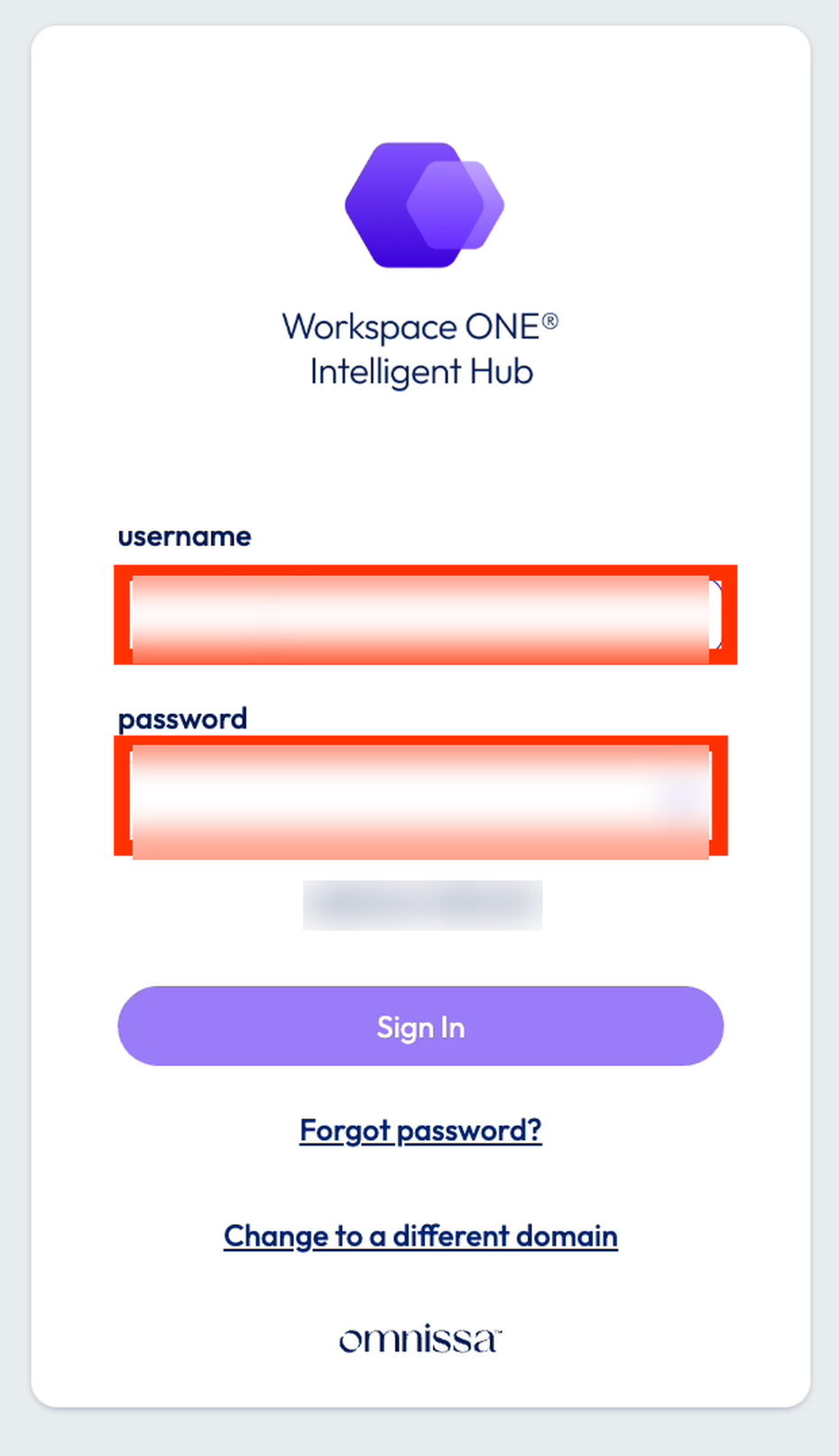
Launch a Chrome or Firefox browser and sign into Workspace ONE Access using your TestDrive username and password.
https://testdrive.us0.wss.workspaceone.com/
Step 2: Search for PAoD and favorite the PAoD apps
Favorites keep the apps you need one click away, so you can switch between them quickly.
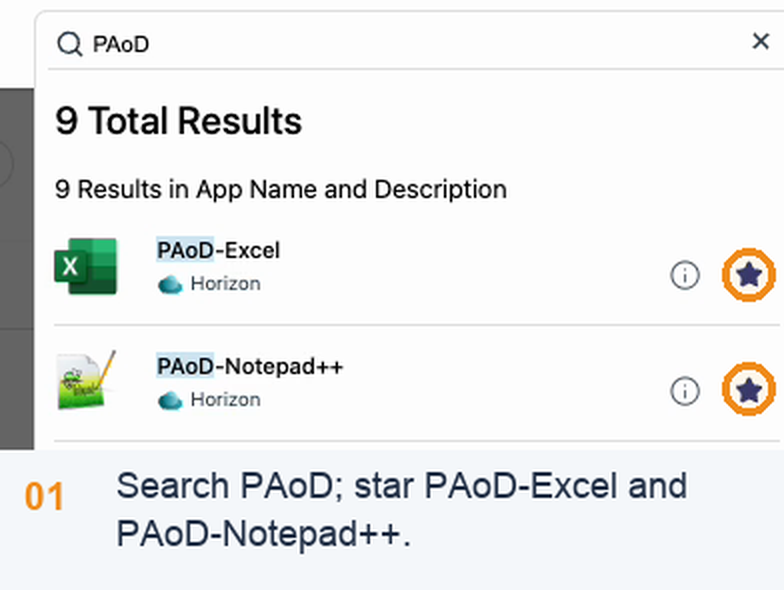
From the Apps Tab in the Search Apps field type PAoD. Click the star on the bottom right hand side of the PAoD-Excel and PAoD-Notepad++ tiles to add them as favorites.
Step 3: Search for Horizon Console and favorite it
The Horizon Console is where you will check how App Volumes is integrated with Horizon.
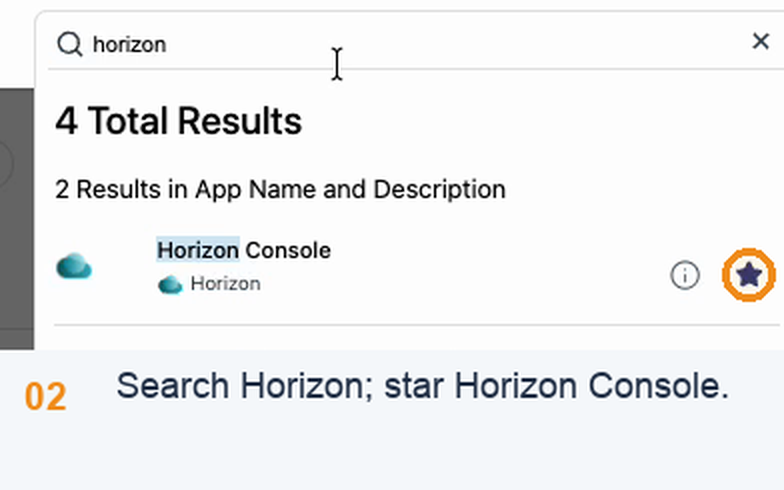
In the Search Apps field type Horizon. Click the star on the bottom right hand side of the Horizon Console tile.
Step 4: Search for App Volumes Manager and favorite it
The App Volumes Manager is where the applications and packages are managed.
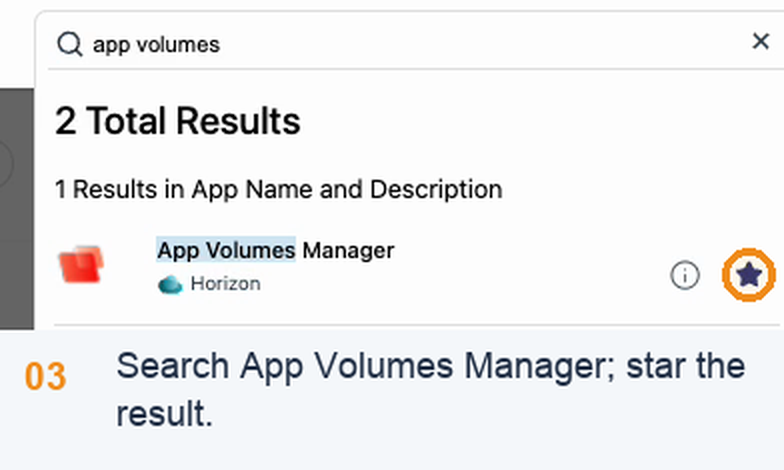
In the Search Apps field type App Volumes Manager. Click the star on the bottom right hand side of the App Volumes Manager tile.
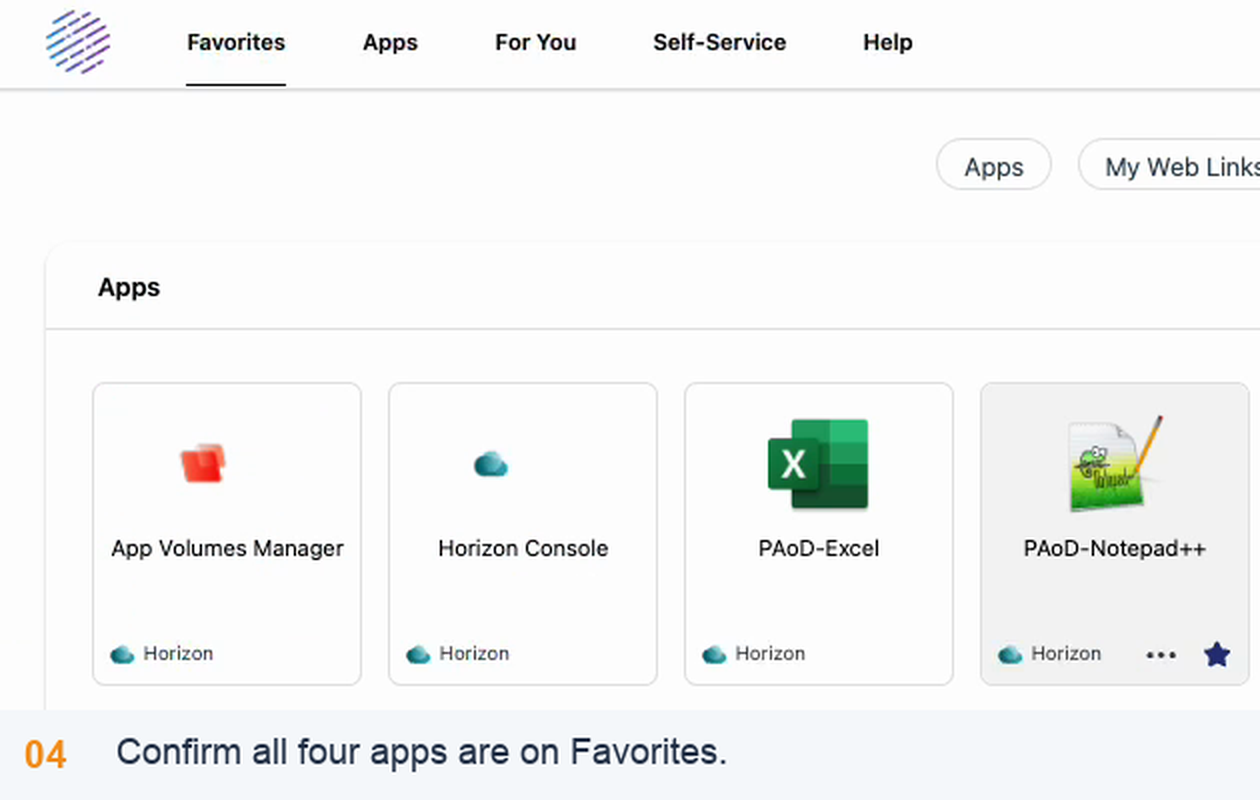
Step 5: Confirm the four Favorites
This is the page you will return to each time you launch an app.
Navigate back to the Favorites tab and confirm that PAoD-Excel, PAoD-Notepad++, Horizon Console and App Volumes Manager are listed.
Task 2: Access the App Volumes Manager and confirm the app settings
Step 6: Launch the App Volumes Manager
Opening the console from Workspace ONE Access means no desktop session is needed.
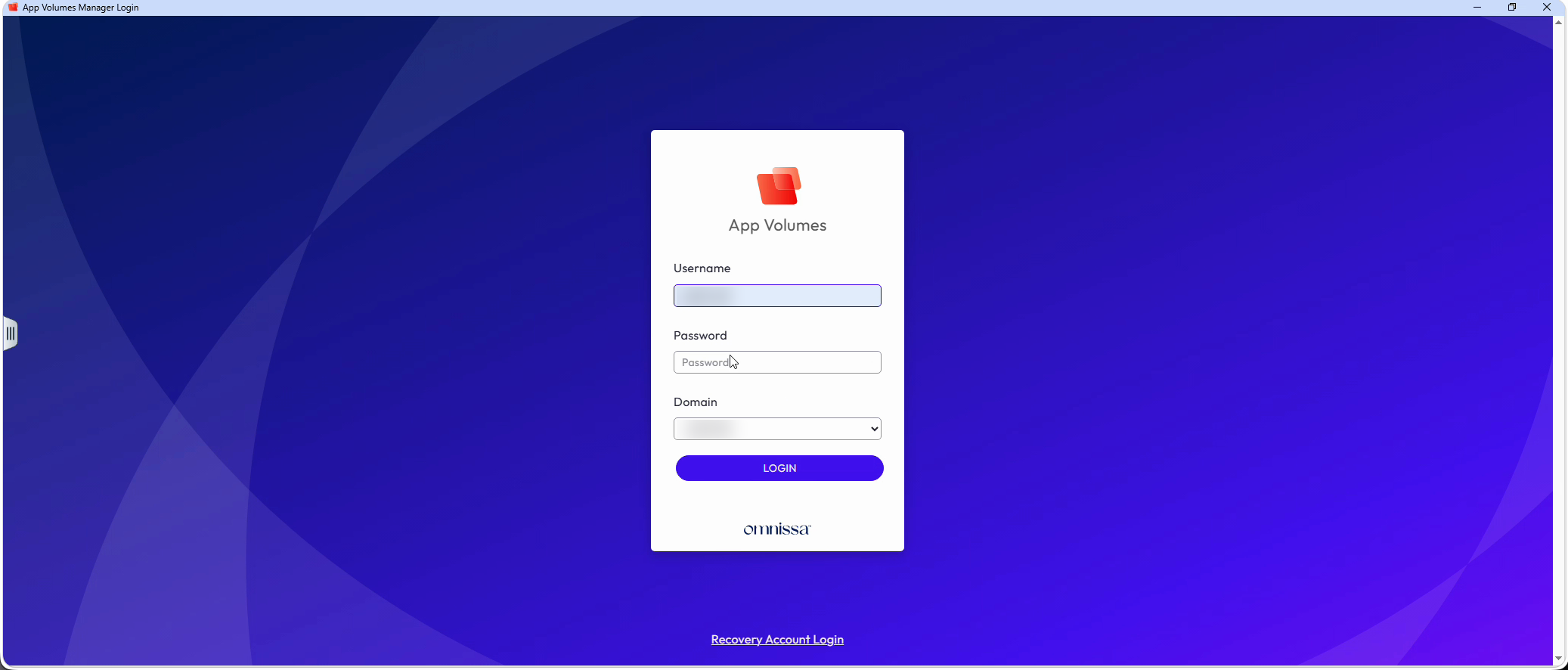
From the Favorites tab, launch App Volumes Manager. Use your TestDrive username and password to log into App Volumes Manager (read only console configured here for shared demo purposes)
Step 7: View RDSH-Microsoft Office 2024 LTSC Application settings
The application settings control how and where the package is delivered.
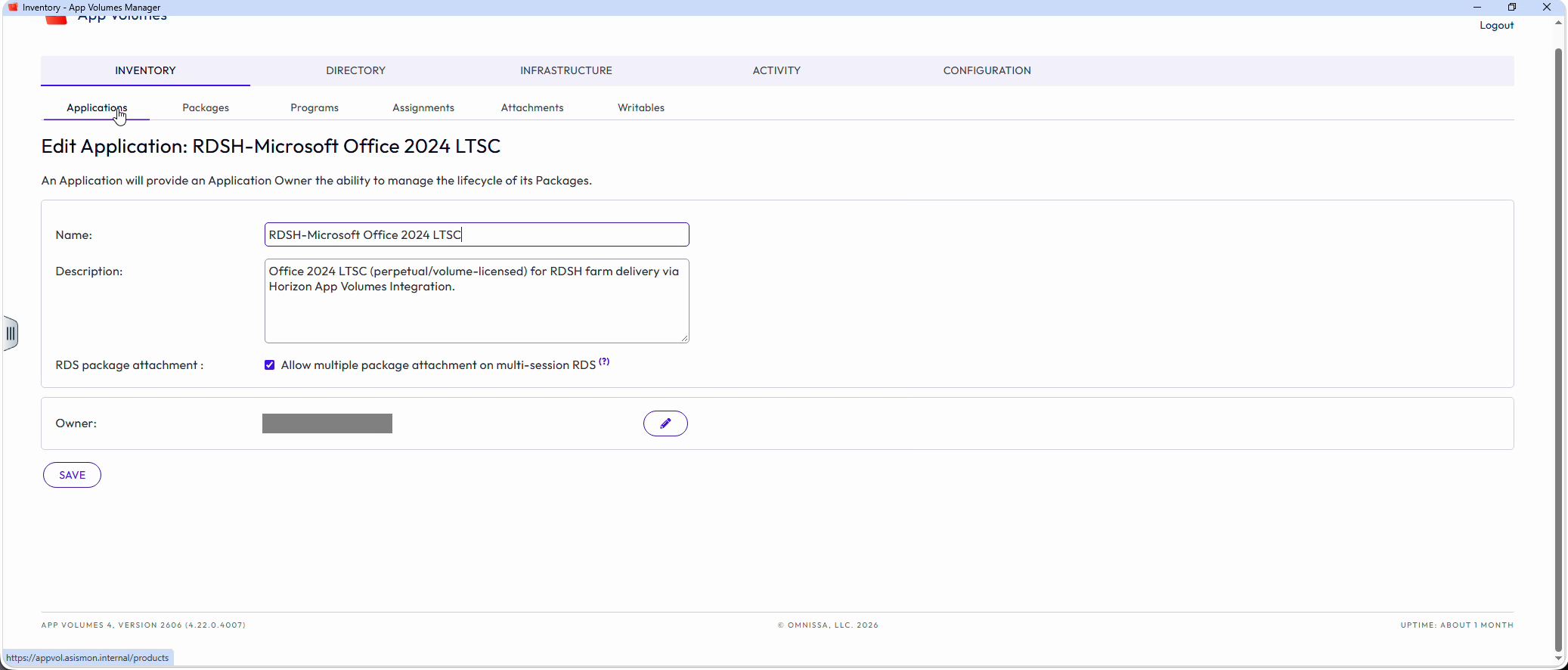
Expand RDSH-Microsoft Office 2024 LTSC from the Applications Tab. In the RDSH-Microsoft Office 2024 LTSC App settings, note that it is set to allow multiple package attachment on multi-session RDS. Also note that the Application is set to "Current" as this is required for Published Apps on Demand to work properly.
Step 8: View RDSH-Microsoft Office 2024 LTSC Package Settings
The package stage and delivery type determine when users receive the application.
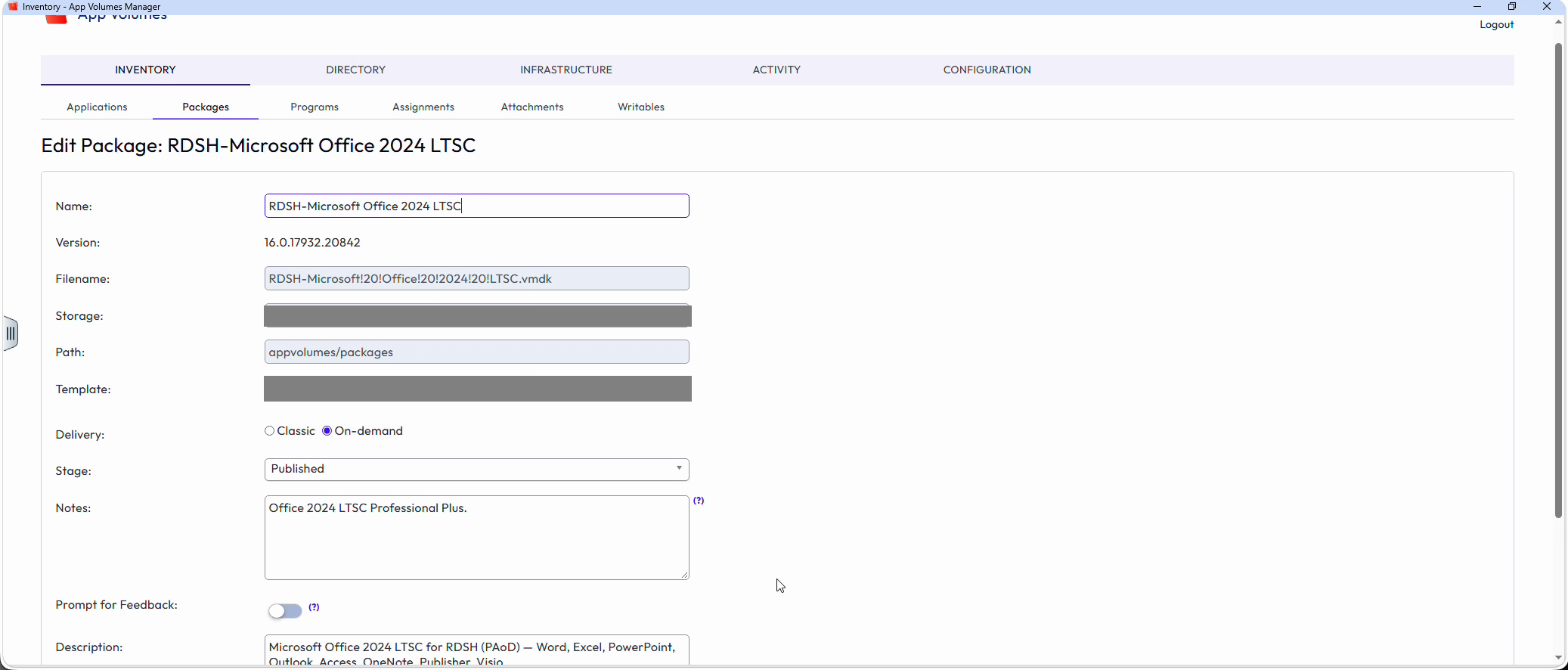
Click on the Packages Tab, then expand the RDSH-Microsoft Office 2024 LTSC Package. Note the delivery type is set to "On-Demand".
Select "Edit". Note the listed Stages, and that this package is set to "Published".
Task 3: Access the Horizon Console and check the configuration
Step 9: Launch the Horizon Console
Horizon publishes the applications that App Volumes delivers.
Navigate back to the Workspace ONE Access Favorites tab and launch Horizon Console. Enter your TestDrive username and password here.
Step 10: View the registered App Volumes Manager
This is the integration that lets Horizon attach App Volumes packages to the farm.
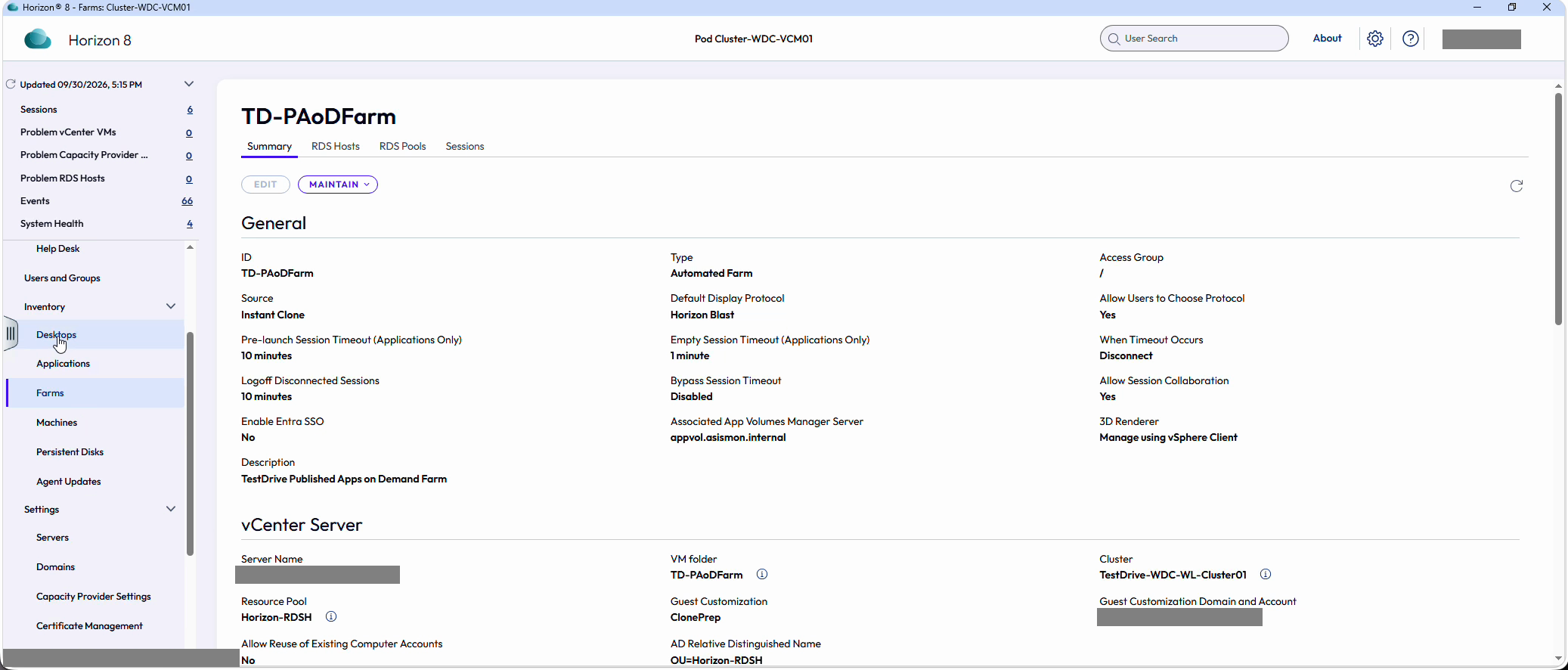
Under Inventory, select the Farms menu and select TD-PAoDFarm. Note the App Volumes Manager associated with the farm on the Summary tab.
Step 11: View the Published Apps on Demand settings
These are the published applications your users will launch.
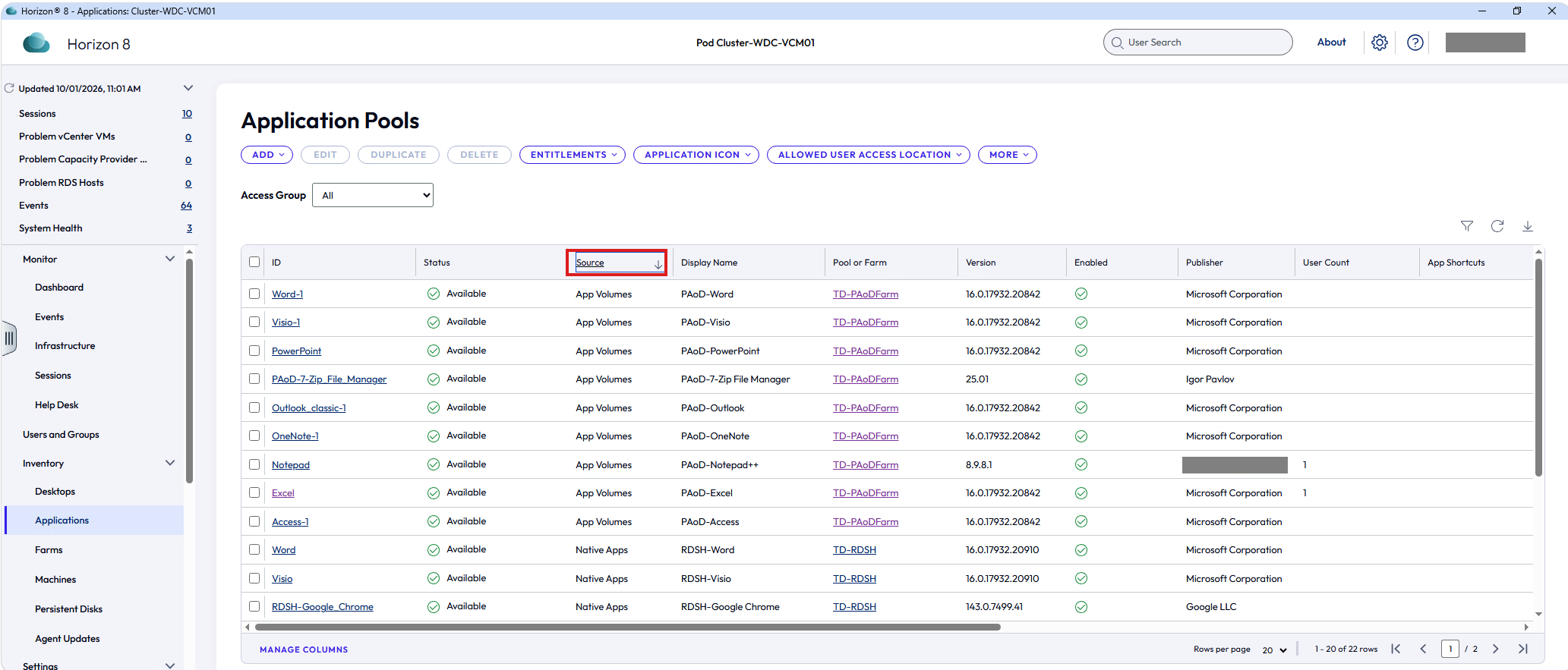
Under Inventory, select the Applications menu. Click the Source column header to sort the list so the applications sourced from App Volumes appear at the top. Note the PAoD entries, including PAoD-Excel and PAoD-Notepad++, and view the App Volumes Published Apps on Demand configured settings here.
Task 4: Launch the Published Apps on Demand
Step 12: Launch PAoD-Notepad++
Notepad++ stays open so you can watch the file system change when the Office package is attached.
Navigate back to the Workspace ONE Access Favorites tab and launch PAoD-Notepad++. Select Launch from Browser so the app opens in a new browser tab. Leave it open for the next steps.
Note: The TestDrive environment is shared. If another demo user has already launched Excel on the same RDSH host, the RDSH-Microsoft Office 2024 LTSC package may already be attached and its files will already be present in the next steps. If this happens, note that it is the case, wait a few minutes for the other session to end, and then try again.
Step 13: Note absence of RDSH-Microsoft Office 2024 LTSC in Program Files (x86)
This establishes the starting point, before anything has been delivered.
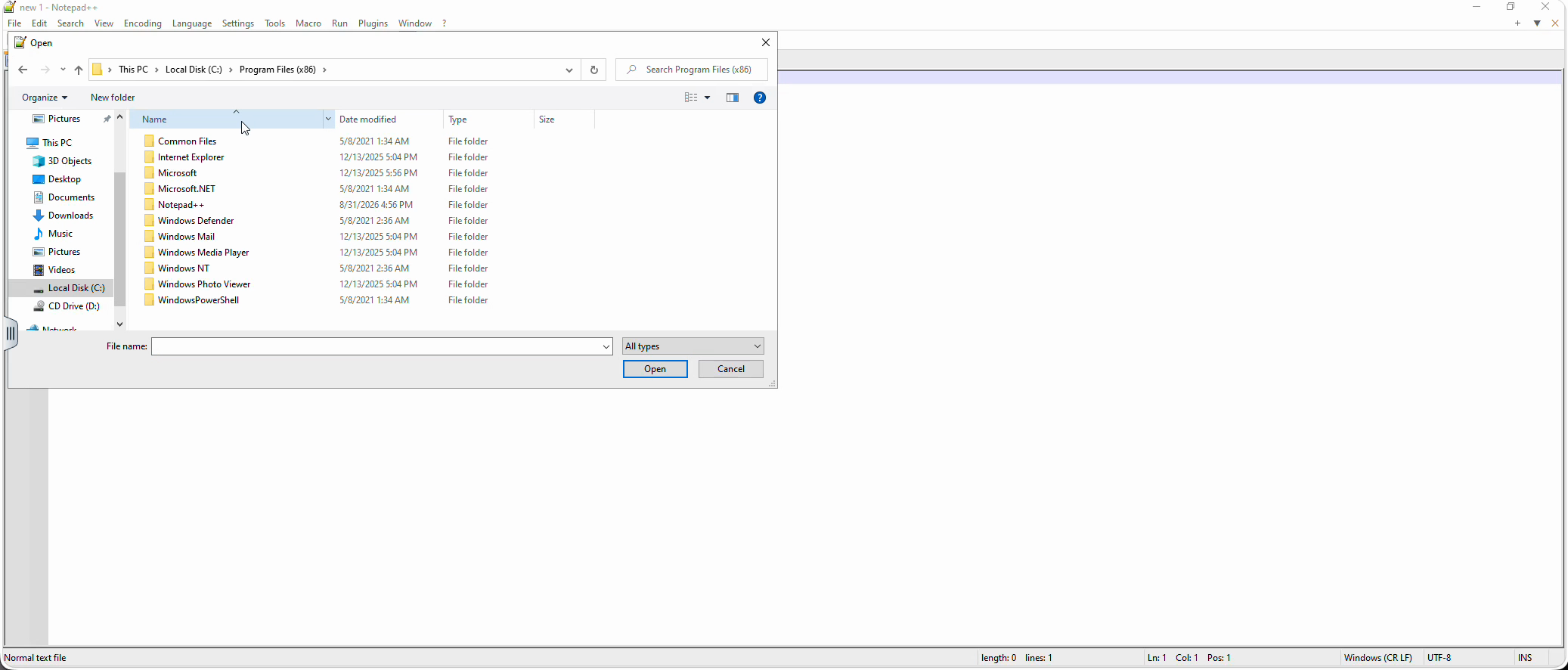
In Notepad++, select File > Open and browse to C:\Program Files (x86). Note that the RDSH-Microsoft Office 2024 LTSC package files are not present.
Step 14: Note absence of RDSH-Microsoft Office 2024 LTSC in Program Files
Office installs under Program Files, so this is the second place to check.
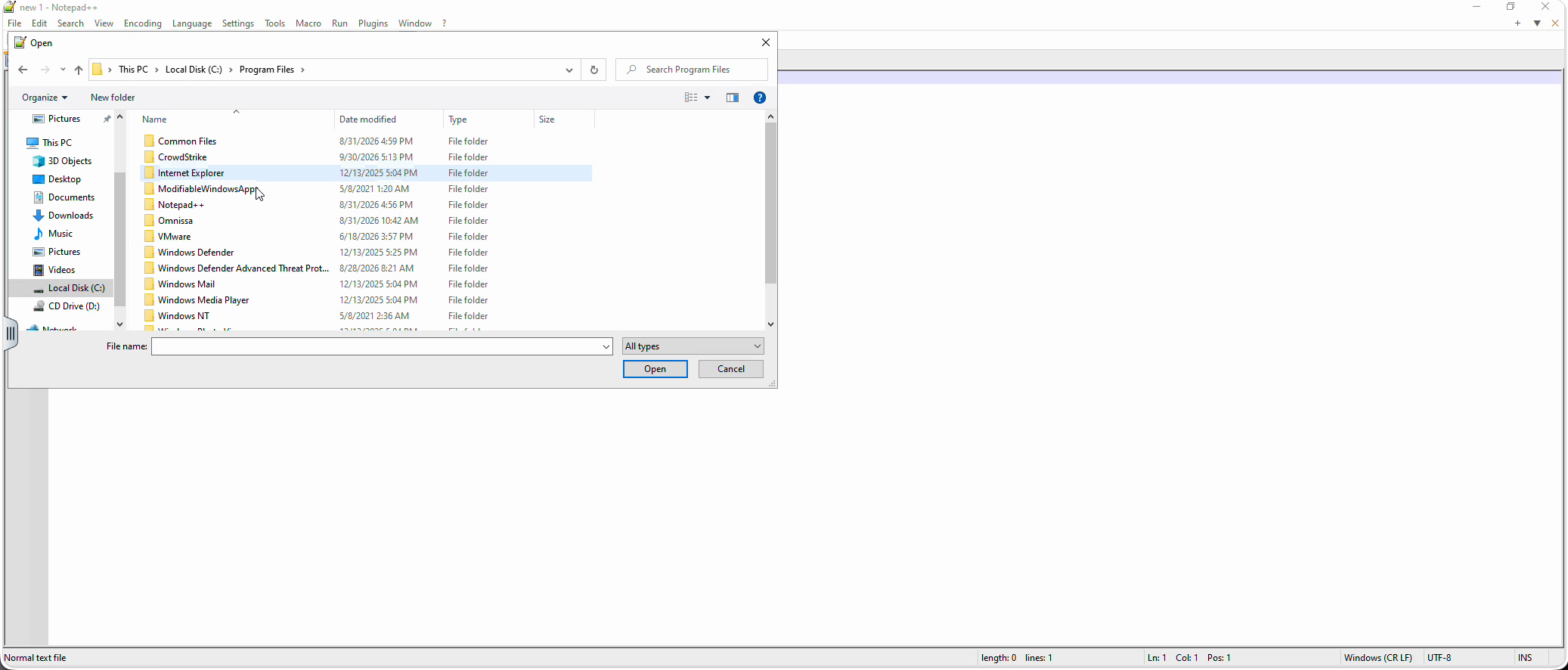
In the same file dialog, browse to C:\Program Files. Note that the RDSH-Microsoft Office 2024 LTSC package files are not present here either. Leave Notepad++ open.
Step 15: Confirm there are no attachments in the App Volumes Manager
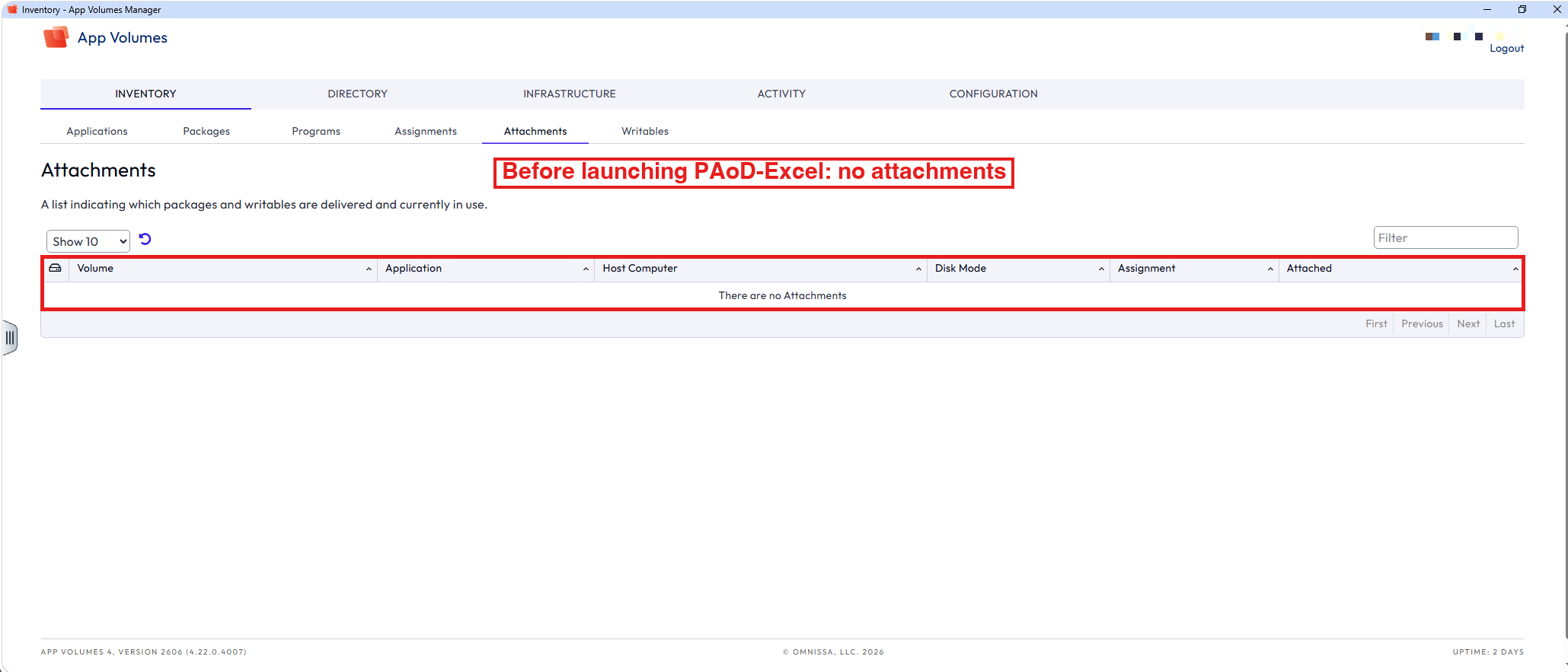
The Attachments list shows which packages are delivered and currently in use, so it should be empty before Excel is launched.
Navigate back to the Workspace ONE Access Favorites tab and launch App Volumes Manager. Under Inventory, select the Attachments tab. Note that there are no attachments.
Step 16: Launch PAoD-Excel
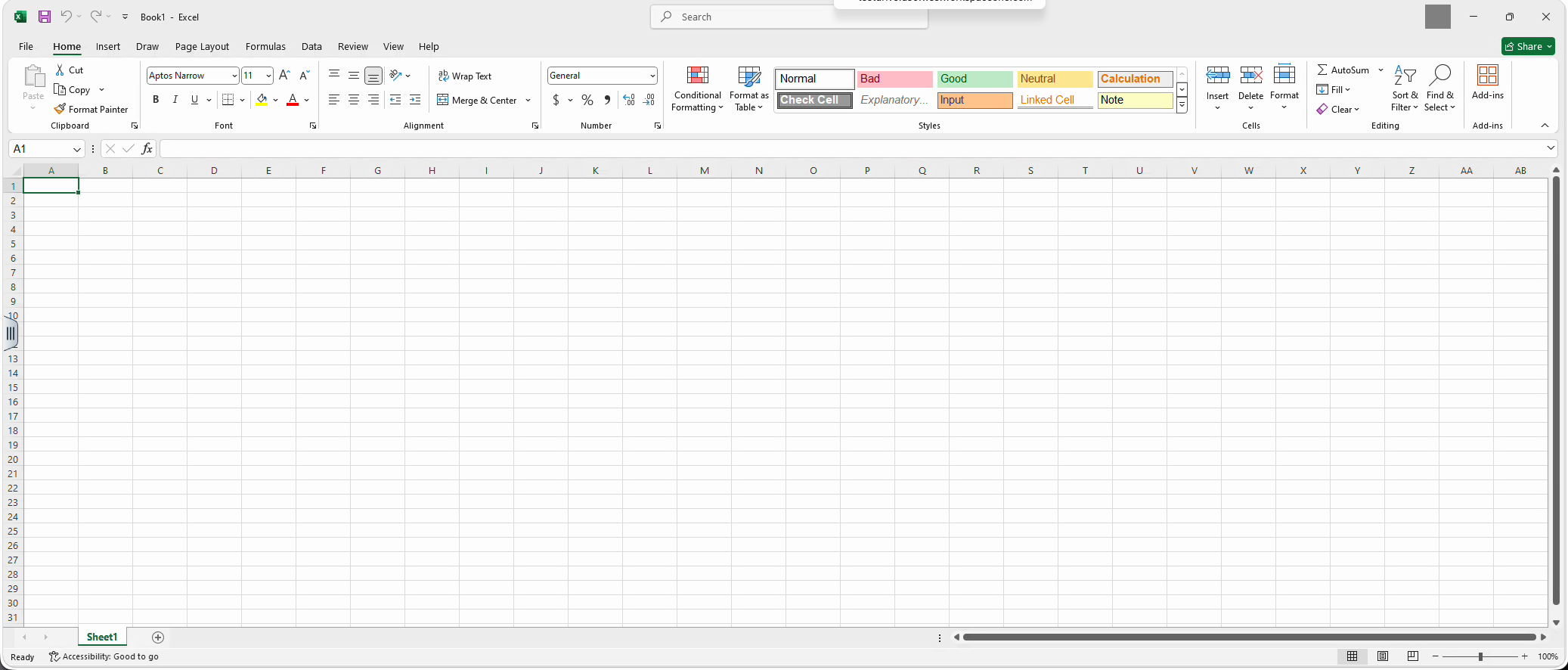
Launching the published app is what triggers App Volumes to deliver the Office package.
Navigate back to the Workspace ONE Access Favorites tab and launch PAoD-Excel. Select Launch from Browser so the app opens in a new browser tab. Wait for Excel to finish opening.
Step 17: Return to PAoD-Notepad++ and note the RDSH-Microsoft Office 2024 LTSC installation
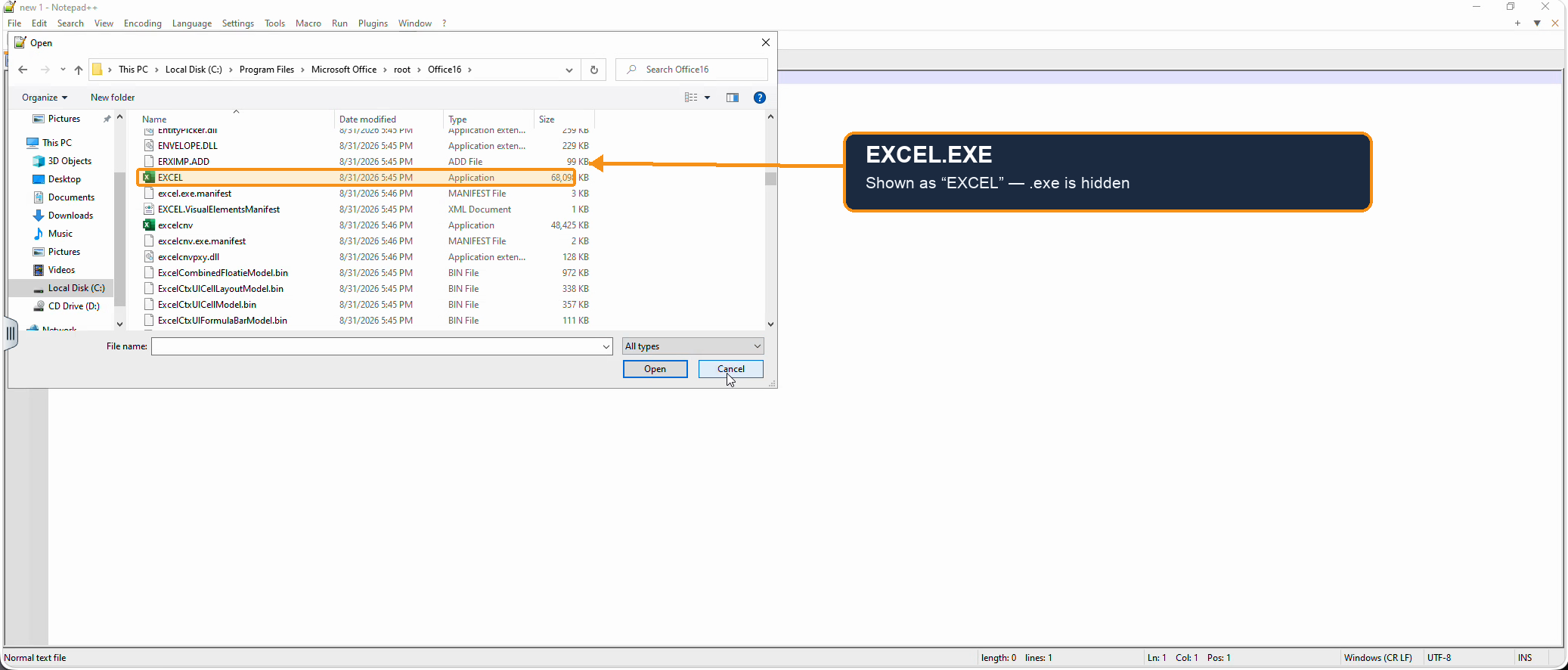
This shows the package was attached on demand, without being installed on the host.
Switch back to the existing Notepad++ browser tab. In File > Open, browse to C:\Program Files\Microsoft Office\root\Office16. Note that the EXCEL application is now present (Windows hides the .exe extension). The RDSH-Microsoft Office 2024 LTSC package was attached On Demand when PAoD-Excel was launched.
Task 5: Confirm the attachment in the App Volumes Manager and Horizon Console
Step 18: View the RDSH-Microsoft Office 2024 LTSC attachment in the App Volumes Manager
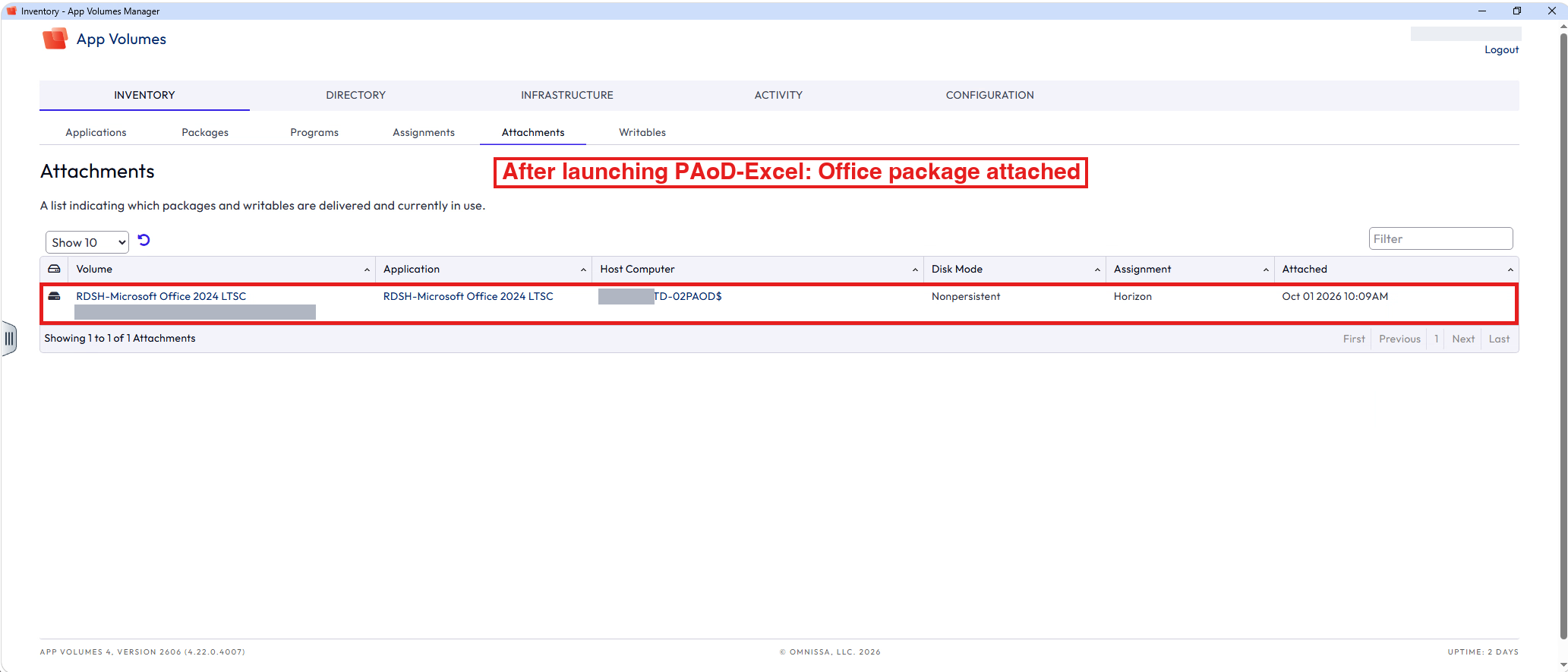
The Attachments list now confirms, from the App Volumes side, that the package was delivered when Excel launched.
Switch back to App Volumes Manager and click the refresh icon on the Attachments tab. Note that the RDSH-Microsoft Office 2024 LTSC package is now listed as attached to the RDSH host.
Step 19: View the Excel launch event in the Horizon Console
The Horizon Console event log confirms, from the Horizon side, that the Excel launch request was received.
Navigate back to the Workspace ONE Access Favorites tab and launch Horizon Console. Under Inventory, select Applications, select Excel, and then click the Events tab. Note the event showing that Application excel was requested.
This completes the Published Apps On Demand demo.
Step 20: Demo Complete, close Applications and log out
Closing the apps and signing out of each console releases your sessions cleanly in the shared environment.
Close PAoD-Excel and PAoD-Notepad++. Log out of the App Volumes Manager by clicking Logout in the upper right corner and close its window. Log out of the Horizon Console by selecting your username in the upper right corner and then Log out, and close its window. Finally, log out of Workspace ONE Access.
Summary
Lets recap what we just accomplished:
Connect to Workspace ONE Access and set up your Favorites
- Connected to Workspace ONE Access
- Searched for PAoD and favorited the PAoD apps
- Searched for Horizon Console and favorited it
- Searched for App Volumes Manager and favorited it
- Confirmed the four Favorites
Access the App Volumes Manager and confirm the app settings
- Launched the App Volumes Manager
- Viewed RDSH-Microsoft Office 2024 LTSC Application settings
- Viewed RDSH-Microsoft Office 2024 LTSC Package Settings
Access the Horizon Console and check the configuration
- Launched the Horizon Console
- Viewed the registered App Volumes Manager
- Viewed the Published Apps on Demand settings
Launch the Published Apps on Demand
- Launched PAoD-Notepad++
- Noted absence of RDSH-Microsoft Office 2024 LTSC in Program Files (x86)
- Noted absence of RDSH-Microsoft Office 2024 LTSC in Program Files
- Confirmed there are no attachments in the App Volumes Manager
- Launched PAoD-Excel
- Returned to PAoD-Notepad++ and noted the RDSH-Microsoft Office 2024 LTSC installation
Confirm the attachment in the App Volumes Manager and Horizon Console
- Viewed the RDSH-Microsoft Office 2024 LTSC attachment in the App Volumes Manager
- Viewed the Excel launch event in the Horizon Console
- Demo Complete, close Applications and log out
Conclusion
This concludes the Horizon Published Apps on Demand (App Volumes Integration) Demo