title: Horizon Integration with Workspace ONE ITSM Connector for ServiceNow status: Draft
Home > Demo Guides > Horizon
Horizon Integration with Workspace ONE ITSM Connector for ServiceNow
This article will walk you through the steps to access TestDrive’s ServiceNow instance where you can see how Horizon desktop sessions can be managed using the Workspace ONE ITSM Connector for ServiceNow.
Overview
- Login to ServiceNow from Workspace ONE.
- Search for Horizon user sessions with the Workspace ONE ITSM Connector.
- Review actions that can be taken against Horizon sessions.
Before You Begin
In order to complete this walkthrough, the following will be required:
- A valid account in the Omnissa TestDrive environment, sign up here if you do not yet have an account.
TestDrive Portal Login
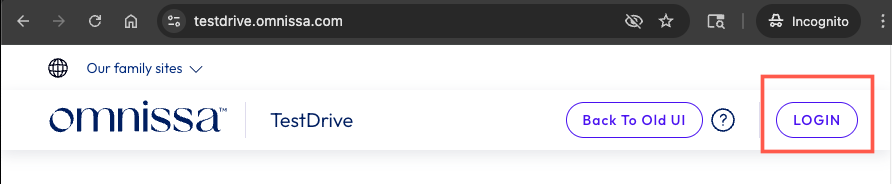
Open a browser window and navigate to the TestDrive Portal at testdrive.omnissa.com.
Log into the TestDrive portal with your Omnissa Connect Account as prompted.
Launch Workspace ONE Intelligent Hub
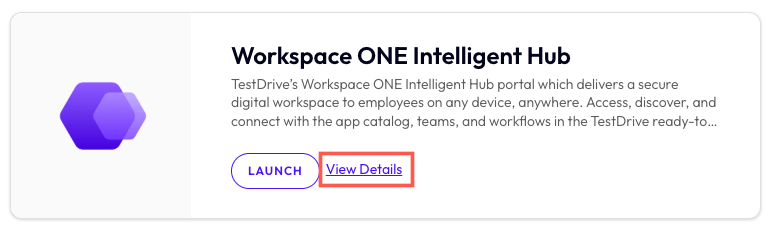
From within DemoZone in the TestDrive Portal, find the Workspace ONE Intelligent Hub product tile, then click the View Details button.
Launch Workspace ONE Intelligent Hub
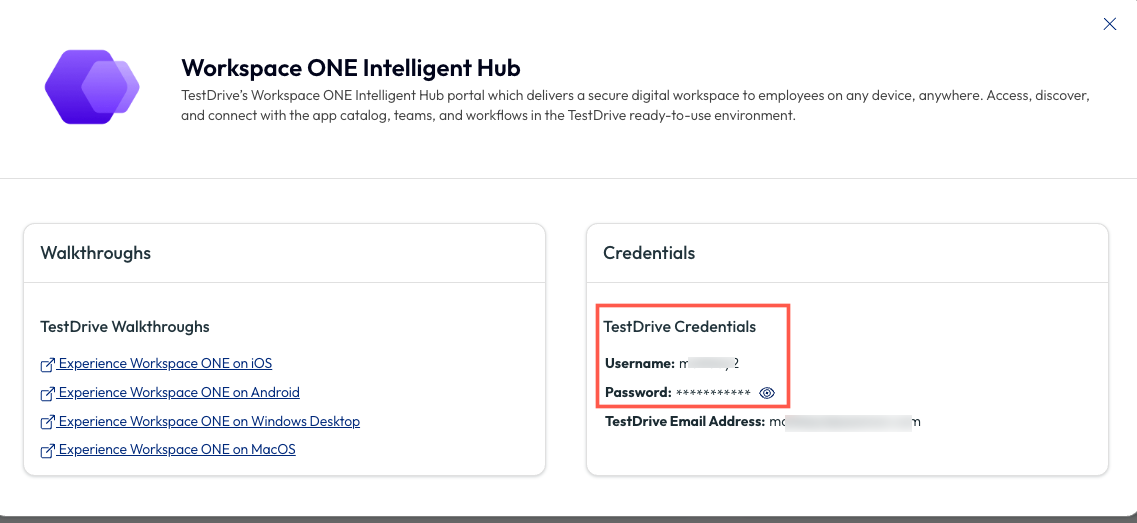
In the Workspace ONE Intelligence Hub Details pop up window, take note of your TestDrive Credentials.
Launch Workspace ONE Intelligent Hub
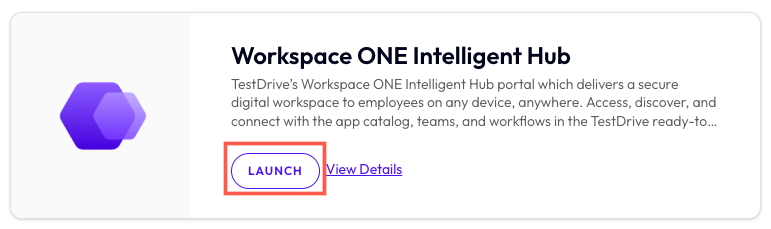
Back in the Workspace ONE Intelligent Hub product tile, click the LAUNCH button.
Workspace ONE Intelligent Hub Login
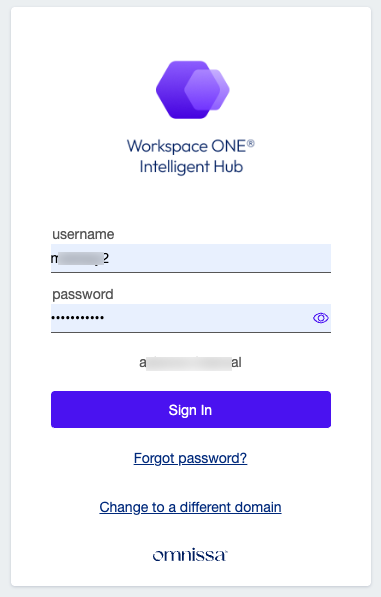
At the login screen, enter your TestDrive Credentials that you noted in previous steps.
Once you have entered your username and password, click Login.
Note: For the username field, enter your TestDrive username, NOT your email address.
ServiceNow Login
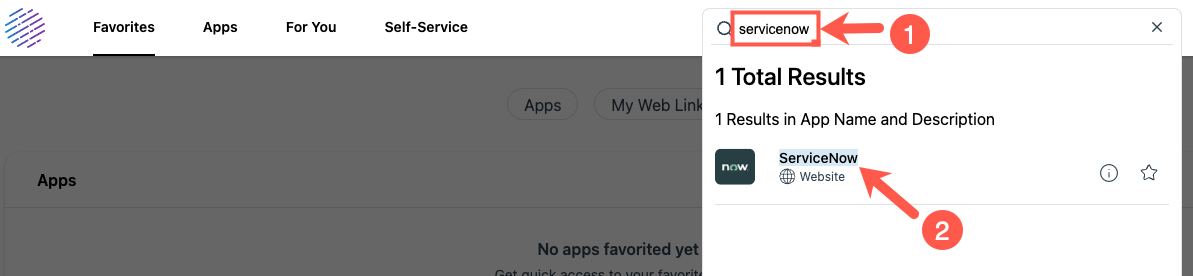
When you are logged in to Workspace ONE, click in the Search Apps box and enter servicenow. This will display the ServiceNow web app. Click on the web app to launch into the ServiceNow site.
ServiceNow Login
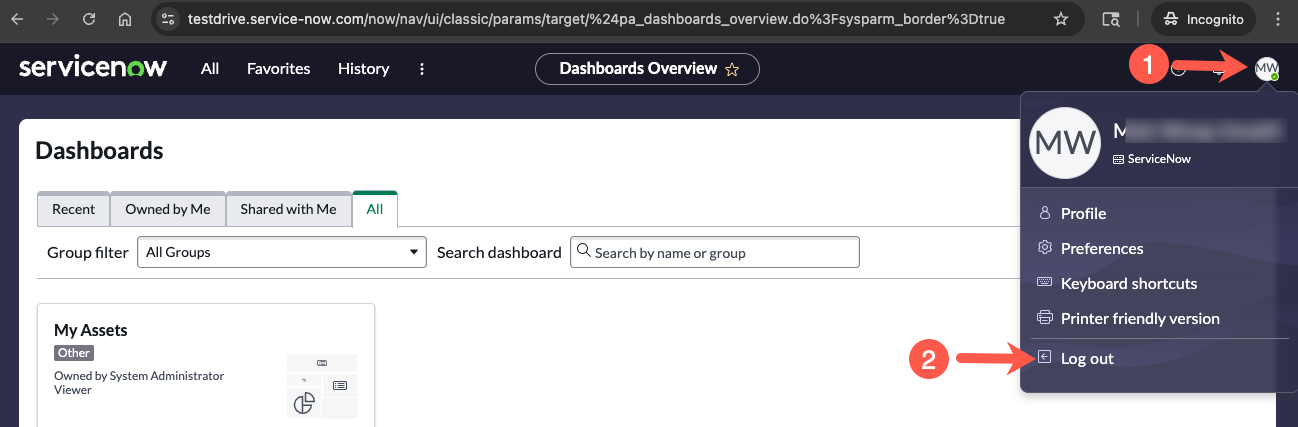
If this is your very first time accessing this ServiceNow instance, you will need Log out from ServiceNow and then log back in (using the same web app in Workspace ONE Intellgent Hub) to have your appropriate roles applied. You can skip this Log out step if you have previously logged in to this Service Now instance.
Horizon User Sessions
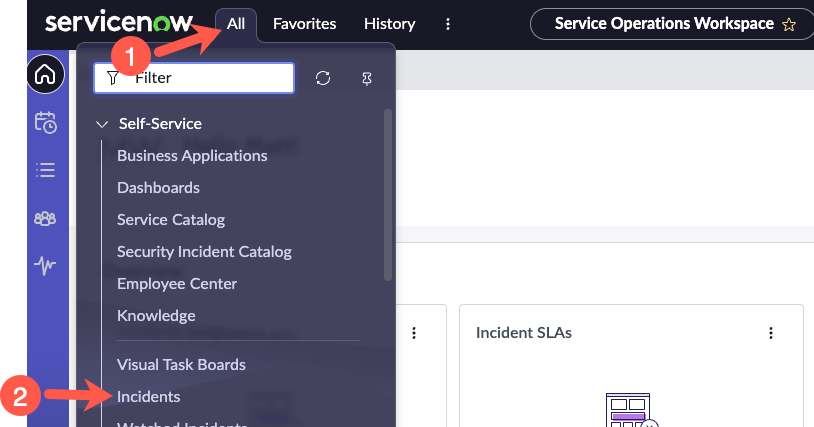
In ServiceNow, go to All > Self-Service > Incidents.
Horizon User Sessions
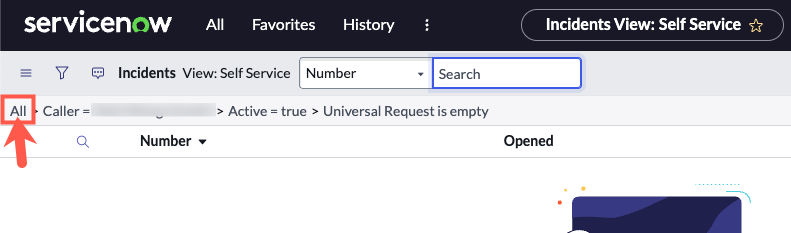
The default view in Incidents will only show incidents created by under your account. Click on All under the filter to display all incidents tickets in the system.
Horizon User Sessions
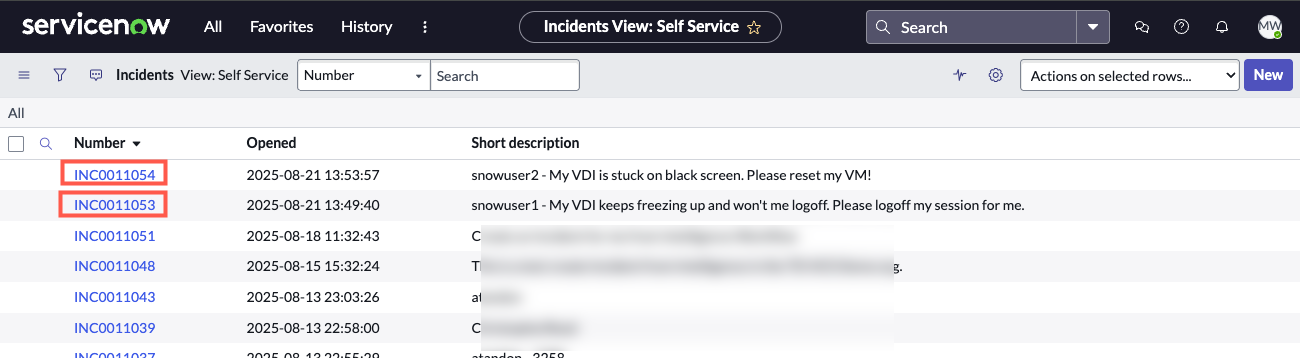
Click on incident number INC0011053 or INC0011054 to open one of these tickets.
Horizon User Sessions
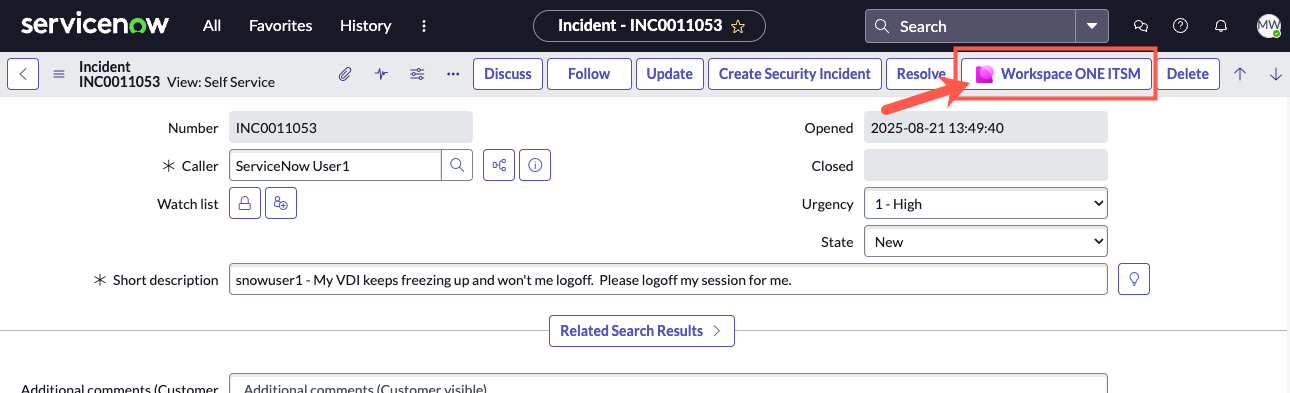
After opening one of the incident tickets, click on the Workspace ONE ITSM button.
Horizon User Sessions
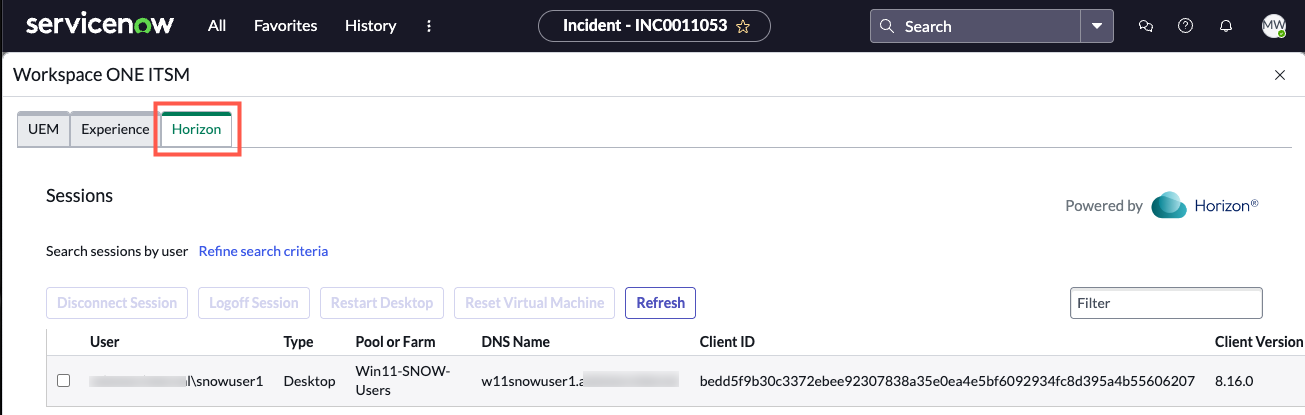
In the Workspace ONE ITSM page, click on the Horizon tab.
Horizon User Sessions
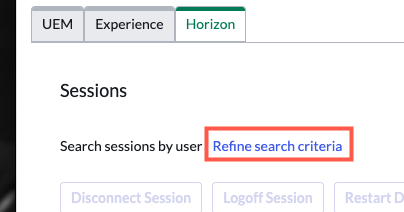
If there is a Horizon desktop entitled to the Caller of the ticket, the Caller’s Horizon session status will be displayed.
If no Callers/users are displayed, you can search through all Horizon users that are entitled to desktop pools. Click on Refine search criteria.
Horizon User Sessions
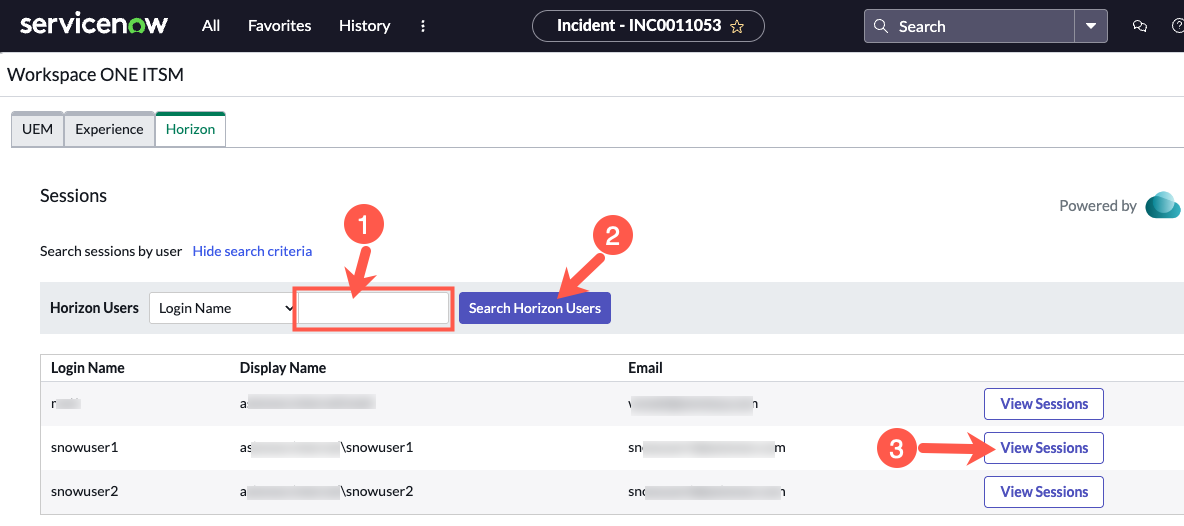
In the search box next to Login Name, enter a space then hit the Search Horizon Users button.
All Horizon users that are entitled to the desktop pools will be displayed.
Click on the View Sessions button for snowuser1 or snowuser2.
Horizon User Sessions
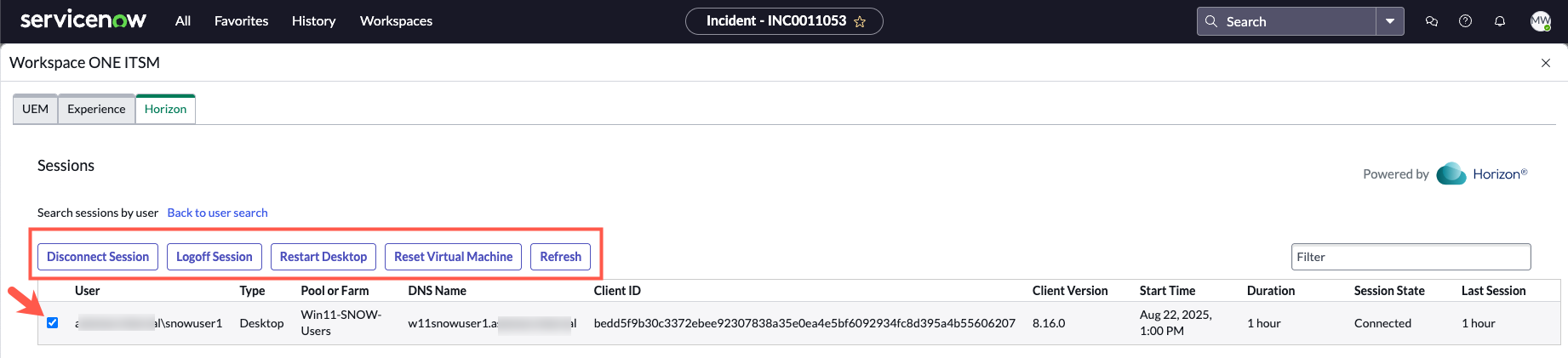
The Sessions page will show details on the user’s Horizon desktop and their session info.
Select the user’s session and review the action buttons that are available to take against their Horizon Session.
Note: Due to limitations of this being a shared demo environment, please only observe and do not run any of the actions against the active sessions.
Additional Information
This concludes the walkthrough of the Horizon integration with Workspace ONE ITSM Connector for ServiceNow.
For additional information regarding Workspace ONE ServiceNow integrations, visit https://docs.omnissa.com/bundle/WorkspaceONEUEMServiceNowIntegrationsVSaaS/page/WorkspaceONEUEMServiceNowIntegrations.html.