Home > Demo Guides > Horizon Cloud
Omnissa Intelligence and Experience Management for Horizon - Default Dashboards
Omnissa Intelligence and Experience Management for Horizon have been enabled in TestDrive's Omnissa Connect environment.
Follow the steps in this guide to learn how to access the default dashboards.
Before You Begin
In order to access the Workspace ONE Cloud / Horizon Cloud Next-Gen environment, please ensure you have the following:
- A valid account in the Omnissa TestDrive environment, sign up here if you do not yet have an account.
- A valid Omnissa Connect account on https://connect.omnissa.com, sign up for a new account if you do not have one yet. Your email address for this Omnissa Connect account must be the same as the email address associated with your TestDrive account.
TestDrive Portal Login
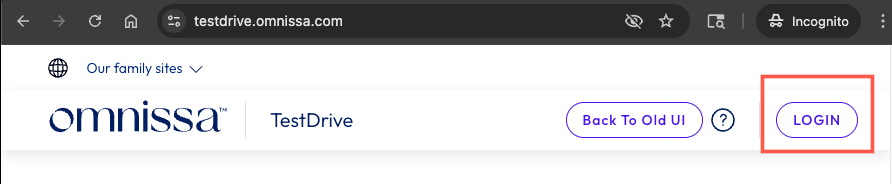
Open a new incognito browser window and navigate to the TestDrive Portal at testdrive.omnissa.com.
Log into the TestDrive portal with your Omnissa Connect Account as prompted.
Enable Horizon Cloud Service Product Tile
BEFORE YOU ENABLE Horizon Cloud Service from the TestDrive Portal, you must have your own Omnissa Connect account on https://connect.omnissa.com before proceeding with the next steps. This account is completely separate from your TestDrive account, but needs to be registered with the same email address you registered with TestDrive.
Please ensure you are able to login to your Omnissa Connect account on https://connect.omnissa.com.
If you do not have an Omnissa Connect account, please create your account and ensure you are able to login, then proceed with the next steps in this guide.
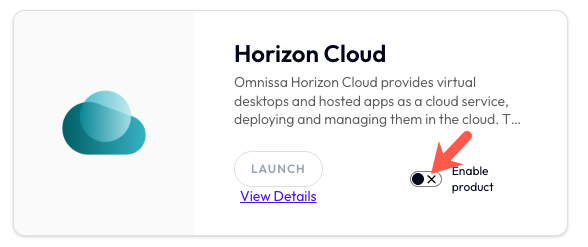
While logged in to the TestDrive Portal, under DemoZone, find the Horizon Cloud tile and then click the Enable Product button.
Enabling Status
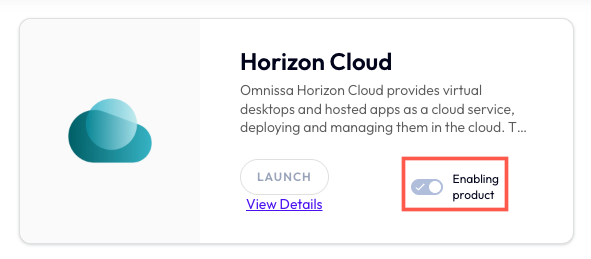
Allow a few minutes for the product to be enabled. During this time, your Omnissa Connect account is being added to the cloud organization for the TestDrive environment.
After a few minutes, you will receive an email from Omnissa Connect (noreply@omnissa.com) with subject "Organization Access" which confirms your roles have been added.
NOTE: Your Omnissa Connect account will be active in the organization for 30 days. If you receive an email that your account has been removed from the organization and you still need access, you can re-enable your access in the Horizon Cloud product tile, as mentioned in the previous steps.
View Details in Product Tile
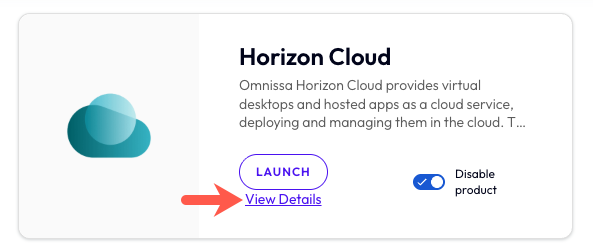
After your Horizon Cloud access has been enabled, click View Details within the product tile.
Launch Universal Console Link
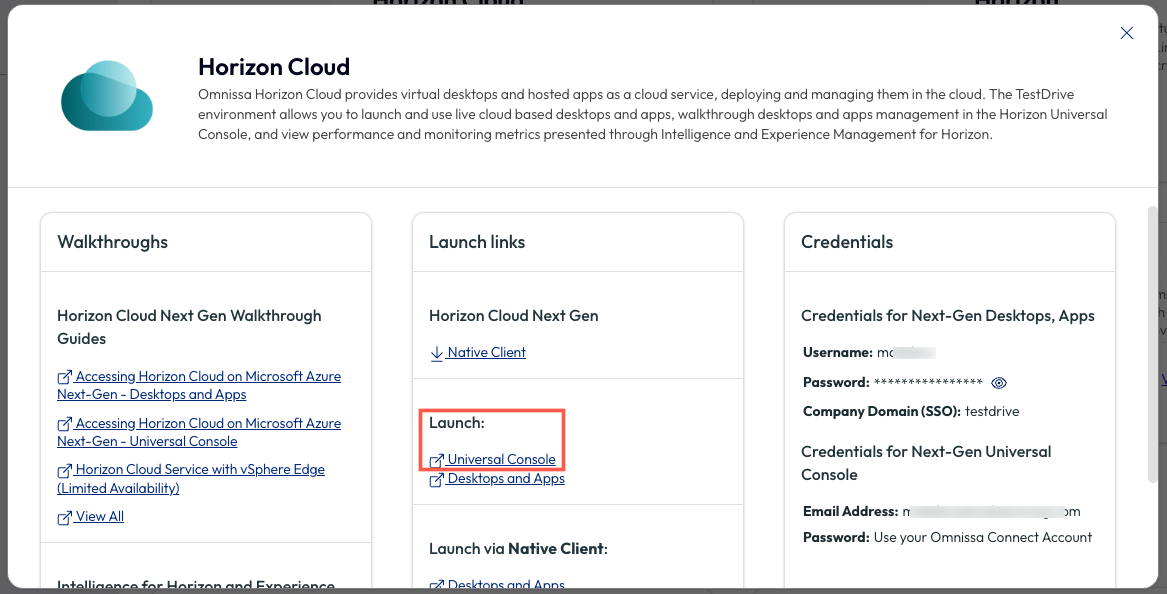
On the pop up menu under Launch, click on Universal Console.
You will be directed to the Omnissa Connect Services Page.
Omnissa Connect Services Page
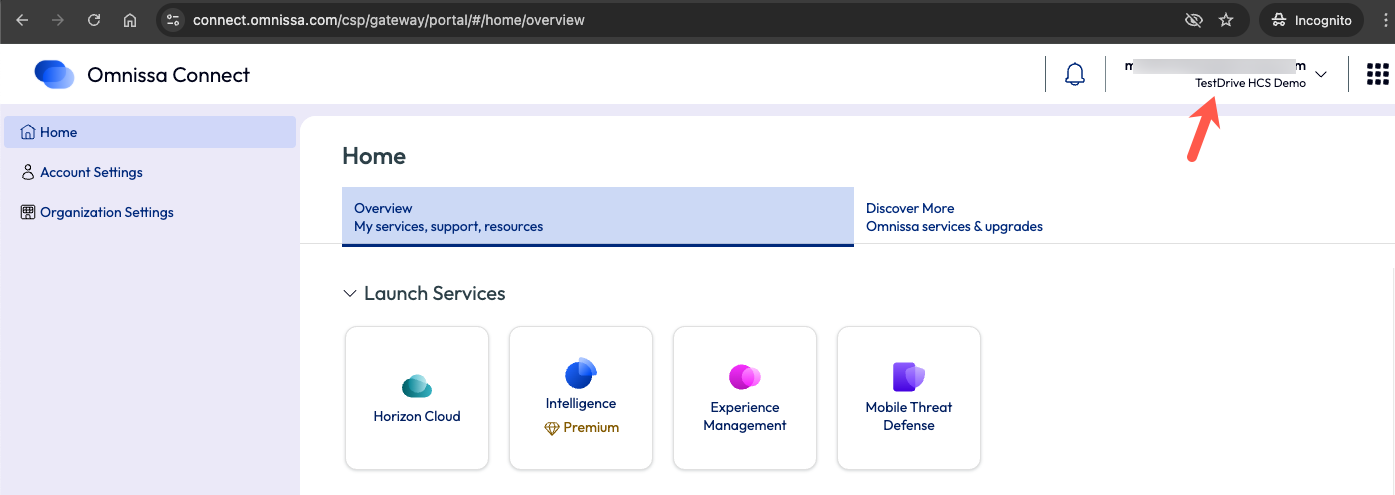
Depending on your Connect account, you might have access to multiple Organizations.
For TestDrive Horizon Cloud Next-Gen, make sure you are in the correct organization named "TestDrive HCS Demo".
You can verify this in the upper right corner of the window, below your name. If a different organization name is shown, click on the name and toggle to the correct one.
Omnissa Intelligence Service
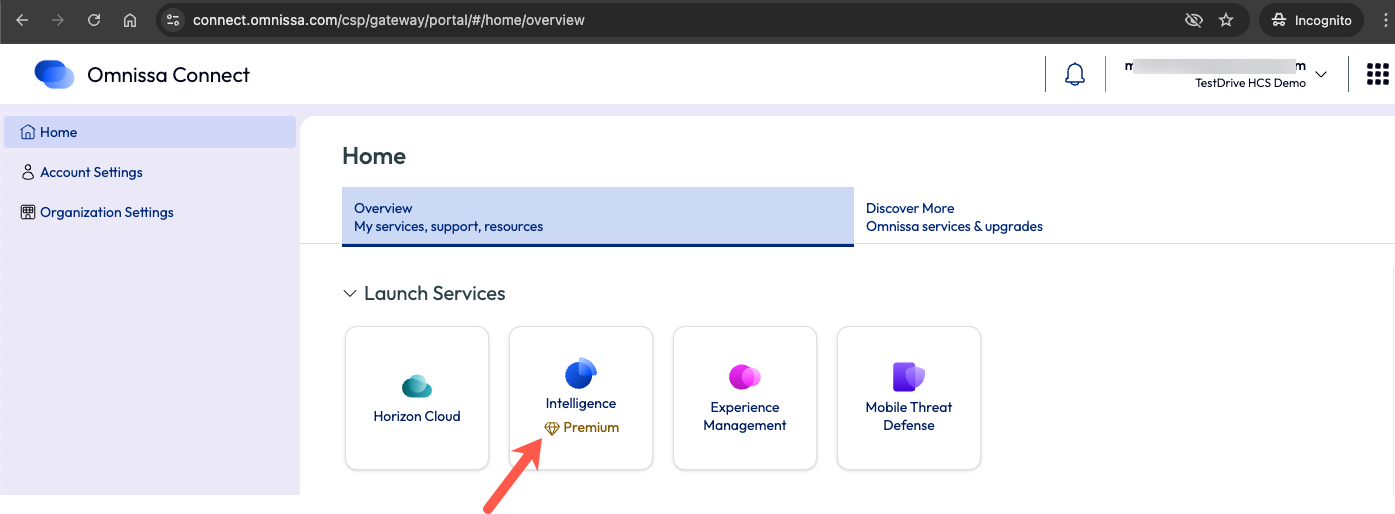
Click on the Intelligence tile.
Omnissa Intelligence for Horizon Dashboards
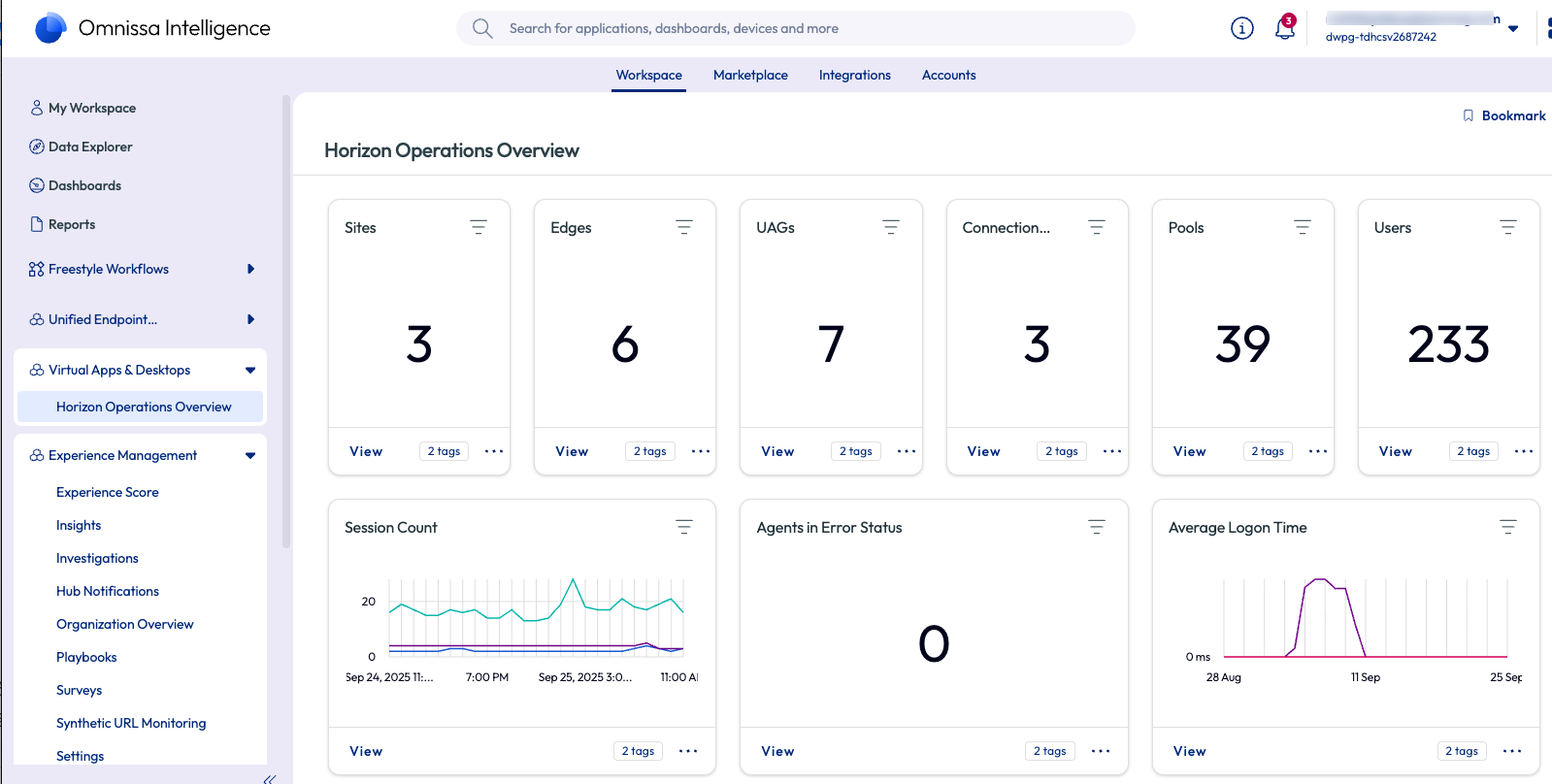
The default dashboard Horizon Operations Overview is found under Virtual Apps & Desktops.
After the dashboard loads, you may proceed with reviewing the default widgets and data.
Experience Management for Horizon
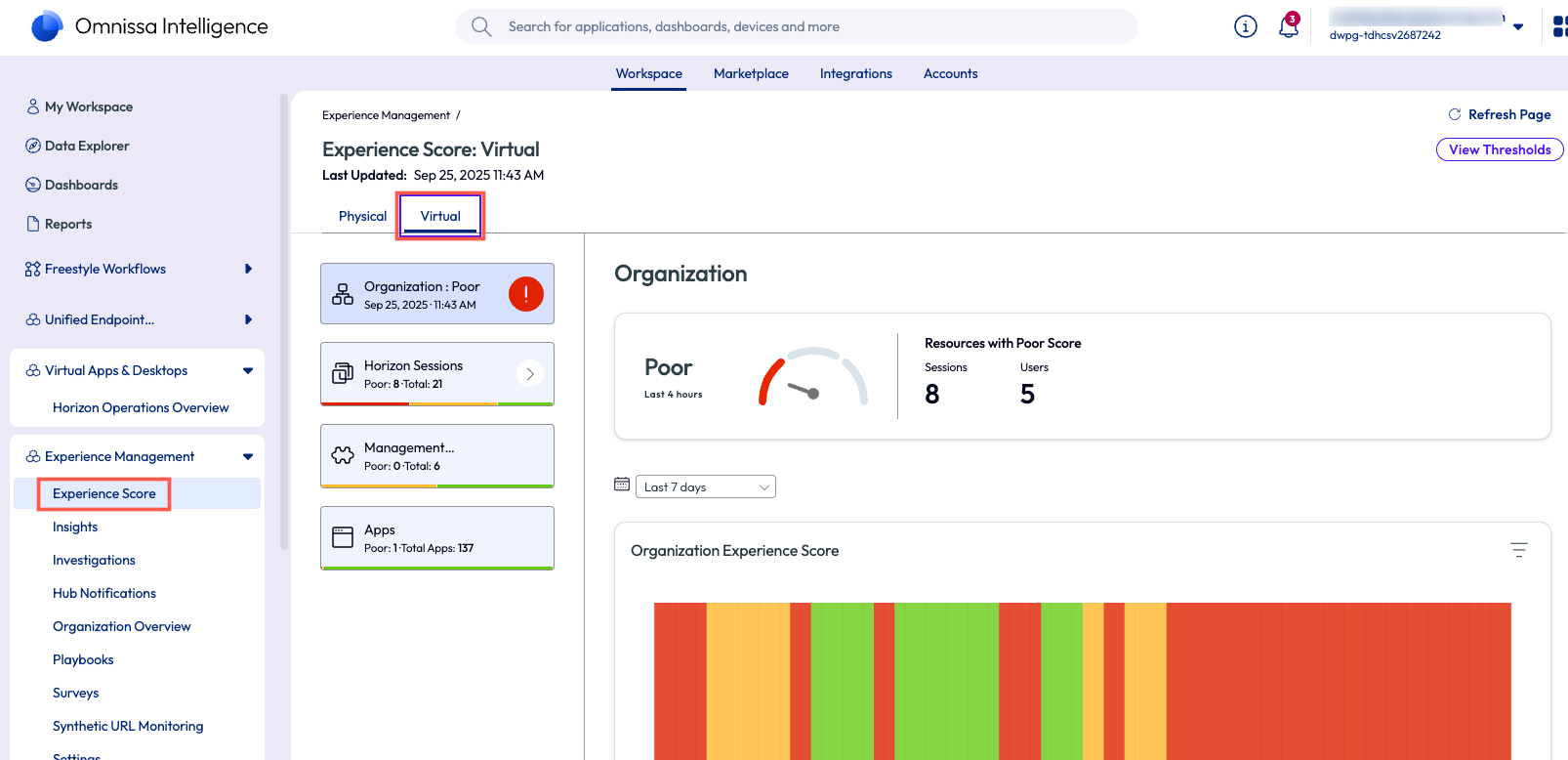
Experience Management for Horizon is visible on the left menu under Experience Management > Experience Score.
In the Experience Score dashboard, click on the Virtual column to see the data populated from the TestDrive Horizon environments.
Experience Management for Horizon
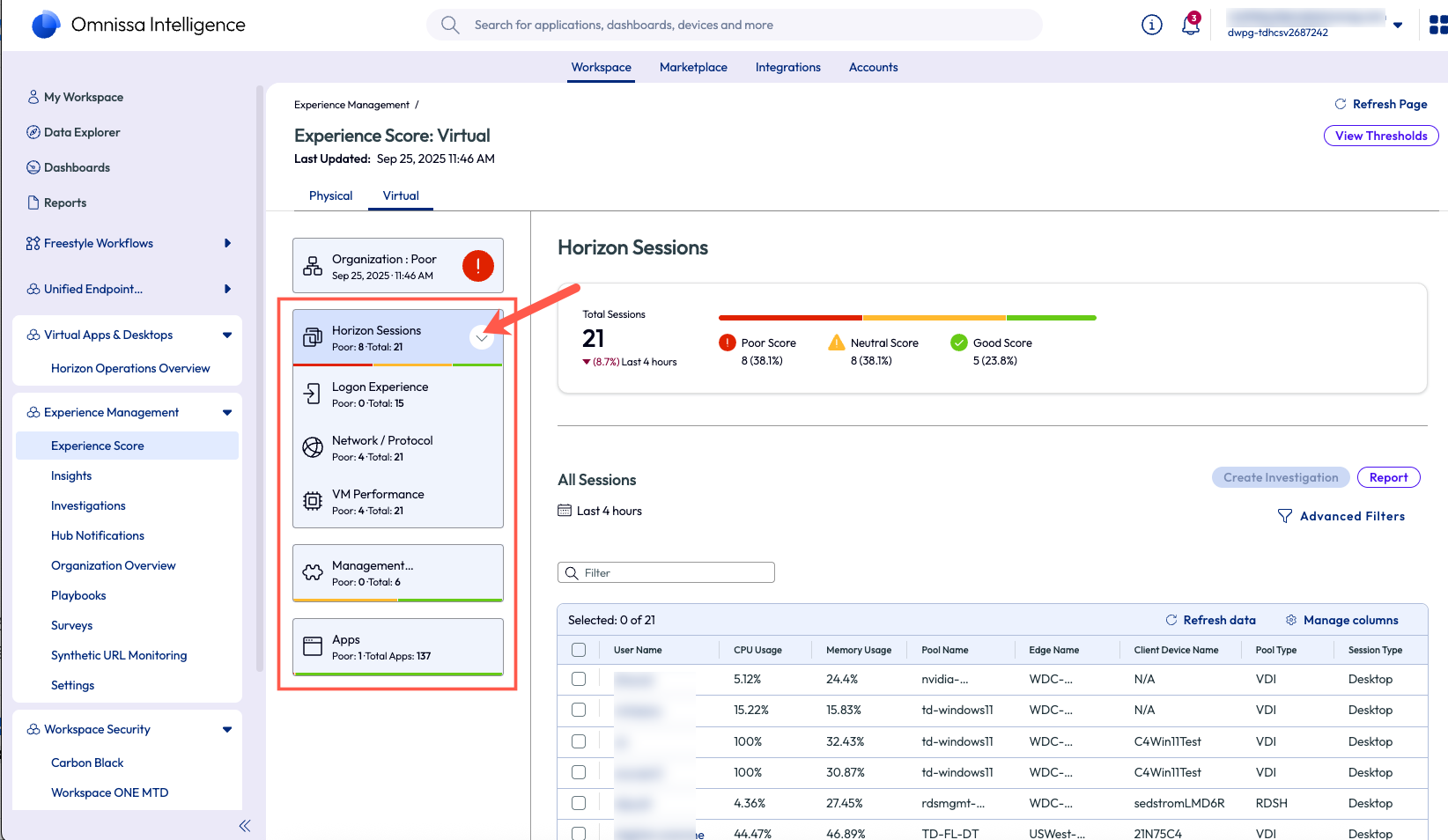
Click on the Horizon Sessions section to expand it and view the various metrics reported for recent sessions.