Home > Demo Guides > Horizon Cloud
Omnissa App Volumes Apps on Demand - Horizon Cloud on Microsoft Azure
In this walkthrough you review App Volumes in the Horizon Cloud console, then connect to a Horizon Cloud desktop in your browser and watch Microsoft Office 2024 LTSC arrive on demand in the Omnissa TestDrive environment.
Overview
Task 1: Open the Horizon Cloud console
- Sign in to TestDrive and find the Horizon Cloud tile
- View the tile details
- Launch Omnissa Connect
- Launch the Horizon Cloud console
Task 2: Review App Volumes in the console
- View the MSOffice-2024 application
- Expand the MSOffice-2024-v1 package
- View the Entitlements
Task 3: Connect to the desktop
- Open Desktops and Apps from the tile details
- Choose Browser
- Enter the company domain
- View your desktops and apps
- Launch TDHCS-VDI-Multisession
- Allow full screen
Task 4: Confirm Office is not installed
- View the desktop
- Right-click Start and open Installed apps
- Confirm Microsoft Office is not installed
Task 5: Deliver Excel on demand
- Open the Other folder in the Start menu
- Launch Excel
- Watch the application delivery
- Excel opens
- Confirm Microsoft Office is now installed
- Sign out
Before You Begin
- An Omnissa Connect account. Use the same email for your TestDrive account and https://connect.omnissa.com. Horizon Cloud access lasts 30 days, so re-enable the product if it lapses.
- A supported browser. Horizon Cloud desktops and apps open in the browser; Horizon Client is not needed.
Task 1: Open the Horizon Cloud console
Sign in to TestDrive and launch the Horizon Cloud console through Omnissa Connect.
1. Sign in to TestDrive and find the Horizon Cloud tile
Open an Incognito/InPrivate browser window and go to https://testdrive.omnissa.com. Sign in with your Omnissa Connect account, then scroll to the Horizon Cloud tile in DemoZone. If the product is not enabled, click Enable Product and wait until enablement is confirmed.
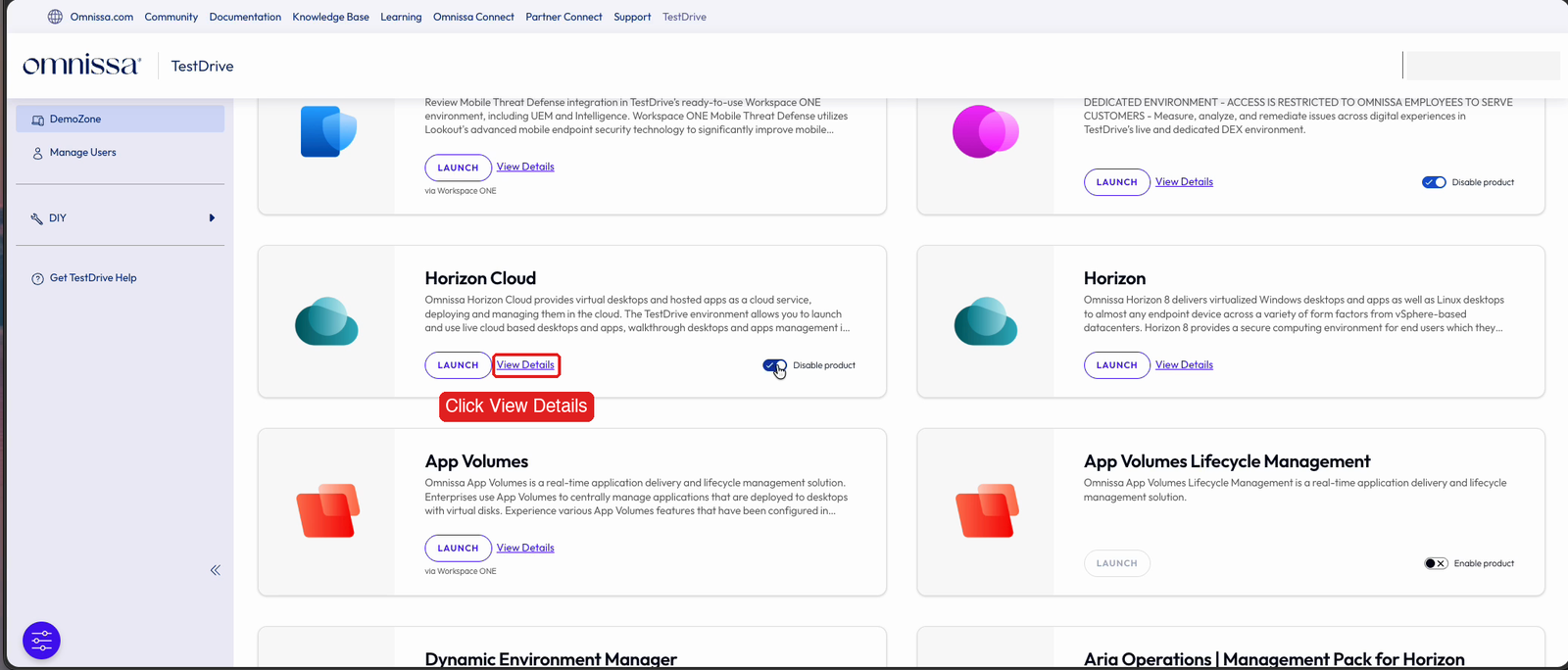
2. View the tile details
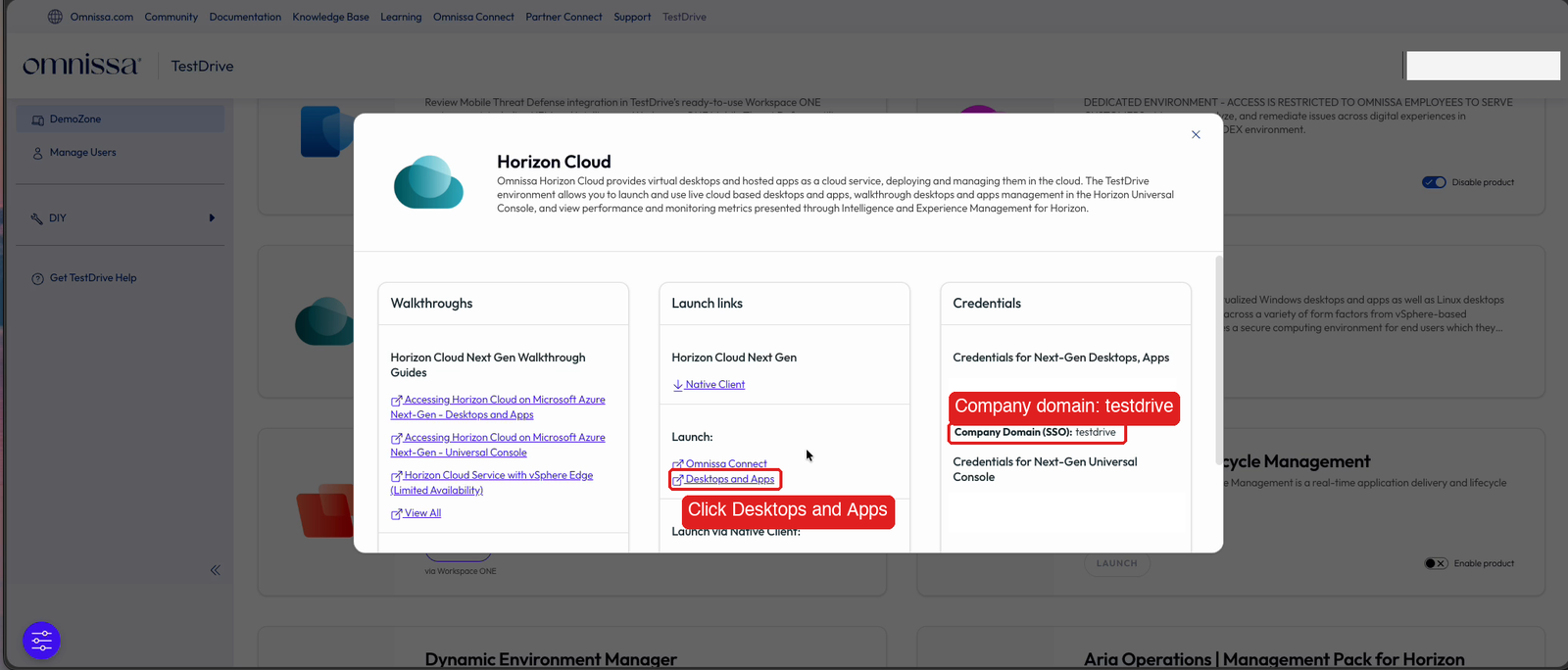
Click View Details on the Horizon Cloud tile. Under Launch, note the Omnissa Connect and Desktops and Apps links. The Credentials panel shows the Company Domain (SSO), testdrive.
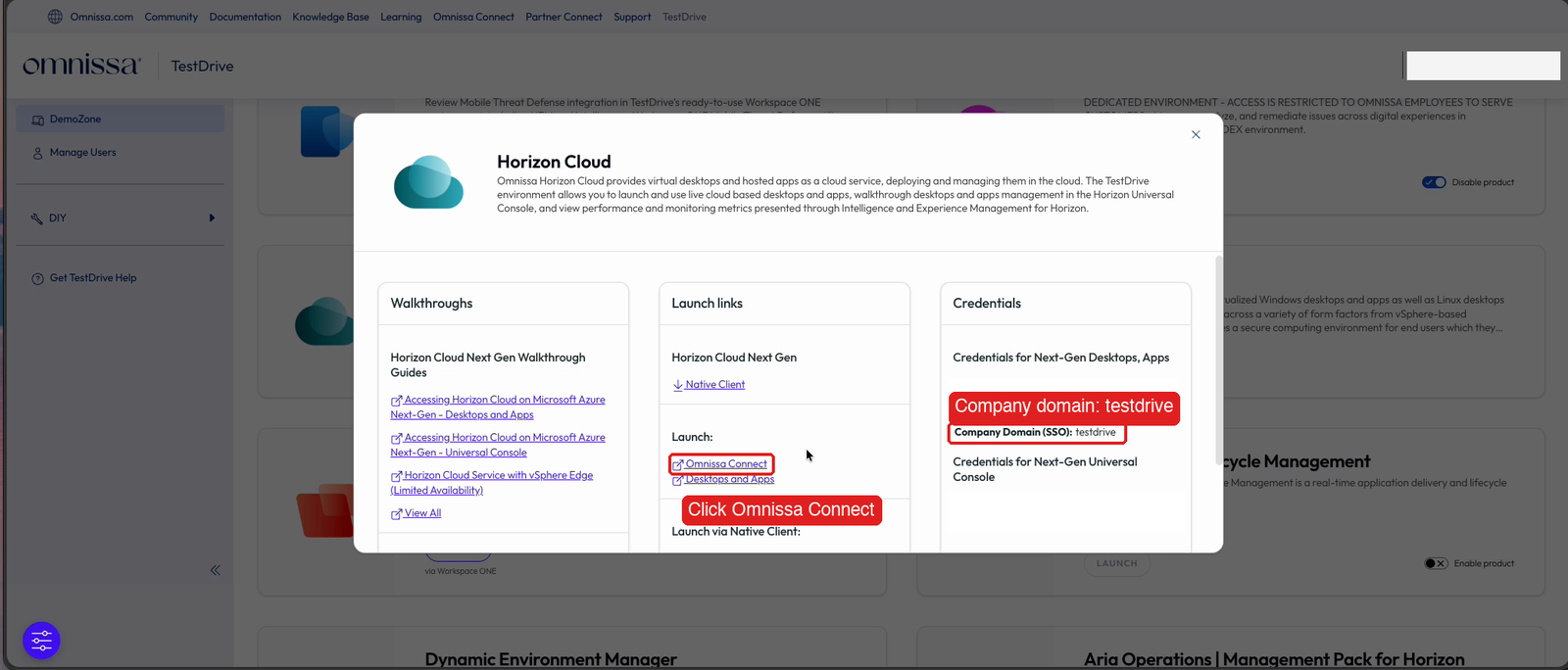
3. Launch Omnissa Connect
Under Launch, click Omnissa Connect.
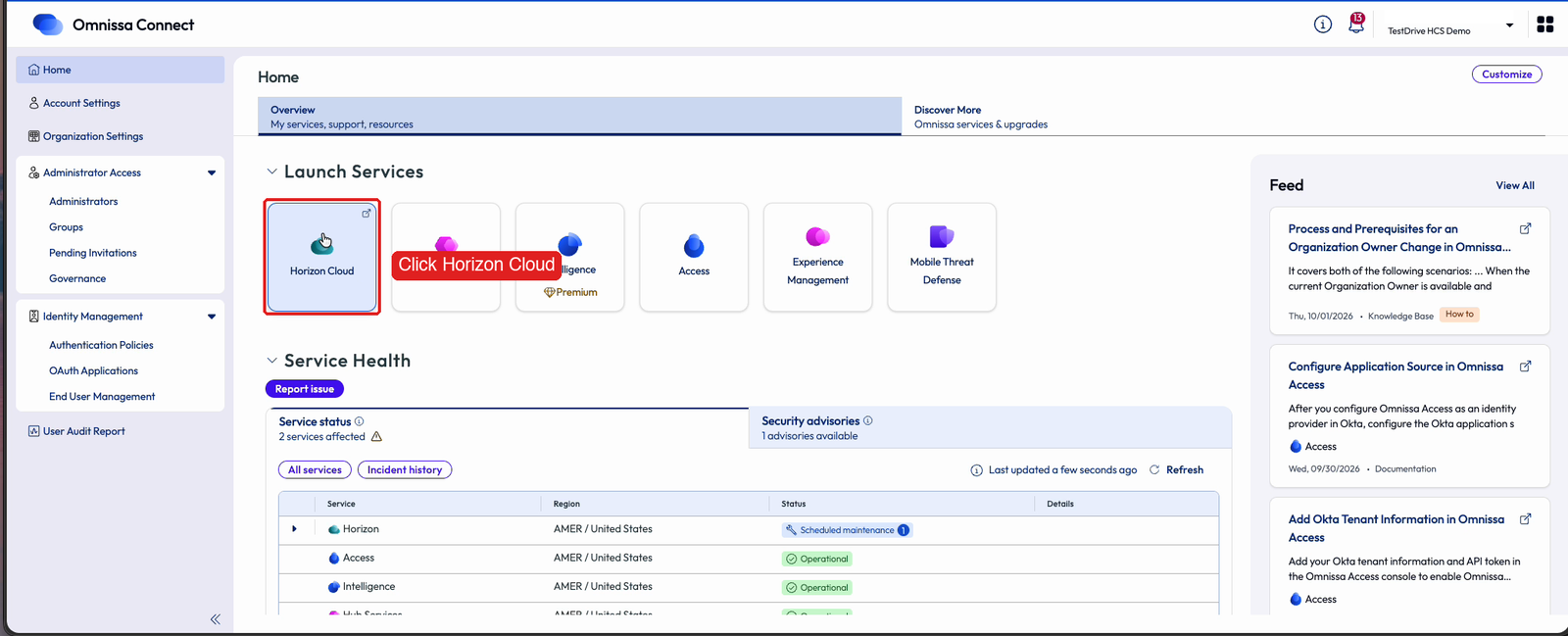
4. Launch the Horizon Cloud console
Under Launch Services, click Horizon Cloud. The Horizon Cloud console Home page opens. Next, expand App Volumes in the left navigation.
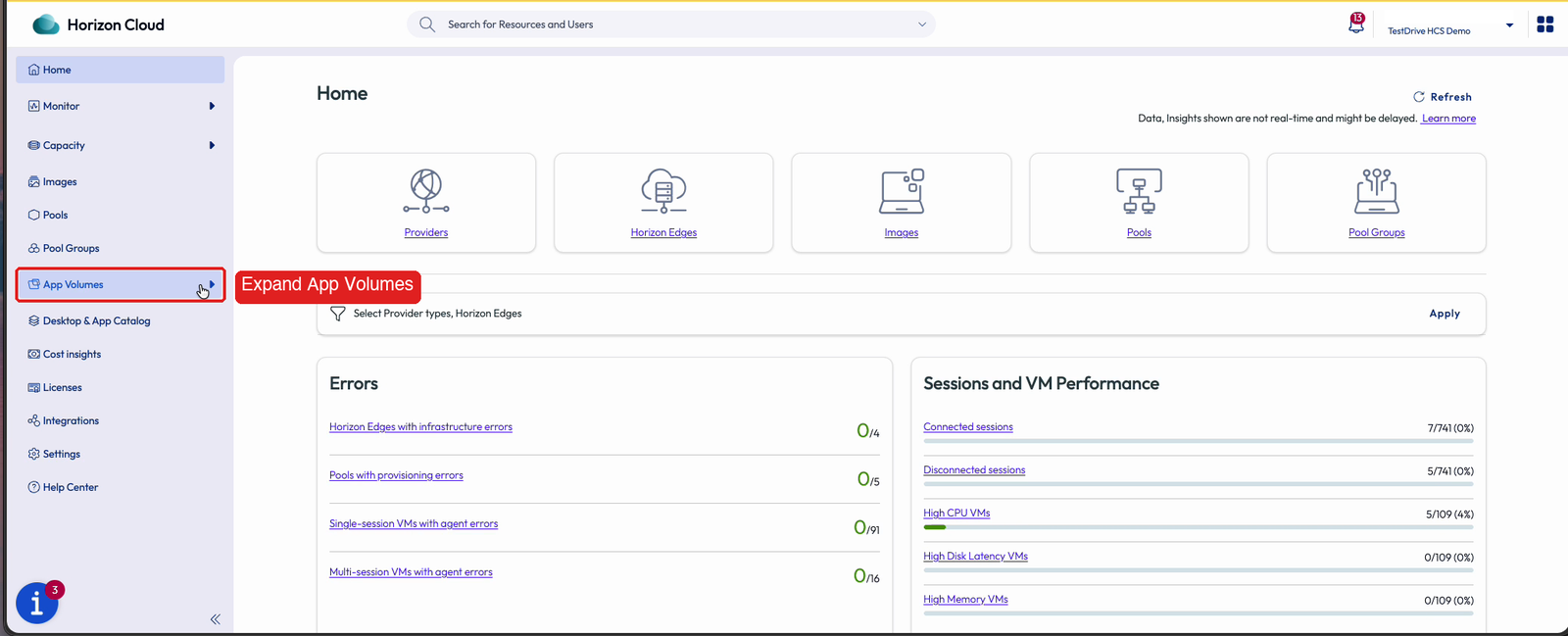
Task 2: Review App Volumes in the console
The console shows the application, who is entitled to it, and the package that will be delivered. Observe only; do not change anything.
5. View the MSOffice-2024 application
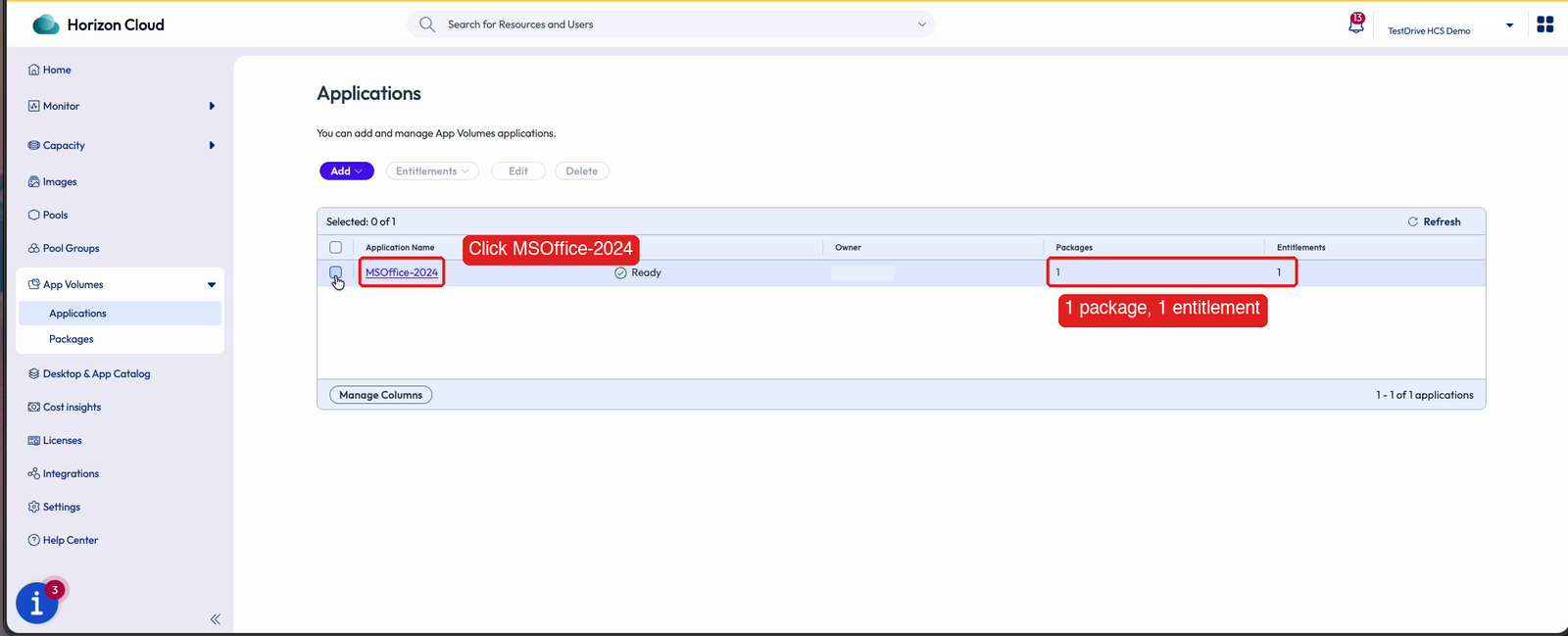
In the left navigation expand App Volumes and click Applications. MSOffice-2024 is Ready with 1 package and 1 entitlement. Click MSOffice-2024.
6. Expand the MSOffice-2024-v1 package
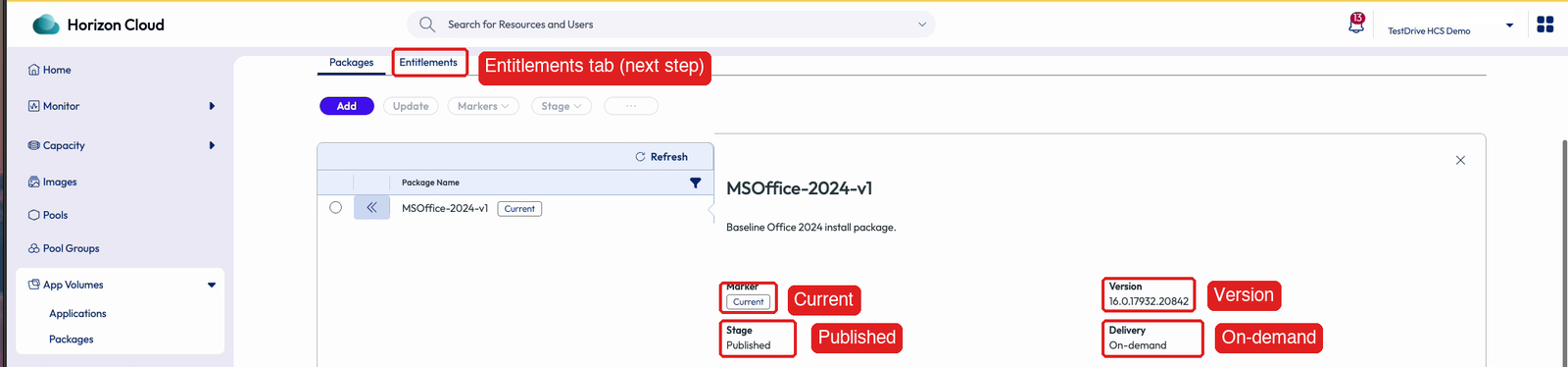
On the Packages tab, expand MSOffice-2024-v1. The package is marked Current, its Version is 16.0.17932.20842, its Stage is Published, and its Delivery is On-demand.
7. View the Entitlements
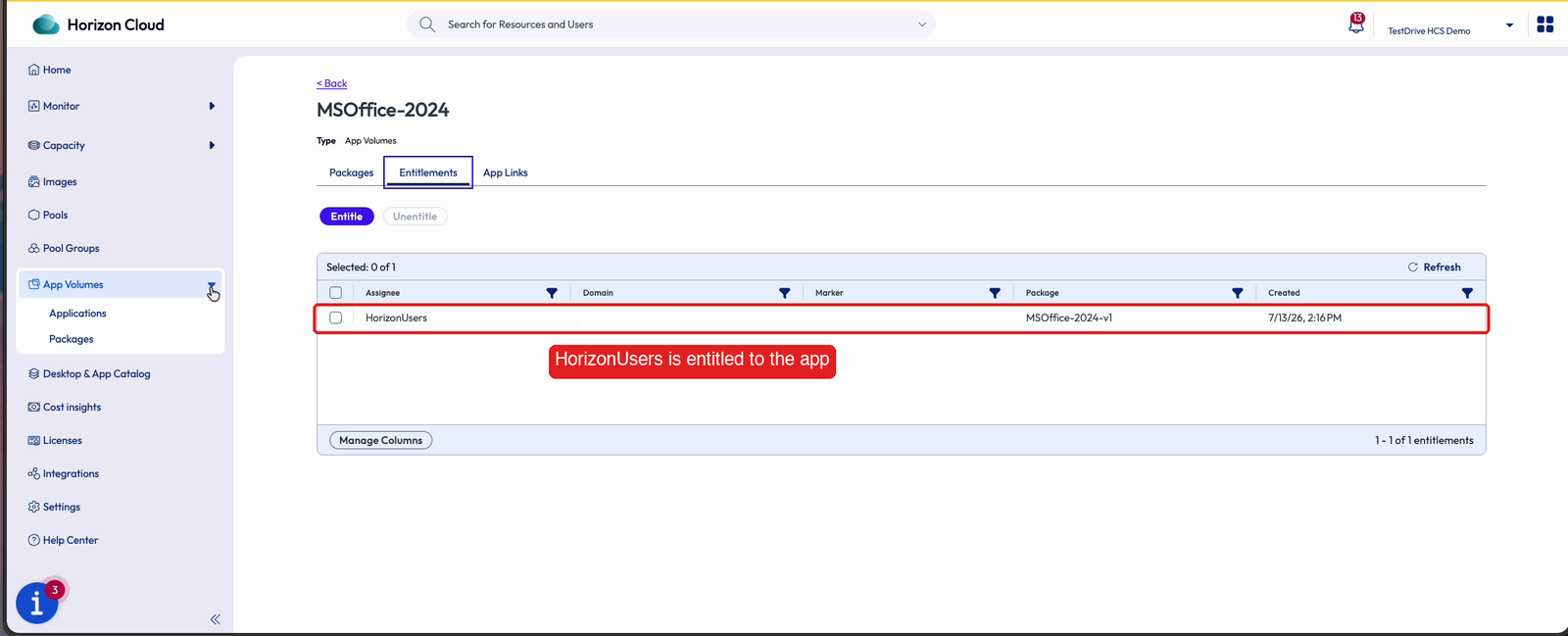
Select the Entitlements tab. The horizonusers group is entitled to MSOffice-2024, so any member who signs in to a desktop with the App Volumes agent receives Office on demand.
Task 3: Connect to the desktop
Horizon Cloud desktops open in your browser.
8. Open Desktops and Apps from the tile details
Return to the TestDrive portal tab, click View Details on the Horizon Cloud tile again, and under Launch click Desktops and Apps.
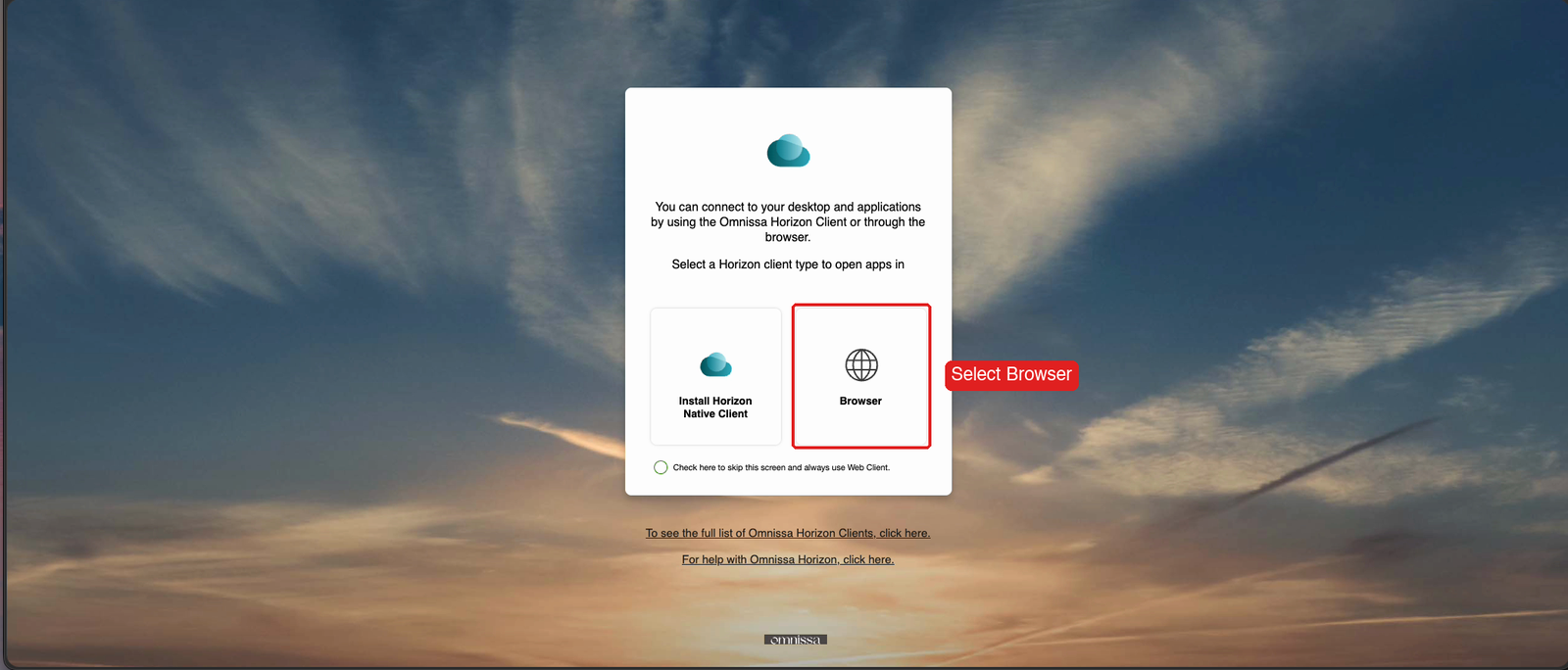
9. Choose Browser
Select Browser to open Horizon Cloud in your browser.
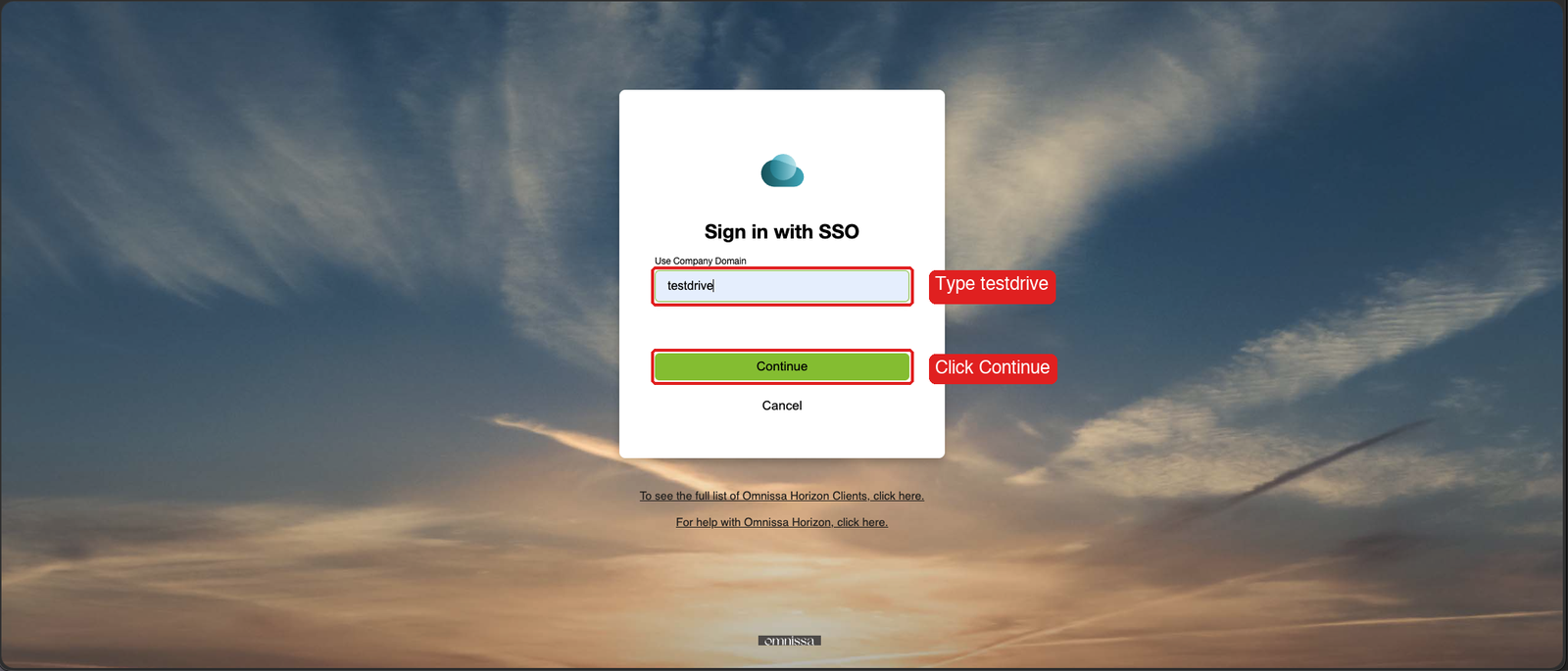
10. Enter the company domain
In the Use Company Domain field enter testdrive and click Continue. When the sign-in page appears, sign in with your TestDrive username (not your email) and password, the same ones shown in the Credentials panel of the tile details.
11. View your desktops and apps
Your desktops and apps are listed. This guide uses the desktop, so do not click the HCSRDS-* apps.
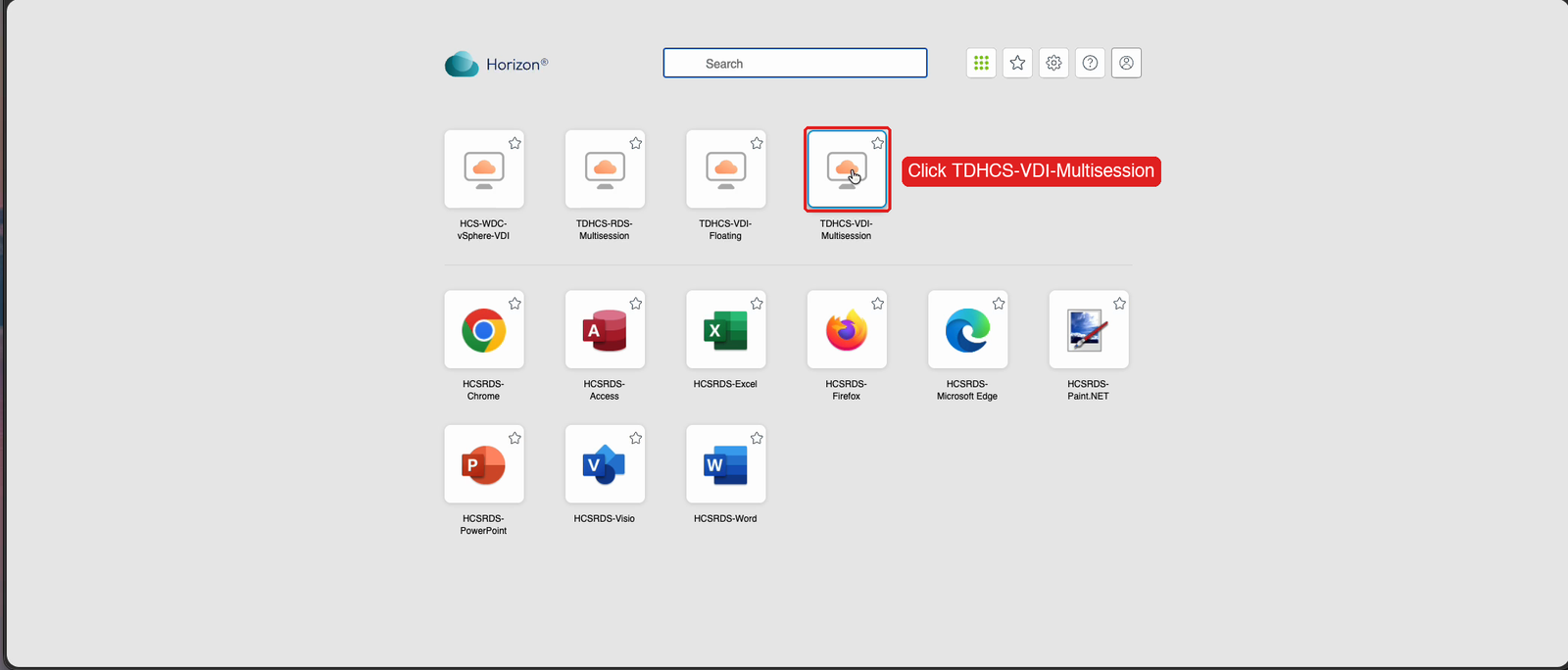
12. Launch TDHCS-VDI-Multisession
Click TDHCS-VDI-Multisession. The desktop can take a few minutes to start.
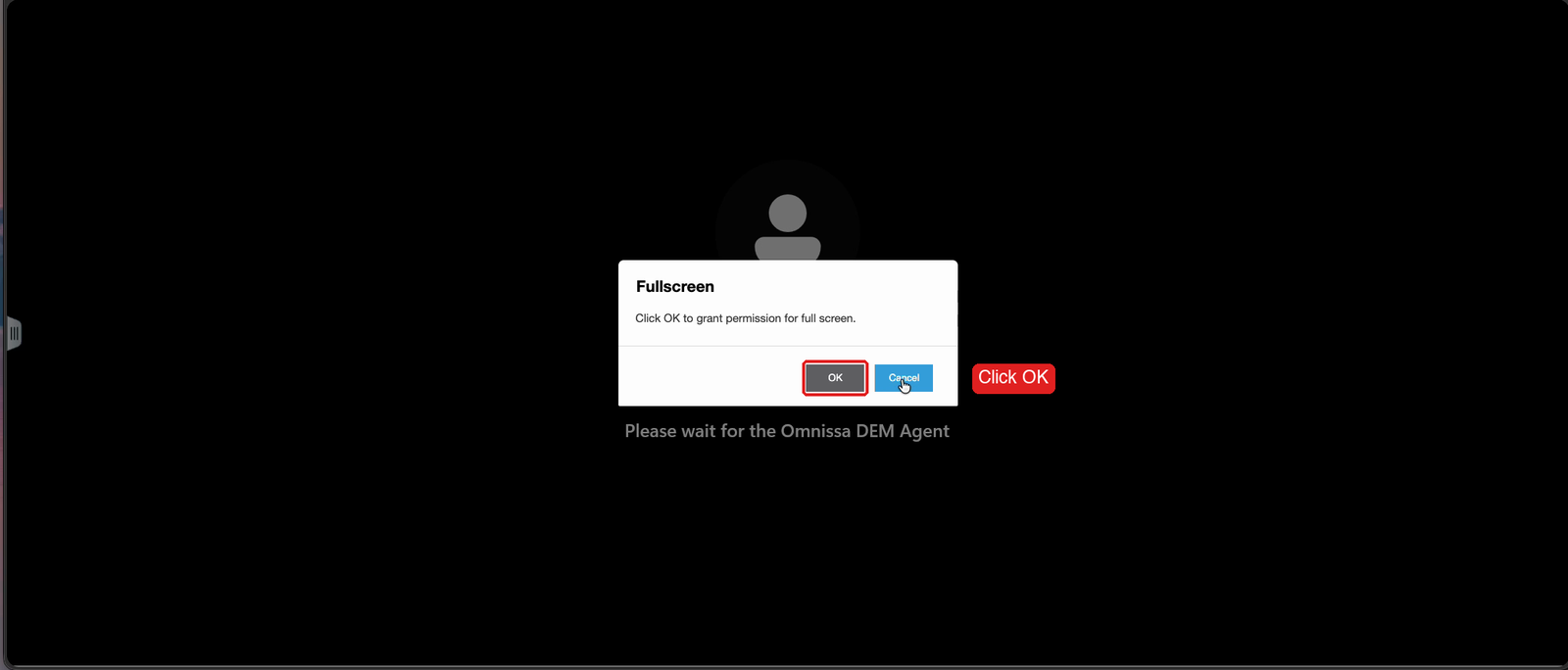
13. Allow full screen
If prompted, click OK to allow full screen, then wait for the desktop to finish loading.
Task 4: Confirm Office is not installed
This is the starting point before anything is delivered.
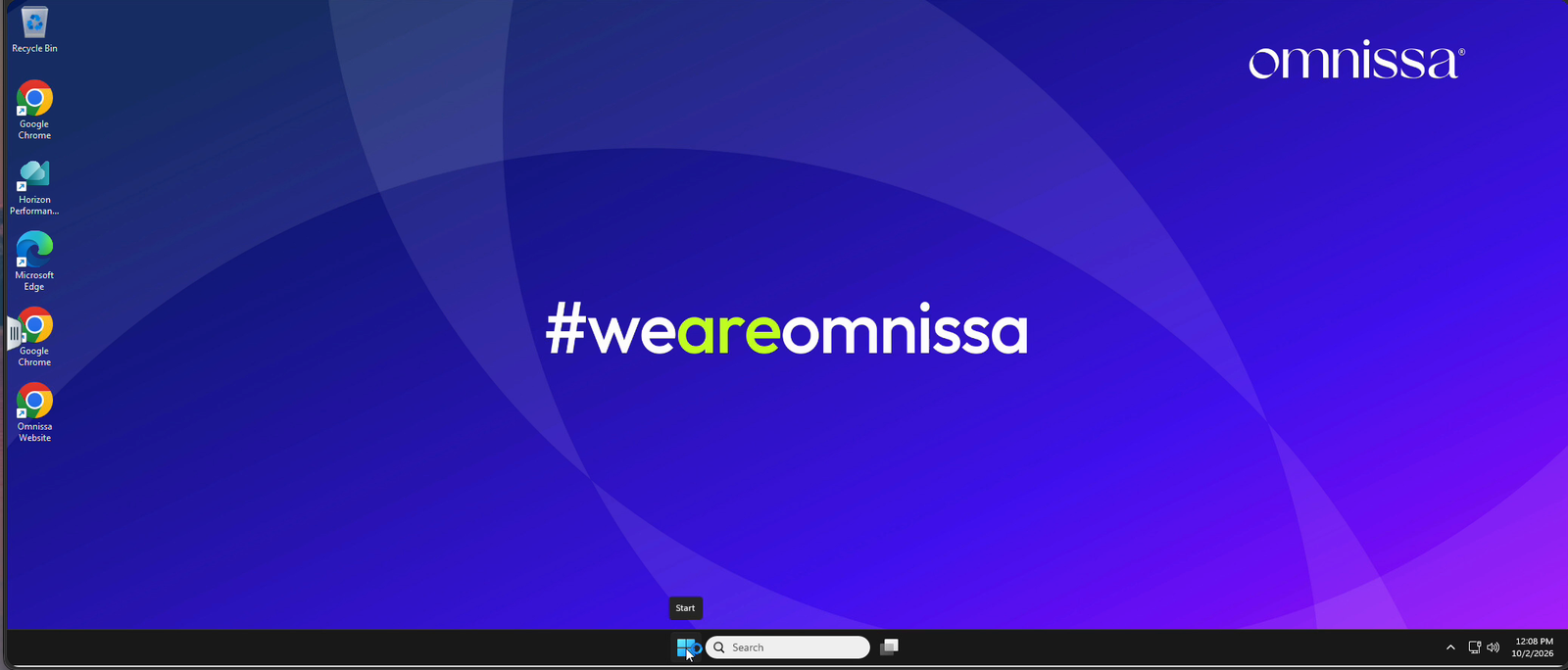
14. View the desktop
The Windows 11 multi-session desktop opens in your browser.
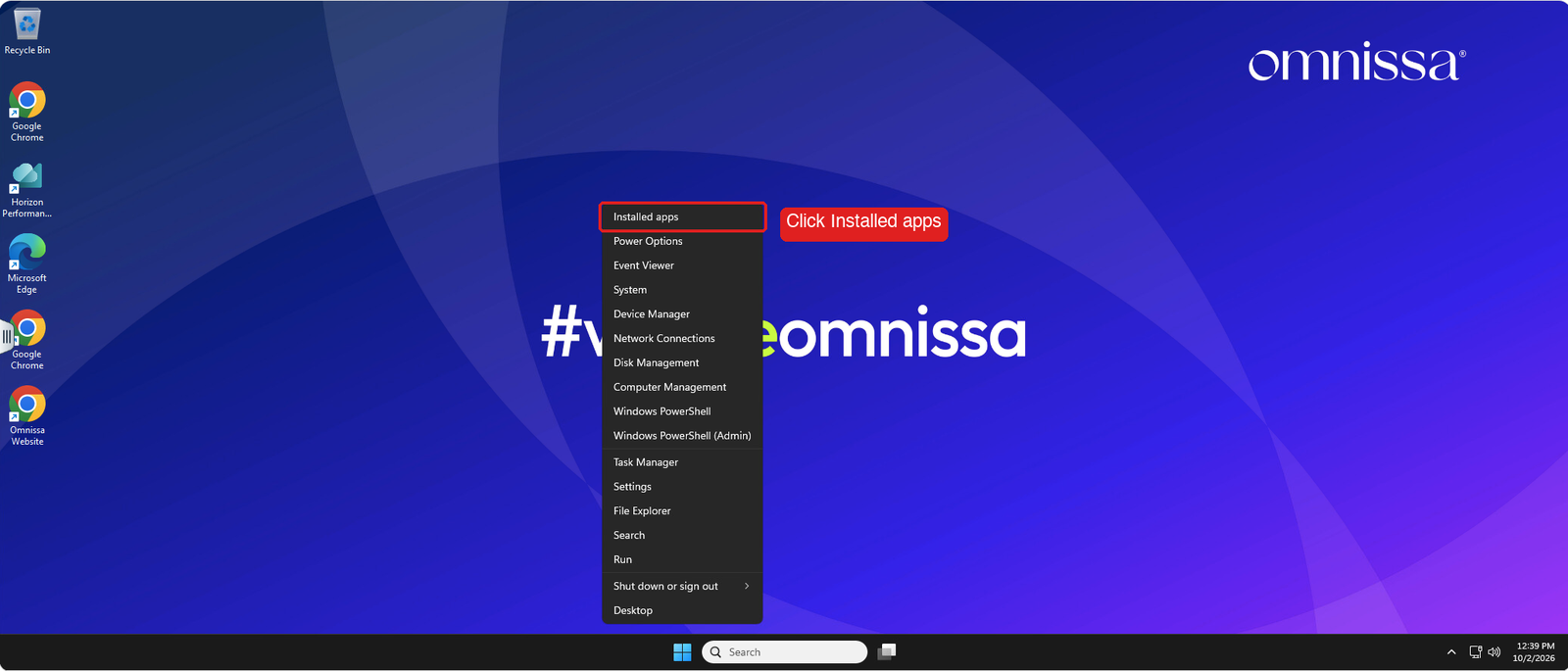
15. Right-click Start and open Installed apps
Right-click Start and click Installed apps.
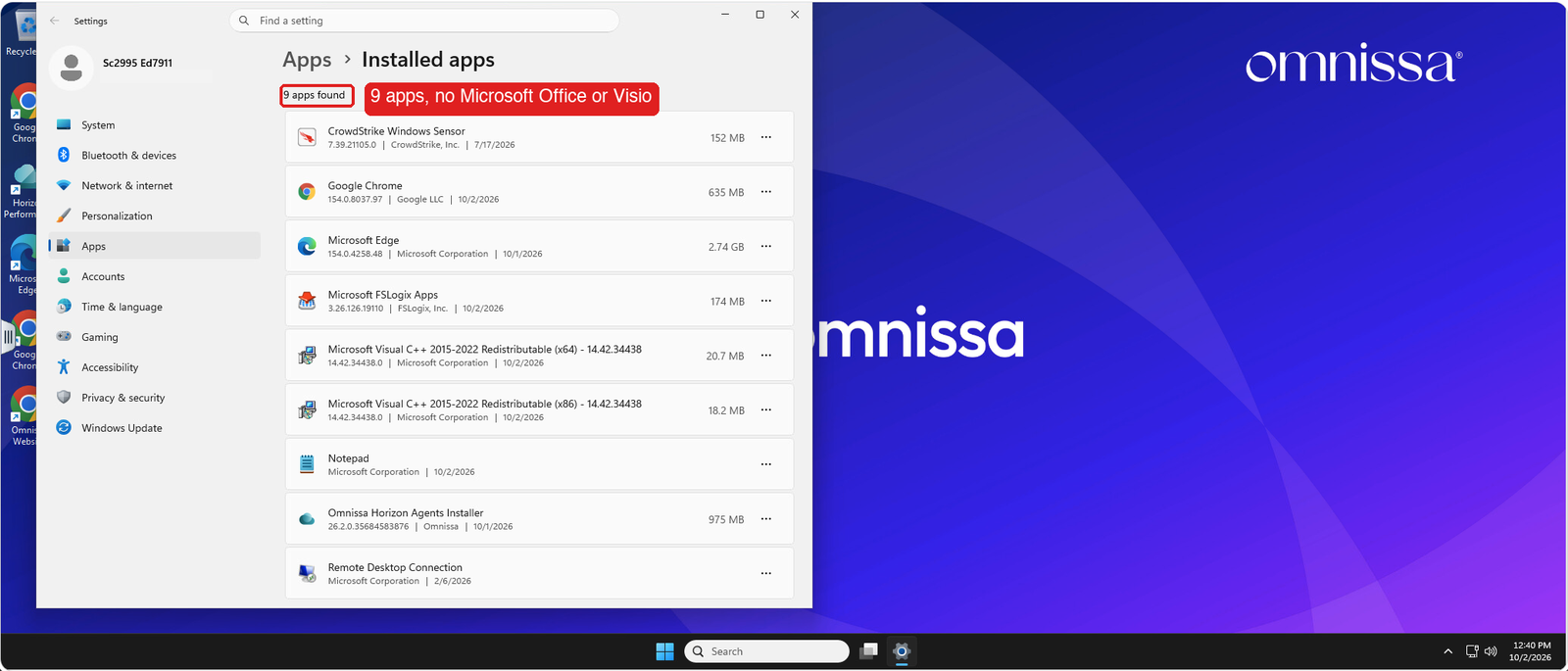
16. Confirm Microsoft Office is not installed
The list shows 9 apps, and no Microsoft Office or Visio. Close Settings.
Task 5: Deliver Excel on demand
Because your account is in the horizonusers group, which is entitled to MSOffice-2024, the App Volumes agent on the desktop delivers Office when you start Excel.
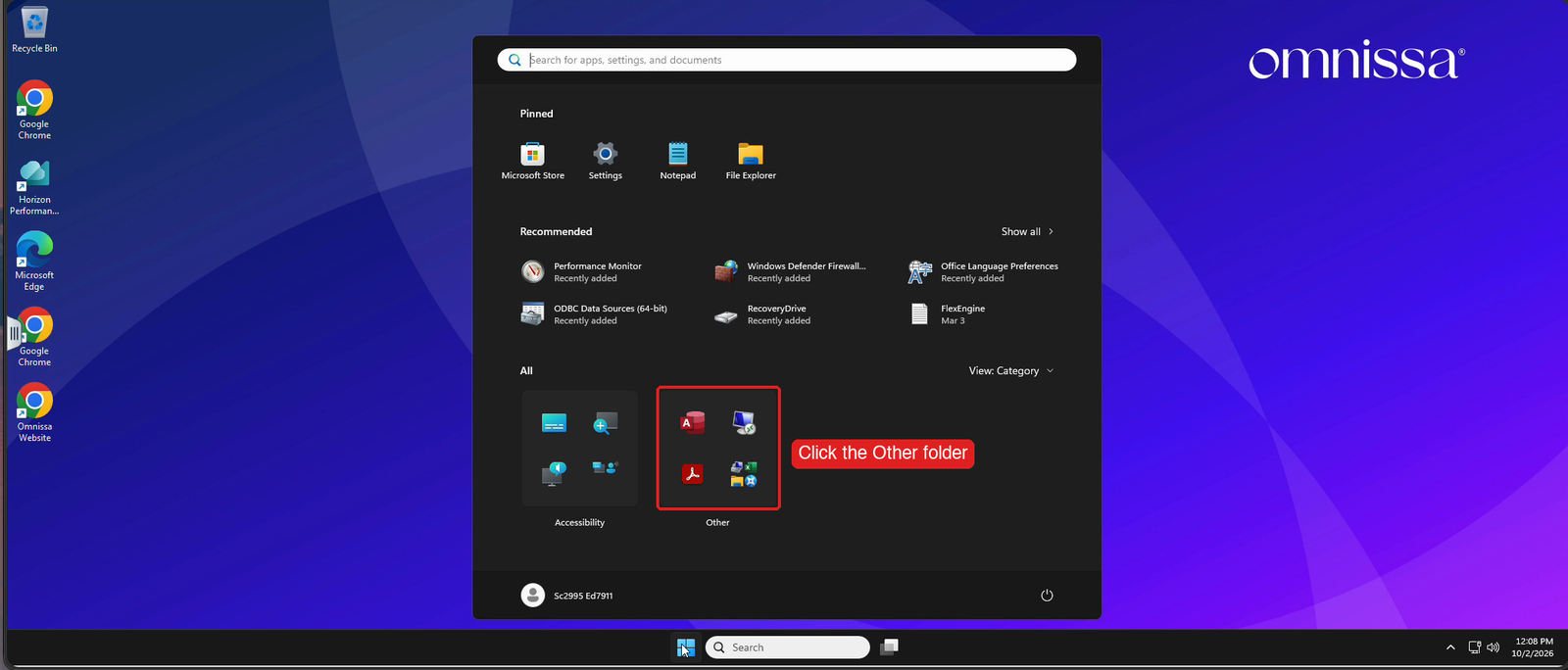
17. Open the Other folder in the Start menu
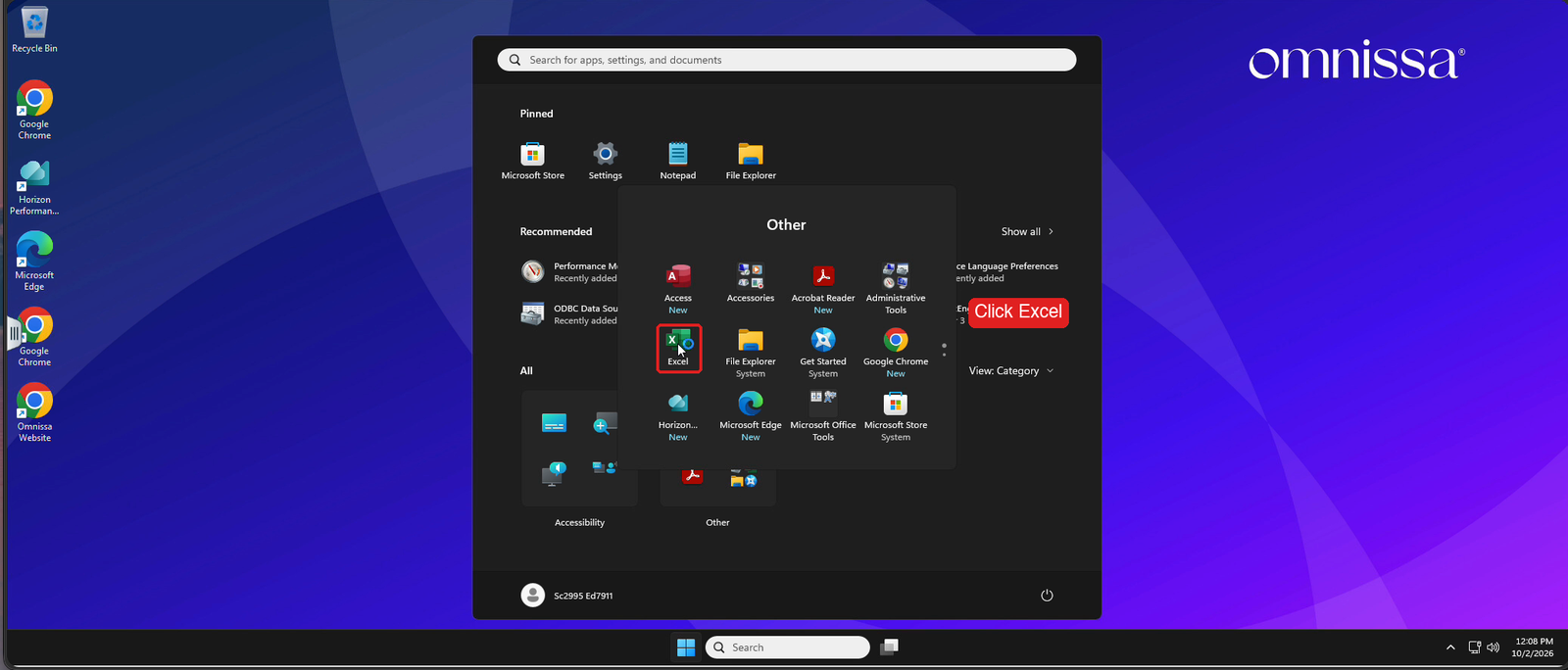
Click Start, then click the Other folder.
18. Launch Excel
In the Other folder, click Excel.
19. Watch the application delivery
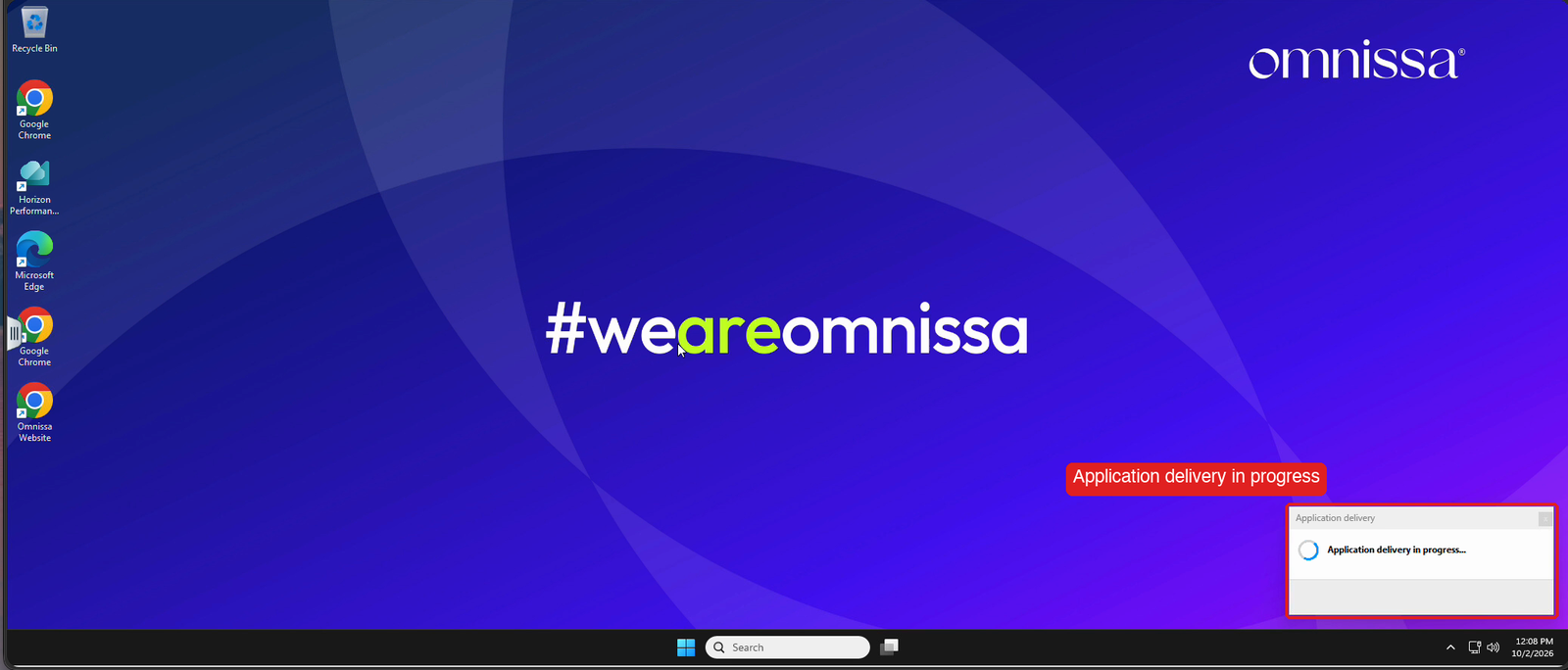
A popup in the lower right reads Application delivery in progress...
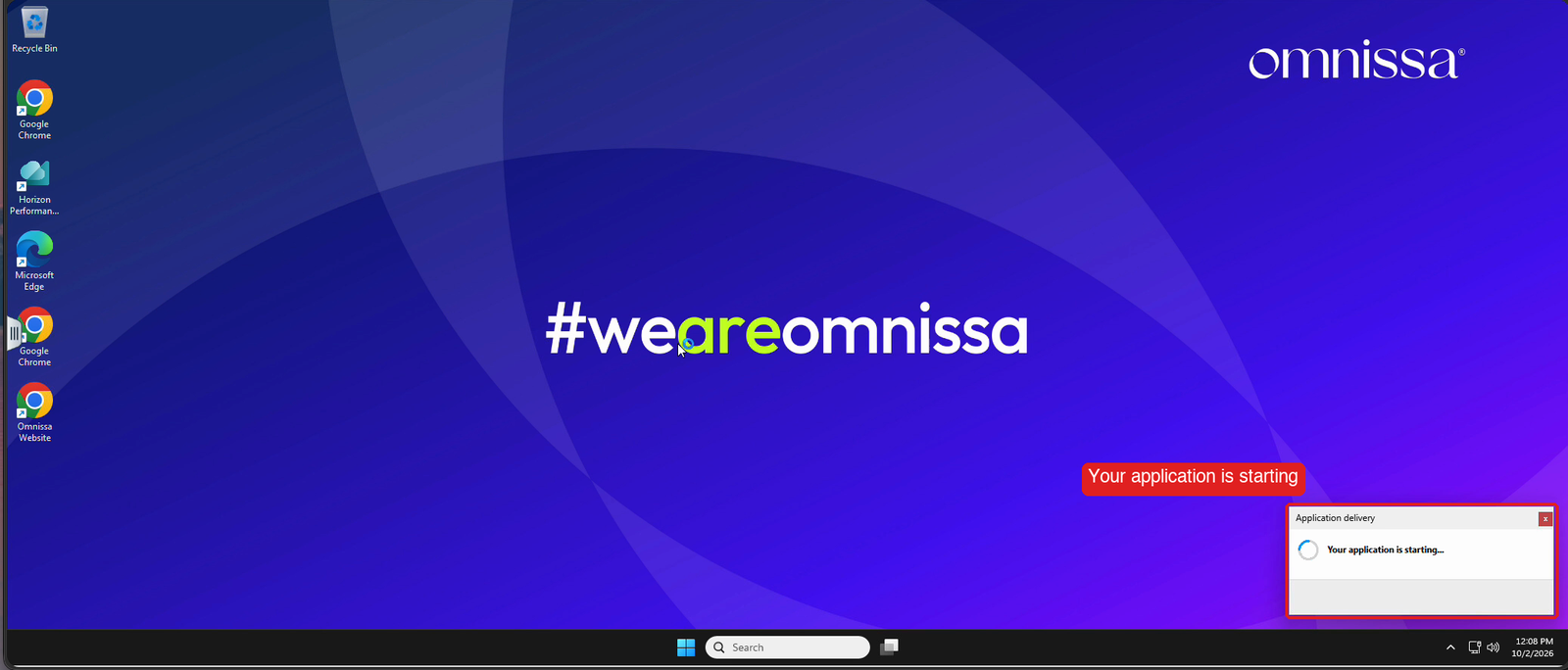
The popup then reads that your application is starting.
20. Excel opens
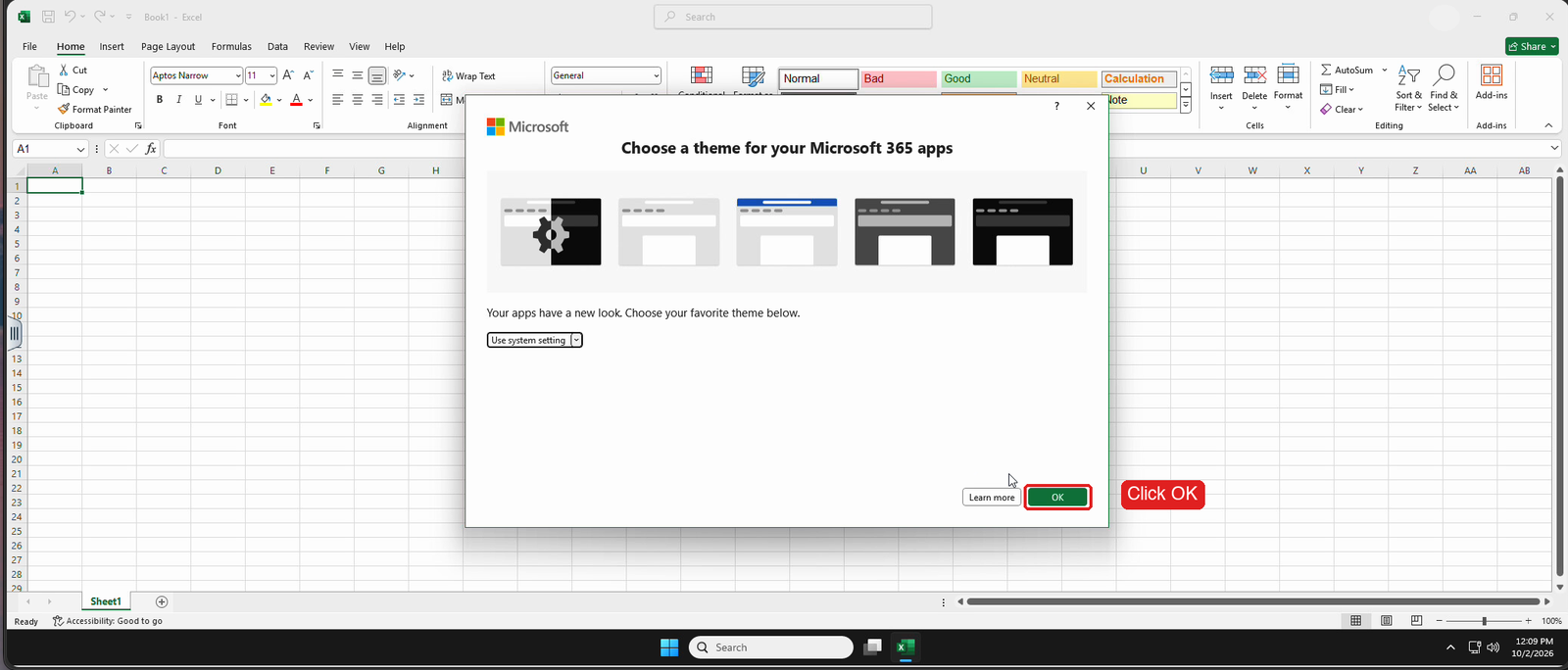
Excel can take a minute to open on first launch; do not click it twice. Excel then shows a first-run theme prompt (it is the standard Office prompt and does not mean this is not LTSC). Click OK.
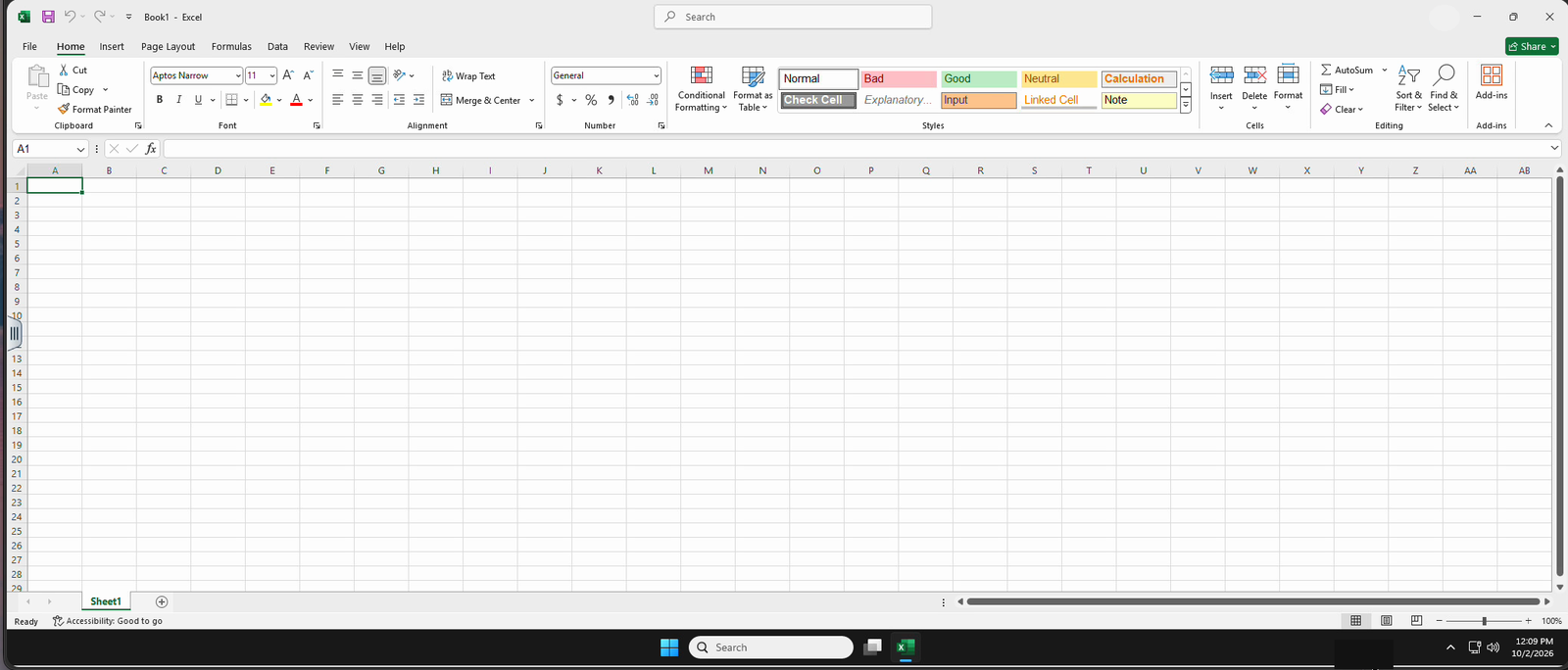
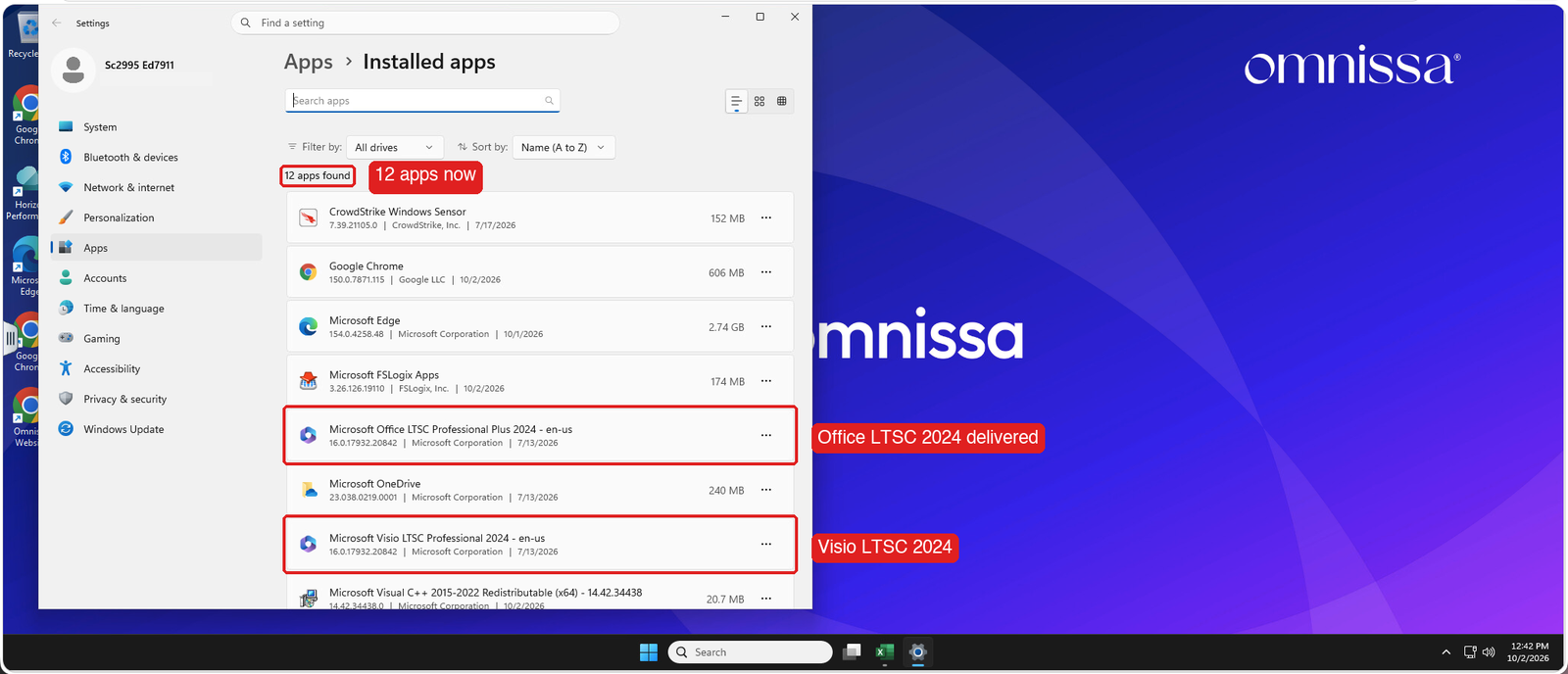
21. Confirm Microsoft Office is now installed
Right-click Start > Installed apps again. The list now shows Microsoft Office LTSC Professional Plus 2024 (and Visio LTSC 2024), delivered on demand. Version 16.0.17932.20842 matches the package you reviewed in the console.
22. Sign out
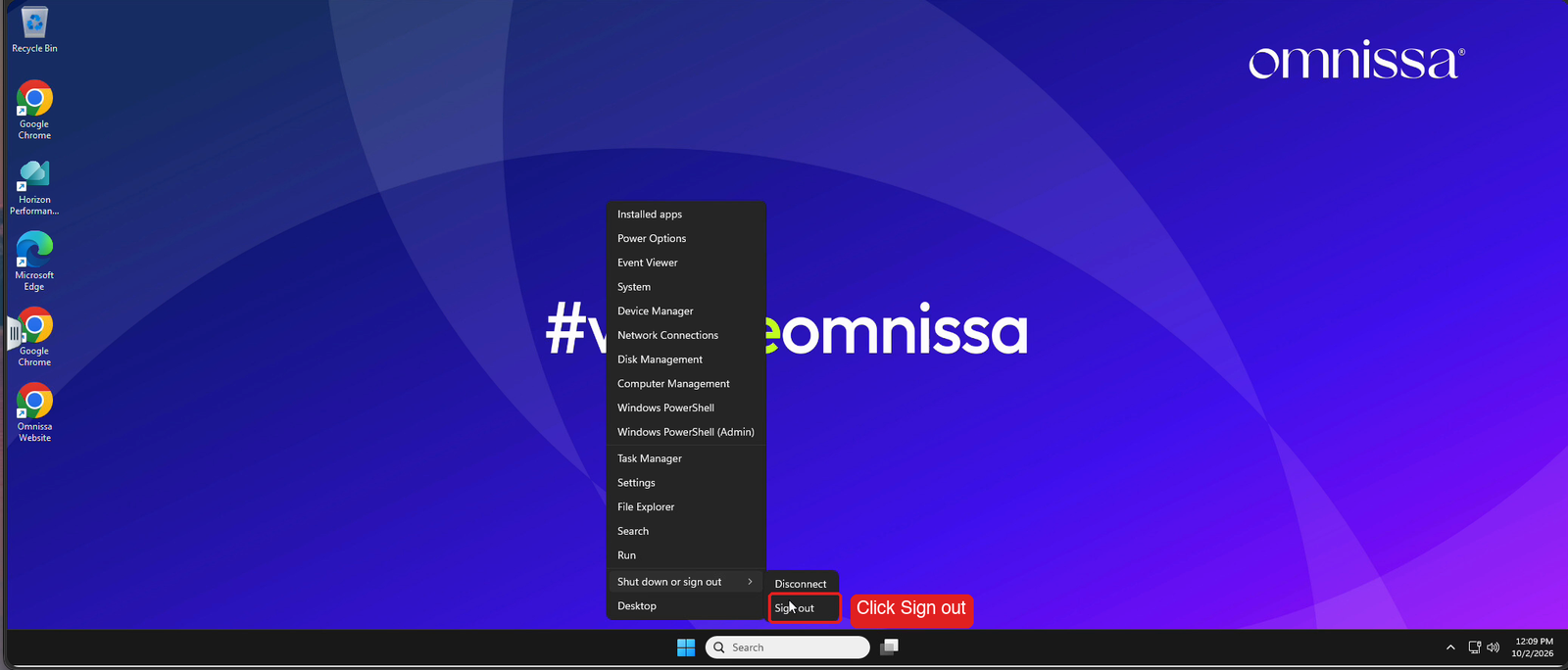
Close Excel, right-click Start, and choose Shut down or sign out > Sign out, then close the browser tab.
Summary
- Task 1: You opened the Horizon Cloud console from the TestDrive portal.
- Task 2: You reviewed the MSOffice-2024 application, its package and its horizonusers entitlement. Nothing was changed.
- Task 3: You connected to a Horizon Cloud multi-session desktop in your browser.
- Task 4: You confirmed Microsoft Office was not installed.
- Task 5: You launched Excel and watched Microsoft Office 2024 LTSC arrive on demand, then confirmed it under Installed apps.
This concludes the walkthrough. You reviewed the application, entitlement and package in the Horizon Cloud console, then watched Microsoft Office 2024 LTSC arrive on demand in a multi-session desktop.