Home > Demo Guides > Horizon Cloud
Horizon Cloud on Microsoft Azure Next-Gen - Desktops and Apps
In this quick walkthrough we're going show you how to access Horizon Cloud on Microsoft Azure Desktops and Applications from the TestDrive environment.
Overview
- Log in to TestDrive Portal.
- Launch Desktops and Apps from the product tile.
- Log in to Workspace ONE.
- Launch Microsoft Word.
- Launch a floating VDI desktop.
Before You Begin
In order to access the Horizon Cloud Next-Gen environment, please ensure you have the following:
- A valid account in the Omnissa TestDrive environment, sign up here if you do not yet have an account.
- A valid Omnissa Connect account on https://connect.omnissa.com, sign up for a new account if you do not have one yet. Your email address for this Omnissa account must be the same as the email address associated with your TestDrive account.
TestDrive Portal Login
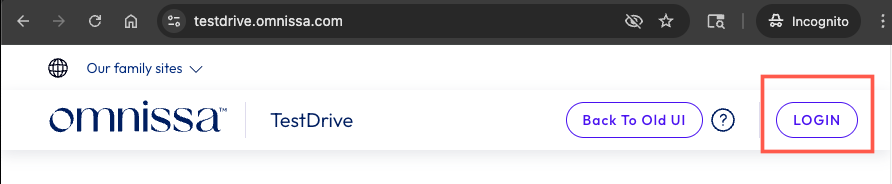
Open a new incognito browser window and navigate to the TestDrive Portal at testdrive.omnissa.com.
Log into the TestDrive portal with your Omnissa Connect Account as prompted.
Enable Horizon Cloud Service Product Tile
BEFORE YOU ENABLE Horizon Cloud Service from the TestDrive Portal, you must have your own Omnissa Connect account on https://connect.omnissa.com before proceeding with the next steps. This account is completely separate from your TestDrive account, but needs to be registered with the same email address you registered with TestDrive.
Please ensure you are able to login to your Omnissa Connect account on https://connect.omnissa.com.
If you do not have an Omnissa Connect account, please create your account and ensure you are able to login, then proceed with the next steps in this guide.
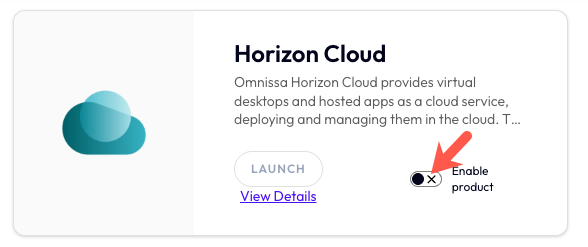
While logged in to the TestDrive Portal, under DemoZone, find the Horizon Cloud tile and then click the Enable Product button.

Enabling Status
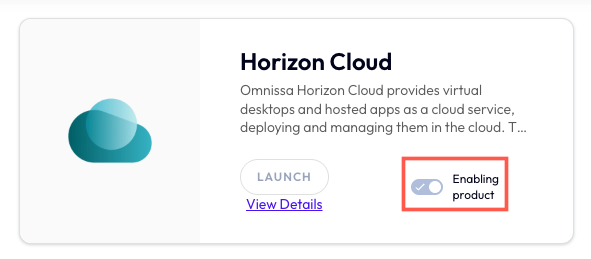
Allow a few minutes for the product to be enabled. During this time, your Omnissa Connect account is being added to the cloud organization for the TestDrive environment.
After a few minutes, you will receive an email from Omnissa Connect (noreply@omnissa.com) with subject "Organization Access" which confirms your roles have been added.
NOTE: Your Omnissa Connect account will be active in the organization for 30 days. If you receive an email that your account has been removed from the organization and you still need access, you can re-enable your access in the Horizon Cloud product tile, as mentioned in the previous steps.
View Details in Product Tile
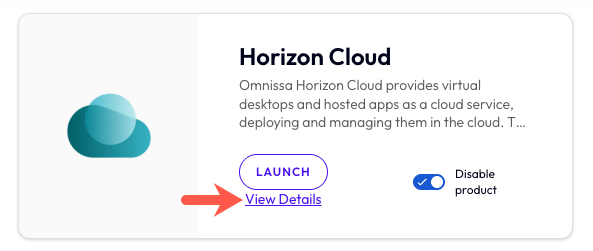
After your Horizon Cloud access has been enabled, click View Details within the product tile.
Launch Desktops and Apps
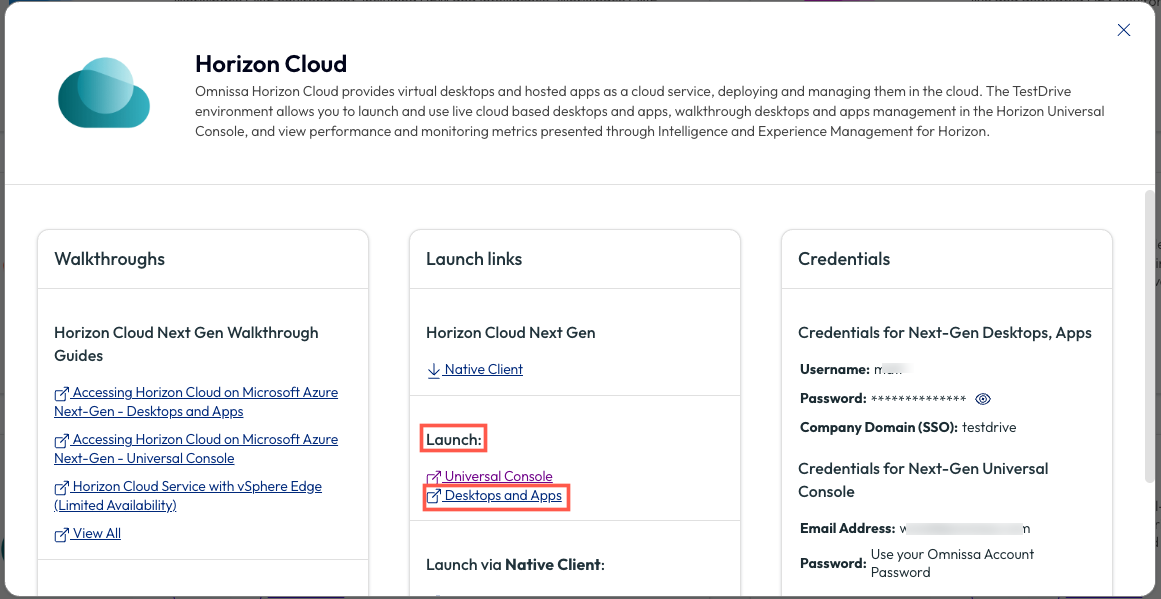
On the pop up menu under Launch, click on Desktops and Apps.
You will be redirected to https://cloud.omnissahorizon.com.
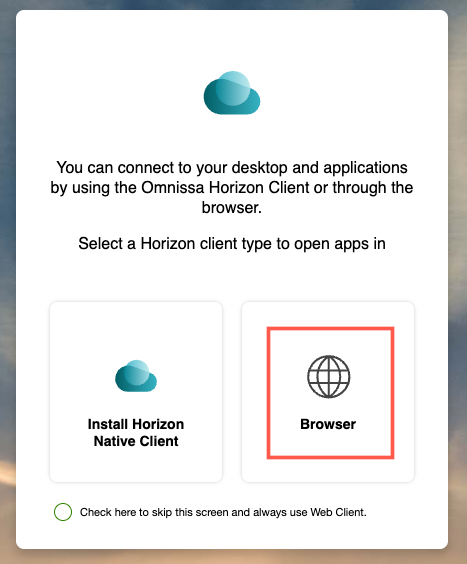
Click on the Browser option when prompted.
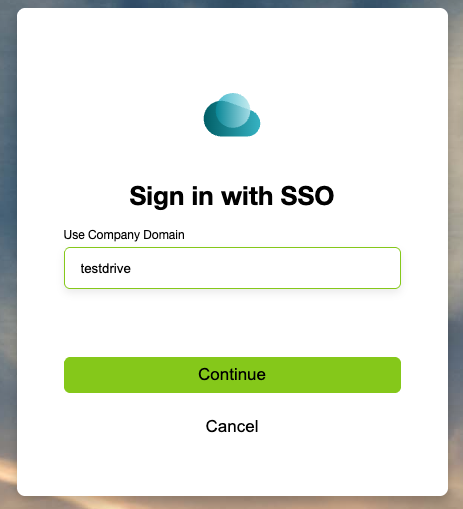
At Sign in with SSO, input testdrive, then hit Continue.
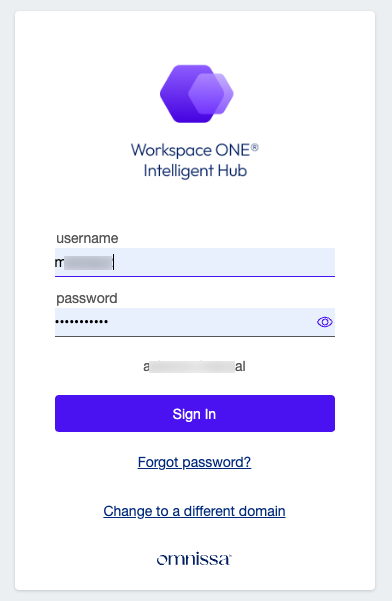
Log in to Workspace ONE Intelligent Hub with your TestDrive username (not email address) and password.
If you need to locate your TestDrive credentials, go back to the TestDrive Portal testdrive.omnissa.com > DemoZone > click on View Details within the Workspace ONE Intelligent Hub tile.
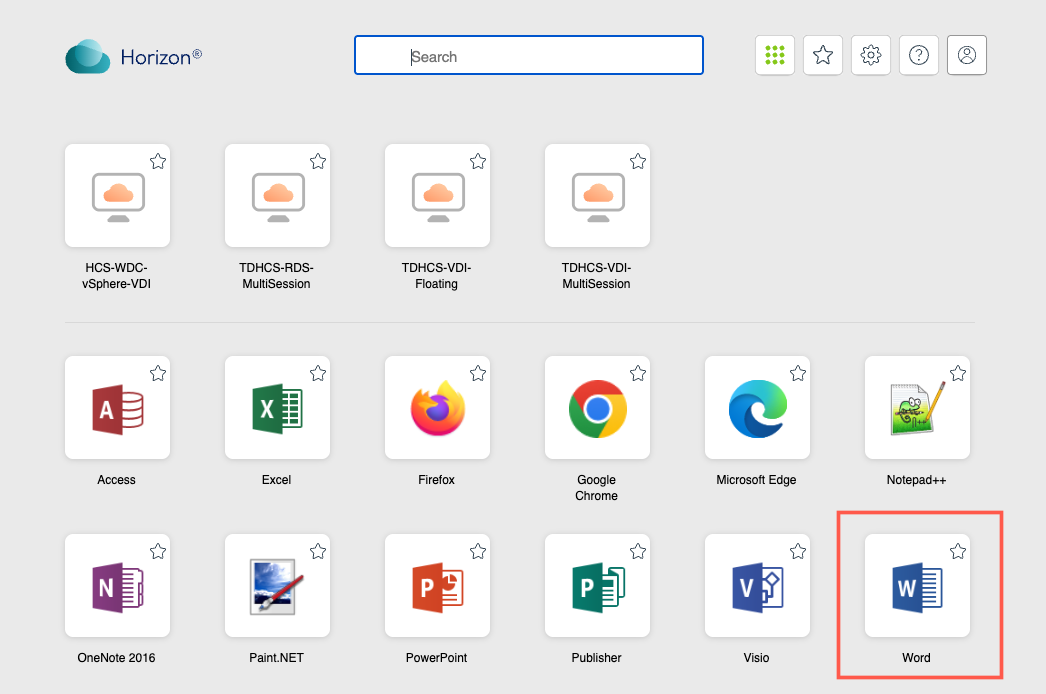
Launch Microsoft Word.
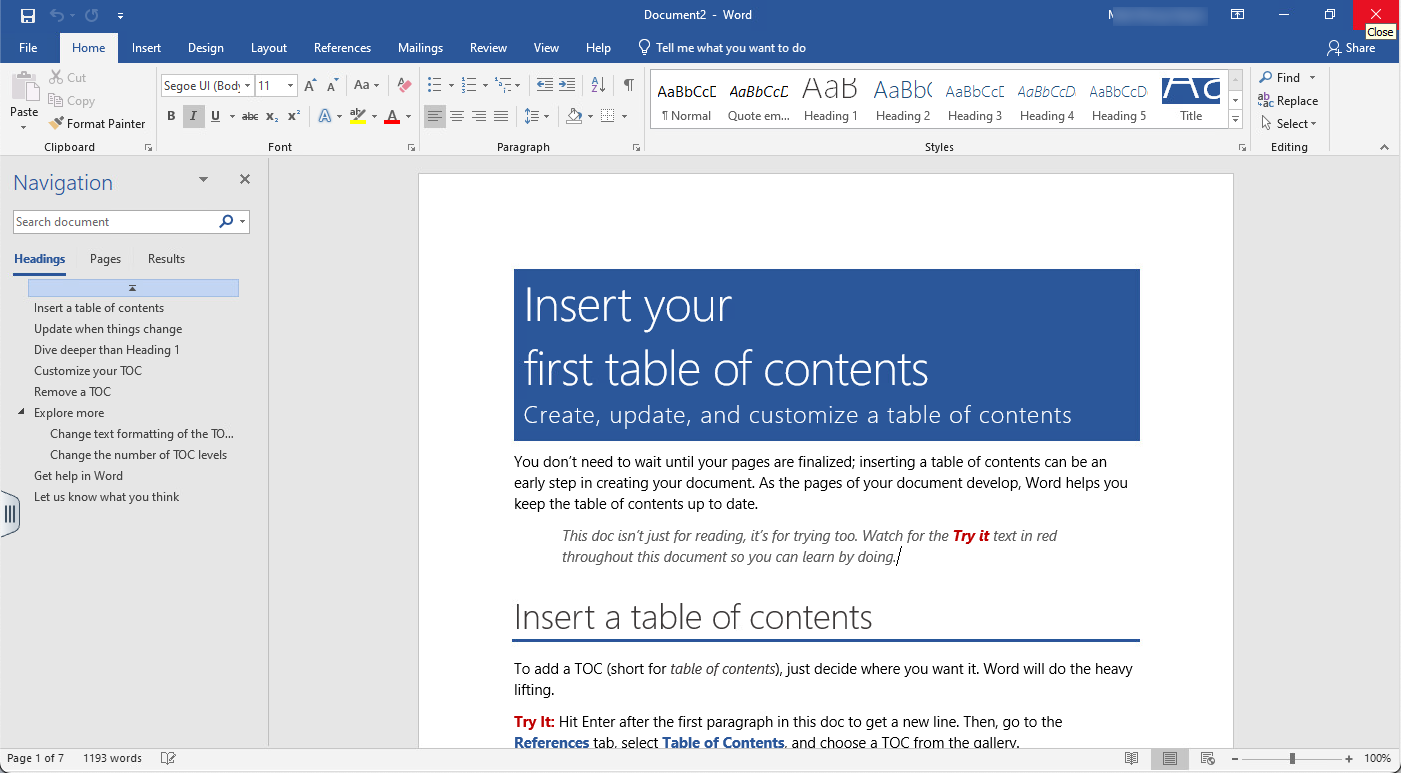
After a few moments, Microsoft Word launches in the browser. Feel free to add your own text, shapes, and graphs, using it just as you normally would a natively installed version of Word.
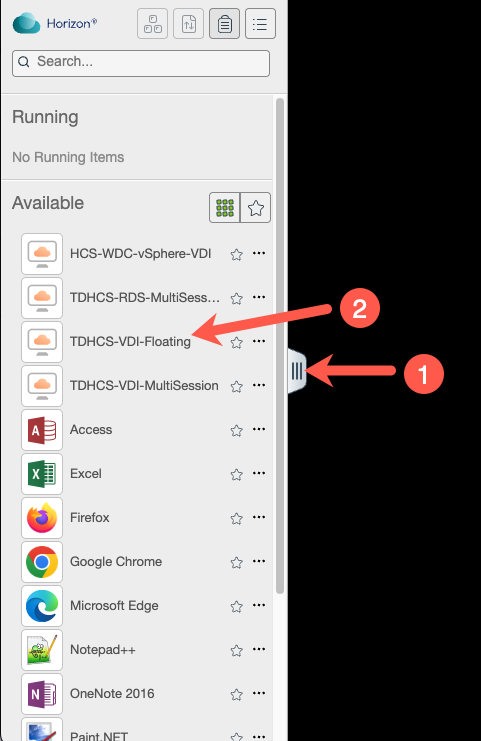
Close Microsoft Word and then click on the sidebar tab to expand the Horizon Menu. Launch the TDHCS-VDI-Floating desktop pool.
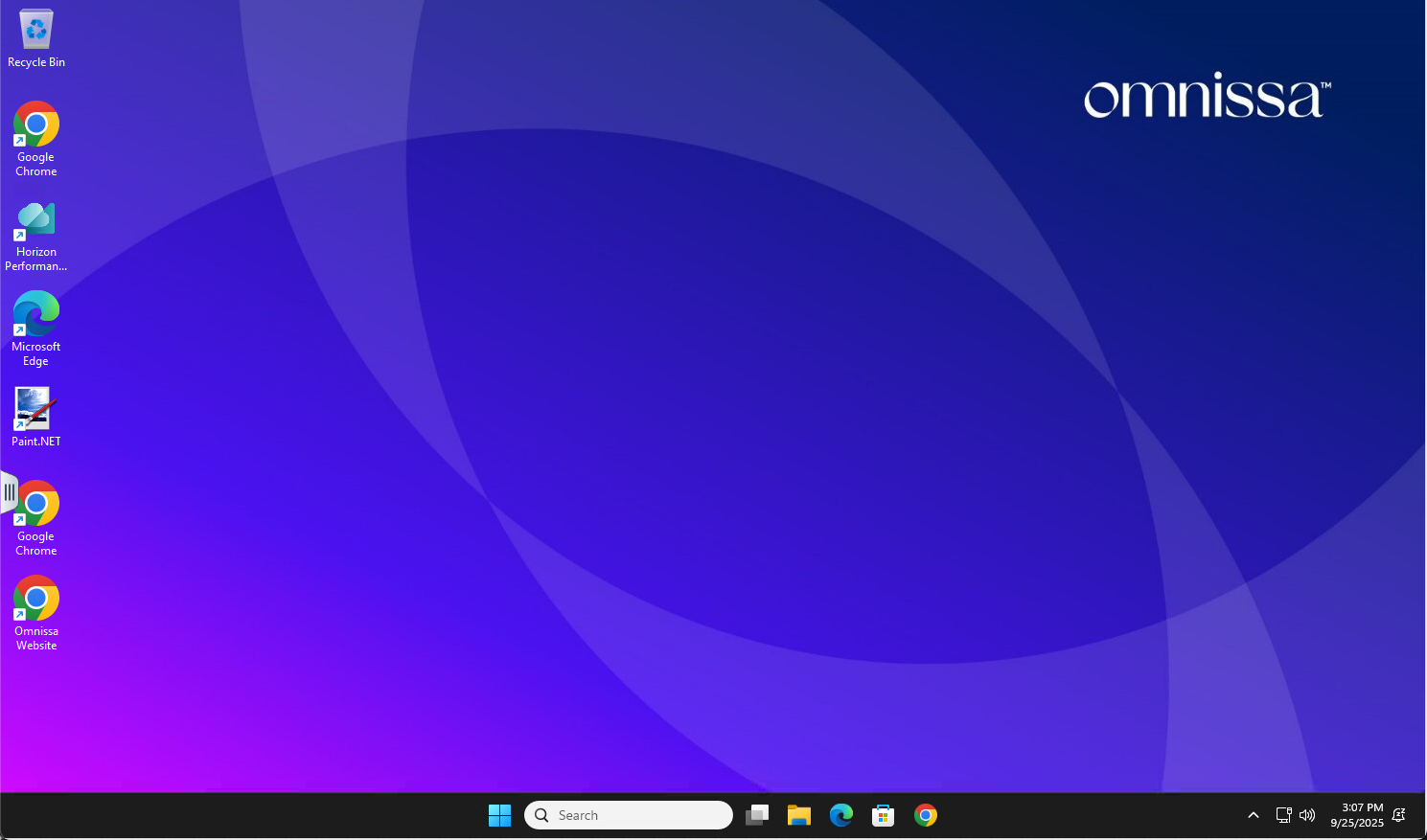
From within the Windows 11 Desktop, feel free to run any of the installed apps and then log out when done.