Home > Demo Guides > Horizon Cloud
Horizon Cloud Service with vSphere Edge
Horizon Cloud with vSphere Edge capacity support is now generally available.
This walkthrough guide demonstrates how to access and manage Horizon Cloud Service with vSphere Edge in the TestDrive environment.
Overview
- Access Omnissa Connect Services from the TestDrive Portal.
- Navigate to the Horizon Cloud console.
- Review the settings of an Edge deployed in the TestDrive vSphere environment.
- Review the settings of a desktop pool deployed in the TestDrive vSphere environment.
- Review the settings of a pool group deployed in the TestDrive vSphere environment.
- Launch a vSphere hosted VDI desktop that is managed by the Horizon Cloud Service.
Before You Begin
In order to access the Horizon Cloud Next-Gen environment, please ensure you have the following:
- A valid account in the Omnissa TestDrive environment, sign up here if you do not yet have an account.
- A valid Omnissa Connect account on https://connect.omnissa.com, sign up for a new account if you do not have one yet. Your email address for this Omnissa Connect account must be the same as the email address associated with your TestDrive account.
TestDrive Portal Login
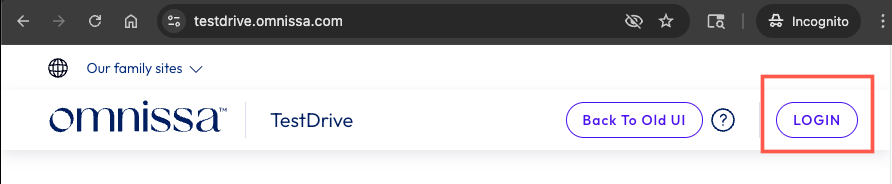
Open a new incognito browser window and navigate to the TestDrive Portal at testdrive.omnissa.com.
Log into the TestDrive portal with your Omnissa Connect Account as prompted.
Enable Horizon Cloud Service Product Tile
BEFORE YOU ENABLE Horizon Cloud Service from the TestDrive Portal, you must have your own Omnissa Connect account on https://connect.omnissa.com before proceeding with the next steps. This account is completely separate from your TestDrive account, but needs to be registered with the same email address you registered with TestDrive.
Please ensure you are able to login to your Omnissa Connect account on https://connect.omnissa.com.
If you do not have an Omnissa Connect account, please create your account and ensure you are able to login, then proceed with the next steps in this guide.
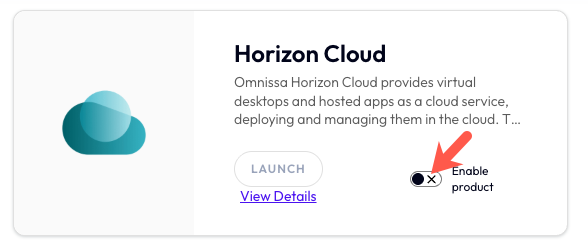
While logged in to the TestDrive Portal, under DemoZone, find the Horizon Cloud tile and then click the Enable Product button.
Enabling Status
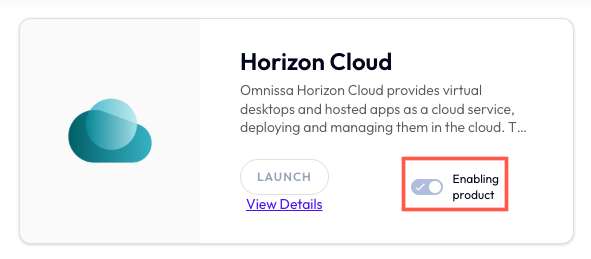
Allow a few minutes for the product to be enabled. During this time, your Omnissa Connect account is being added to the cloud organization for the TestDrive environment.
After a few minutes, you will receive an email from Omnissa Connect (noreply@omnissa.com) with subject "Organization Access" which confirms your roles have been added.
NOTE: Your Omnissa Connect account will be active in the organization for 30 days. If you receive an email that your account has been removed from the organization and you still need access, you can re-enable your access in the Horizon Cloud product tile, as mentioned in the previous steps.
View Details in Product Tile
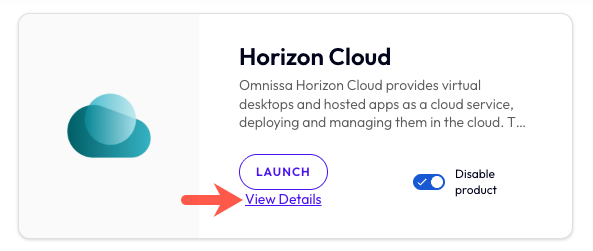
After your Horizon Cloud access has been enabled, click View Details within the product tile.
Launch Universal Console Link
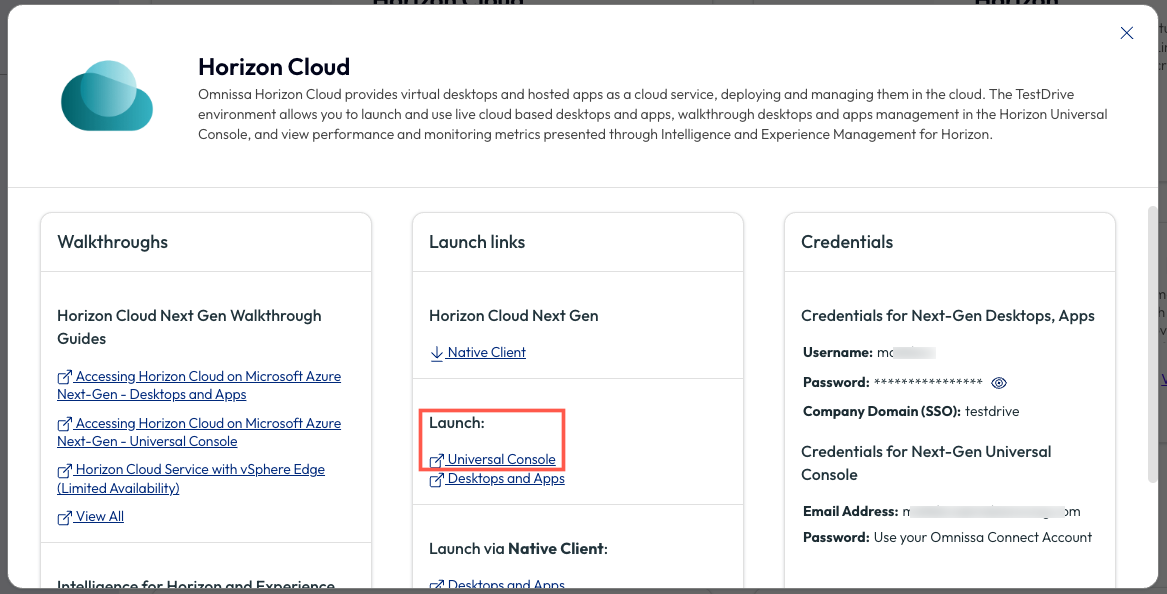
On the pop up menu under Launch, click on Universal Console.
You will be directed to the Omnissa Connect Services Page.
Omnissa Connect Services Page
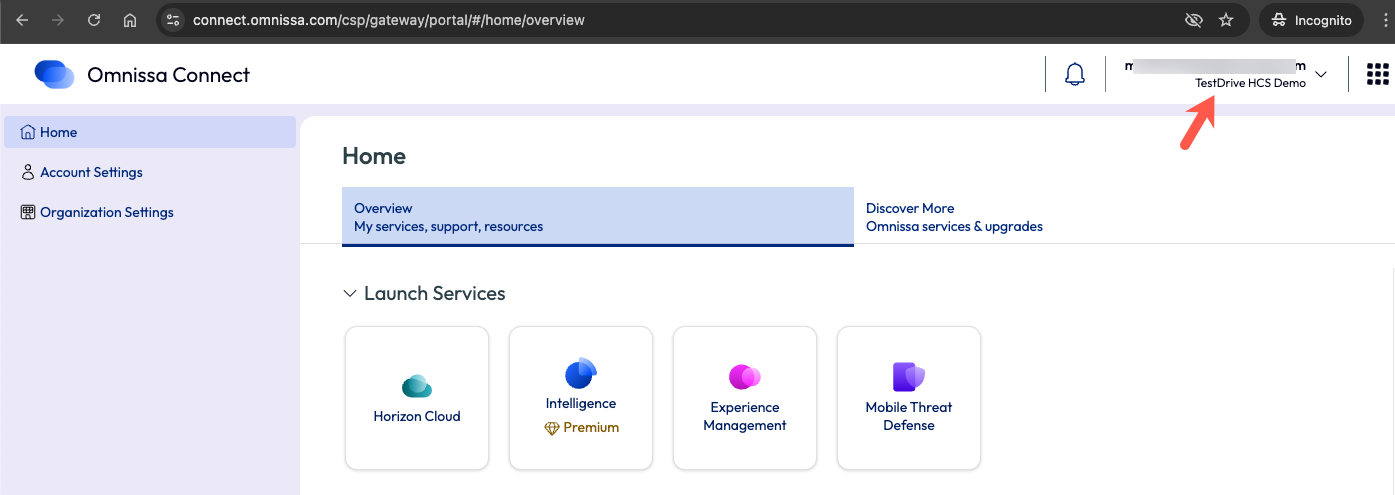
Depending on your Omnissa Connect account, you might have access to multiple Organizations.
For TestDrive Horizon Cloud Next-Gen, make sure you are in the correct organization named "TestDrive HCS Demo".
You can verify this in the upper right corner of the window, below your name. If a different organization name is shown, click on the name and toggle to the correct one.
Horizon Cloud Service
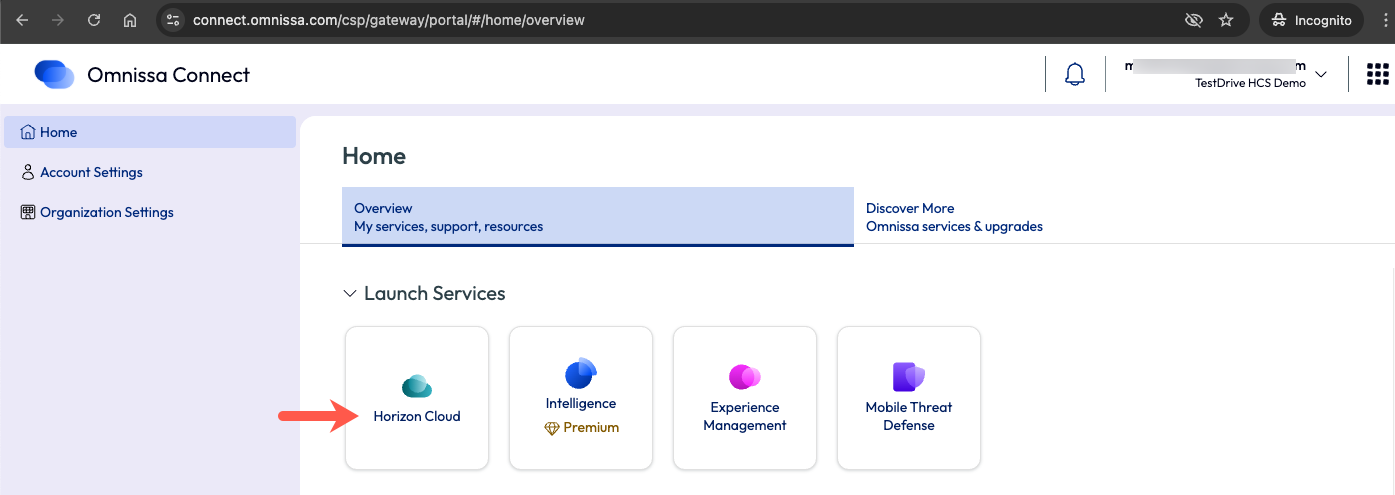
In the right window pane, under Launch Services, find Horizon Cloud and then click on that tile.
Horizon Cloud Console
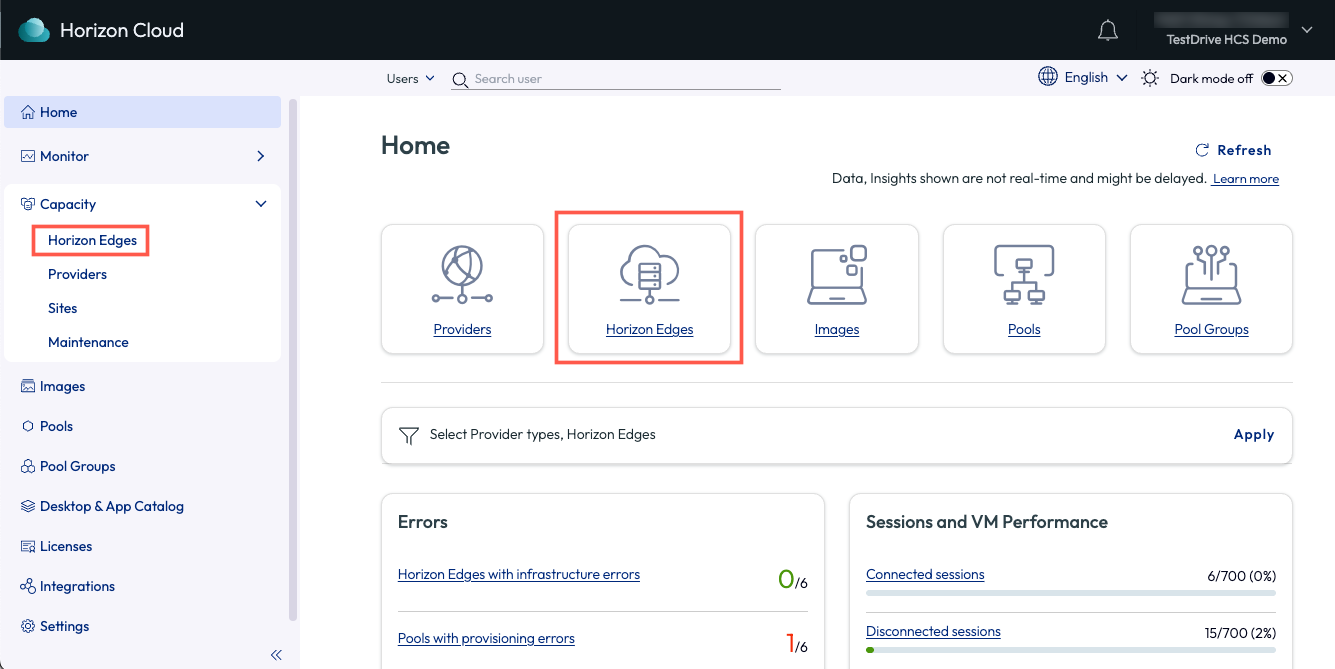
You are now at the Home page of the Horizon Cloud console.
In the right window pane, click on Horizon Edges.
Alternatively, you can navigate to the Horizon Edges from the left menu by going to Capacity > Horizon Edges.
Horizon Cloud vSphere Edge
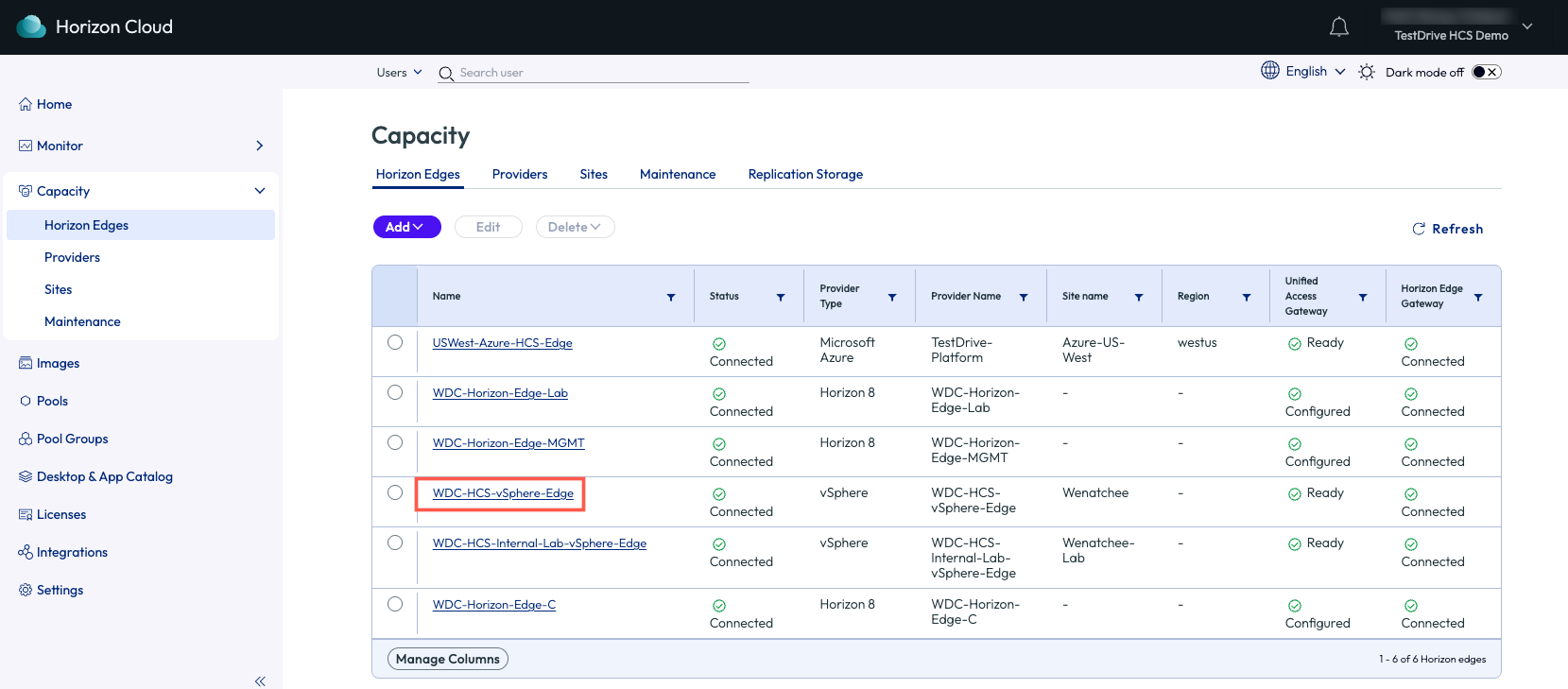
In the Horizon Edges page, find the Horizon Edge named WDC-HCS-vSphere-Edge and click on it.
Horizon Cloud vSphere Edge Details
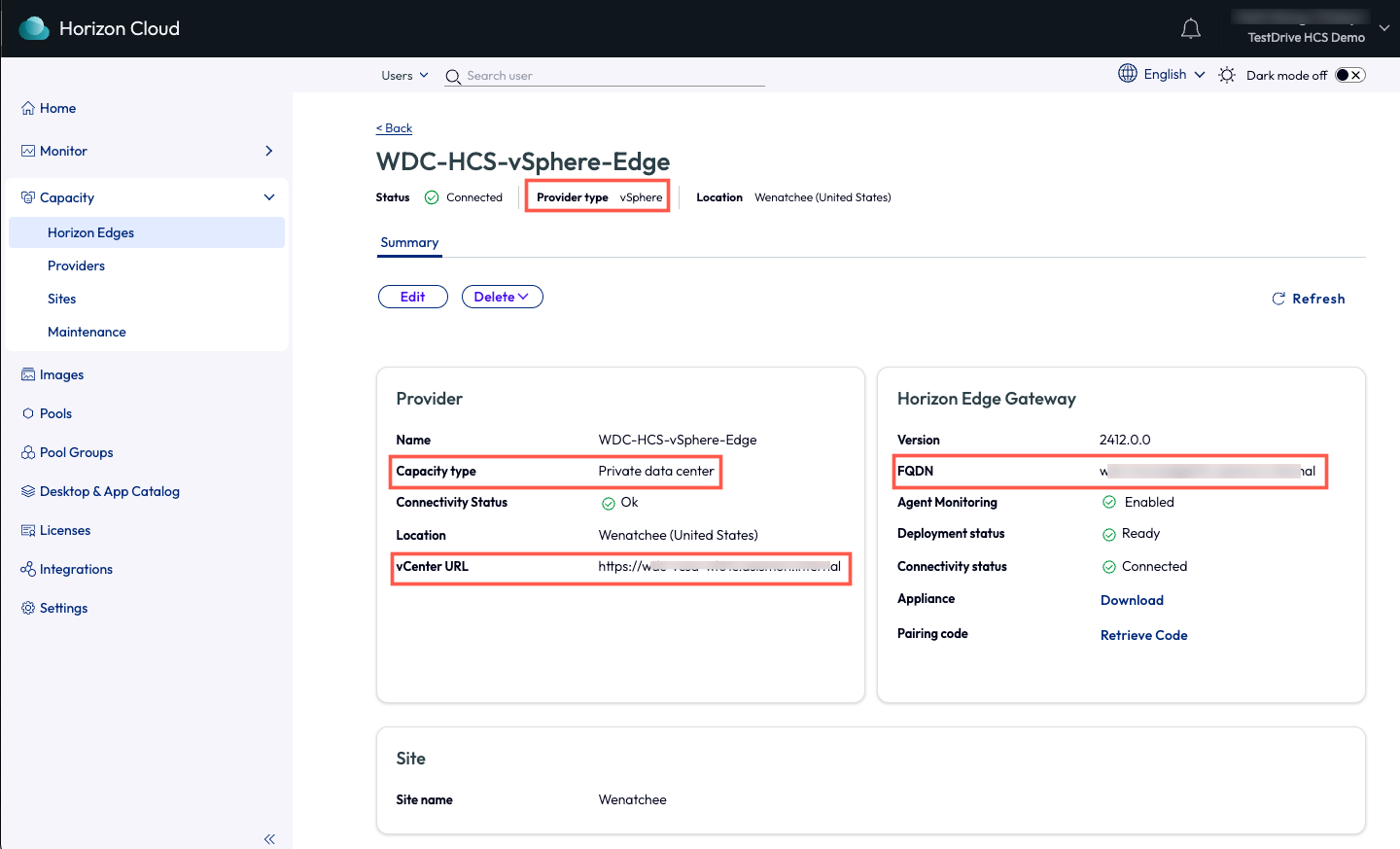
In the details page of the vSphere Edge, notice the following:
- Provider type is set as vSphere.
- Capacity type is set as Private data center.
- The internal vCenter URL of the TestDrive vCenter has been set.
- An internal domain FQDN has been set for the Edge Gateway.
Desktop Pools
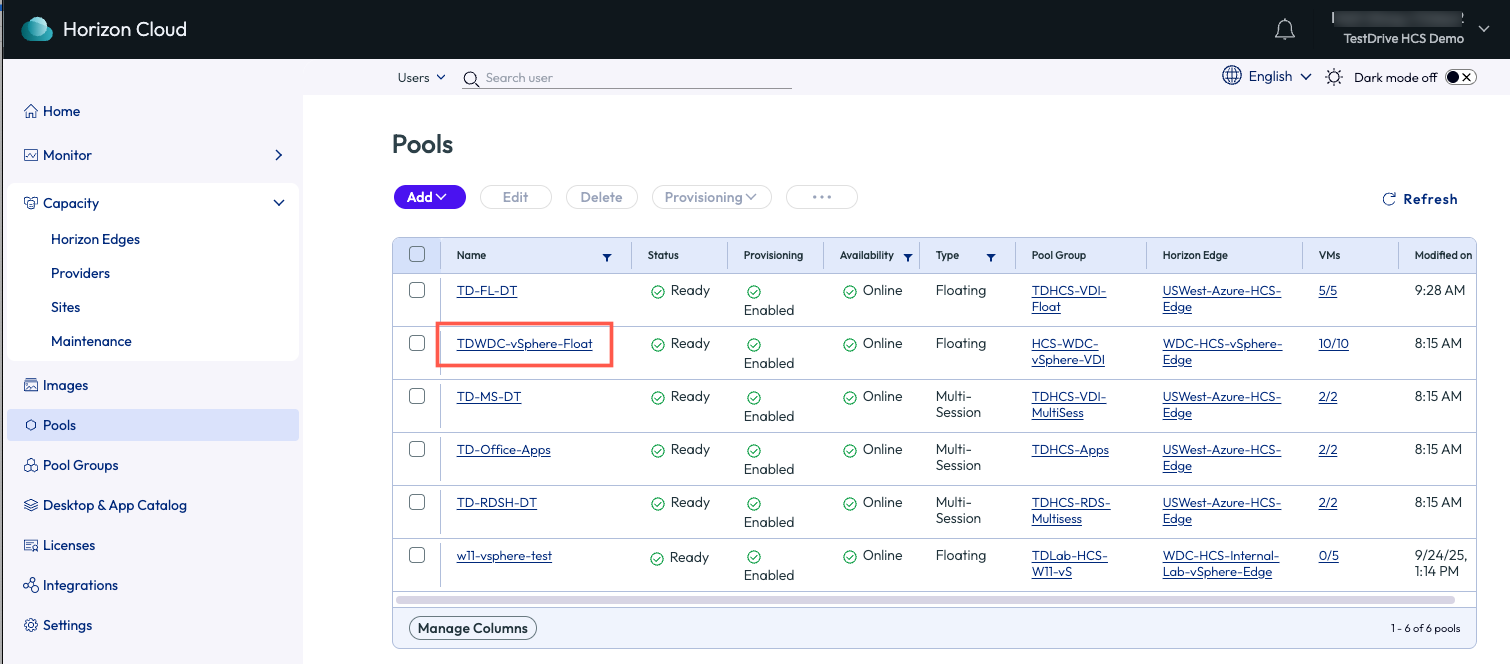
A Windows 11 VDI desktop pool has been deployed on the TestDrive vSphere environment.
In the Horizon Cloud console, go to Pools, then find and click on the pool named TDWDC-vSphere-Float.
Desktop Pool Overview
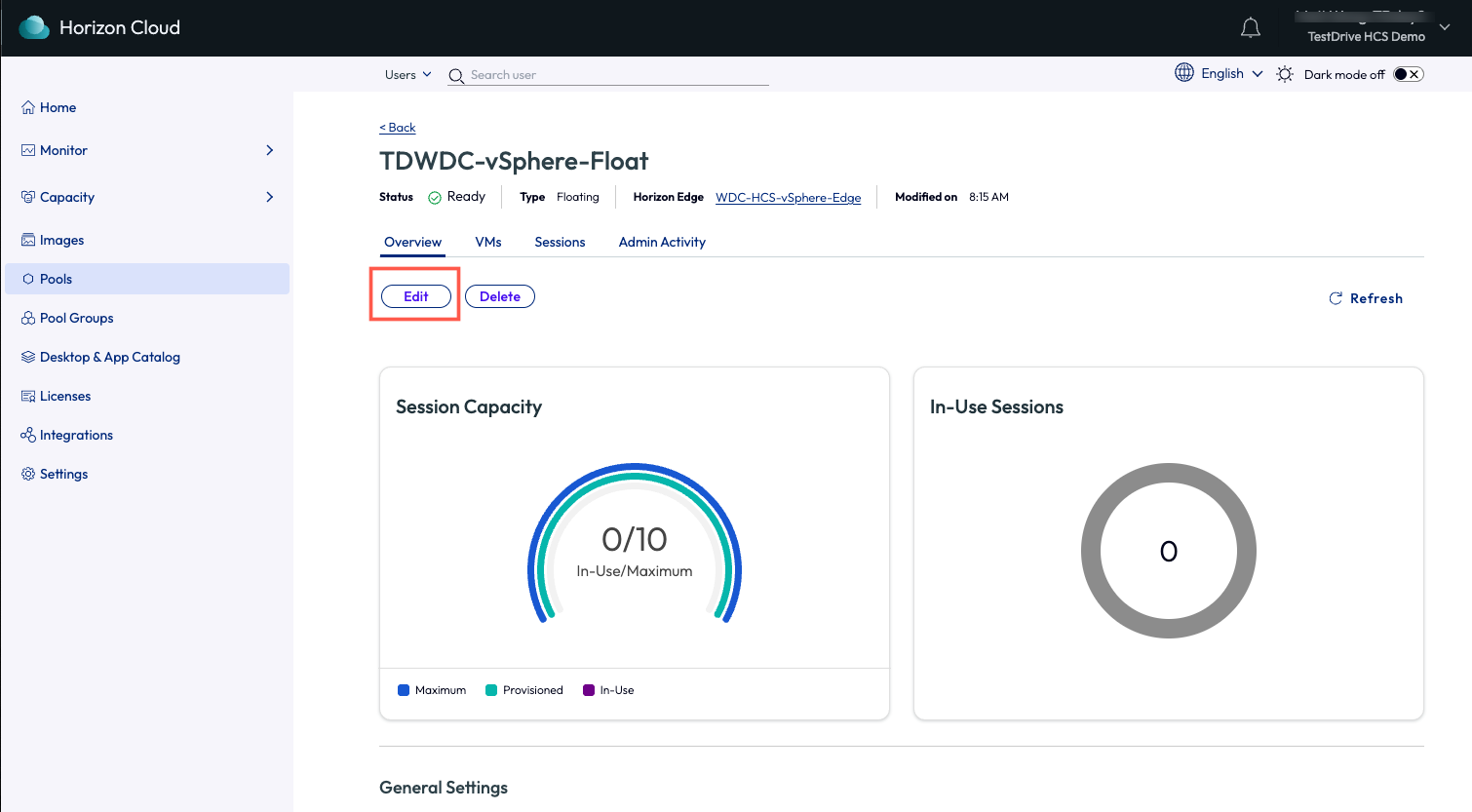
On this page, in the Overview section, you can review the details of the desktop pool that has been deployed.
Click on the Edit button to see the configuration options that were available for this pool when it was deployed.
Desktop Pool Details
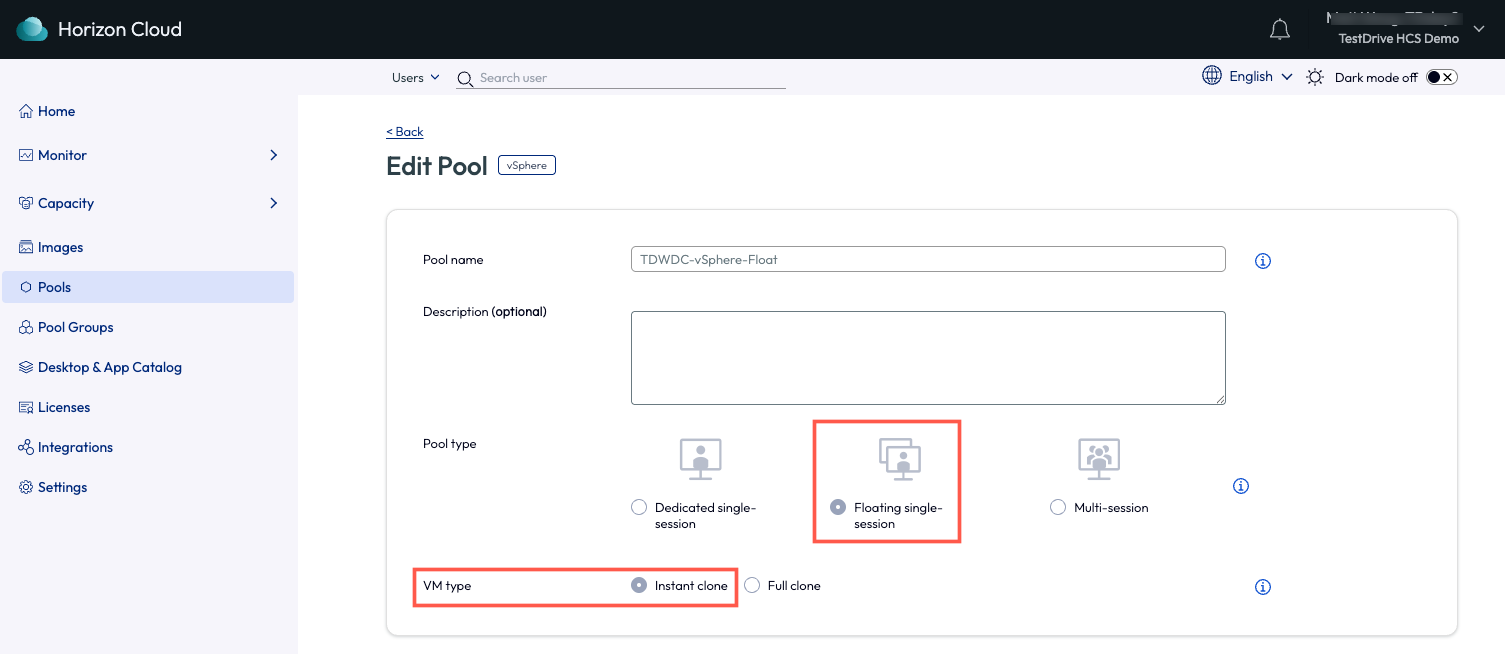
For this pool, the Pool type selected was Floating single-session and VM type was Instant clone.
Desktop Pool Desktops Options
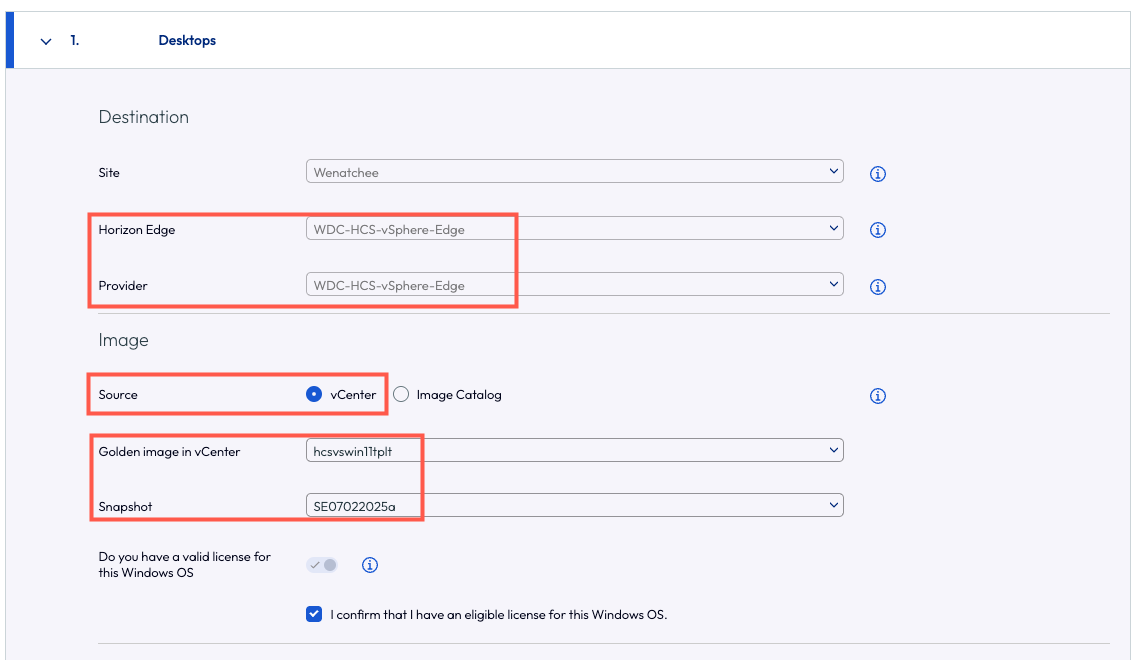
Scroll down to the Desktops section and notice the Horizon Edge and Provider fields match the same name of the Edge that was displayed earlier in the Capacity section.
Before this pool was added, a golden image was manually built in the vCenter and a snapshot was taken. In the pool setup, the Source was selected as vCenter and the Golden image in vCenter and Snapshot were selected appropriately.
Desktop Pool vCenter Settings
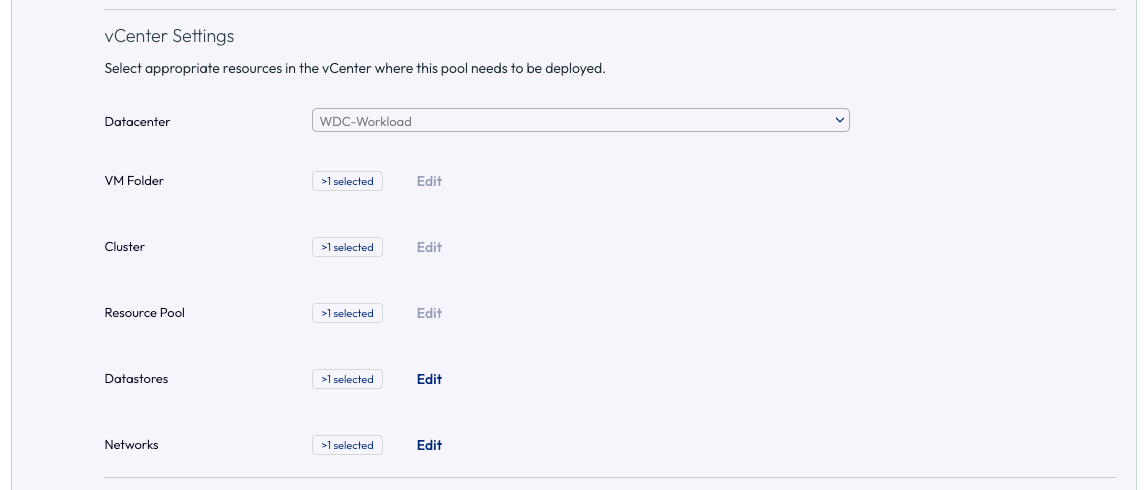
Scroll down to the vCenter Settings section and notice that similar to deploying a pool with Horizon 8 on vSphere, we selected appropriate vCenter related settings.
Feel free to review the other sections to see how this pool was configured.
When done reviewing the pool settings, scroll all the way up to the top and click the <Back link or hit the back button on your web browser to return to Overview section.
Other Desktop Pool Sections
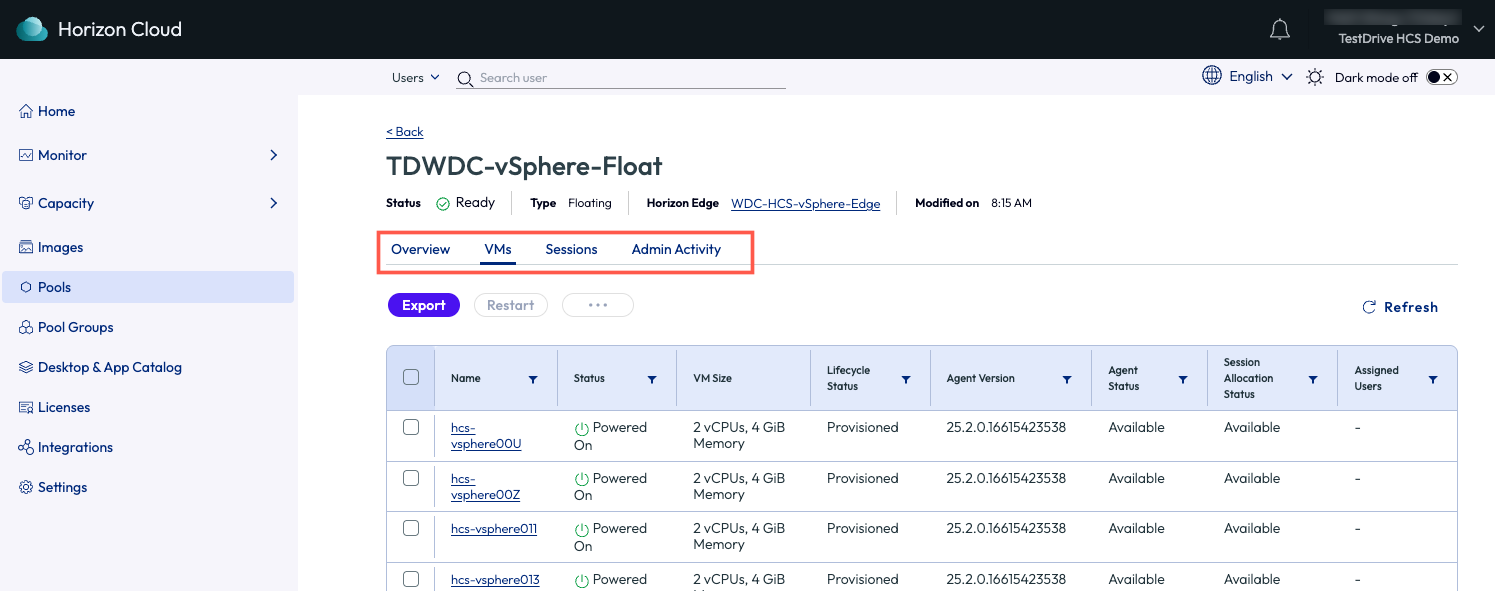
Once you are back in the Overview section, feel free to explore the VMs, Sessions, and Admin Activity sections.
Pool Groups
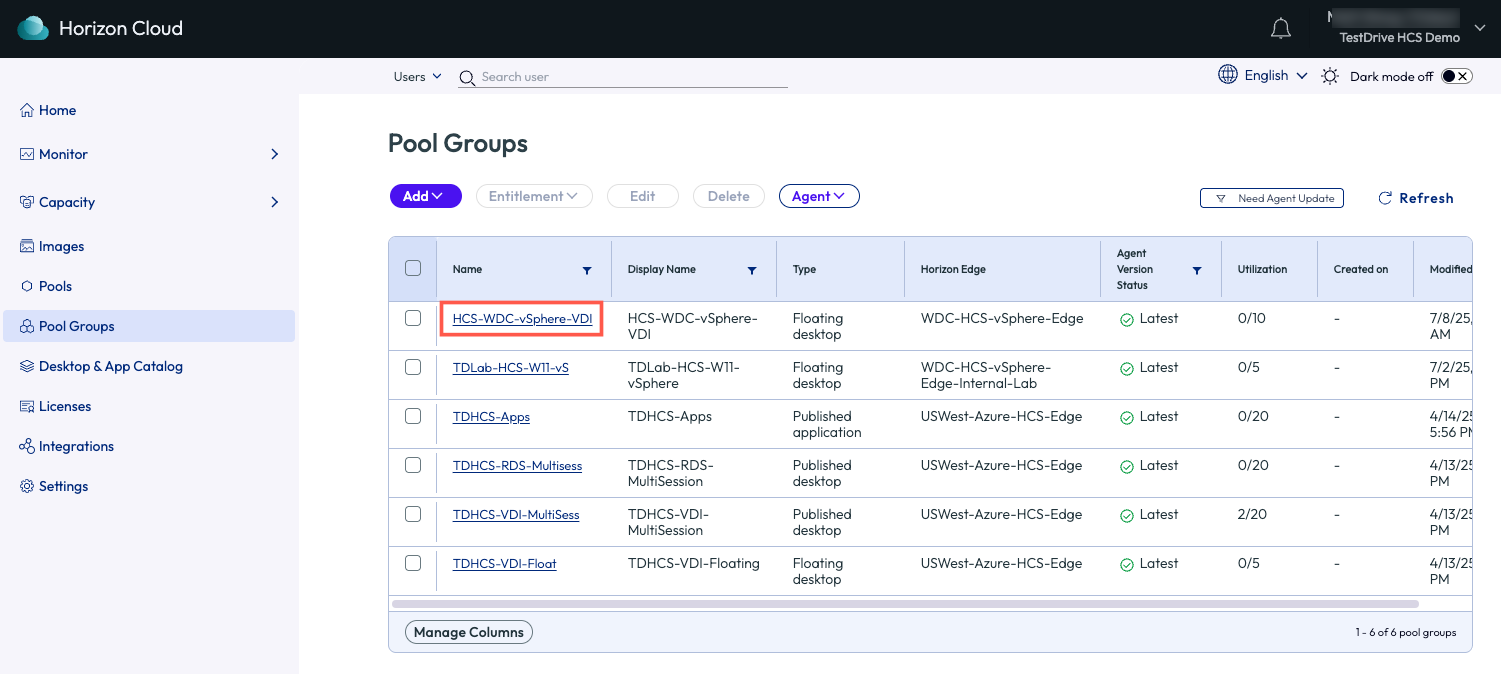
After the pool was created, it was added to a Pool Group.
Go to Pool Groups, then click on the pool group named HCS-WDC-vSphere-VDI.
Pool Group Settings
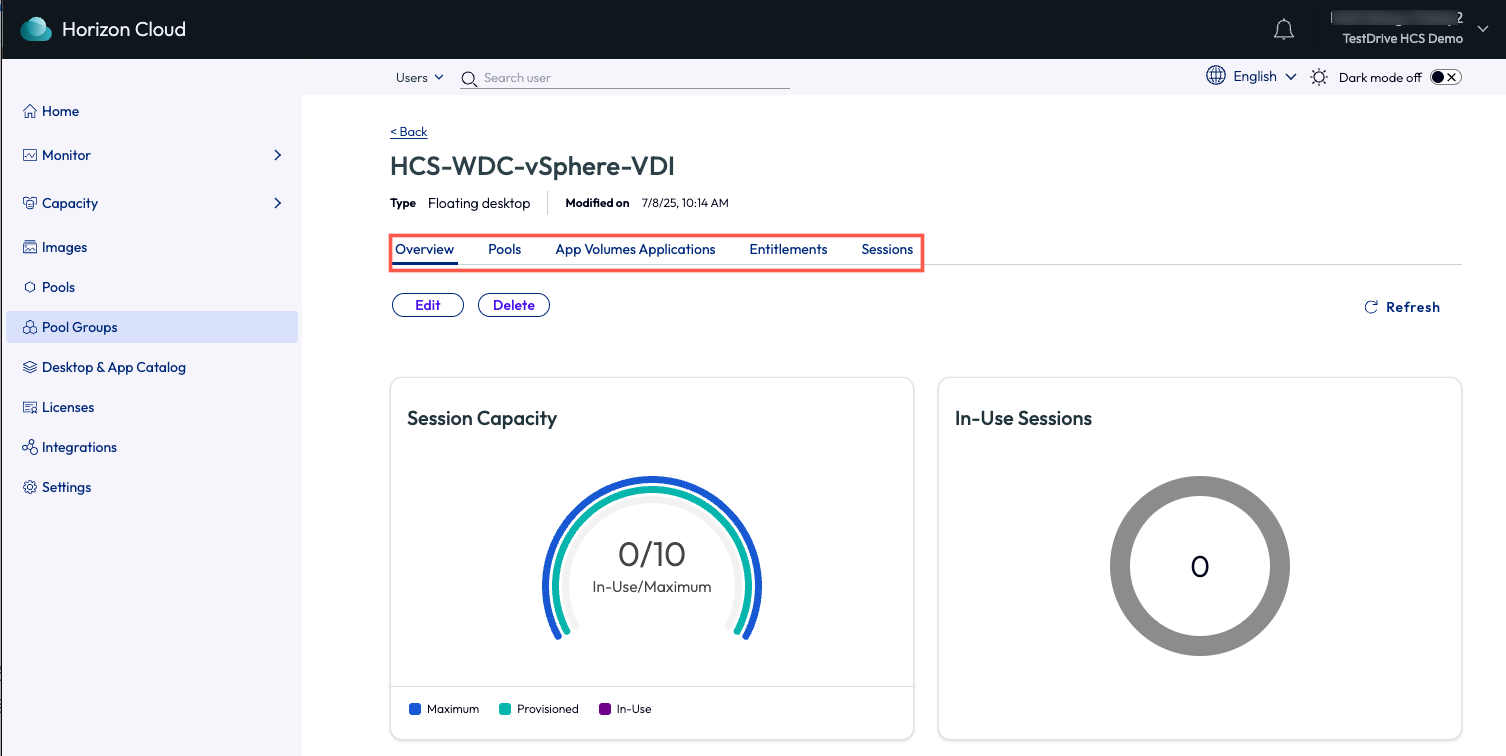
In the Overview page of this Pool Group, feel free to explore the various Policies that were configured.
Also feel free to explore the other sections like Entitlements and Sessions.
Launch a VDI Desktop
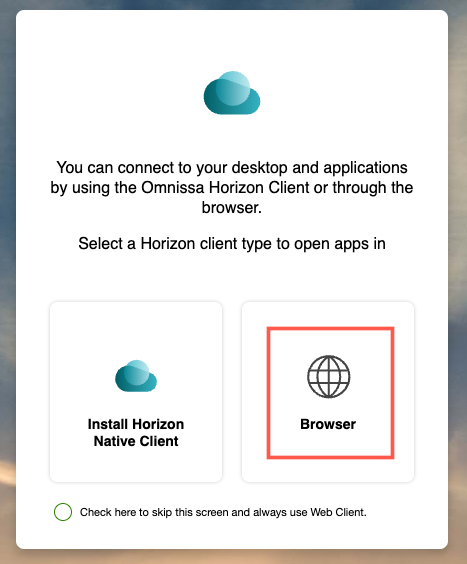
To launch VDI desktop that was deployed through the Horizon Cloud vSphere Edge, open a separate browser window to https://cloud.omnissahorizon.com.
Click on the Browser option when prompted.
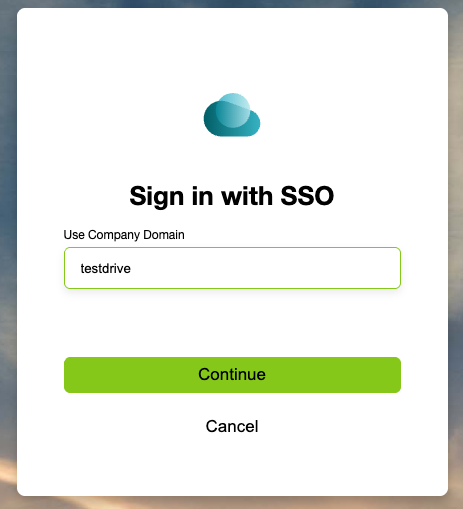
At Sign in with SSO, input testdrive, then hit Continue.
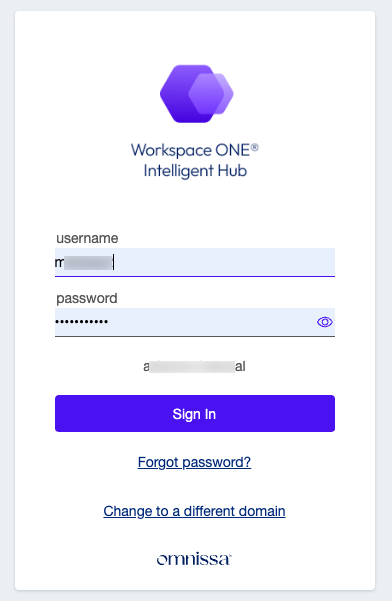
Log in to Workspace ONE Intelligent Hub with your TestDrive username (not email address) and password.
If you need to locate your TestDrive credentials, go back to the TestDrive Portal testdrive.omnissa.com > DemoZone > click on View Details within the Workspace ONE Intelligent Hub tile.
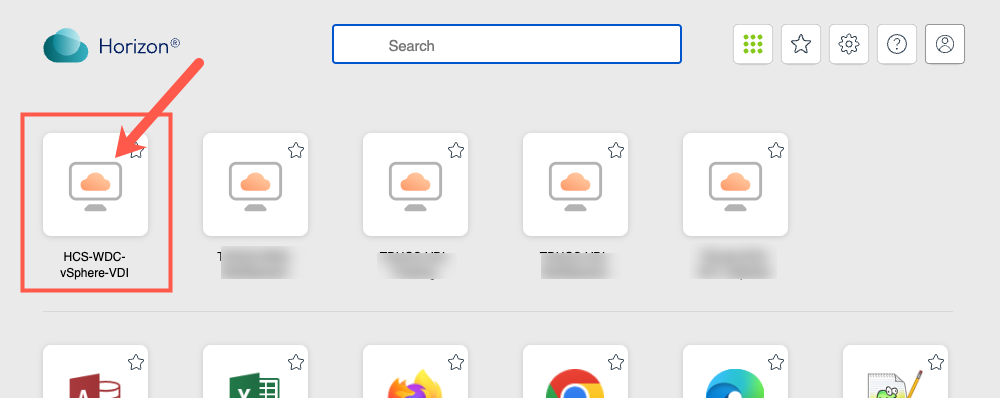
Find and click on the desktop named HCS-WDC-vSphere-VDI.
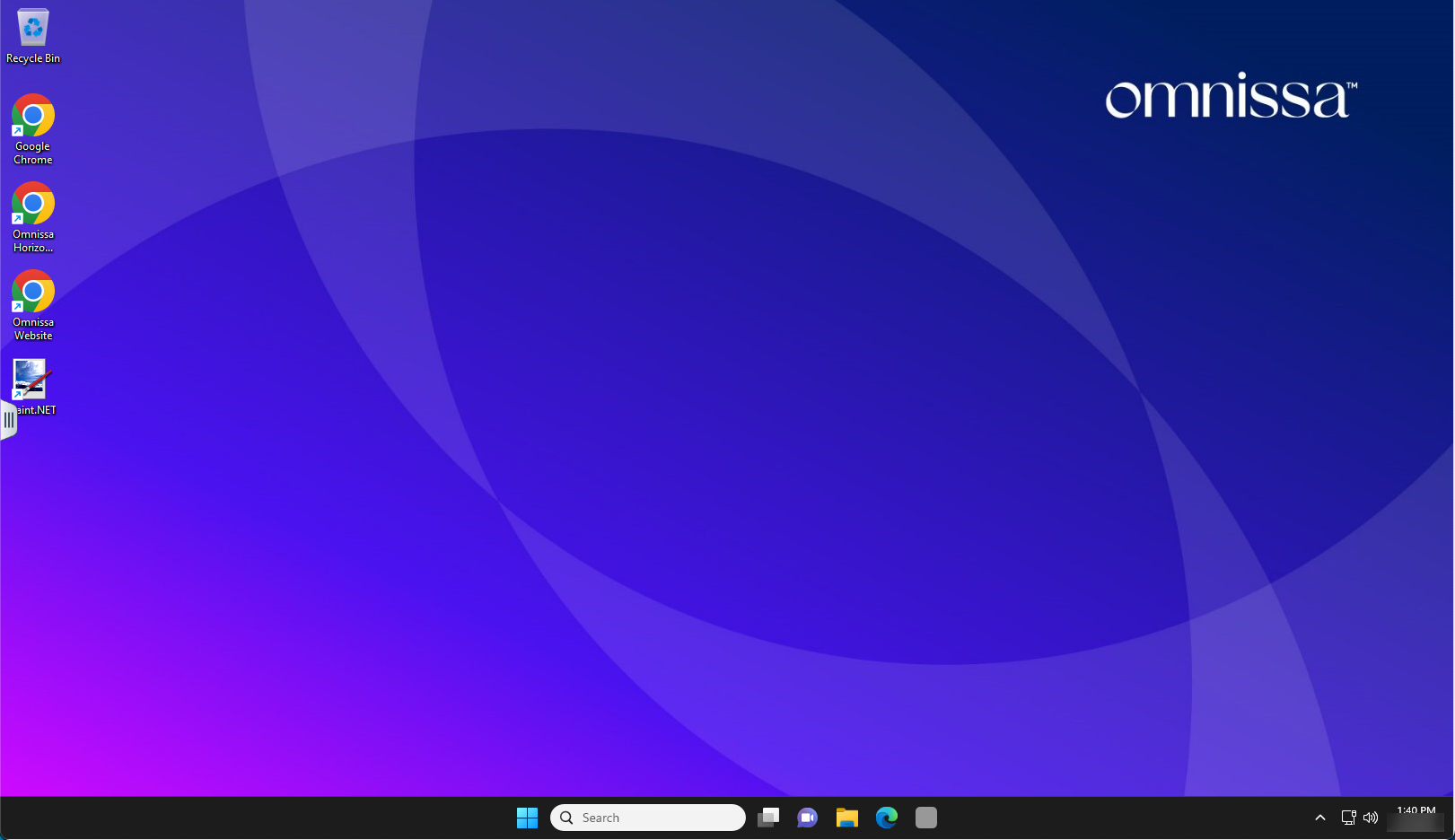
After the desktop has loaded, feel free to explore and test out the instant clone desktop pool that was deployed on vSphere.
This concludes the preview of the Horizon Cloud Sevice with vSphere deployment in TestDrive.