Home > Demo Guides > AppVolumes
Omnissa App Volumes - Lifecycle Management Demo
⏱️ Estimated time to complete: 10–15 minutes (your demo slot gives you up to 8 hours — plenty of buffer, but budget for this before you begin)
Quick Reference
Already familiar with App Volumes, or just want the short version before diving in?
- Enable your demo slot in the TestDrive portal and launch Horizon
- Launch Adobe Acrobat Reader — confirm it's Version 1 (V1)
- Open App Volumes Manager, set the Current marker on the V2 package (moving it from V1)
- Actively watch the desktop icon — delivery typically takes 3-6 minutes depending on package size, and it varies session to session. If you left Acrobat Reader open, the icon won't change on its own — watch for an "Application Update" notification (it can hide behind other windows) and click Close Now
- Relaunch Acrobat Reader — confirm it's now Version 2 (V2)
- Sign out — no manual reset needed, your environment is automatically restored for the next participant
Full step-by-step instructions with screenshots follow below.
Overview
This walkthrough demonstrates how Omnissa App Volumes enables instant application updates without disrupting active user sessions.
The demo application for this walkthrough is always Adobe Acrobat Reader — every demo participant works with the same application, moving it between Version 1 (V1) and Version 2 (V2).
Note: Behind the scenes, App Volumes hosts this demo across several parallel copies of the application (e.g.
Adobe Acrobat - Demo 07) so multiple participants can run the demo at the same time without colliding. Your assigned copy's number may not match this guide's screenshots or examples — that's expected. Always go by the number shown on your own TestDrive product tile / App Volumes Application Lifecycle Management assignment, not the number pictured here.
You will:
- Enable a time-limited demo slot in the TestDrive portal
- Connect directly to a Horizon desktop
- Launch Adobe Acrobat Reader running Version 1 (V1)
- Open App Volumes Manager and move the application's Current marker to the V2 package (from V1)
- Watch the application refresh in place, in your active session — the desktop icon updates and the app becomes Version 2 (V2) with no logoff and no reboot
- Sign out — your environment is automatically restored for the next participant, no manual reset needed
This showcases the core value of App Volumes: continuous application delivery that doesn't interrupt user work or require system reboots.
Prerequisites
- A TestDrive account with an active invite (sign-in access to https://testdrive.omnissa.com/)
- A modern desktop browser (Chrome, Edge, or Firefox recommended)
- Pop-ups allowed for testdrive.omnissa.com — launching Horizon opens a new browser tab/window; if nothing appears to happen when you click Launch, check your browser's pop-up blocker first
Important: Your Demo Timer
The TestDrive portal assigns you a time-limited access window (default: 8 hours). Your countdown timer displays on the App Volumes Application Lifecycle Management product tile.
Your access ends automatically when the timer reaches zero
When the timer reaches zero, your access ends automatically and the application disappears from your desktop. This is expected behavior, not an error.
Plan your demo to fit within your access window. If you run out of time, you can enable a new slot (subject to availability) and start again.
Access the Demo
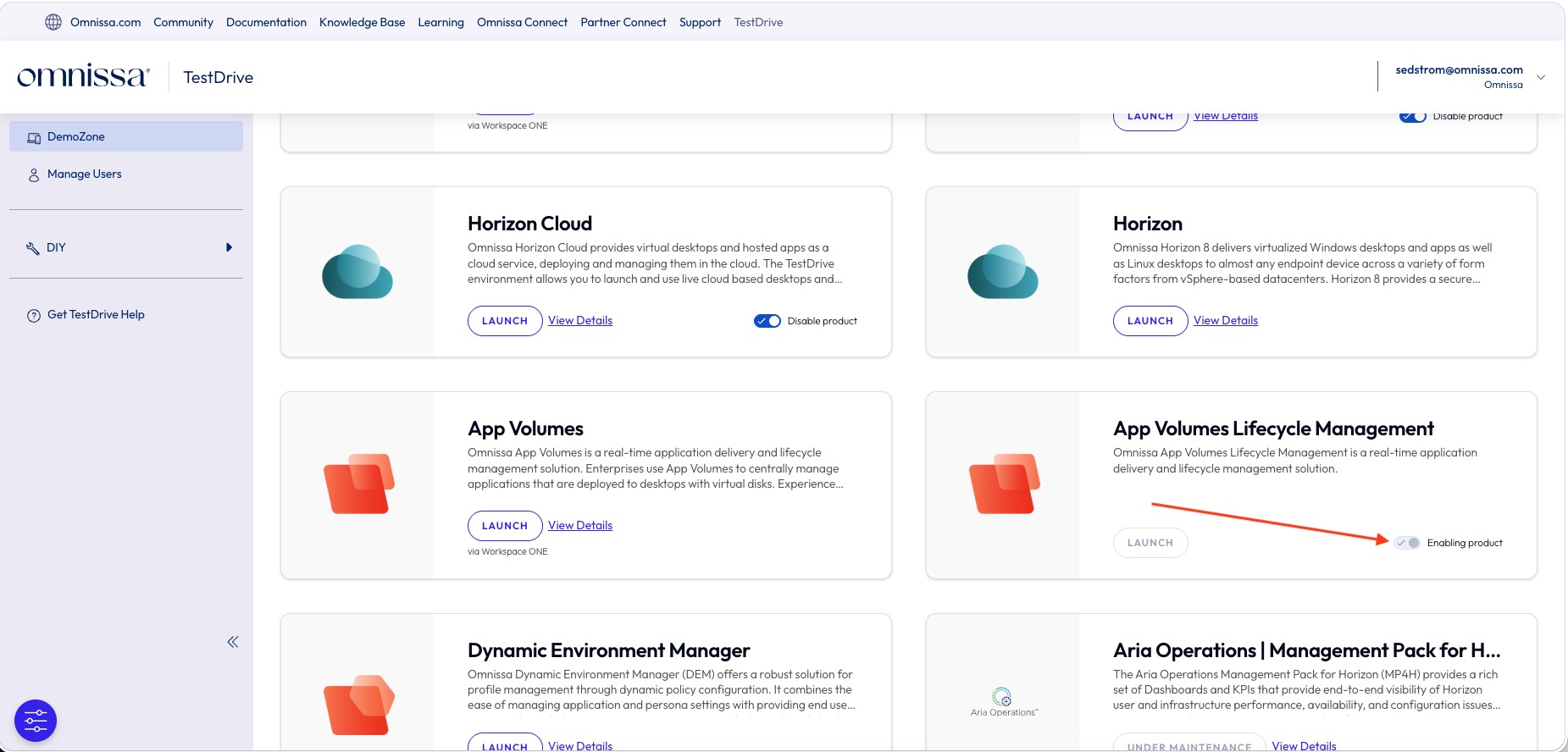
Step 1: Enable Your Demo Slot in the TestDrive Portal
- Open a browser and sign in to the TestDrive portal at https://testdrive.omnissa.com/
- Locate the "App Volumes Lifecycle Management" product tile
- Click the enabling toggle on the tile
Step 2: Review Your Assignment and Launch
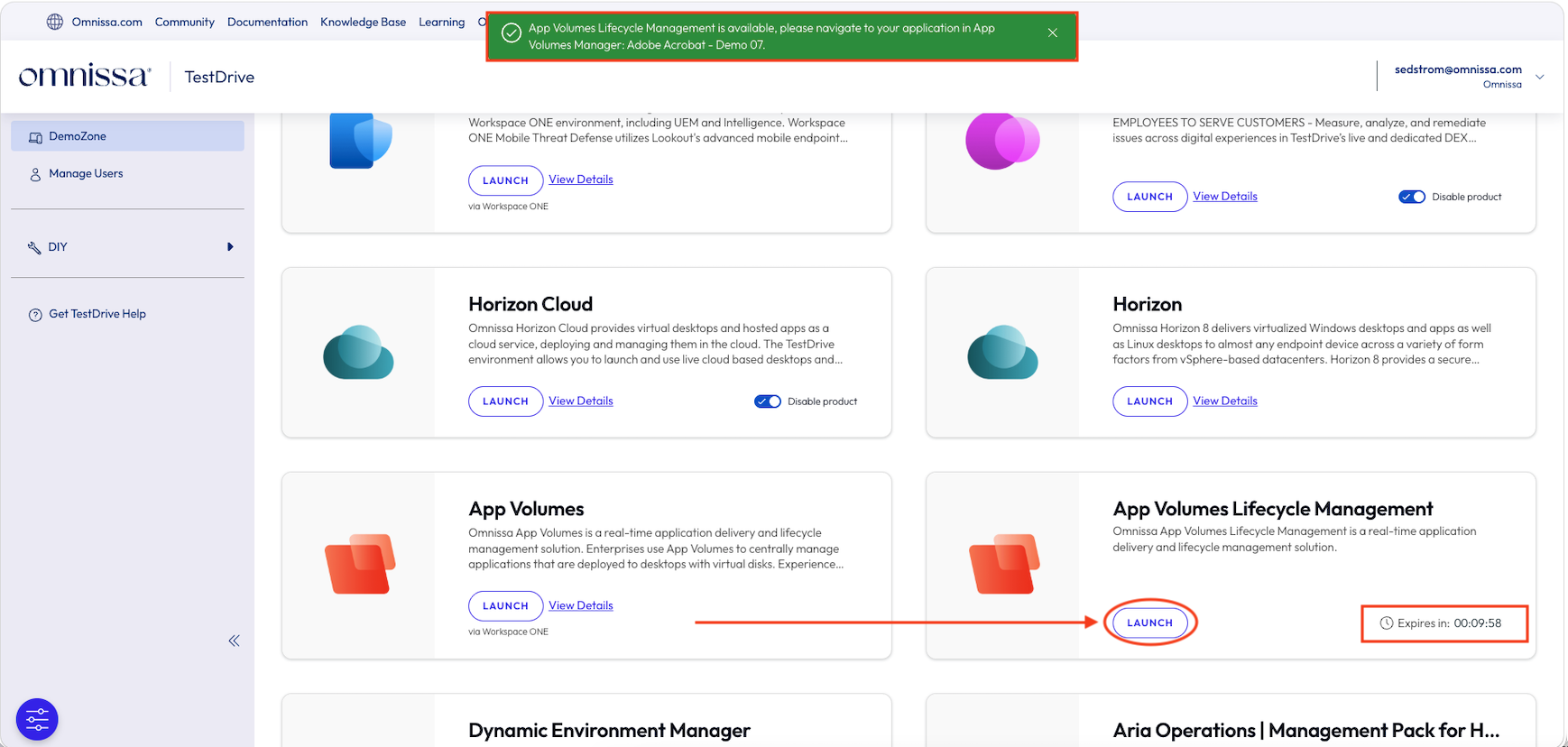
- Once enabled, a green banner confirms the demo is available and names your assigned application (e.g., Adobe Acrobat - Demo 07) — note this application name now, you'll use it later in App Volumes Manager. The number after "Demo" is what identifies your specific copy of the app, and it will likely differ from any number shown in this guide's screenshots — that's expected, go by your own assignment
- The tile now shows an active Launch button and an Expires in countdown timer — note your remaining time and watch this timer throughout the demo
- Click Launch
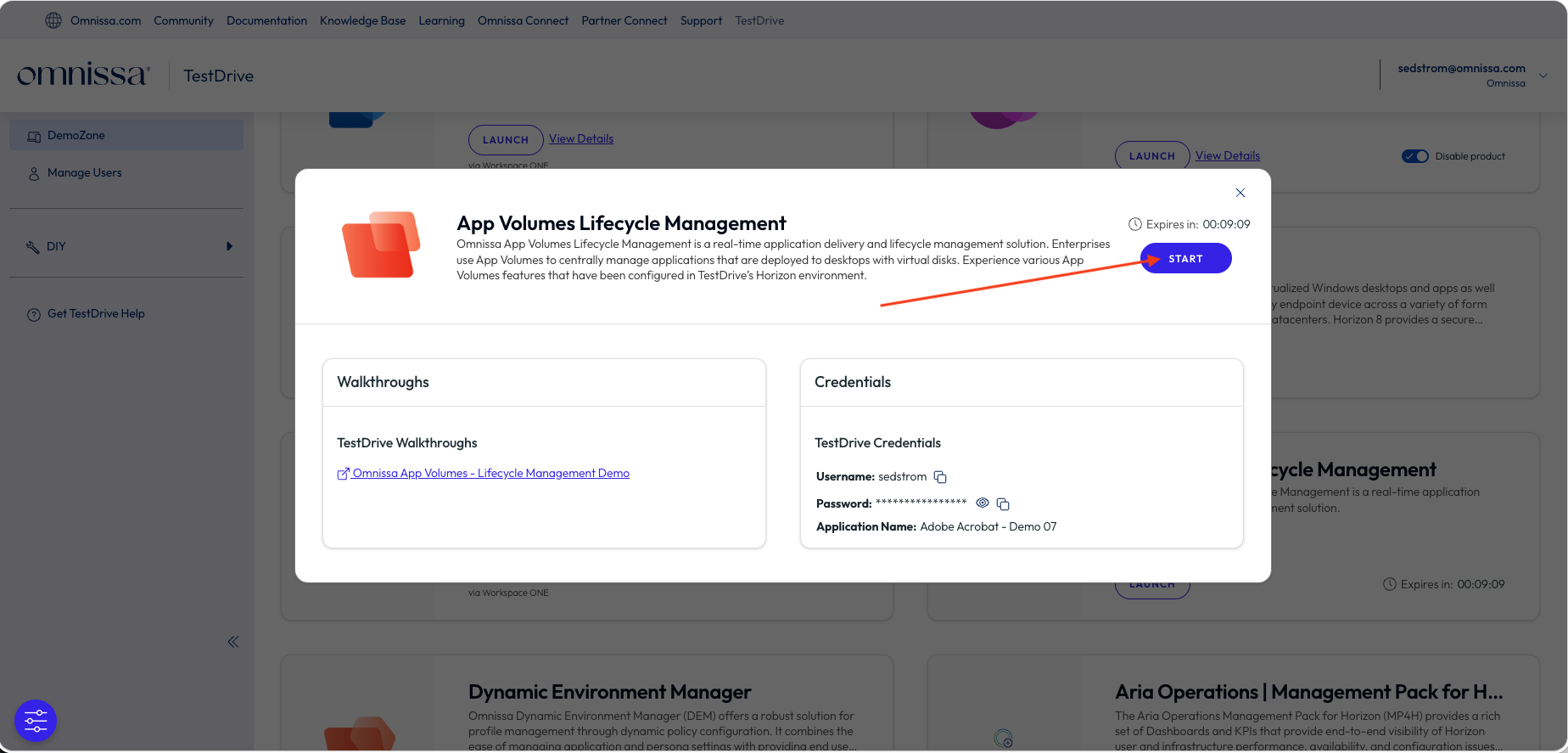
- A modal opens showing your countdown timer, a Walkthroughs panel linking back to this guide, and a Credentials panel with your TestDrive login and your assigned application name
- Click Start
Step 3: Connect to Horizon
- The Start button opens Horizon directly with your assigned desktop pool
- Sign in with your TestDrive credentials if prompted
- Wait for your Horizon desktop to fully load
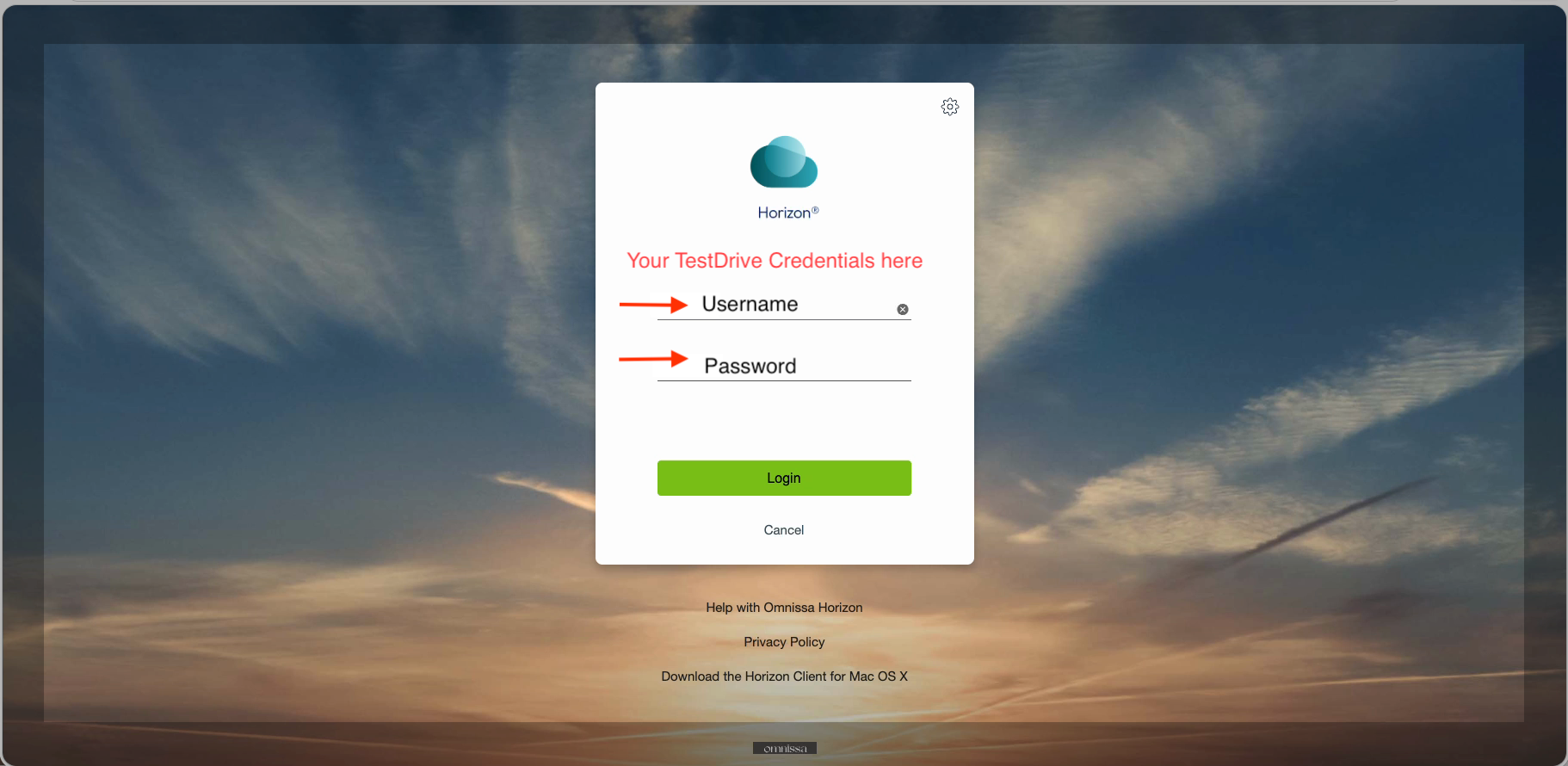
Fallback: If Start doesn't work, open a browser to https://horizon.td.omnissa.com/, sign in, and select your assigned desktop pool.
Demo Steps
Step 4: Launch the Application (Version 1)
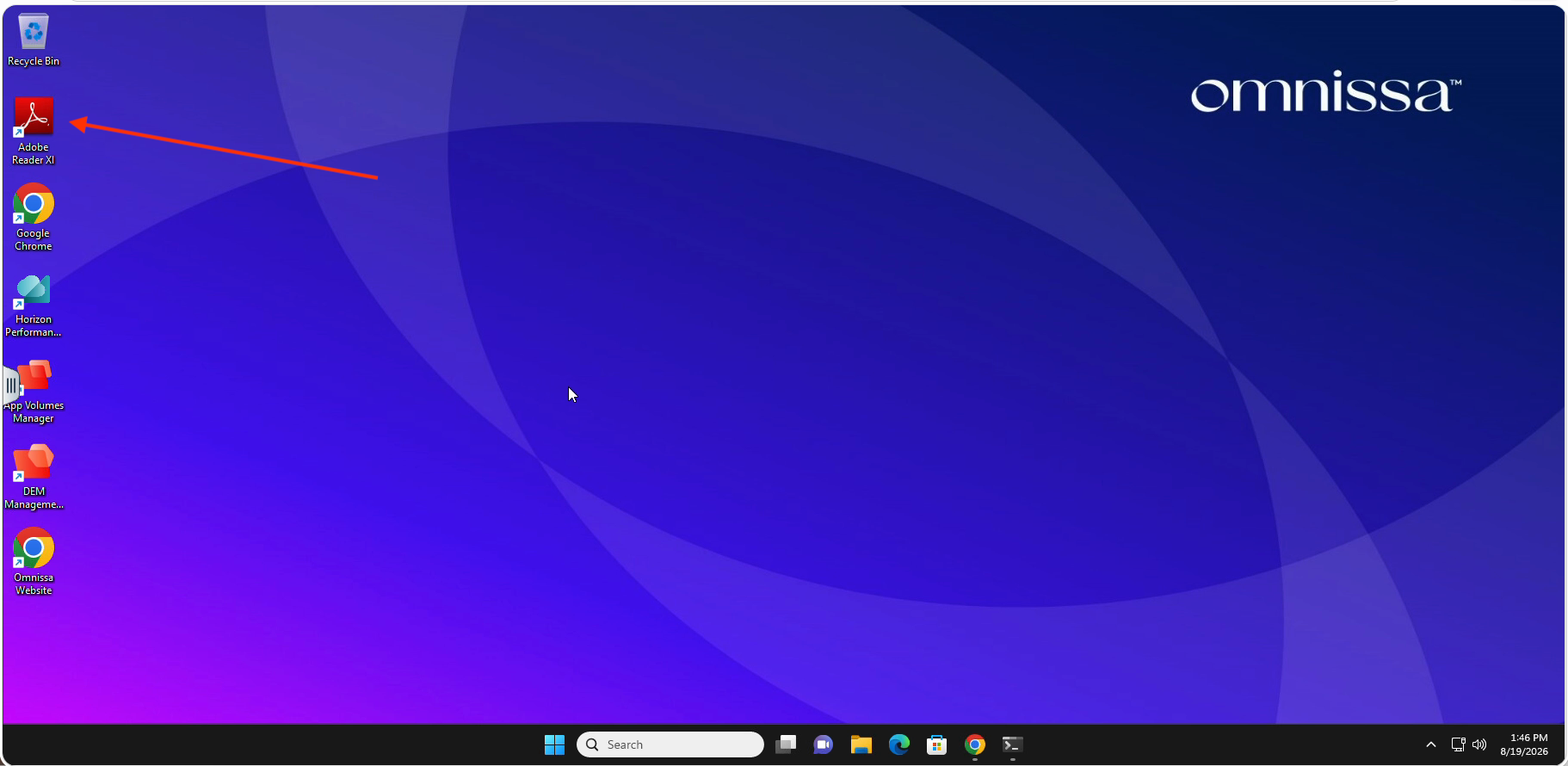
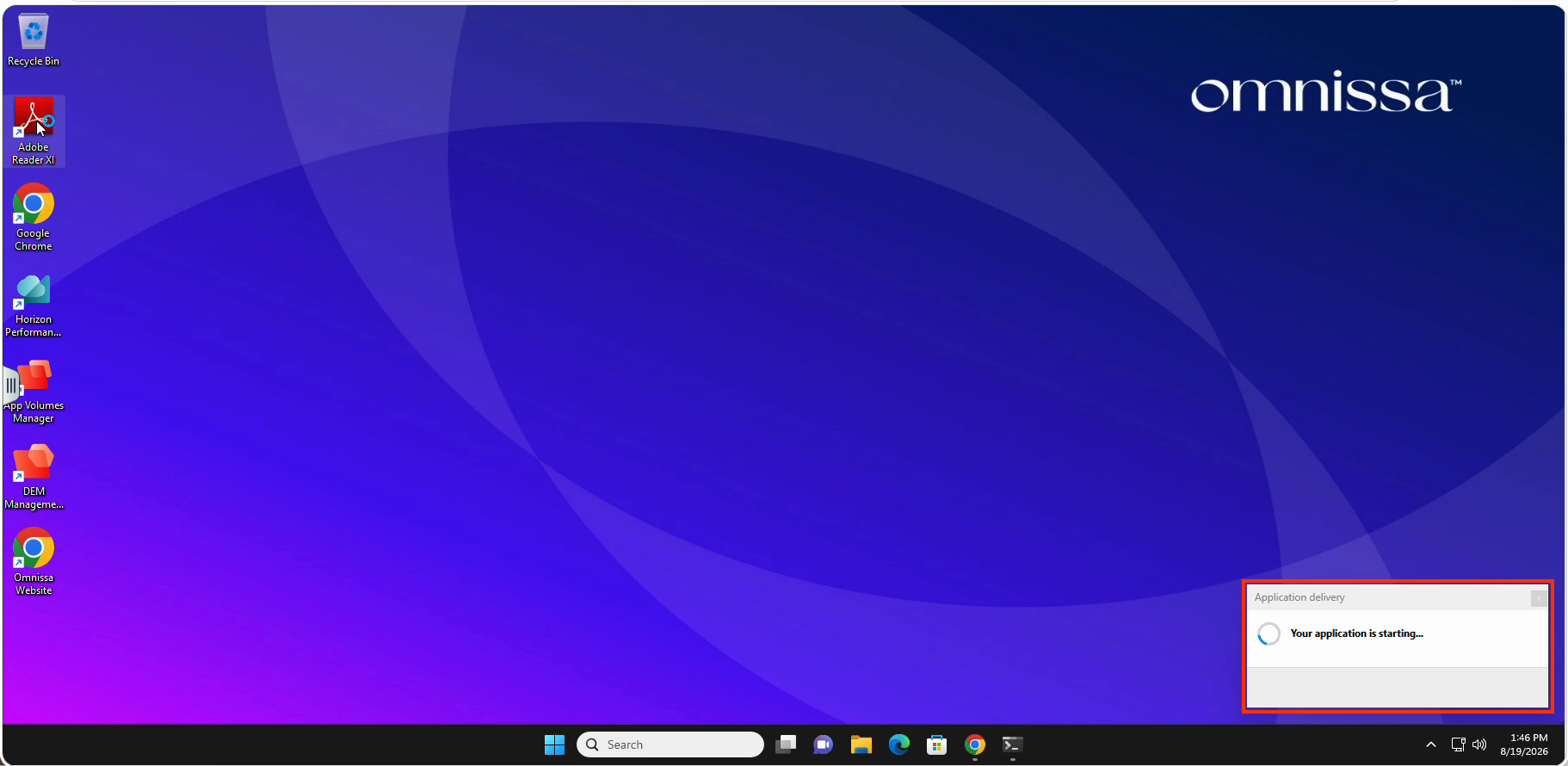
- On your Horizon desktop, locate the Adobe Acrobat Reader shortcut
- Launch it and wait a moment for it to finish loading — the shortcut can take 15-20 seconds to appear on a freshly-connected desktop, so give it a moment if you don't see it right away
Step 5: Verify Version 1
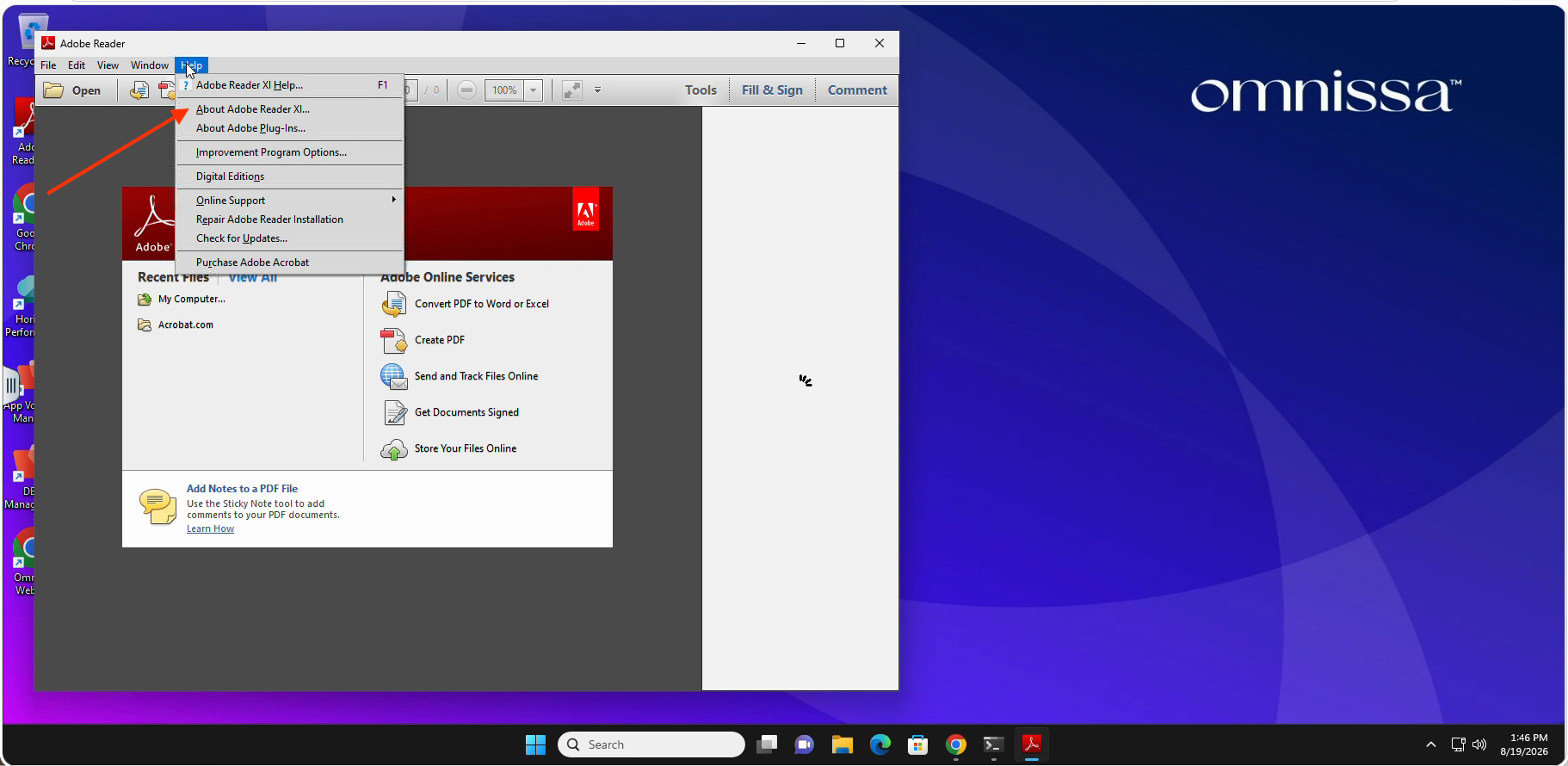
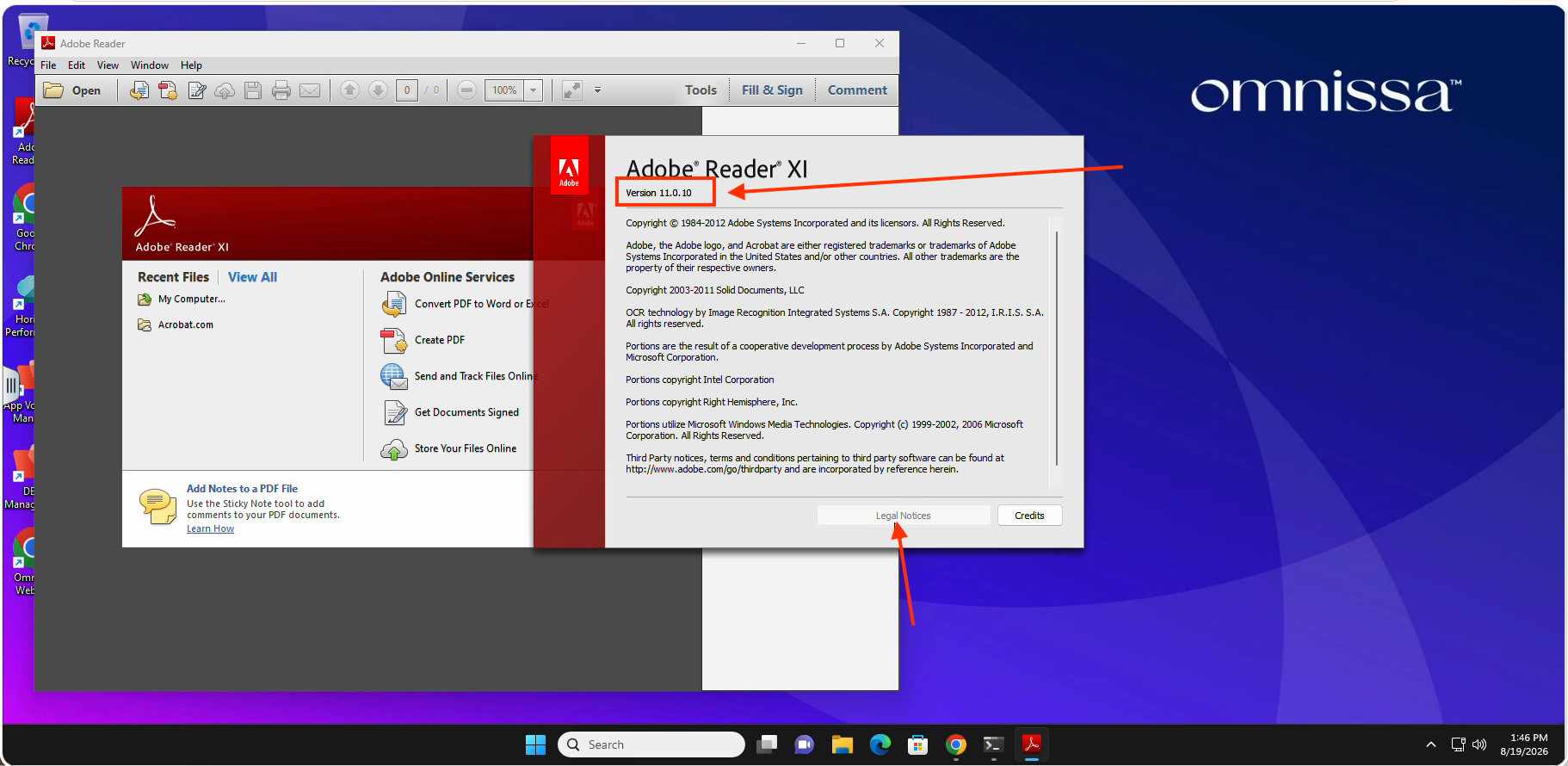
- Inside Adobe Acrobat Reader, open Help → About
- Note the version displayed: Version 11.0.10
- Close the About dialog, then close Adobe Acrobat Reader completely — you'll relaunch it later once the updated version has been delivered
Step 6: Open App Volumes Manager
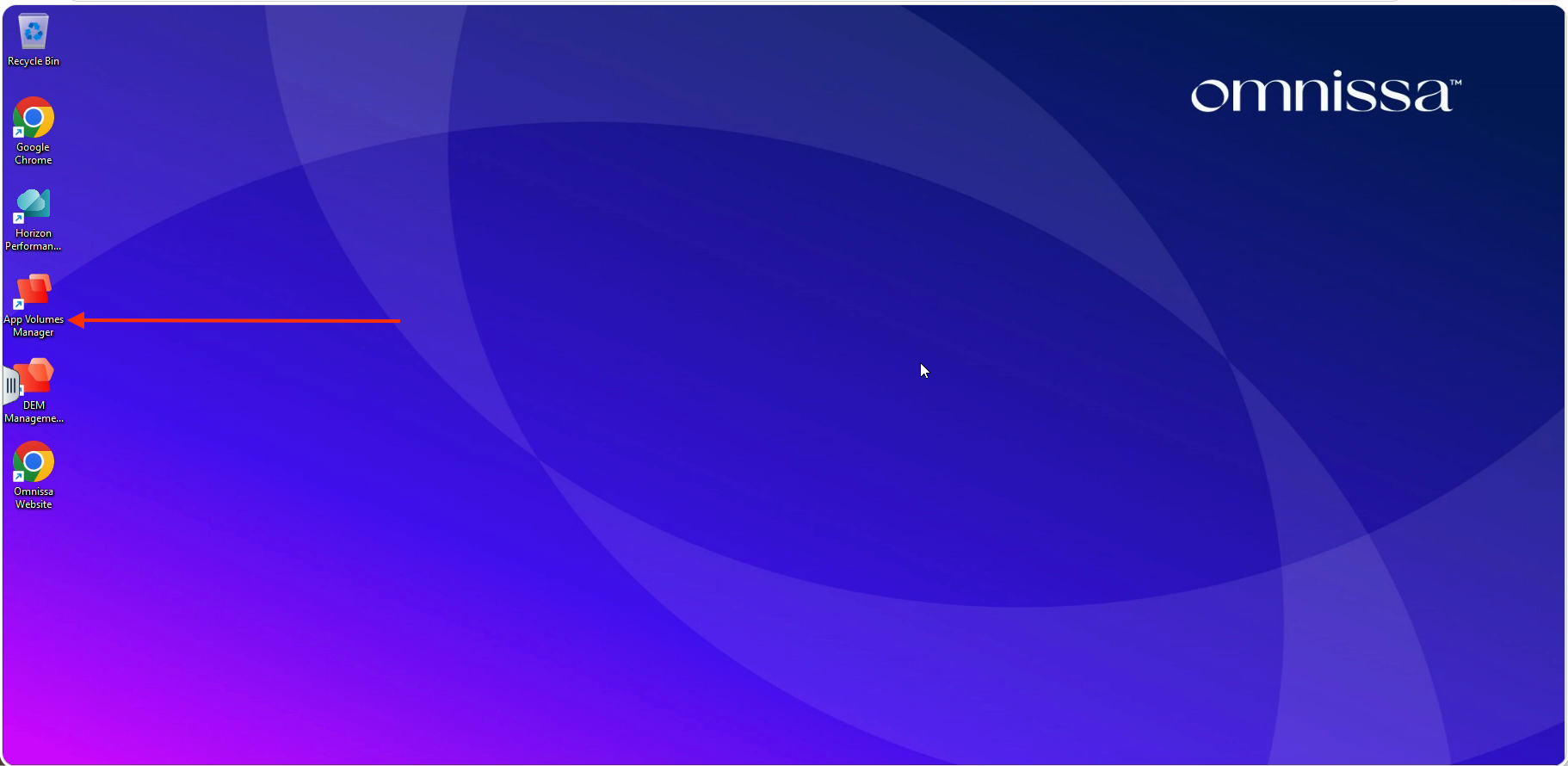
- On your Horizon desktop, locate and launch the App Volumes Manager shortcut
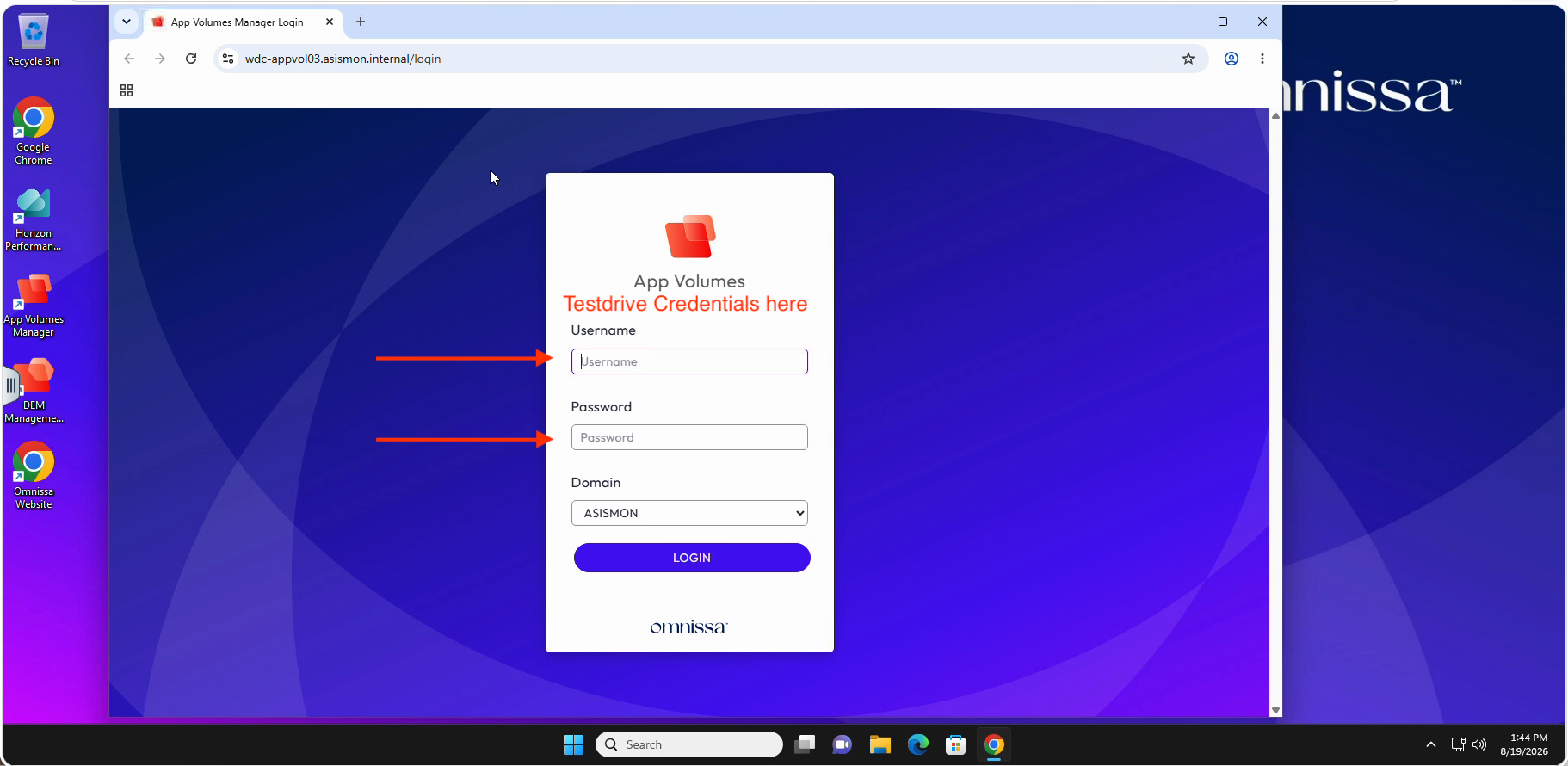
- Sign in with your TestDrive credentials
Step 7: Set the Current Marker on the V2 Package
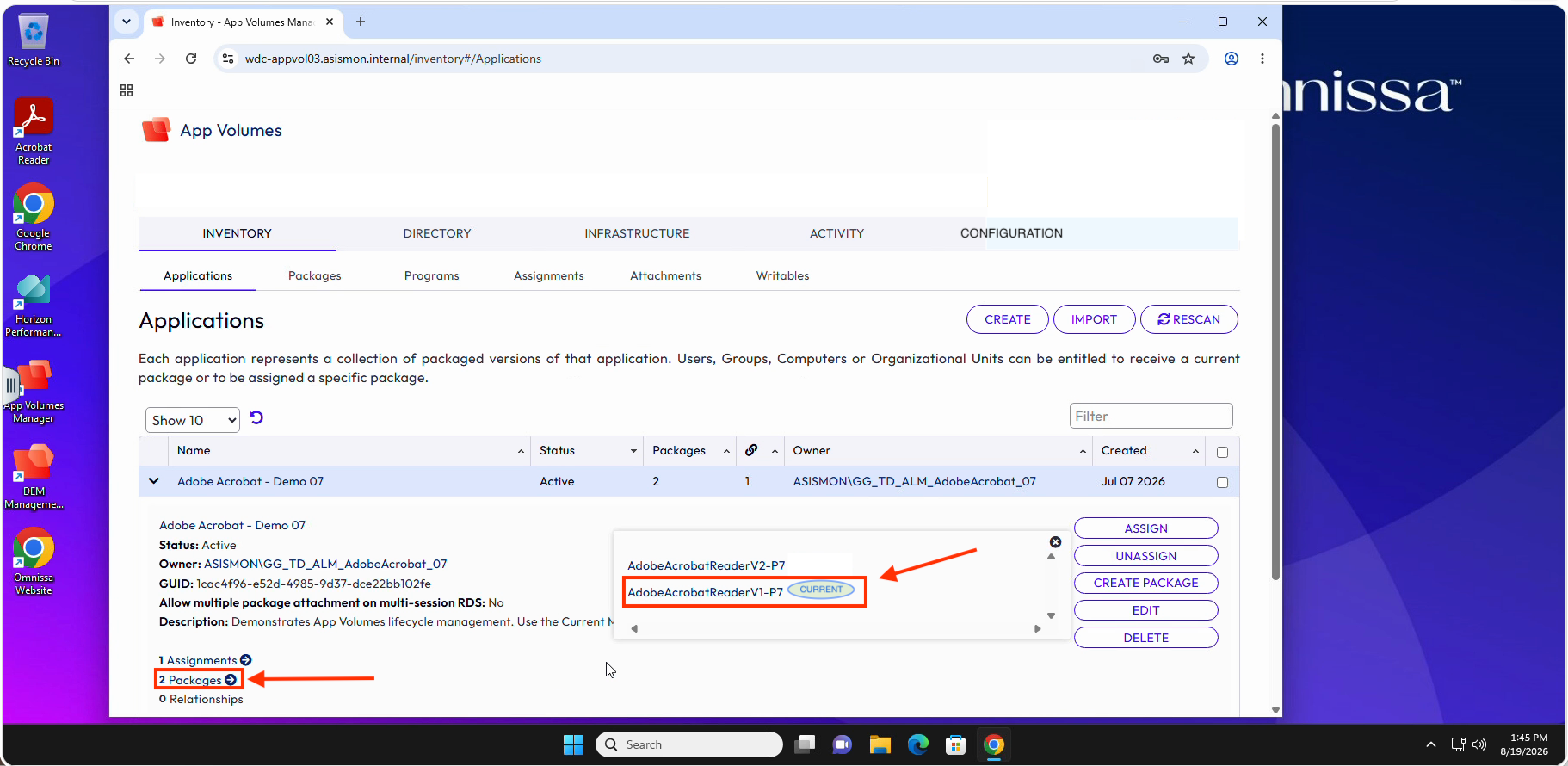
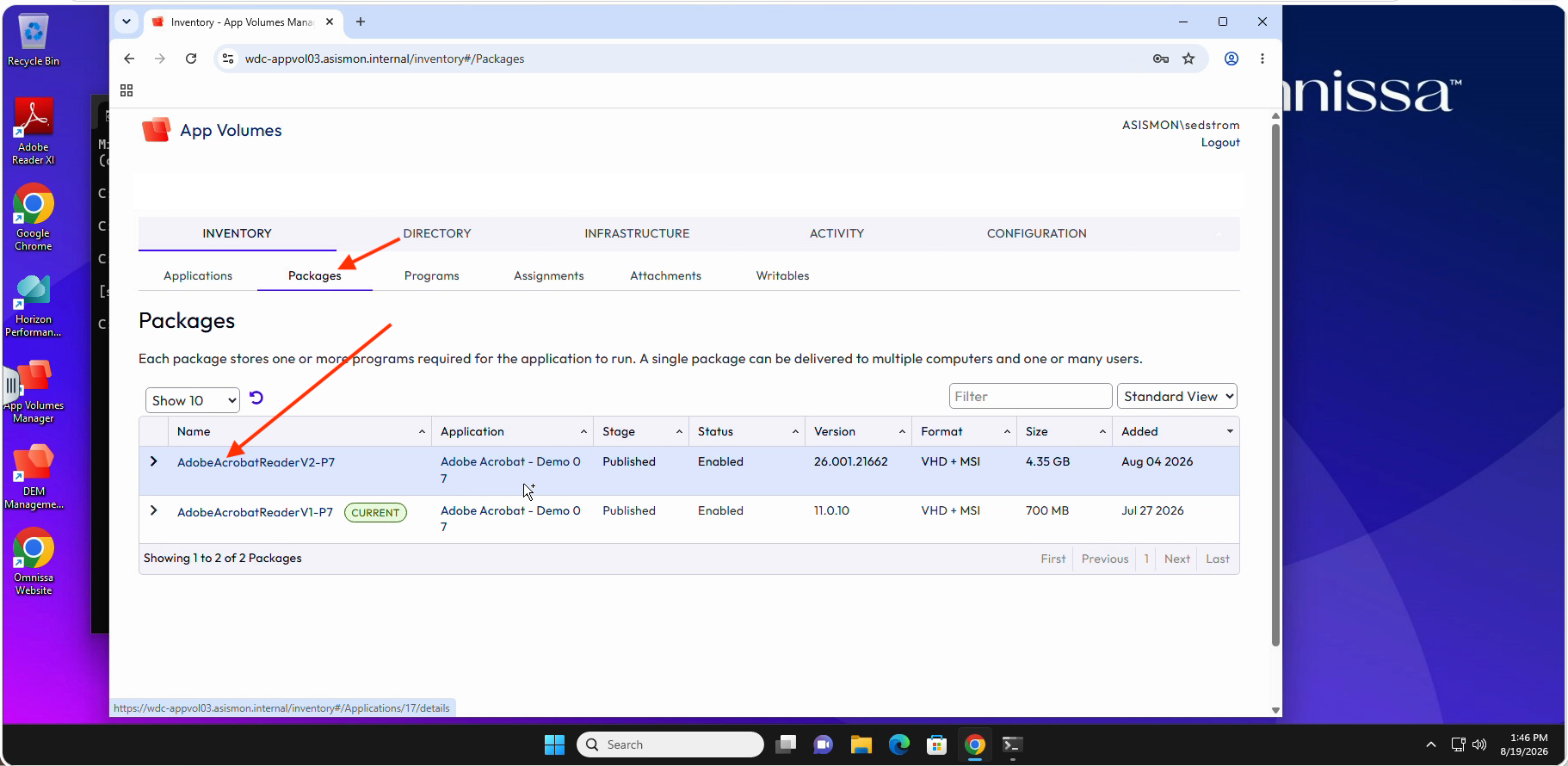
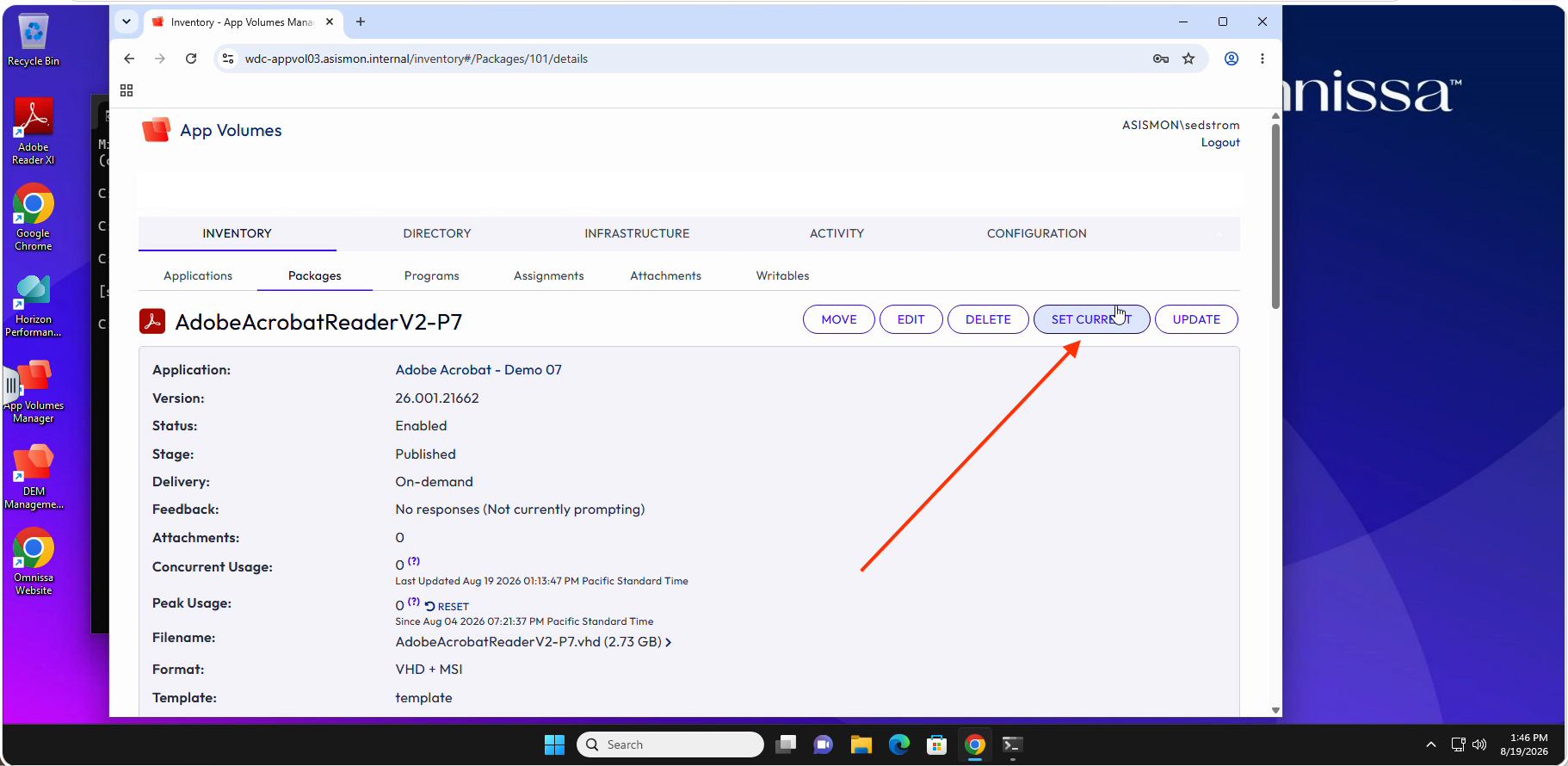
- In App Volumes Manager, go to Inventory → Packages and locate the entry for
your assigned application — match it by the number noted in Step 2 (e.g.
Adobe Acrobat - Demo 07), not by the application/package numbers shown in this guide's screenshots, which belong to a different copy - Click the V2 package to open its details page — the SET CURRENT button (which
sets the Current marker on this package) is already available here. (The package name's
trailing
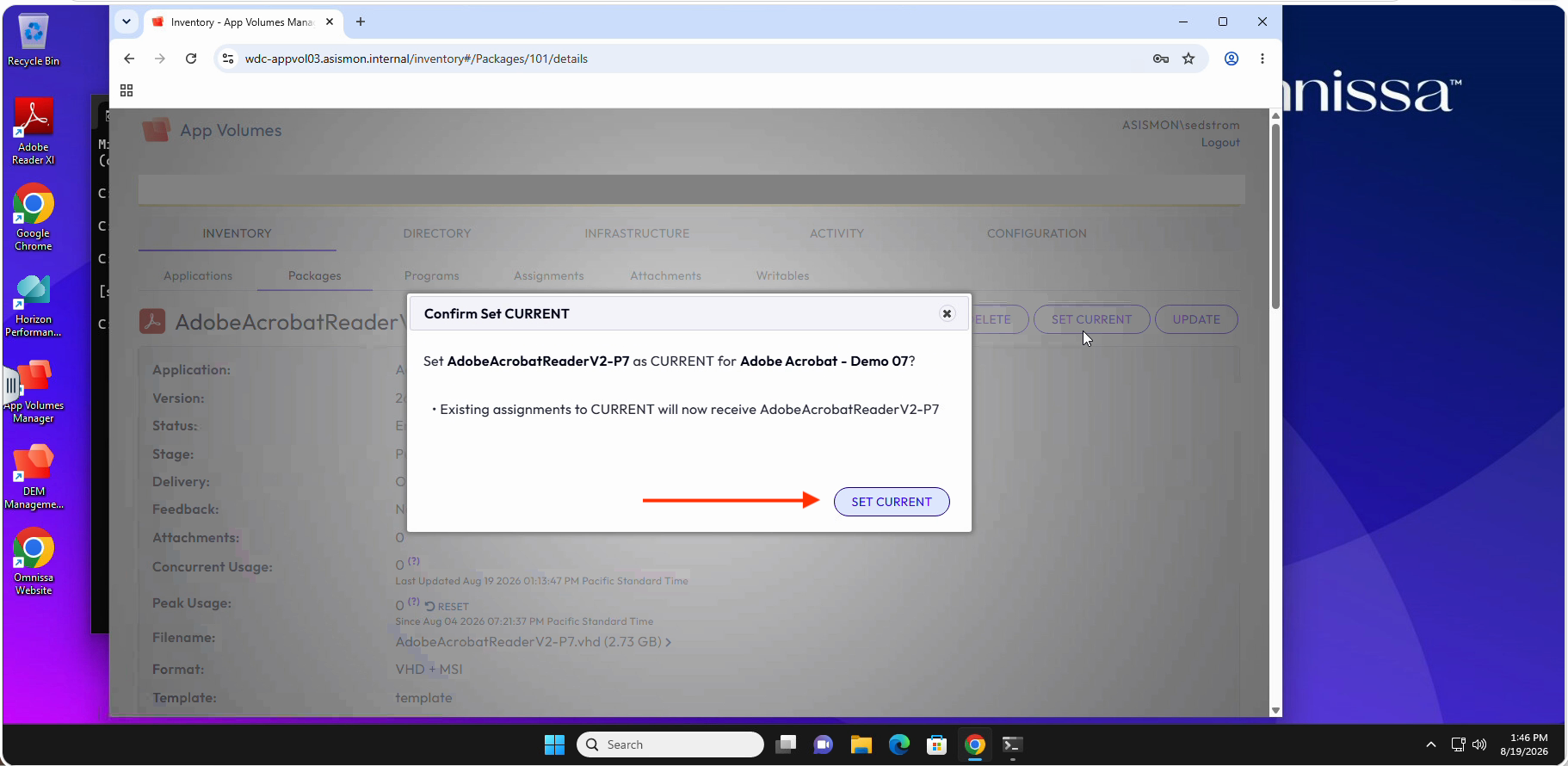
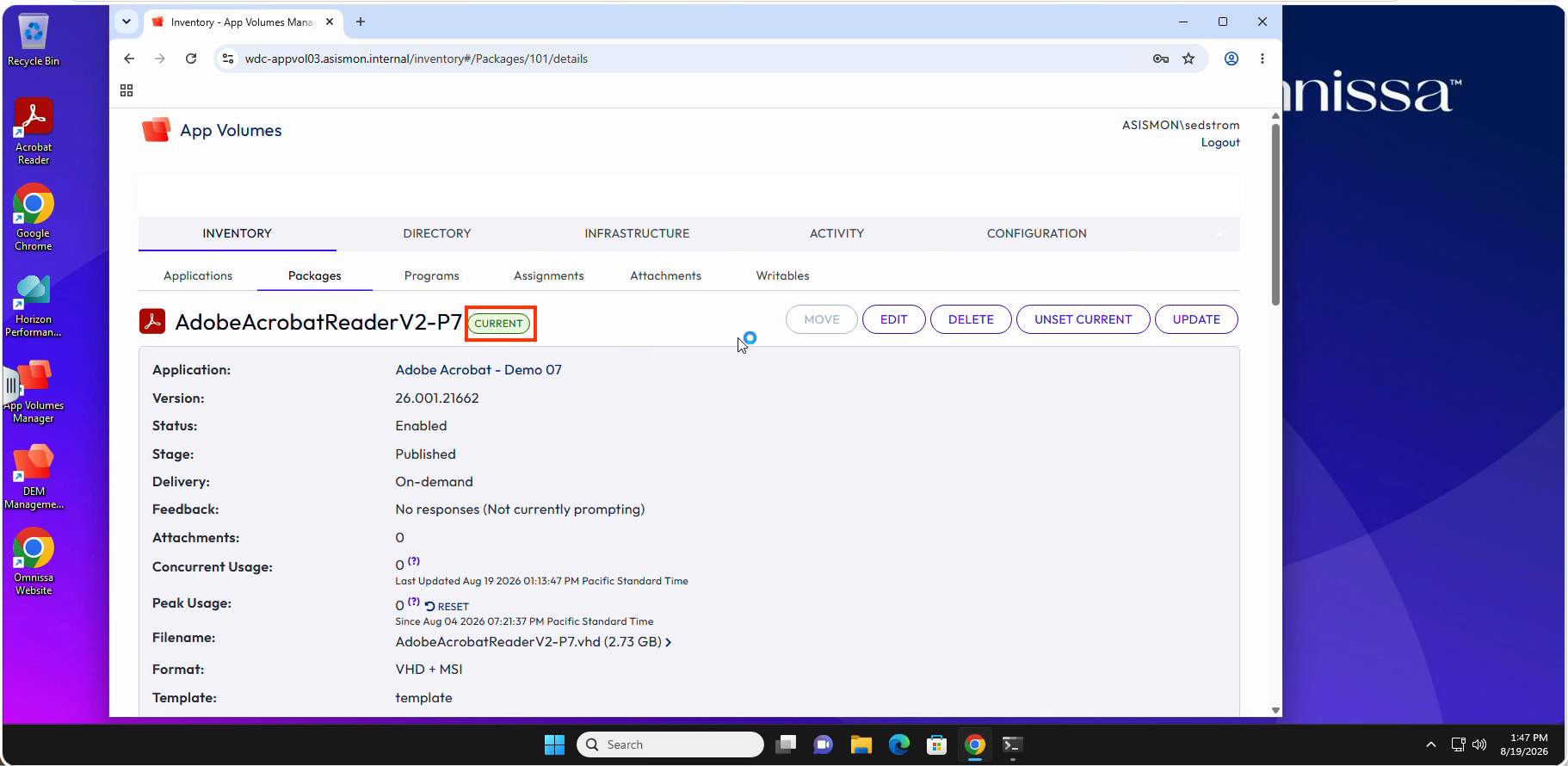
-P#number, e.g.-P7, is a separate internal revision number that may also differ from what's shown in the screenshots below — go by the V1/V2 label, not the exact number.) - Click SET CURRENT
- Confirm the change in the dialog that appears
Adobe Acrobat Reader must be closed for the update to apply automatically
If you skipped closing Adobe Acrobat Reader in Step 5 (or reopened it since), the update will not swap silently — App Volumes will instead prompt you to close it before delivering the new version. See Step 8 for exactly what that looks like and what to do.
Step 8: Watch the In-Session Refresh Happen Automatically
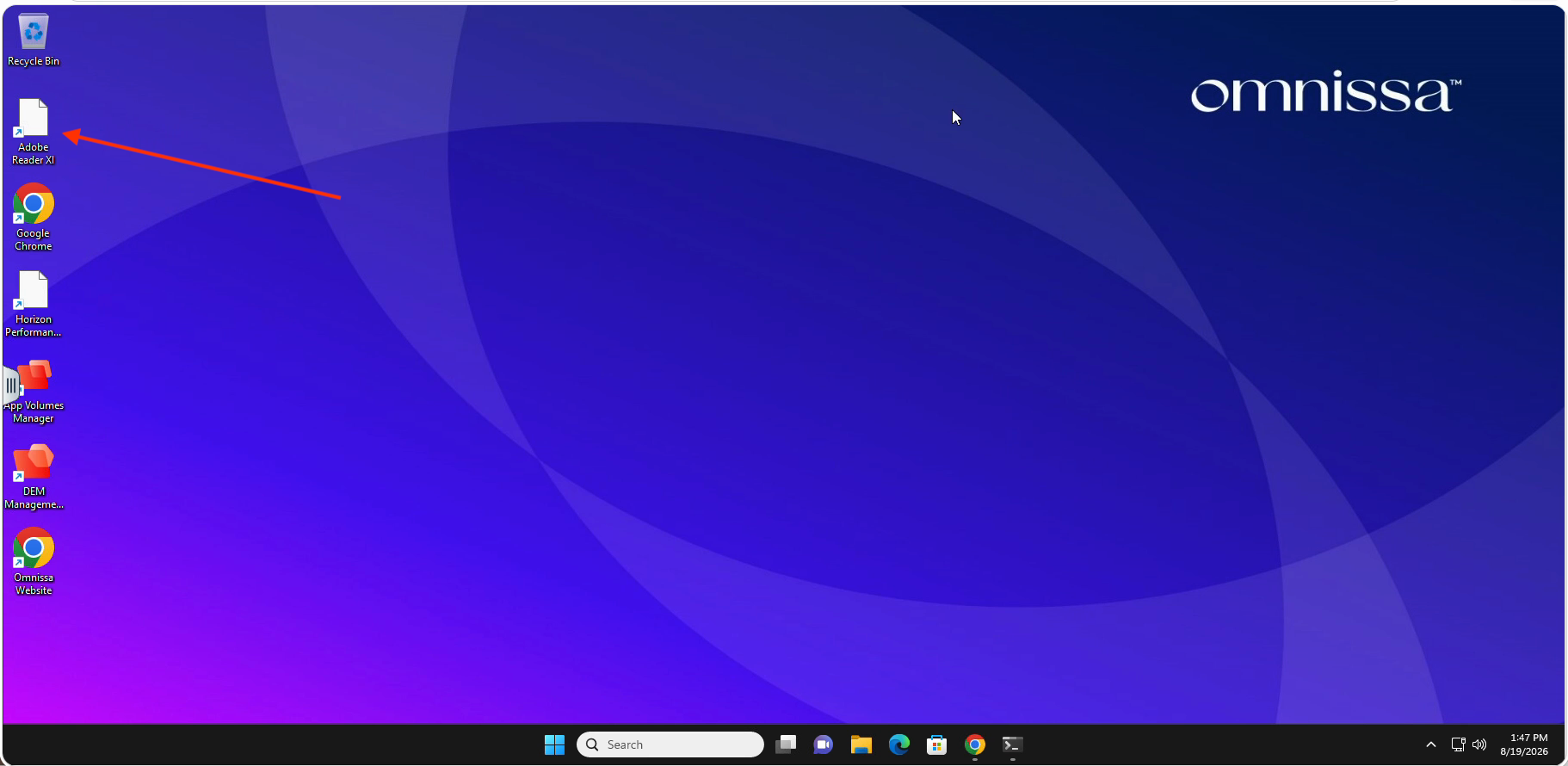
- Return to your Horizon desktop — there is no separate "Refresh Apps" shortcut to click. App Volumes detects the CURRENT change and refreshes the application automatically, in the background, while your session stays active
- Actively watch the desktop icon — don't switch away or wait passively. Delivery time varies with package size and system load; expect roughly 3-6 minutes. The icon will briefly clear and then update to the new application icon. This step is easy to miss if you're not watching for it, so keep your attention on the icon. A good moment to talk through what's happening behind the scenes while you wait
- The shortcut's name changes slightly (e.g., from "Adobe Reader XI" to "Adobe Reader") once the updated package has been delivered. Clicking the shortcut at this point triggers an "Application delivery — Your application is starting..." notification in the bottom-right of the screen — this confirms delivery of the updated version has begun
- If Adobe Acrobat Reader is still open, the icon will not update on its own. Instead,
watch for an "Application Update" notification — it typically appears in a bottom
corner of the screen, but can render behind other open windows, so check for it if
nothing seems to be happening. It will name the process that must close (e.g.,
acrord32.exe) and give you a Close Now button. Click it (or otherwise close Adobe Acrobat Reader) and the icon will finish updating within moments. - If you don't see any visible change after about 6 minutes and the app was already closed, click the desktop shortcut anyway. You may see a prompt warning that the application has been updated — click OK on that prompt, and it will launch the updated (V2) version
- Wait for the icon to finish updating (or for the app to finish launching from step 5) before moving on
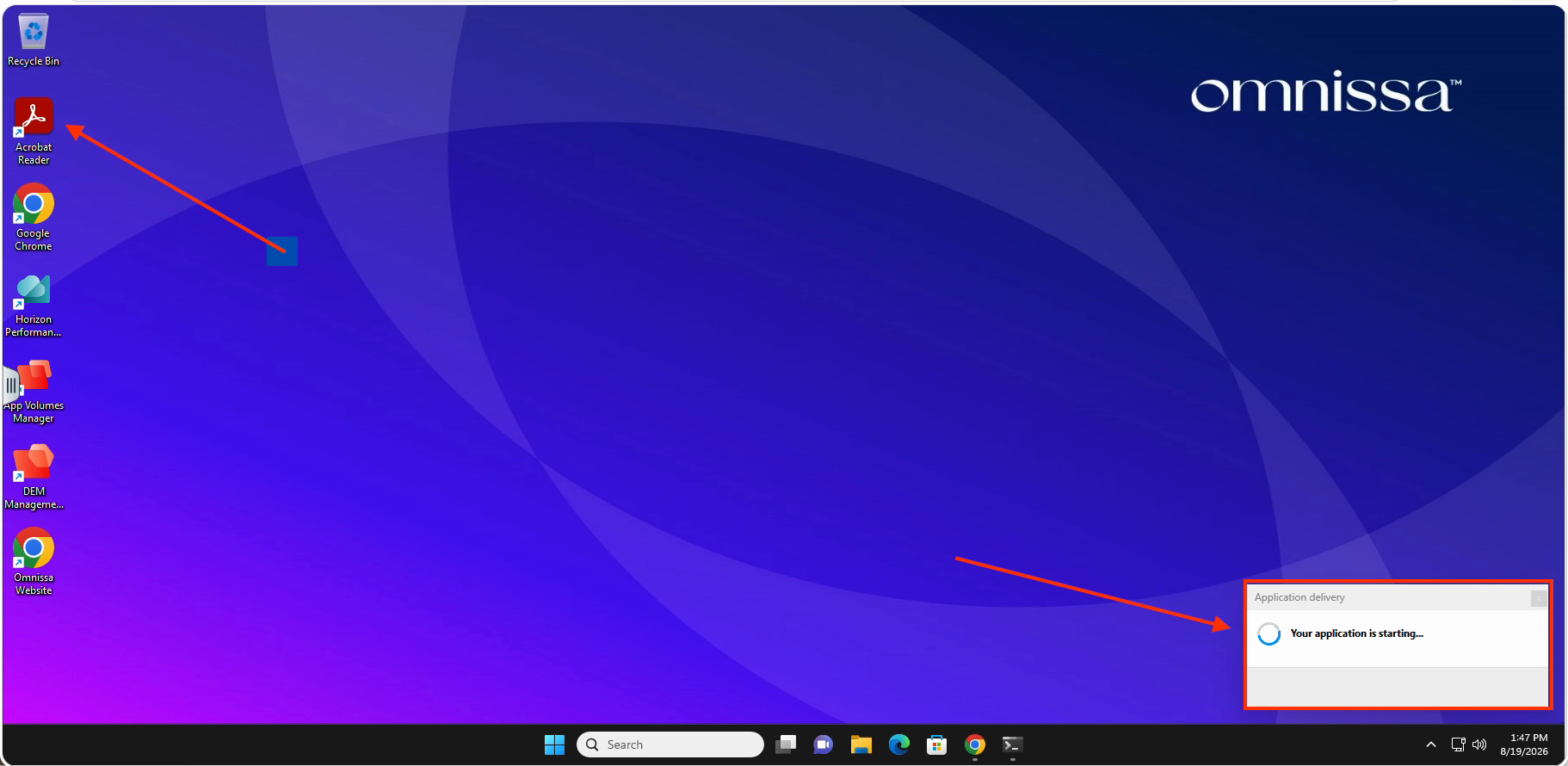
Step 9: Launch the Updated Application (Version 2)
- Launch Adobe Acrobat Reader again from the desktop — it is now the updated V2 version
- Open Help → About to confirm
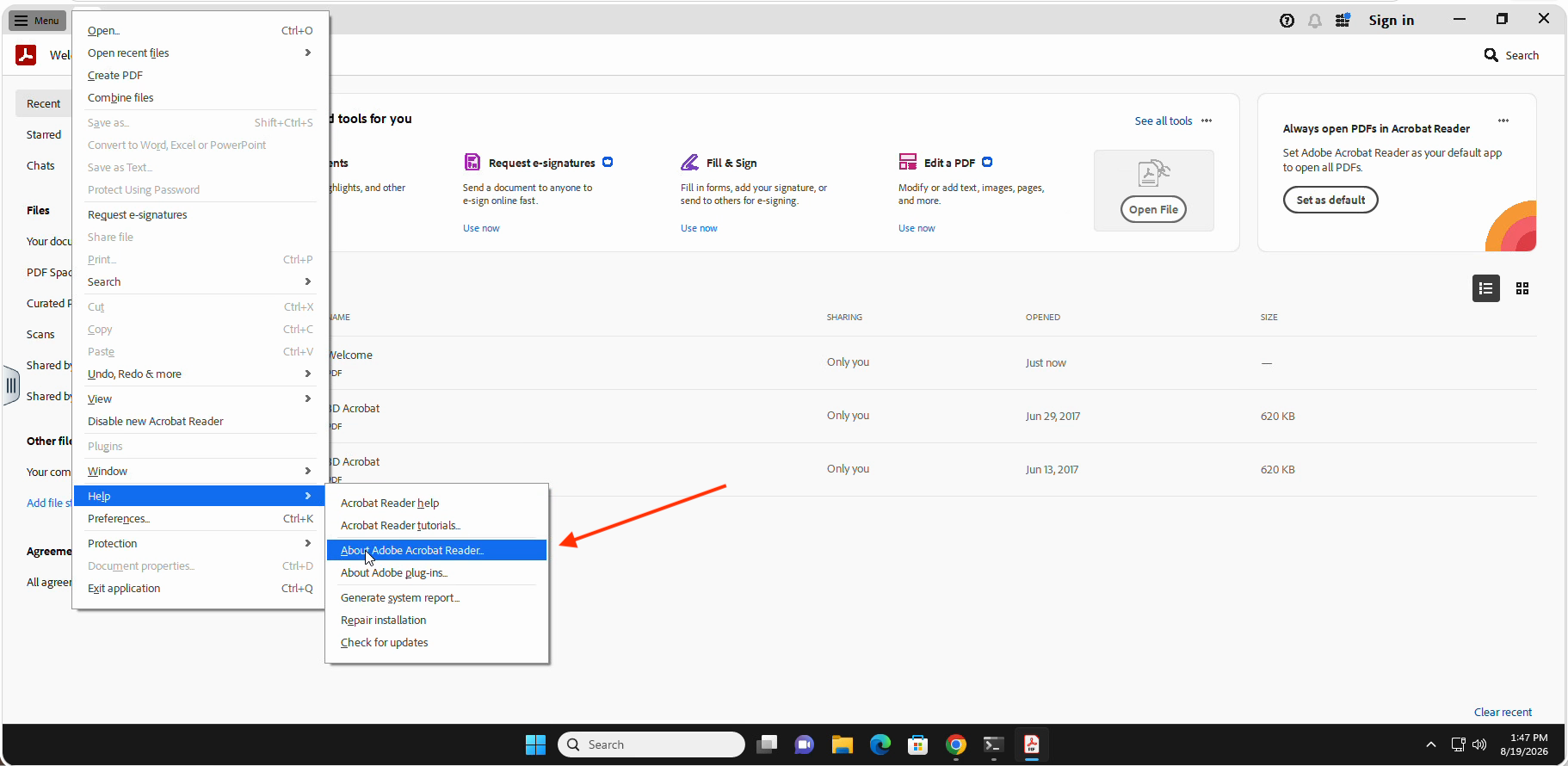
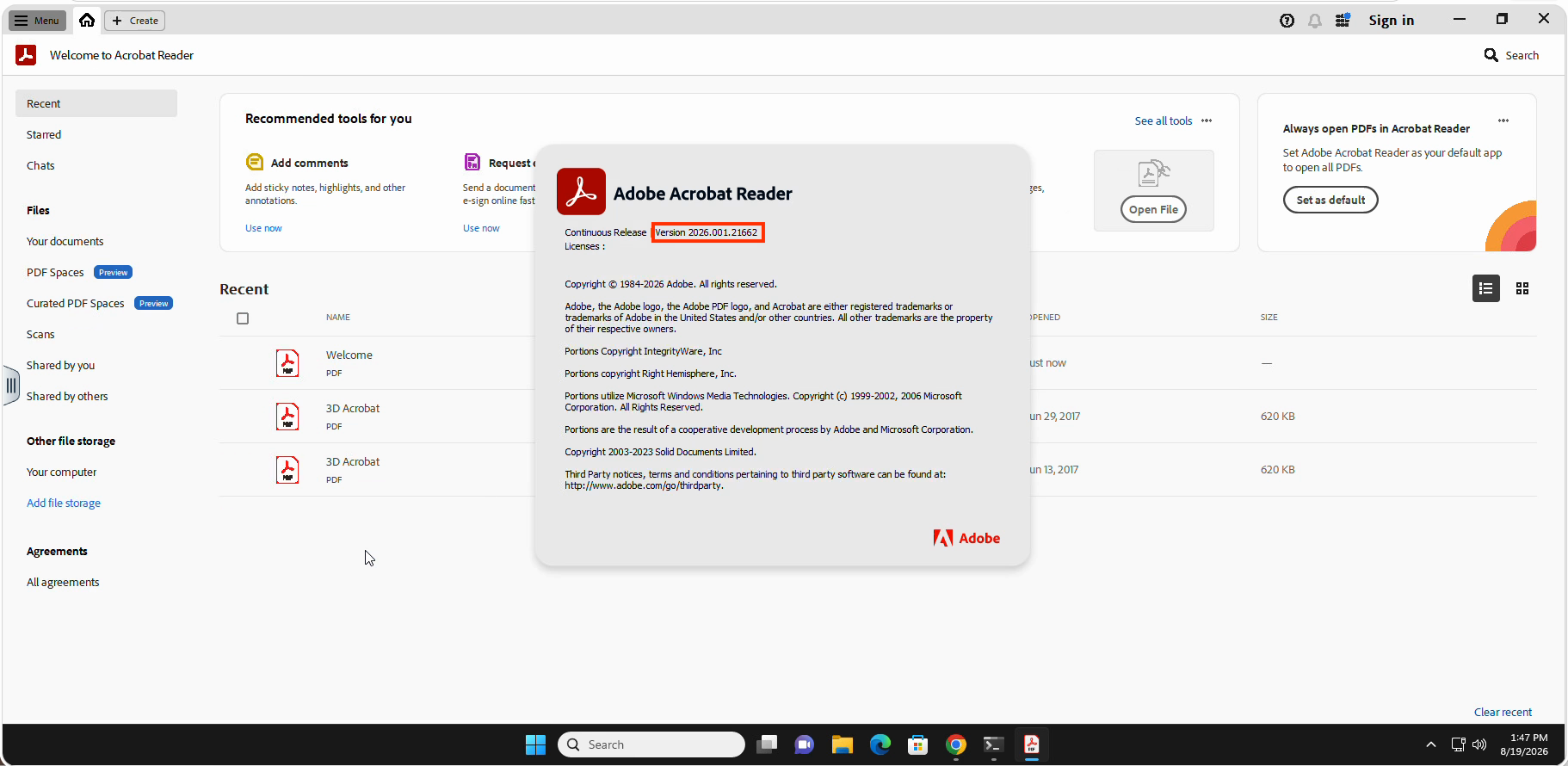
You've completed the demo. The application updated from V1 to V2 without logging off your desktop or closing your session. Your session remained active, your other applications stayed open, and the app swapped beneath you.
After the Demo
Sign Out
- Right-click the Start menu and choose Sign out
- Your Horizon session disconnects
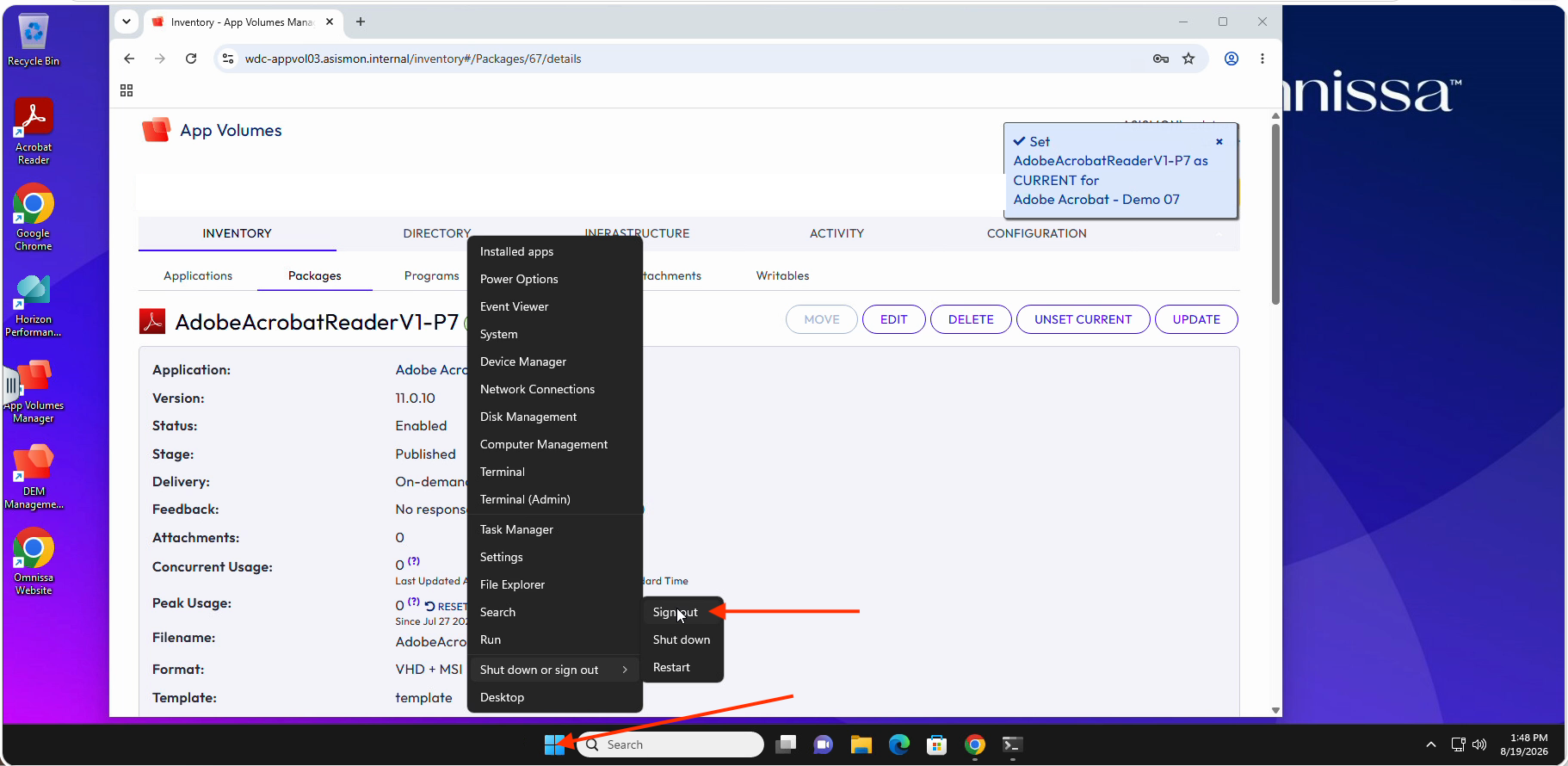
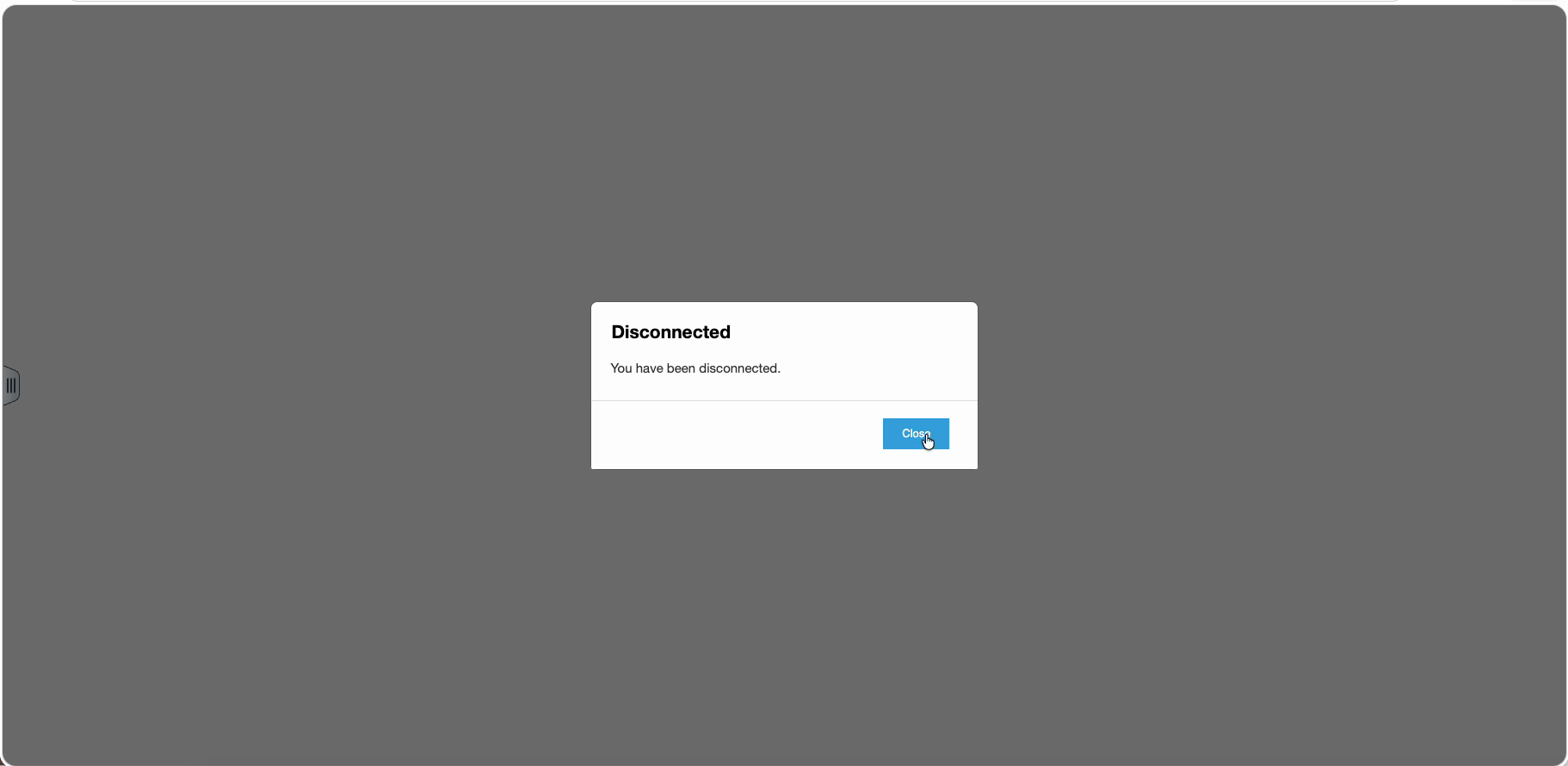
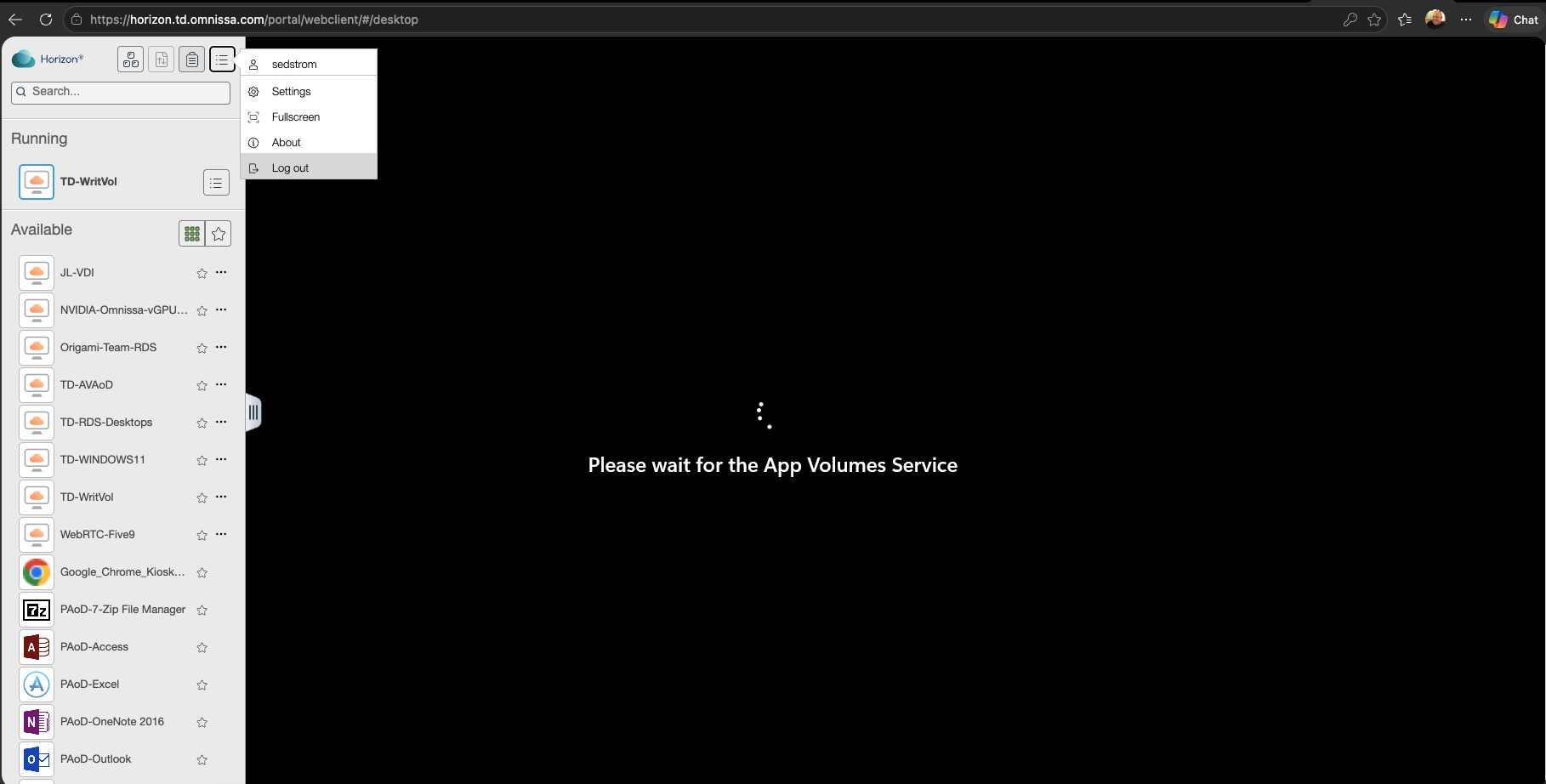
- Signing out of the desktop disconnects your session, but it does not log you out of Horizon Client itself. The Horizon Client panel is often tucked away — look for a small pull-out handle along the left edge of the screen (roughly mid-height) and click it to reveal the panel
- With the panel open, click the menu icon (≡, top-right of the panel) and choose Log out to fully end your Horizon Client session
- This ensures that if you reconnect later (e.g., after enabling a new demo slot), you get a fresh session rather than reattaching to a stale, disconnected one
When Your Timer Expires
When your countdown timer reaches 00:00:00: - Your access automatically ends - The application disappears from your desktop - Your Horizon session may remain, but the app is no longer available - This is normal and expected
To demo again:
- Return to the TestDrive portal
- Enable a new demo slot
- Restart at Access the Demo — Step 1: Enable Your Demo Slot in the TestDrive Portal
Key Takeaways
- Applications are delivered dynamically using App Volumes — no rebuilding desktop images, no reboots, no re-login.
- The Current marker designates a single package at a time as the one delivered to users; moving the Current marker to a different package is the entire update mechanism.
- Version changes take effect in an active session — the user doesn't need to log off, and other open applications are undisturbed.
- The same mechanism works in reverse: administrators (or, in this demo, you) can roll back to a previous version just as easily as rolling forward.
- Delivery and refresh happen automatically in the background once a package is set as CURRENT — there's no manual "refresh" action to trigger.
Summary
This walkthrough demonstrated how Omnissa App Volumes decouples application versioning from the desktop image and the user session. By moving the Current marker to a different package in App Volumes Manager, you updated Adobe Acrobat Reader from Version 1 to Version 2 in real time, without logging off or restarting. Your environment is automatically reset for the next participant, so there's no manual cleanup required.
This is the core value of App Volumes Lifecycle Management: fast, centrally controlled application updates (and rollbacks) delivered straight into active sessions, with minimal disruption and minimal operational overhead.
Desktop Pool
Users access the demo through their assigned Horizon desktop pool, launched directly from the TestDrive portal (or via https://horizon.td.omnissa.com/ as a fallback).
Key Concepts
Terminology note
"Current marker" (surfaced in the UI as CURRENT) is the accurate, current App Volumes terminology, confirmed in the App Volumes 2606 Administration Guide under "Set the CURRENT Marker on an App Volumes Package" and "Unset the CURRENT Marker on an App Volumes Application Package." An admin sets the Current marker on a package to designate it as the version delivered to assigned users. Other backend package settings exist but are not relevant to this demo and are intentionally not covered here. Please don't "correct" this term away in future edits.
Current marker: App Volumes uses a Current marker to designate which package version is active for an application. All users with that application automatically receive the package the Current marker is set on. In App Volumes Manager, this is exposed as the SET CURRENT action, and the resulting state is shown in the UI simply as CURRENT.
Instant Delivery: When the Current marker is moved to a different package, the App Volumes agent detects the change and automatically swaps the application in the background — no reboot, no manual refresh action, no session interruption, no re-login required.
Time-Limited Access: The TestDrive portal manages your demo slot duration. When time expires, the system automatically revokes your access, and the application is reclaimed for the next user.
Troubleshooting
Q: The Launch button didn't open Horizon A: Go directly to https://horizon.td.omnissa.com/, sign in, and select your assigned desktop pool.
Q: My app disappeared during the demo A: Your timer expired — this is normal. Return to the portal, enable a new slot, and start again.
Q: I enabled a new demo slot but my desktop still looks stale or unresponsive A: This usually means you reconnected to a leftover disconnected session instead of starting a fresh one. Before reconnecting, make sure you fully logged out of Horizon Client (not just the desktop): look for a small pull-out handle along the left edge of the screen (roughly mid-height), click it to reveal the client panel, then click the menu icon (≡, top-right) and choose Log out. Then enable your new demo slot and launch again.
Q: Version 2 is already the CURRENT package when I start — the app launches as V2 instead of V1 A: The demo depends on starting from V1. Open App Volumes Manager, go to Inventory → Packages, click the V1 package, and click SET CURRENT to reset it before you begin. Confirm the change, then close and relaunch Adobe Acrobat Reader so it picks up V1.
Q: The app doesn't launch at all, even after waiting 30+ seconds A: Check App Volumes Manager to confirm exactly one package is marked CURRENT. Go to Inventory → Packages for your application — if neither package shows the CURRENT tag (or if the change is still mid-confirmation), the application has nothing to deliver and won't launch. Click SET CURRENT on the intended package (V1 to start, or V2 after the update step), confirm the dialog, and try launching again.
Q: The app didn't update after I set the new package as CURRENT A: This step is easy to miss if you're not actively watching. After setting CURRENT, keep your eyes on the desktop icon — the refresh happens automatically in the background, with no shortcut to click, usually within 3-6 minutes (larger V2 packages take longer to deliver than smaller ones). If you don't see any visible change after waiting, click the app shortcut anyway — you may get a prompt saying the app has been updated; click OK and it will launch the new version.
Q: I left Adobe Acrobat Reader open and the icon never changed — what happened? A: This is the single most common cause of "the update never happened." App Volumes will not swap an application that's still running — if Acrobat Reader is open when you set the Current marker on the new package, App Volumes instead shows an "Application Update" notification asking you to close it. That notification can appear behind other open windows, so it's easy to miss entirely. If you think the update stalled, check behind your open windows for this notification, click Close Now (or manually close Adobe Acrobat Reader), and the icon will update within moments. Going forward, make sure you fully close Adobe Acrobat Reader in Step 5 before setting the new package as CURRENT — this avoids the notification altogether.
Q: I set the package name in App Volumes Manager but it shows a different -P# number than the guide's screenshots
A: That's expected — the trailing -P# (e.g. -P7 vs -P6) is an internal package revision
number that changes as packages get recaptured over time, and won't always match what's shown
in this guide. Go by the V1/V2 label on the package, not the exact revision number.
Q: I can't find my assigned app in App Volumes Manager
A: This demo runs across several parallel copies of the application (e.g. Adobe Acrobat - Demo 01
through Adobe Acrobat - Demo 15) so multiple participants can demo at once — the exact copy you
were assigned is shown on your App Volumes Application Lifecycle Management tile / details pop-up
(Step 2), and it will almost always differ from the number in this guide's screenshots. Search
App Volumes Manager's Applications list for your own assigned number, not the one pictured
here. If it's still missing entirely, your provisioning may not be complete — wait a few moments
and refresh the App Volumes Manager view.
Status: Live Last Updated: Sep 23, 2026 Accessible via: TestDrive KB navigation (Demo Guides > AppVolumes) and direct link For feedback or questions: Contact the TestDrive team