Home > Demo Guides > AppVolumes
Omnissa App Volumes - Flexible App Delivery Across Environments
Overview
This orientation guide helps users quickly understand how App Volumes delivers applications consistently across diverse environments — whether virtual desktops, cloud-hosted sessions, physical machines, or hybrid scenarios.
The goal is not to teach administration. The goal is to help the user connect the desktop icon they see with the architectural model that makes portability and consistency possible.
In this demo, you'll see how App Volumes uses a file-share-backed delivery model to achieve this flexibility.
This guide is included to expand TestDrive context. Until now, most App Volumes demos here have reflected vSphere-backed deployment patterns; this walkthrough highlights the VHD/file-share model so users can understand the broader delivery options available today.
Goal of this exercise is to show how the applications are separated from the operating system. We walk through where App Volumes application packages are stored on a file share and how they are delivered from that central location to assigned endpoints.
Why this delivery model matters
Modern App Volumes deployments use a file-share-backed model: application packages are stored on a standard network file share (UNC path) and delivered into user sessions as VHDs.
This single, consistent model works across Horizon virtual desktops, Azure Virtual Desktop (AVD), cloud PCs, physical endpoints, and hybrid environments — all with the same package, the same lifecycle, and the same management.
VMDK-based delivery models are typically optimized for vSphere-hosted environments and can be a viable choice when customers want to align delivery with existing vSphere storage. If the goal is portability across the broader Windows ecosystem, including Horizon, AVD, cloud PCs, and physical endpoints, the VHD/file-share delivery model expands deployment flexibility while preserving consistent lifecycle operations. This guide focuses on that architecture and operational model.
The result is that organizations can build an application portfolio once and deliver it everywhere the user works. This is the power of decoupling application delivery from any single infrastructure platform.
Let's see this in action. Follow these steps to access the demo environment and observe these capabilities firsthand.
Access the Demo Desktop
- Open a browser and sign in to Workspace ONE at https://testdrive.us0.wss.workspaceone.com/ using TestDrive credentials.
- Go to Apps or Favorites.
-
Search for
TD-AVAoD, then click the star on that tile to add it to Favorites for faster future access. -
Launch the desktop from the tile actions menu.
- Launch from Browser is recommended for consistency in demo recordings.
- Launch from Client is acceptable when Horizon Client is already installed.
- Continue when the Windows desktop is fully visible and responsive.
Desktop Pool
Users launch desktops from:
- TD-AVAoD
Orientation Steps
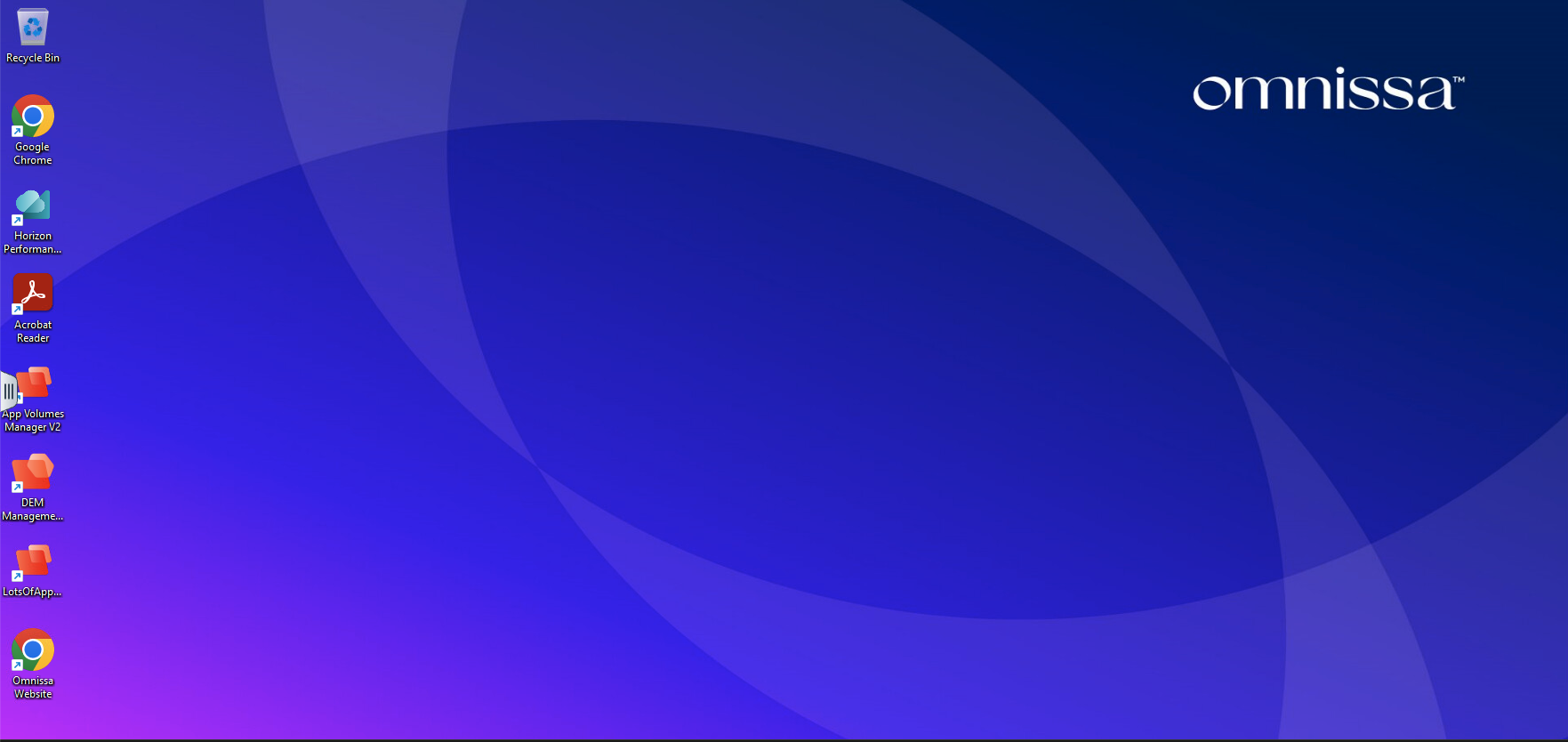
Step 1: See the desktop experience
Log in to the TestDrive environment and launch the desktop pool TD-AVAoD.
Step 2: Access the App Volumes Manager
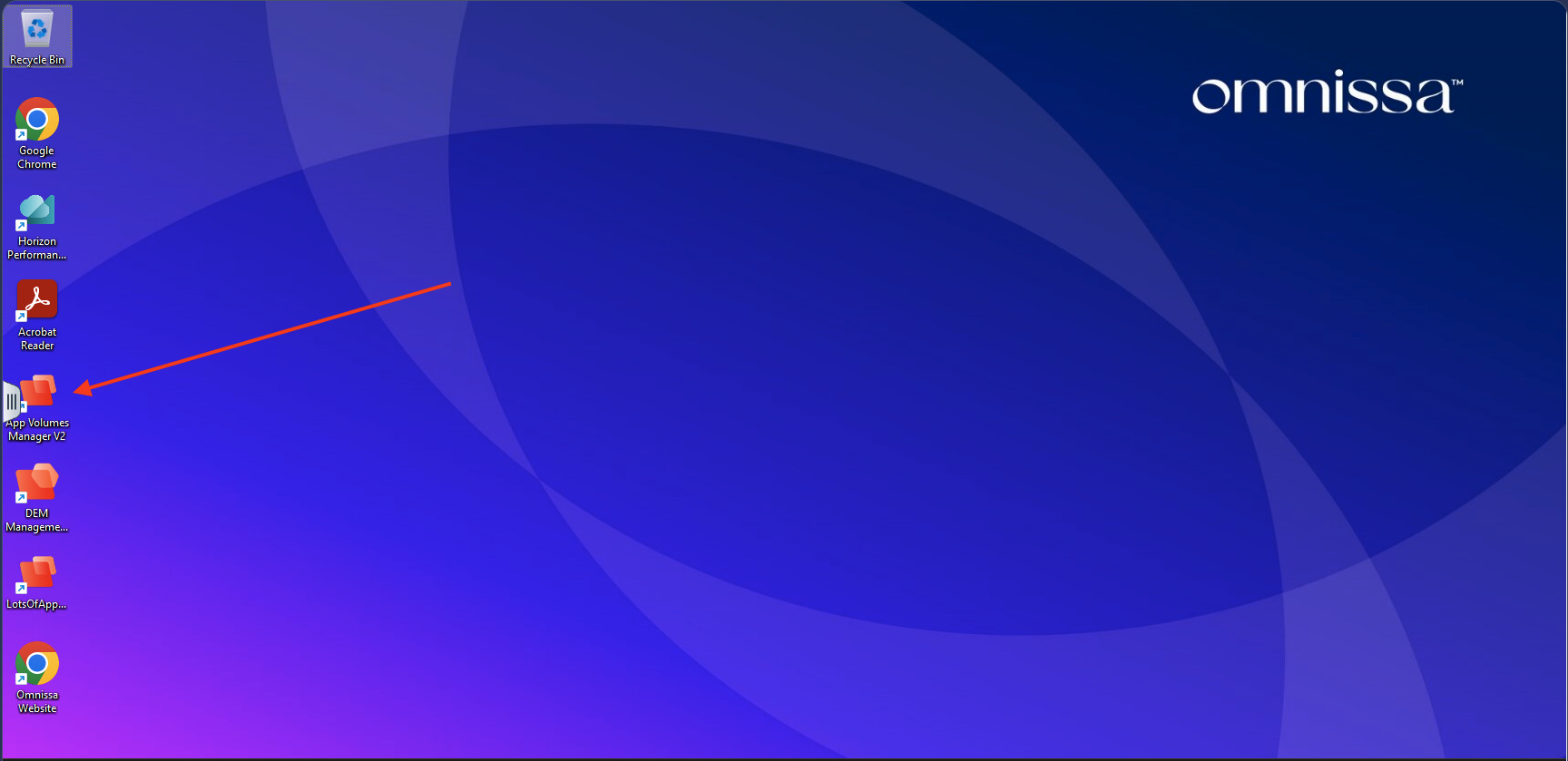
From the desktop, locate the App Volumes Manager shortcut.
Step 3: Log In to App Volumes Manager
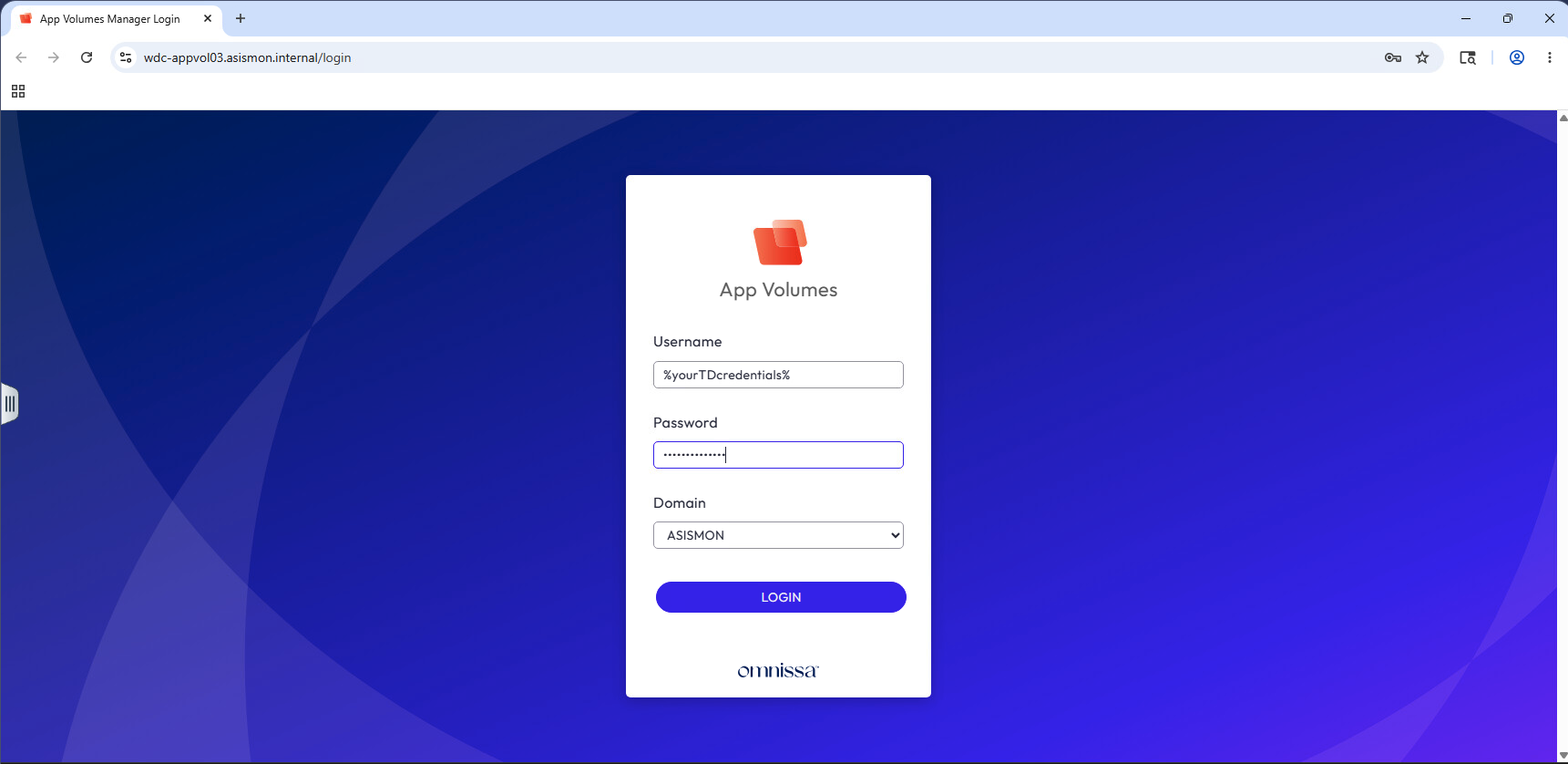
Launch App Volumes Manager, enter your TestDrive credentials in the login form, and click the Connect button.
Step 4: App Volumes Manager Dashboard
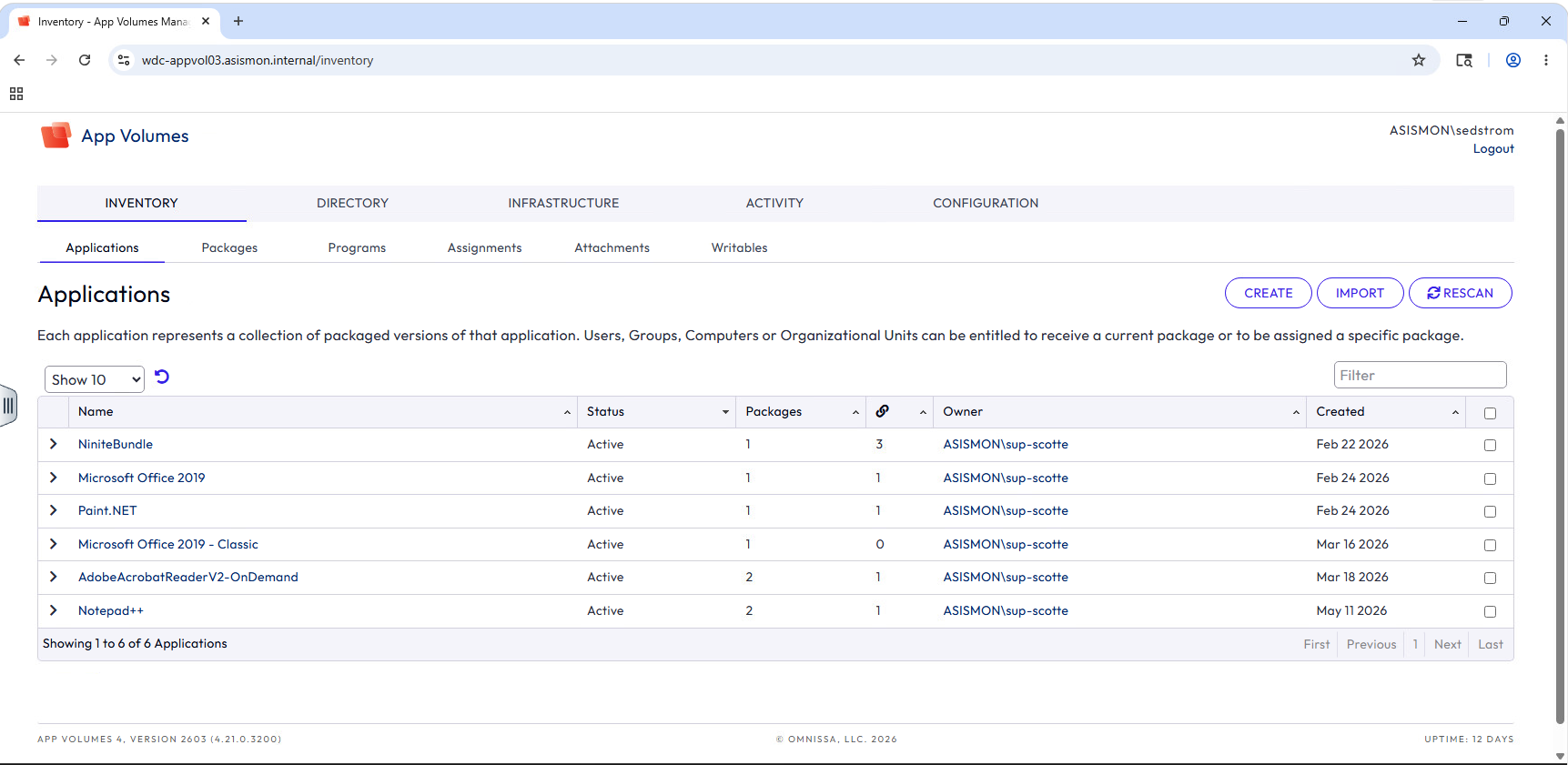
After logging in, you land on the App Volumes Manager dashboard. This is the central console where administrators manage application packages, assignments, and infrastructure. Take a moment to orient to the main navigation tabs — Inventory, Directory, Infrastructure, Activity, and Configuration — as the next steps will guide you through two of these areas.
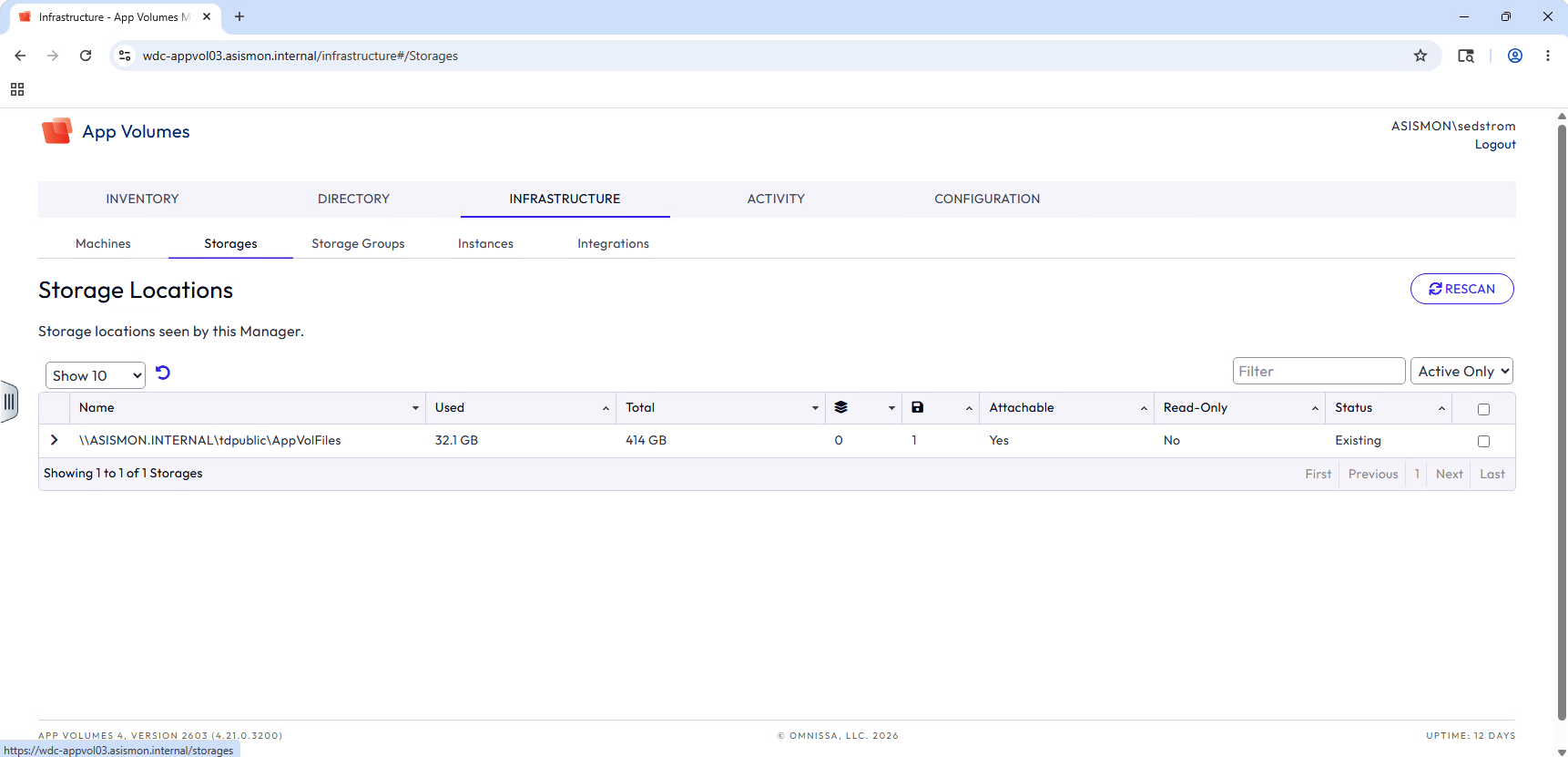
Step 5: View the Storage Location (Infrastructure > Storages)
In App Volumes Manager, navigate to Infrastructure > Storages.
This view shows where App Volumes stores application packages: a standard network file share (UNC path). This is the foundation of portability — because packages live on a shared network location rather than being tied to a specific hypervisor, the same application package can be delivered to any compatible endpoint.
Step 6: View the Storage Configuration (Configuration > Storage)
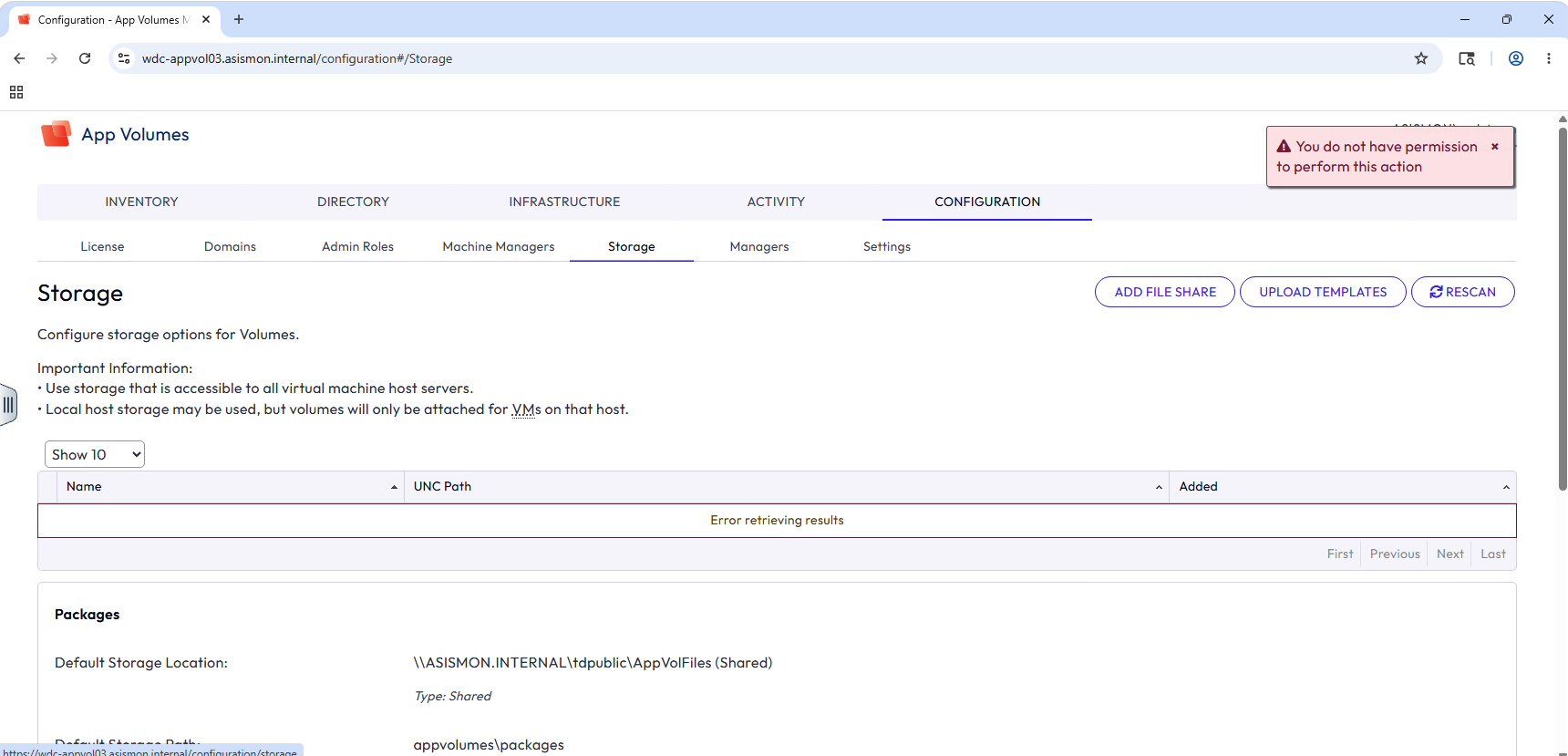
Navigate to Configuration > Storage.
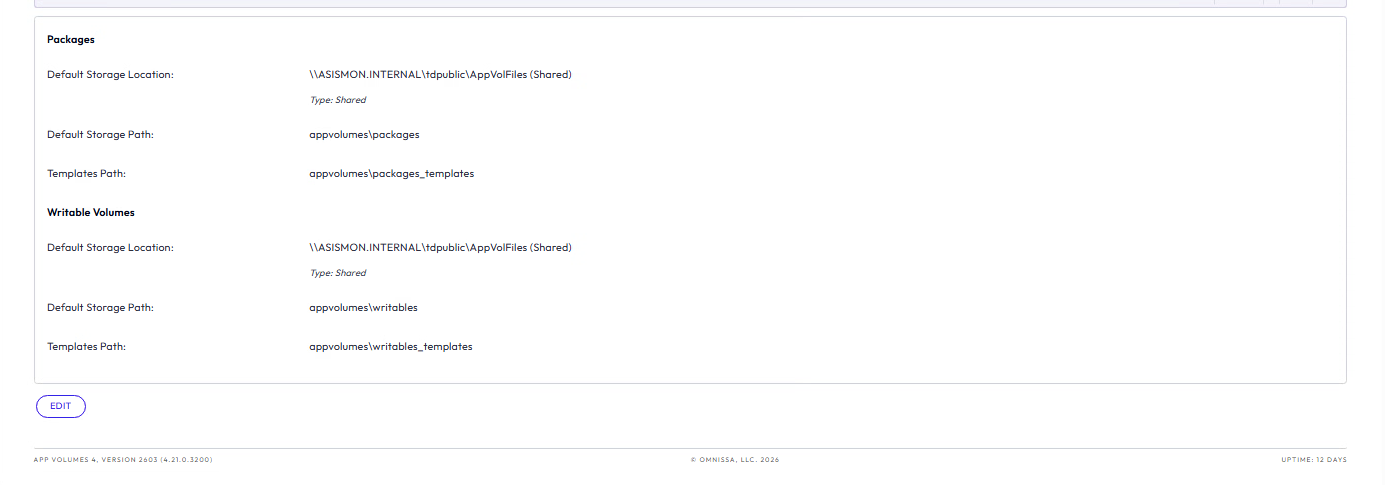
This view may display a permission warning and will not allow any changes — that is expected for a read-only demo account. Even so, it is worth reviewing the information that is visible. The Default Storage Location for both Packages and Writable Volumes points to a shared UNC path, confirming that App Volumes uses network-accessible storage for all application content. This model ensures consistency: whether a user is on a Horizon desktop, an AVD session, or a physical machine, they access the same centrally-managed application from the same storage location.
Scroll down to view the remaining storage configuration details on this page.
Key Takeaways
- The same application package can be delivered consistently across virtual desktops (Horizon, AVD, cloud PCs), physical machines, and hybrid environments.
- App Volumes stores packages on a network file share, which is the technical foundation that enables this portability.
- Lifecycle management is centralized and consistent — users receive the same application version and experience regardless of where they work.
- By decoupling application delivery from infrastructure, organizations gain flexibility in how and where they provide user access.
- VMDK-based delivery models are typically optimized for vSphere-hosted environments; App Volumes extends the application portfolio to any endpoint that can reach the network share.
- The app is not installed into any base image, so updates are managed centrally without touching endpoints.
Summary
This orientation helps users understand how App Volumes architecture enables consistent application delivery across diverse environments.
The broader takeaway is that App Volumes decouples application lifecycle management from infrastructure. Organizations can build a single portfolio of applications and deliver them consistently to Horizon virtual desktops (on vSphere or elsewhere), Azure Virtual Desktop, cloud PCs, physical machines, and hybrid environments — all with the same package and the same lifecycle. This is flexible app delivery across environments: apps for wherever your users work.