Home > Demo Guides > AppVolumes
Omnissa App Volumes - Adobe Acrobat Application Lifecycle (Operator)
In this operator walkthrough, you demonstrate how App Volumes lifecycle management changes the active Adobe Acrobat package version centrally by setting the application package version as Current, while assignments remain unchanged.
Internal Use Notice
This guide is for trusted operators in shared TestDrive environments. Do not publish publicly.
Overview
This flow validates the full operator lifecycle story:
- Users initially receive the Adobe Acrobat package version set as Current.
- The operator sets a different application package version as Current.
- Users log out and log back in.
- The new version is delivered automatically.
- No base image changes, reinstalls, or user-side actions are required.
Packaging and capture are out of scope for this demo and are already completed before the walkthrough begins.
Access the Demo Desktop (Operator Start)
Follow the same opening access language and desktop launch pattern:
- Open a browser and sign in to Workspace ONE at https://testdrive.us0.wss.workspaceone.com/.
- Go to Apps or Favorites.
-
Search for
TD-AVAoD, then click the star on that tile to add it to Favorites for faster future access. -
Launch the desktop from the tile actions menu.
- Continue when the Windows desktop is fully visible and responsive.
Desktop Pool
Operators launch desktops from:
- TD-AVAoD
Operator Walkthrough Steps
Step 1: Confirm Current Lifecycle State
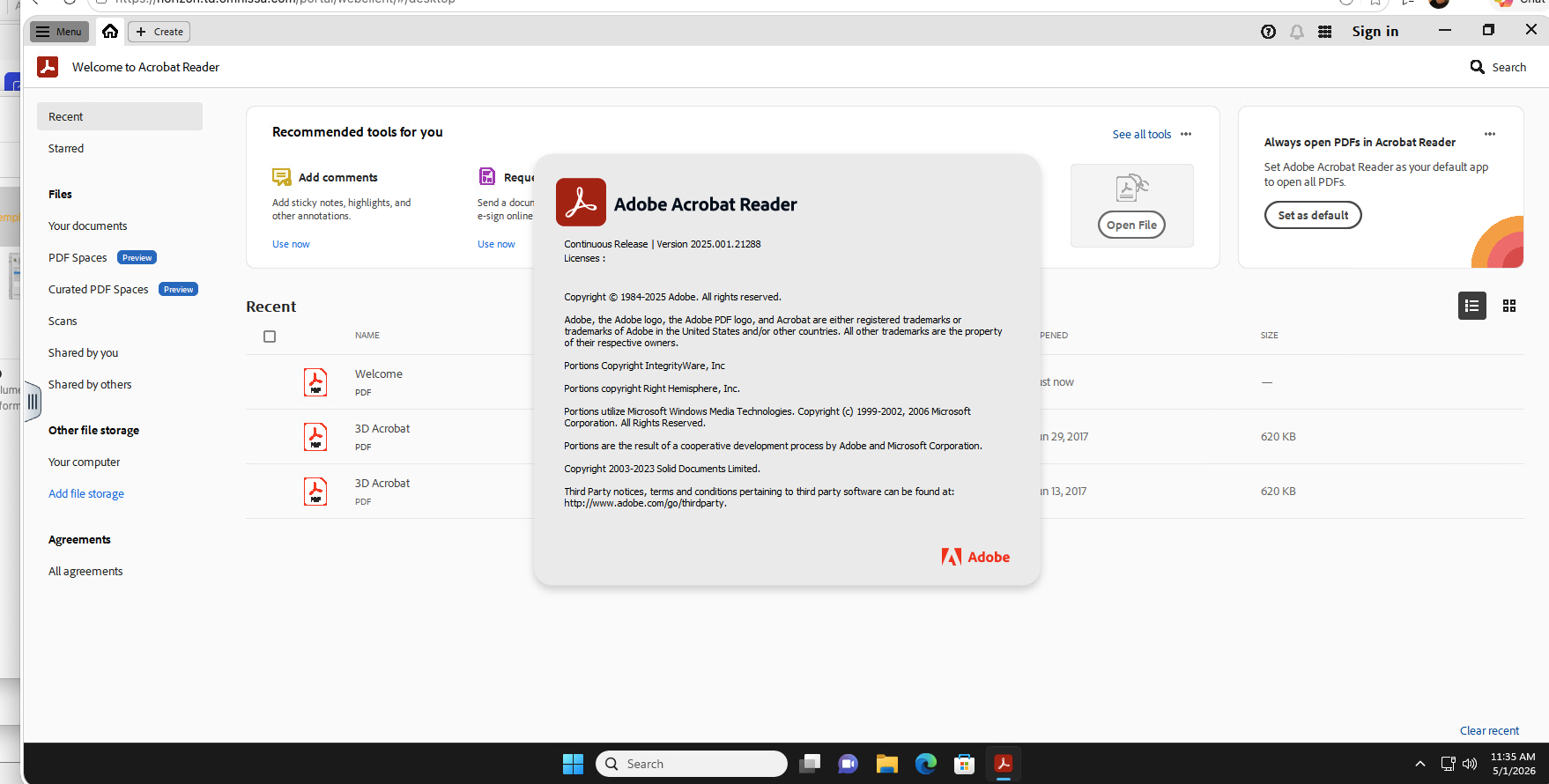
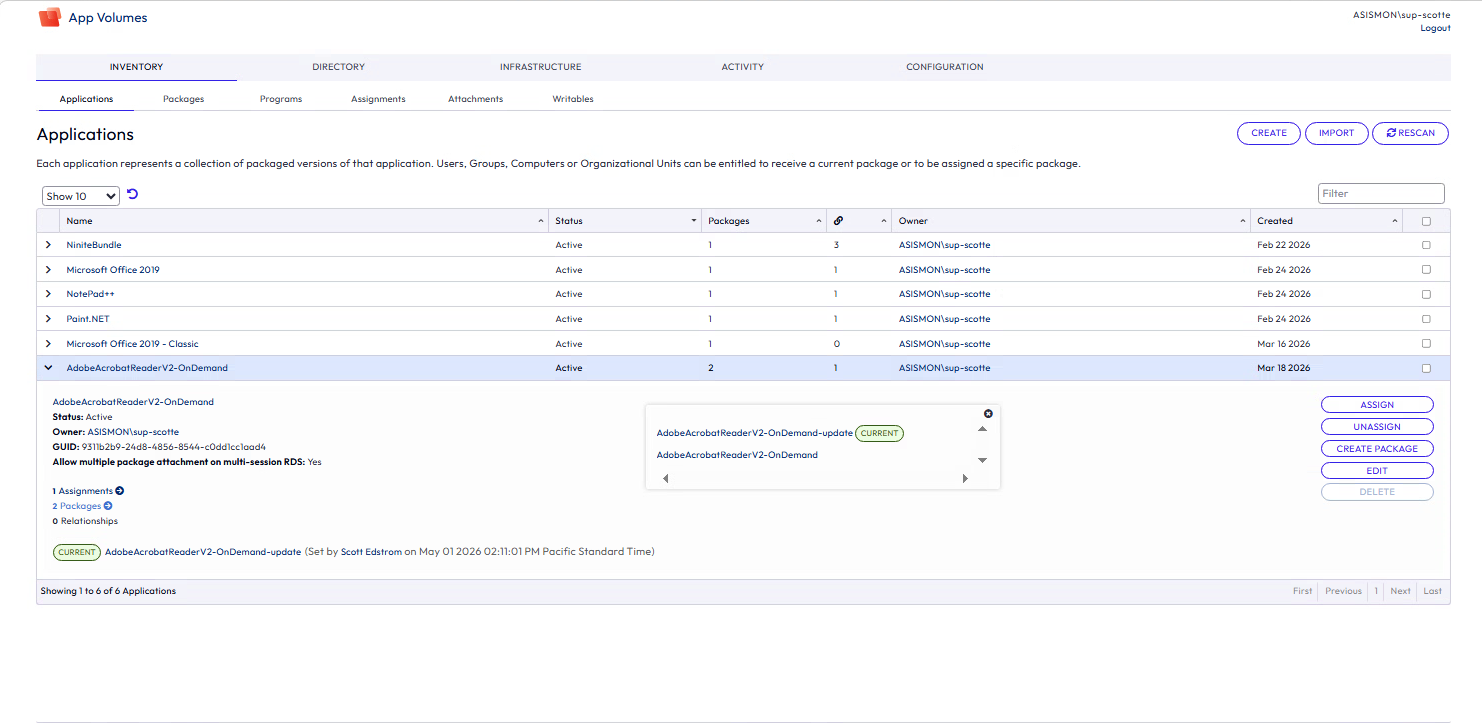
In App Volumes, open the Applications view and locate Adobe Acrobat. Confirm the current package version is set as Current, enabled, and delivered via VHD.
Flow context: This establishes the initial lifecycle state and confirms which version is active before users log in.
Step 2: Validate Package Health and Eligibility
Open the Adobe Acrobat package details and verify version metadata, format (VHD), delivery method (on-demand), OS compatibility, and capture/agent information.
Flow context: This validates that the package is healthy, eligible, and ready for delivery before the demo change.
Step 3: Confirm Assignments Stay Constant
Open Assignments and confirm Adobe Acrobat is assigned to the TDAV desktop group with the Current version selected.
Flow context: This proves no assignment edits are required during a version switch. Only the package version set as Current changes.
Step 4: Validate User Baseline Session
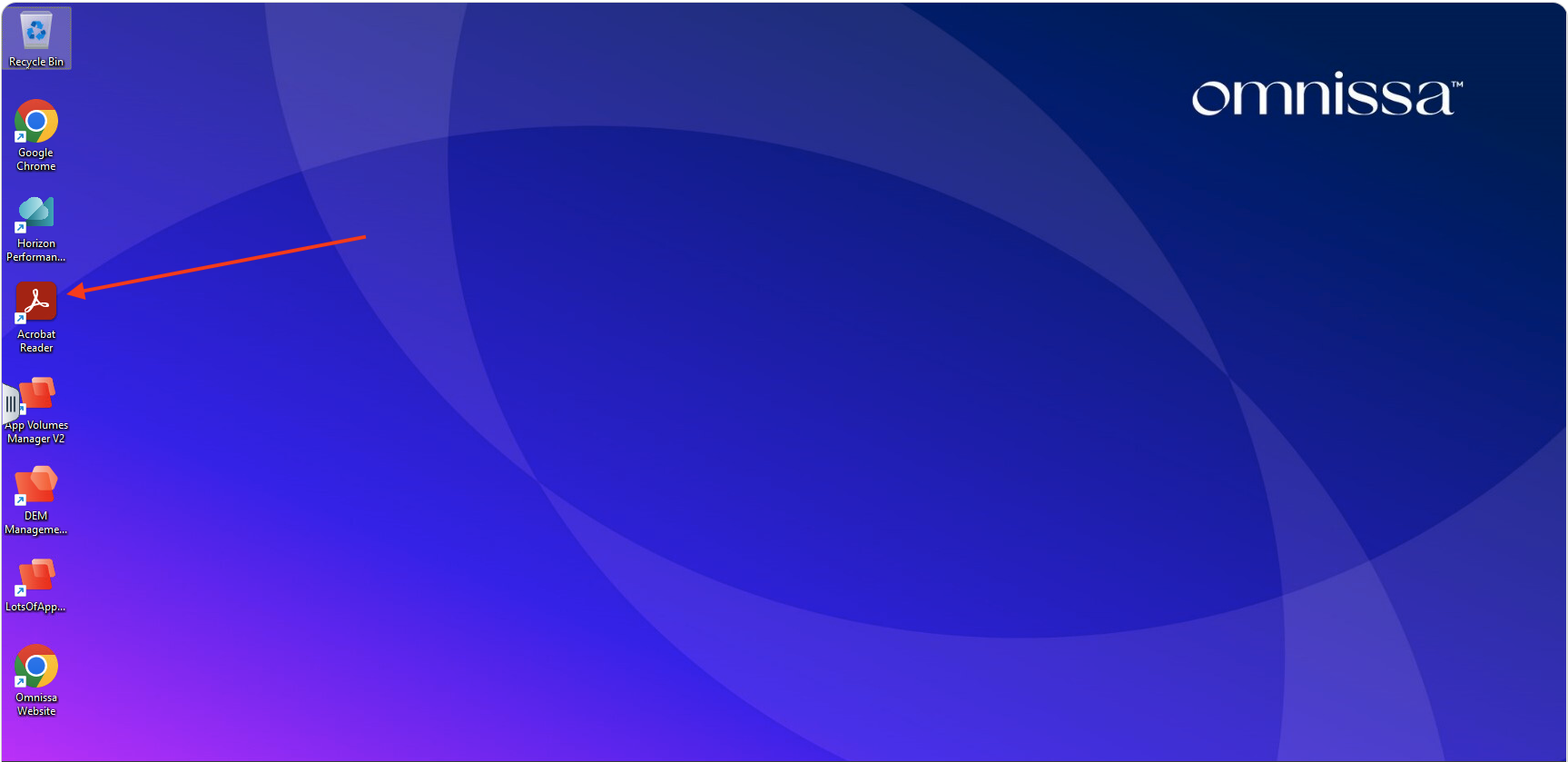
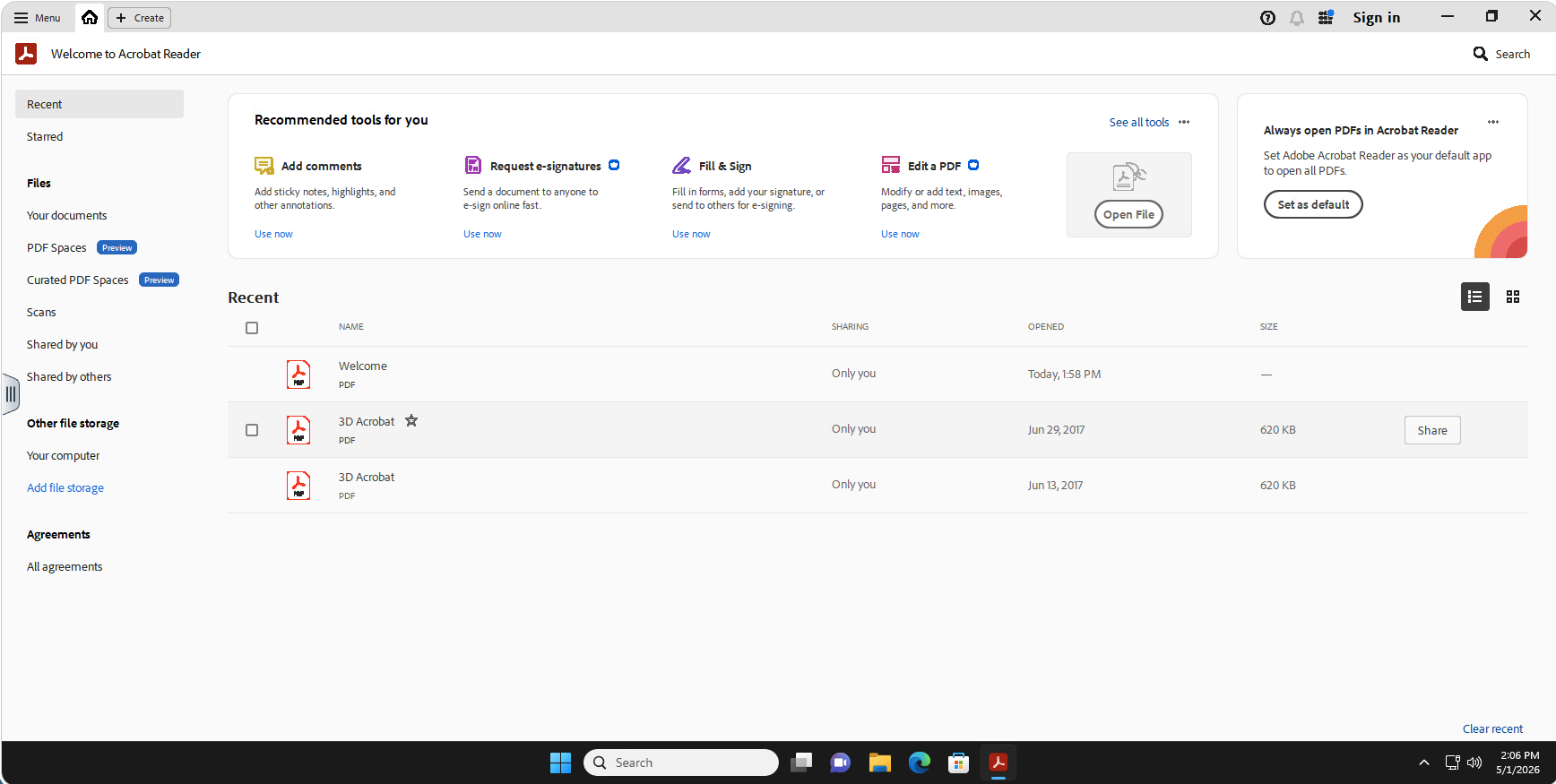
Log in to a TDAV desktop and confirm the Adobe Acrobat icon is visible and available alongside other delivered applications.
Flow context: This is the participant baseline state before the version switch.
Step 5: Confirm Application Usability
Launch Adobe Acrobat and confirm normal operation in the user session.
Flow context: This confirms successful delivery and usability from the participant perspective.
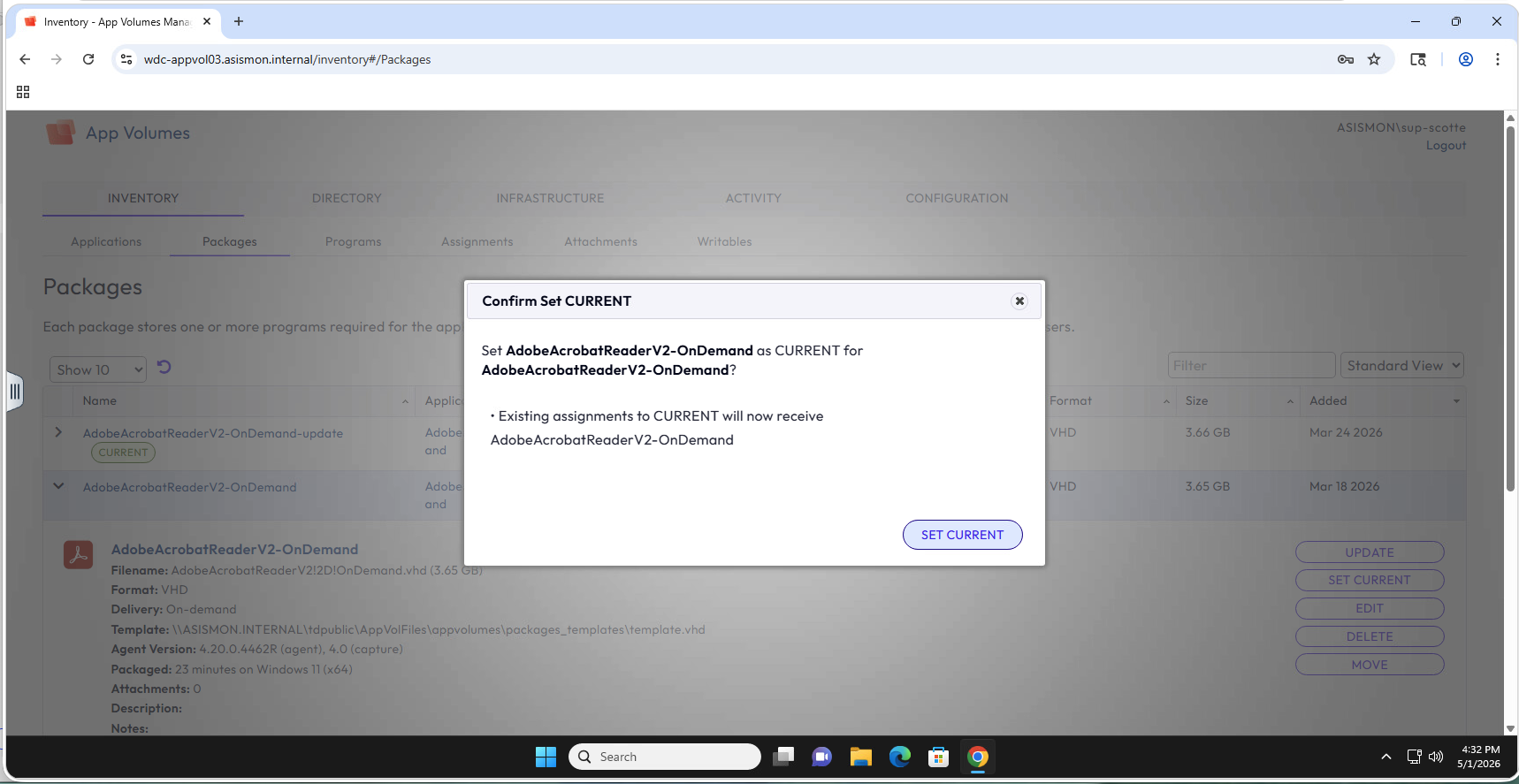
Step 6: Set the Application Package Version as Current
Back in App Volumes, select the alternate Adobe Acrobat package version and set the application package version as Current.
Flow context: This is the core operator lifecycle action showing centralized version control without assignment changes.
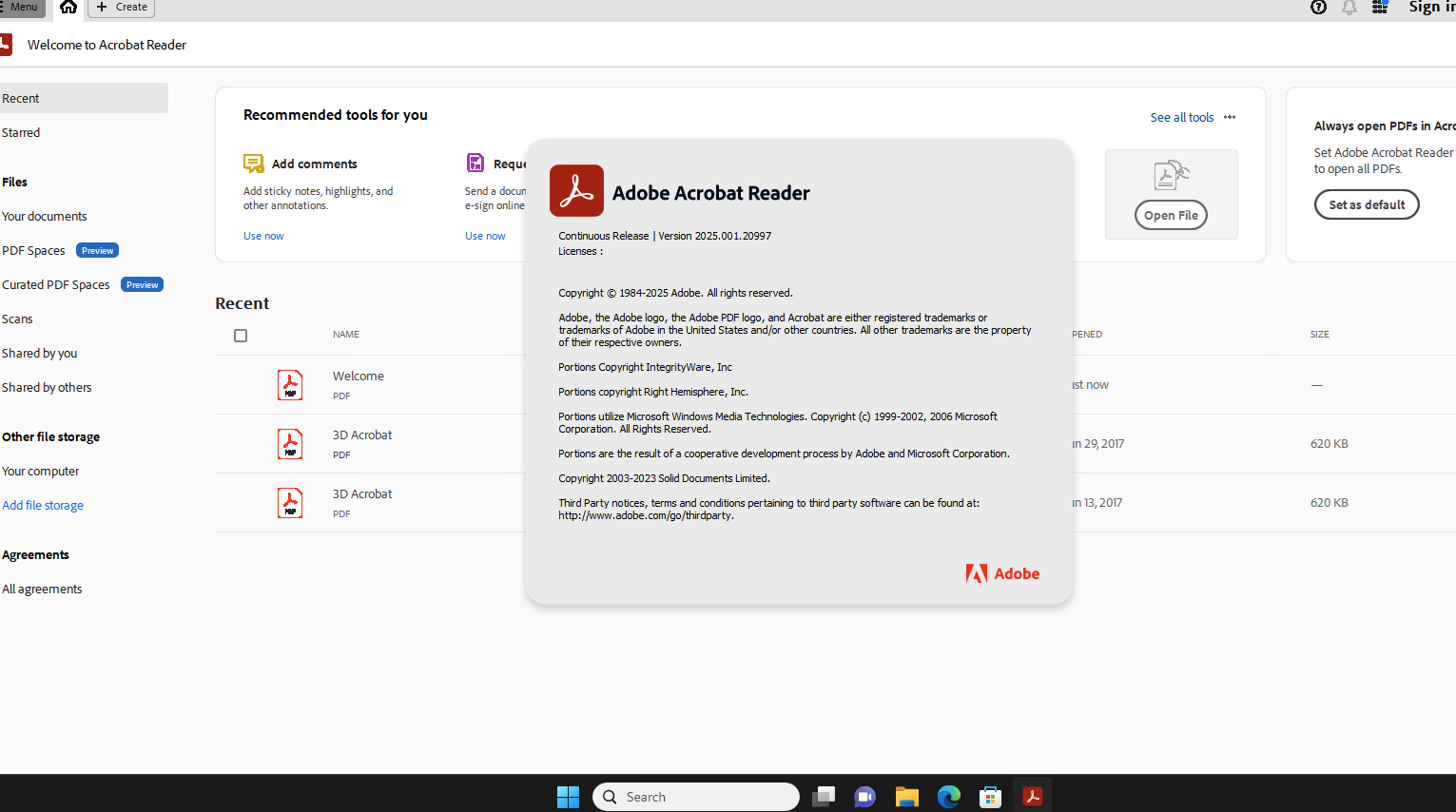
Step 7: Validation After Version Switch
After setting the application package version as Current, observe the change reflected in App Volumes.
Validation Sequence After Step 6
- Have users log out and log back in.
- Re-open Adobe Acrobat and confirm the new version is now delivered.
- Confirm assignments still point to the same group policy and were not edited.
Guardrails
- Execute only pre-approved package state changes in shared environments.
- Do not combine lifecycle version flips with unrelated troubleshooting changes.
- Capture before and after evidence for all Current version transitions.
- Confirm rollback target before ending the operator session.
Screenshot Map (Final)
av-adobe-01-desktop-icon.pngav-adobe-02-appvol-on-demand.pngav-adobe-03-adobe-running.pngav-adobe-04-about-current.pngav-adobe-05-appvol-current-marker.pngav-adobe-06-about-updated.pngav-adobe-07-current-marker-flip.png
Summary
This operator walkthrough demonstrates App Volumes lifecycle management for Adobe Acrobat by setting the application package version as Current centrally, validating that user assignments remain unchanged, and proving that updated application delivery occurs automatically at next login without base image modifications.