Home > Demo Guides > AppVolumes
Omnissa App Volumes - Apps On Demand Walkthrough
In this walkthrough you connect to a Horizon 8 desktop with Horizon Client, review App Volumes Manager, and watch Microsoft Office 2024 LTSC arrive on demand in the Omnissa TestDrive environment.
The Apps On Demand demo runs on a Horizon 8 VDI desktop pool of non-persistent instant clone desktops, each running Windows 11 with the App Volumes Agent installed.
Overview
Task 1: Launch TD-AVAoD
- Sign in to Workspace ONE Intelligent Hub
- Search for TD-AVAoD and add it to your favorites
- Launch from Client
- Horizon Client connects
Task 2: Open App Volumes Manager
- Open App Volumes Manager
- Sign in to App Volumes Manager
Task 3: Baseline
- View the Applications list
- Confirm Microsoft Office is not installed
Task 4: Review the application and package
- View the application details
- View the package
Task 5: Deliver Office on demand
- Open the Other folder in the Start menu
- Launch Excel
- Confirm Microsoft Office is now installed
- View the Attachments list
- Sign out
Before You Begin
- A TestDrive account with the App Volumes demo enabled.
- Omnissa Horizon Client installed on your computer.
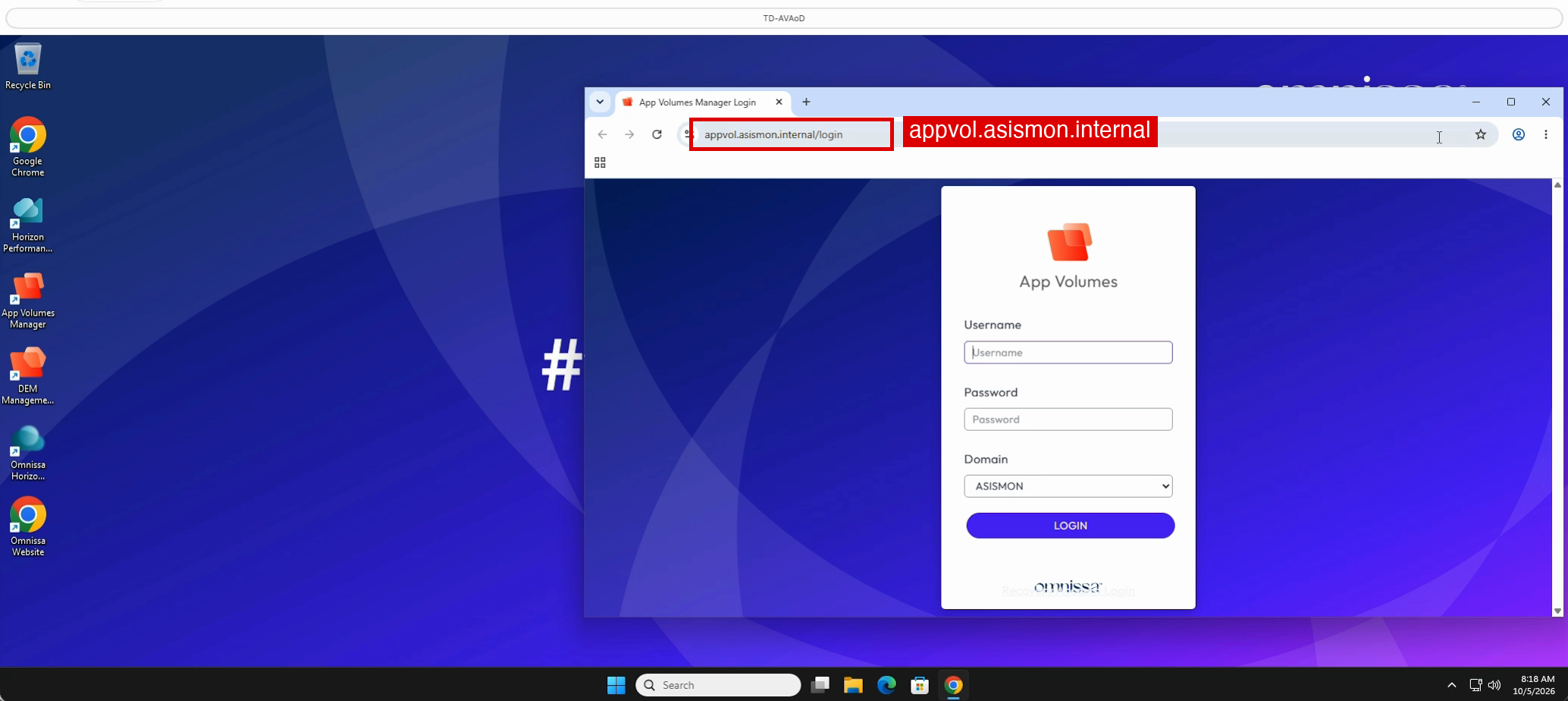
- App Volumes Manager is reached at the load balancer address appvol.asismon.internal from inside the desktop. It is read-only for demo users.
No Horizon Client? In step 3 choose Launch from Browser instead. Everything after the connection step is the same.
Task 1: Launch TD-AVAoD
The TD-AVAoD desktop has no Microsoft Office installed until App Volumes delivers it.
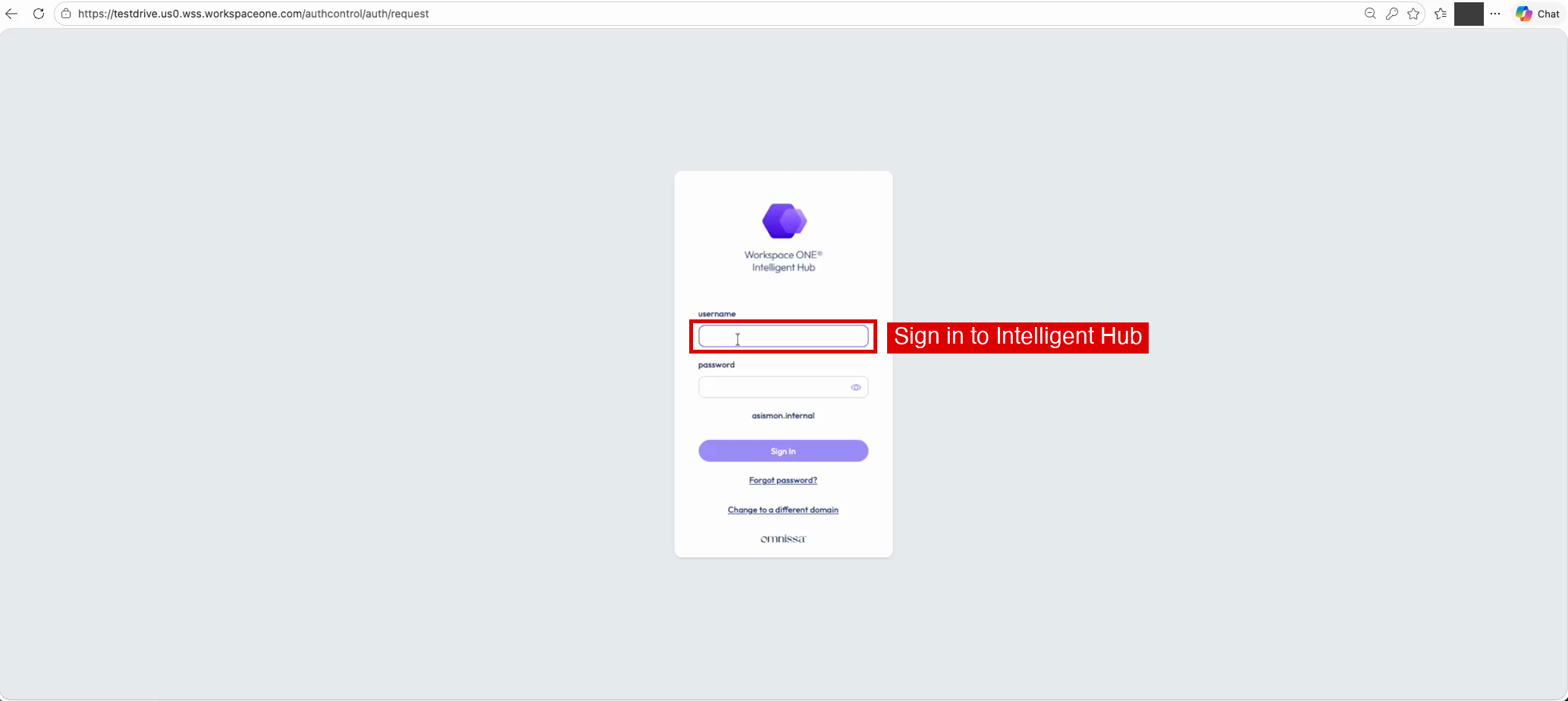
1. Sign in to Workspace ONE Intelligent Hub
Open your browser and sign in to Workspace ONE Intelligent Hub with your TestDrive credentials.
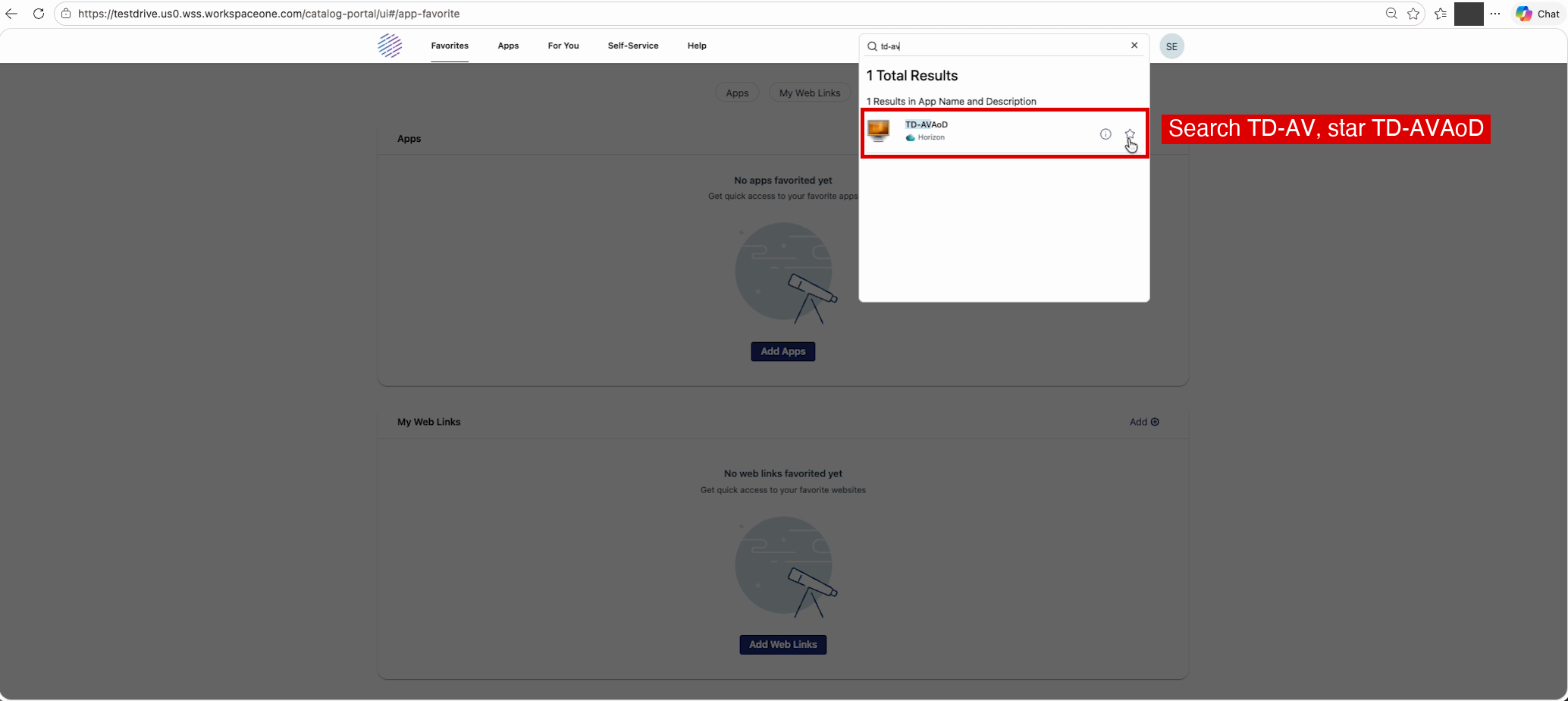
2. Search for TD-AVAoD and add it to your favorites
In Search Apps, type TD-AV. In the results, click the star next to TD-AVAoD to add it to your favorites.
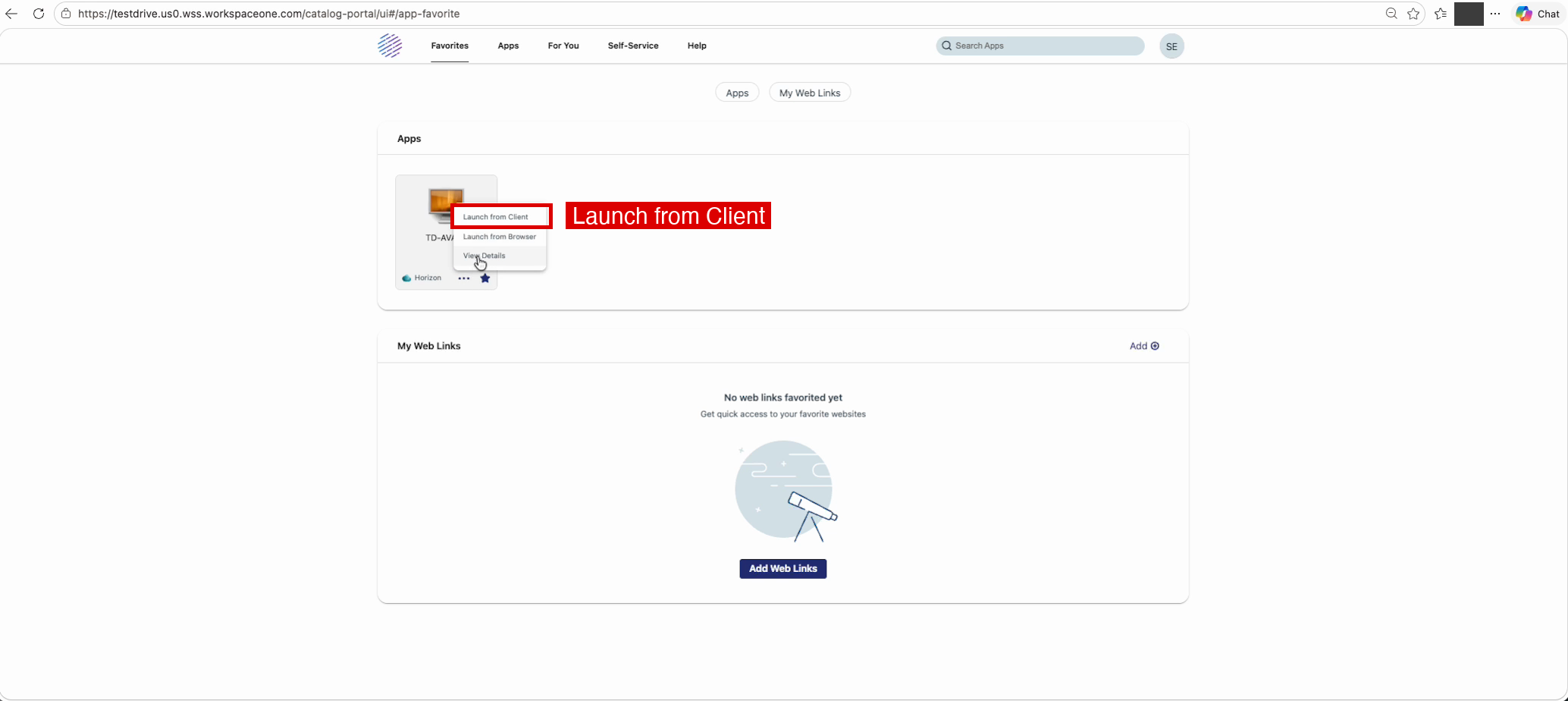
3. Launch from Client
On the Favorites page, click the three dots on the TD-AVAoD tile and choose Launch from Client.
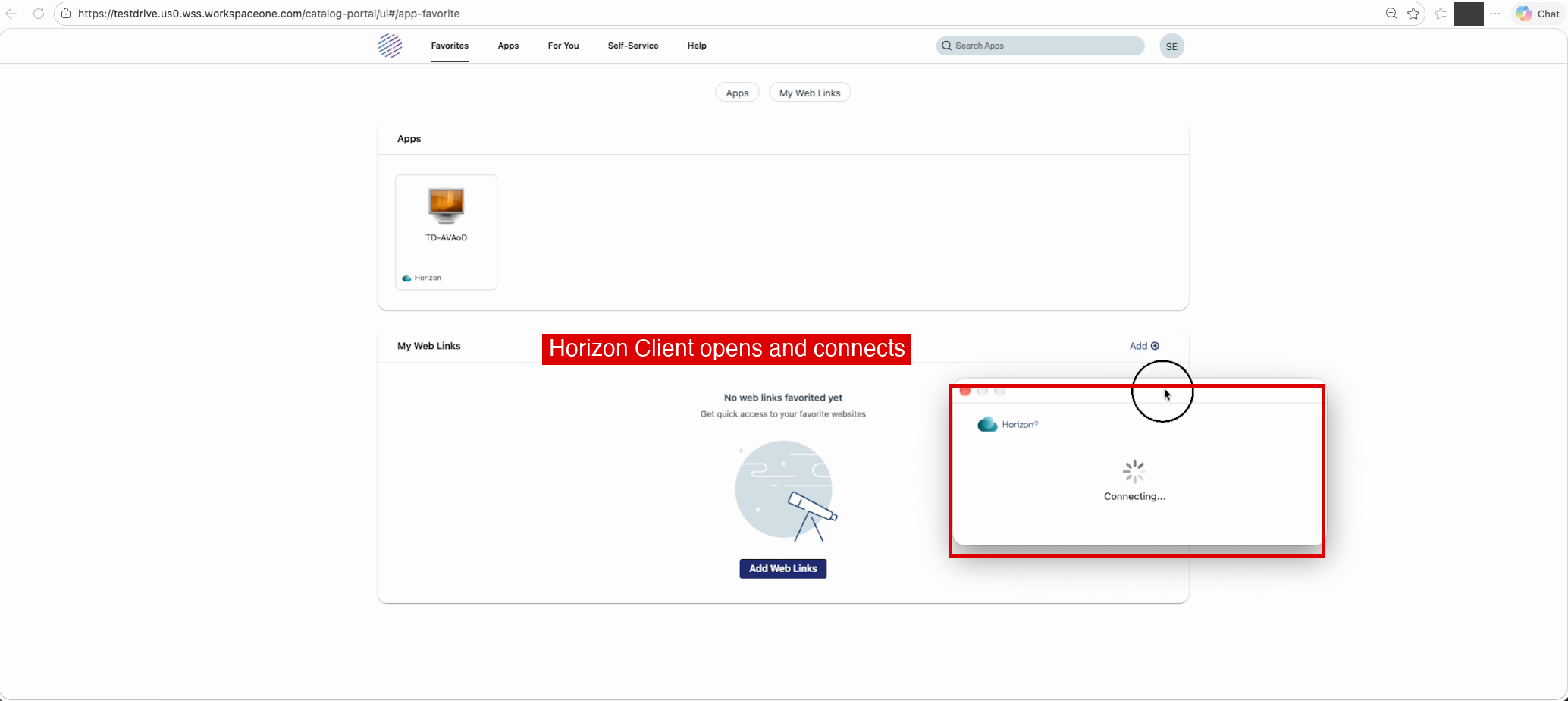
4. Horizon Client connects
Horizon Client opens and connects to the desktop. Wait while the desktop prepares; the screen can stay black for a minute while the App Volumes, User Profile and DEM services start. Do not click the tile again.
Task 2: Open App Volumes Manager
App Volumes Manager is where administrators see which applications are delivered and to whom. You open it from inside the desktop so you can compare what it reports with what the desktop shows.
5. Open App Volumes Manager
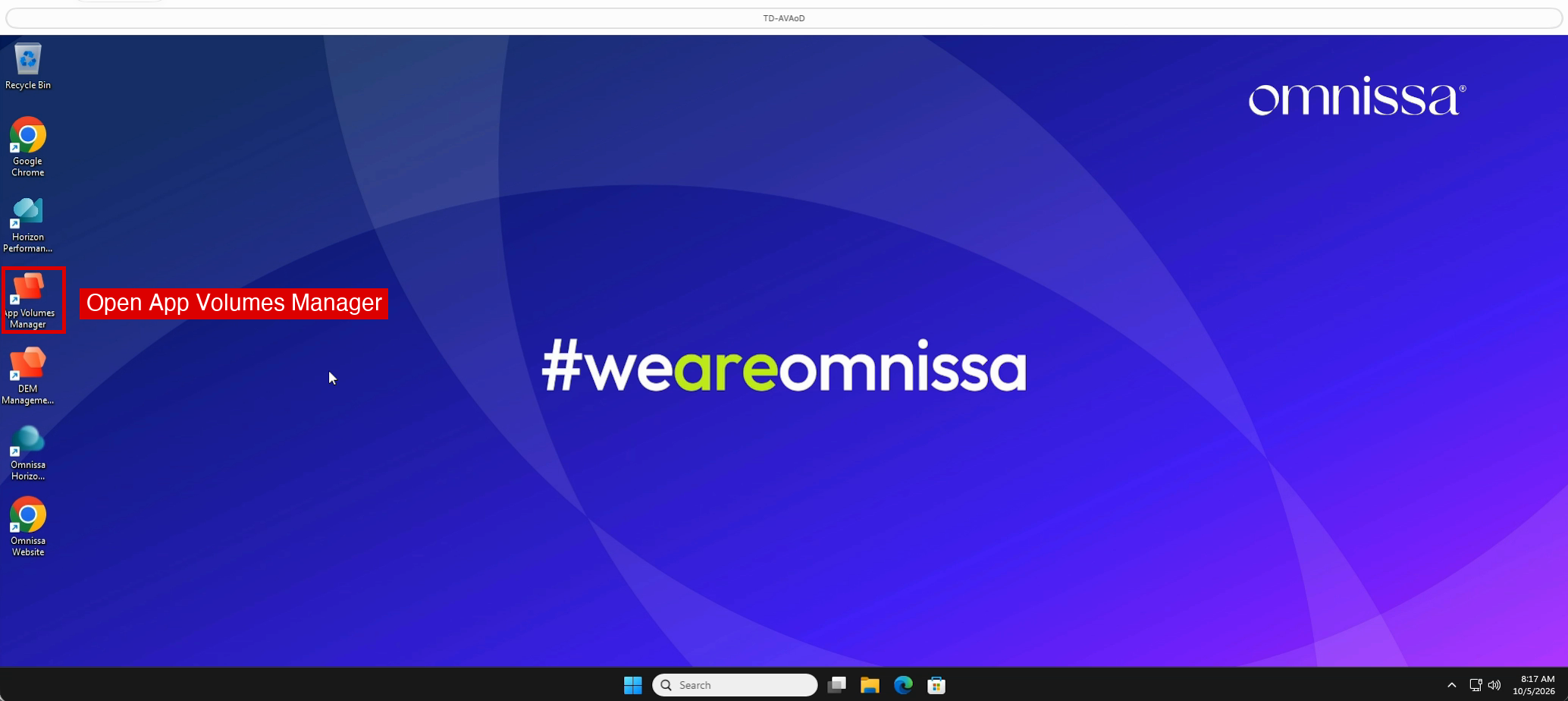
When the Windows desktop appears, double-click App Volumes Manager on the desktop.
6. Sign in to App Volumes Manager
The browser opens https://appvol.asismon.internal/login. Sign in with your TestDrive credentials and the ASISMON domain.
Task 3: Baseline
Confirm Office is absent before App Volumes delivers it.
7. View the Applications list
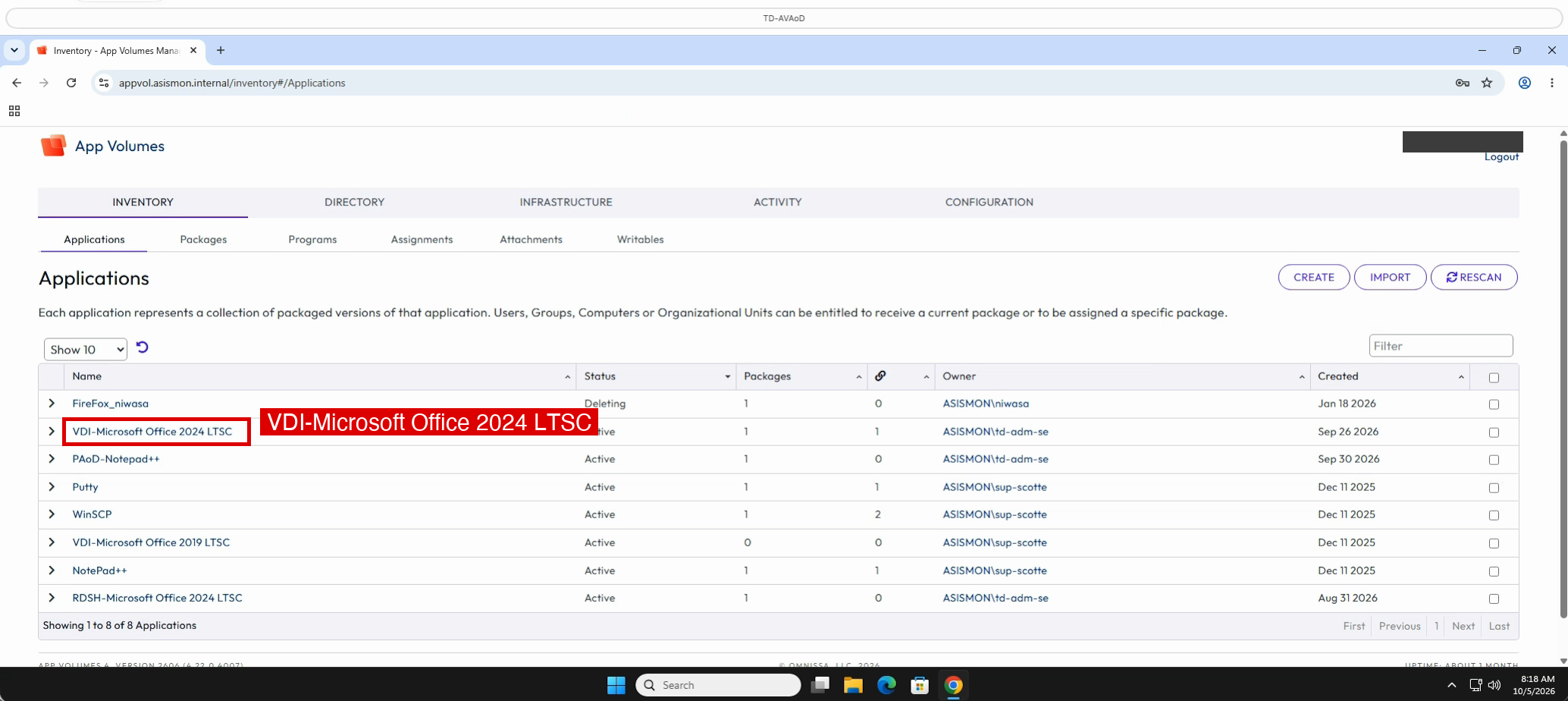
After sign-in, Inventory > Applications lists the applications App Volumes can deliver. Note VDI-Microsoft Office 2024 LTSC.
8. Confirm Microsoft Office is not installed
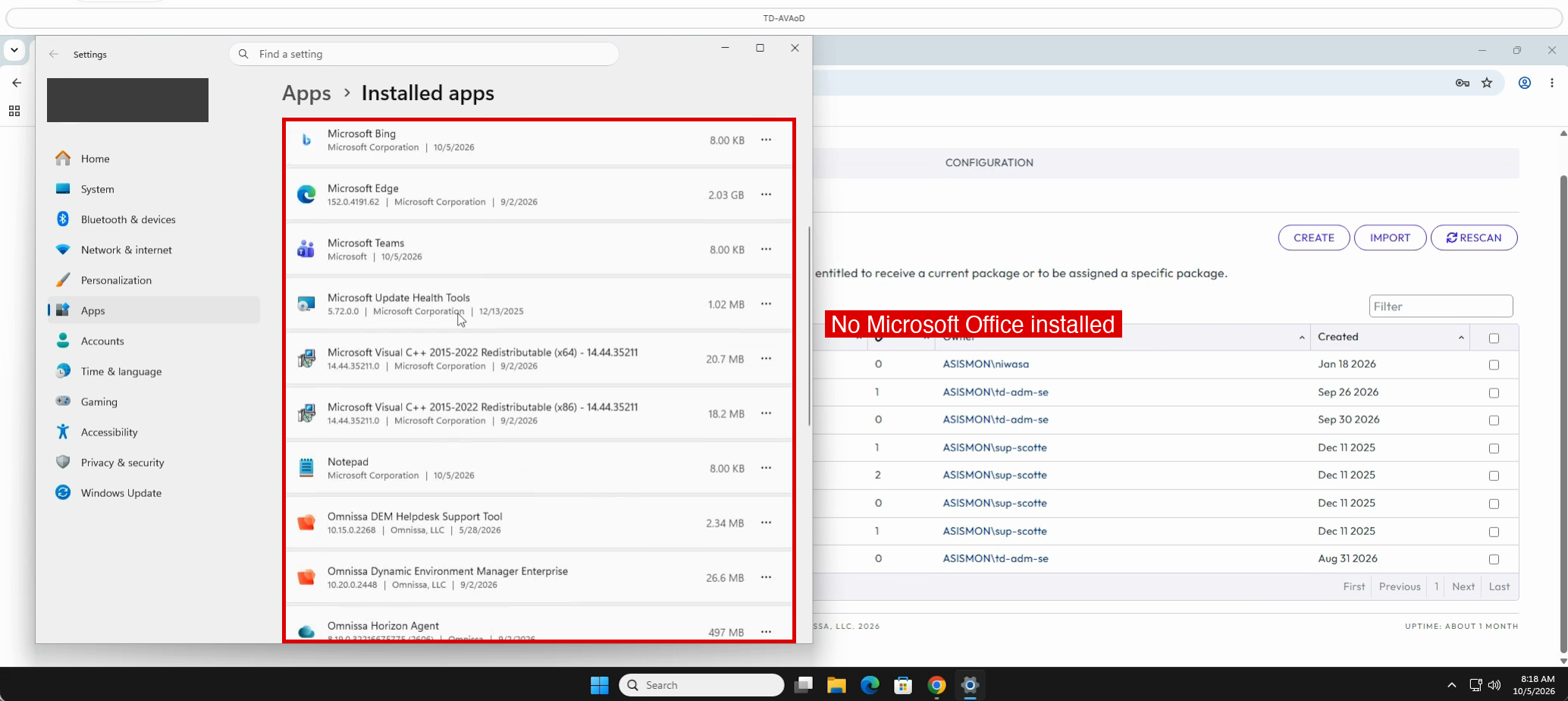
Right-click Start and choose Installed apps. Scroll the list: there is no Microsoft Office entry.
Close Settings.
Task 4: Review the application and package
Before you launch anything, review what App Volumes will deliver: the application, its package, and the delivery mode the package uses. The screens report these settings; this guide only describes what they show.
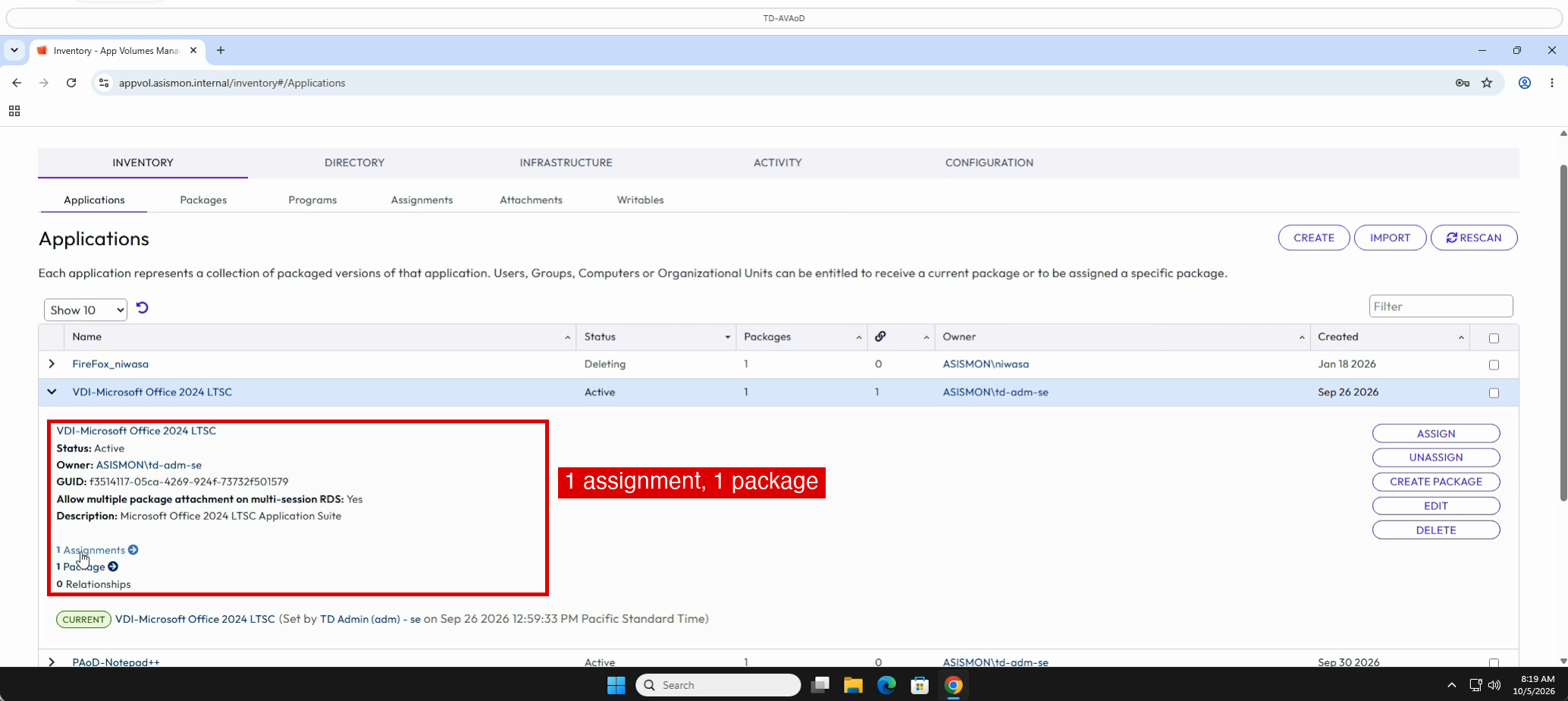
9. View the application details
In Inventory > Applications, expand VDI-Microsoft Office 2024 LTSC. The application is Active, with 1 assignment and 1 package.
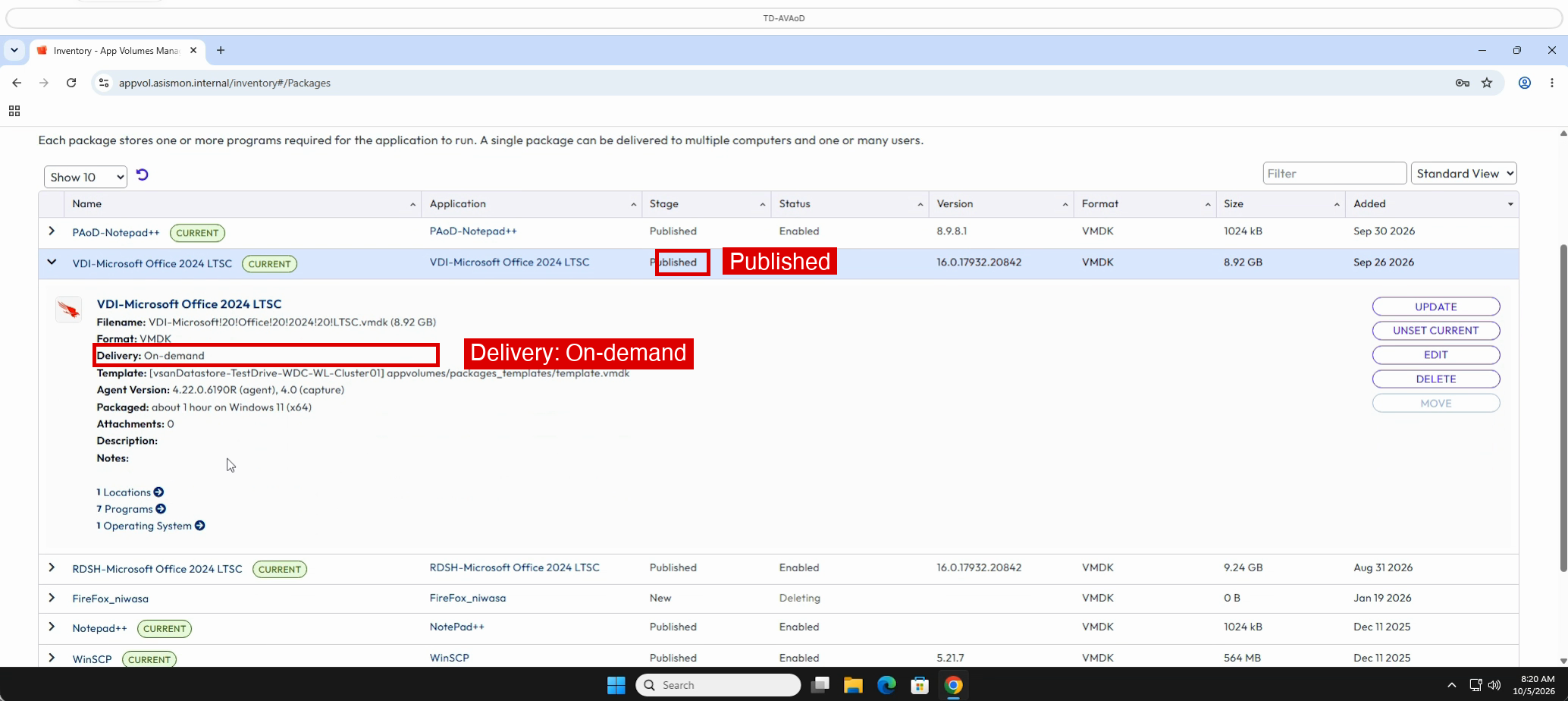
10. View the package
Open Inventory > Packages and expand VDI-Microsoft Office 2024 LTSC. The package is Published and its Delivery mode is On-demand, so Office is delivered when a user first launches it.
Task 5: Deliver Office on demand
Launching Excel triggers the delivery. You then confirm the result in two places: the desktop (Installed apps) and App Volumes Manager (Attachments). This desktop is not a Horizon published app, so there is no Horizon Console Events view for this demo; see the Published Apps On Demand guide for that.
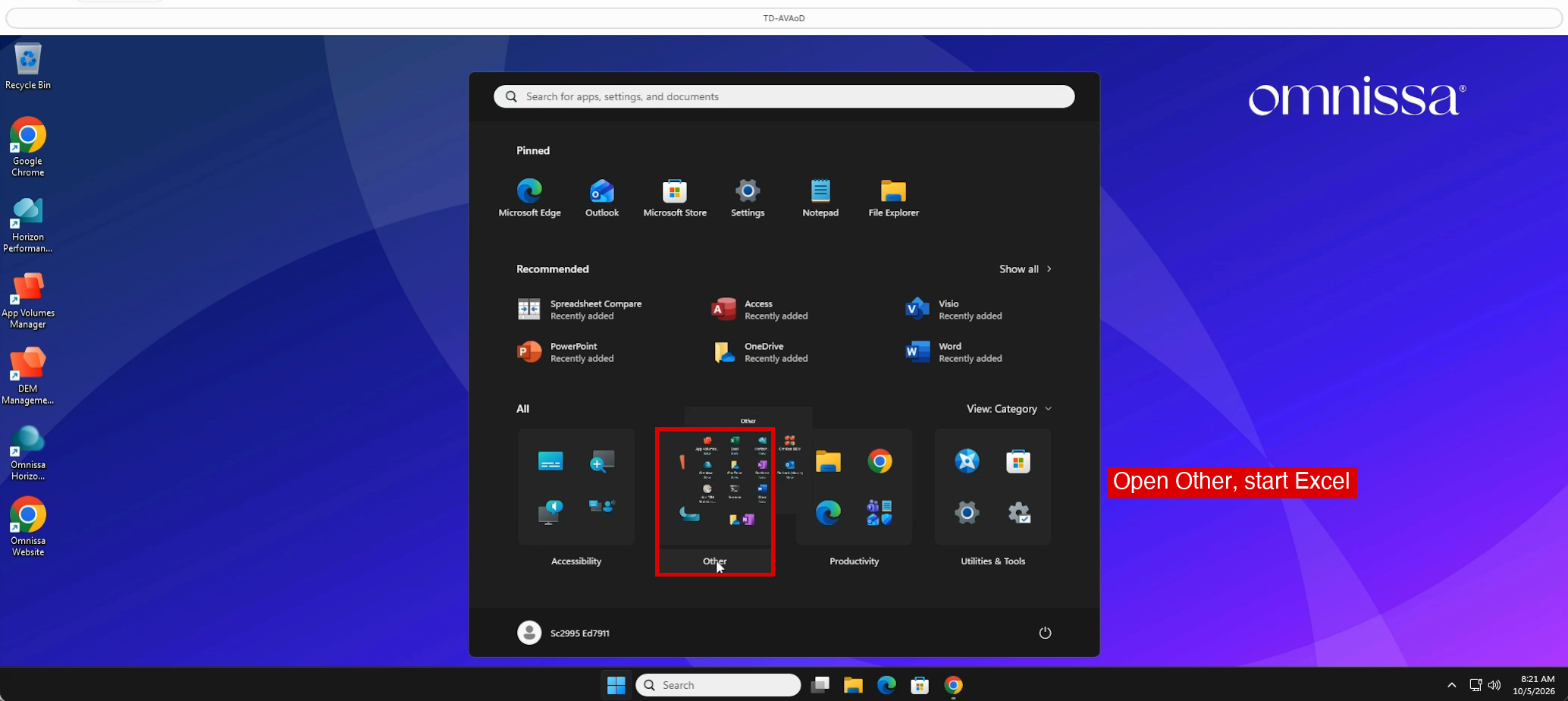
11. Open the Other folder in the Start menu
Close the browser, click Start, and open the Other folder.
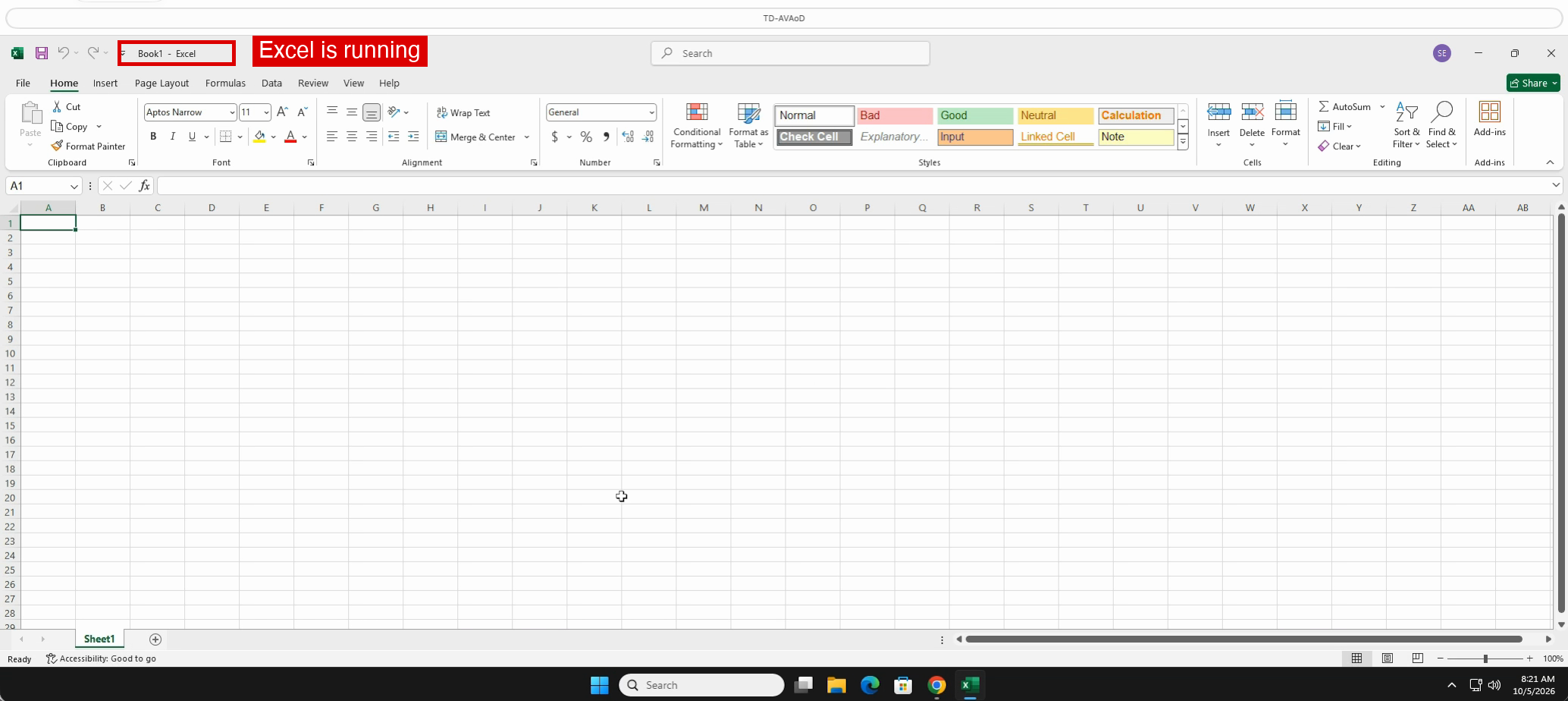
12. Launch Excel
Click Excel. A small Application delivery window reports Application delivery in progress... and then Your application is starting.... Excel can take a minute to open on first launch; do not click it twice.
13. Confirm Microsoft Office is now installed
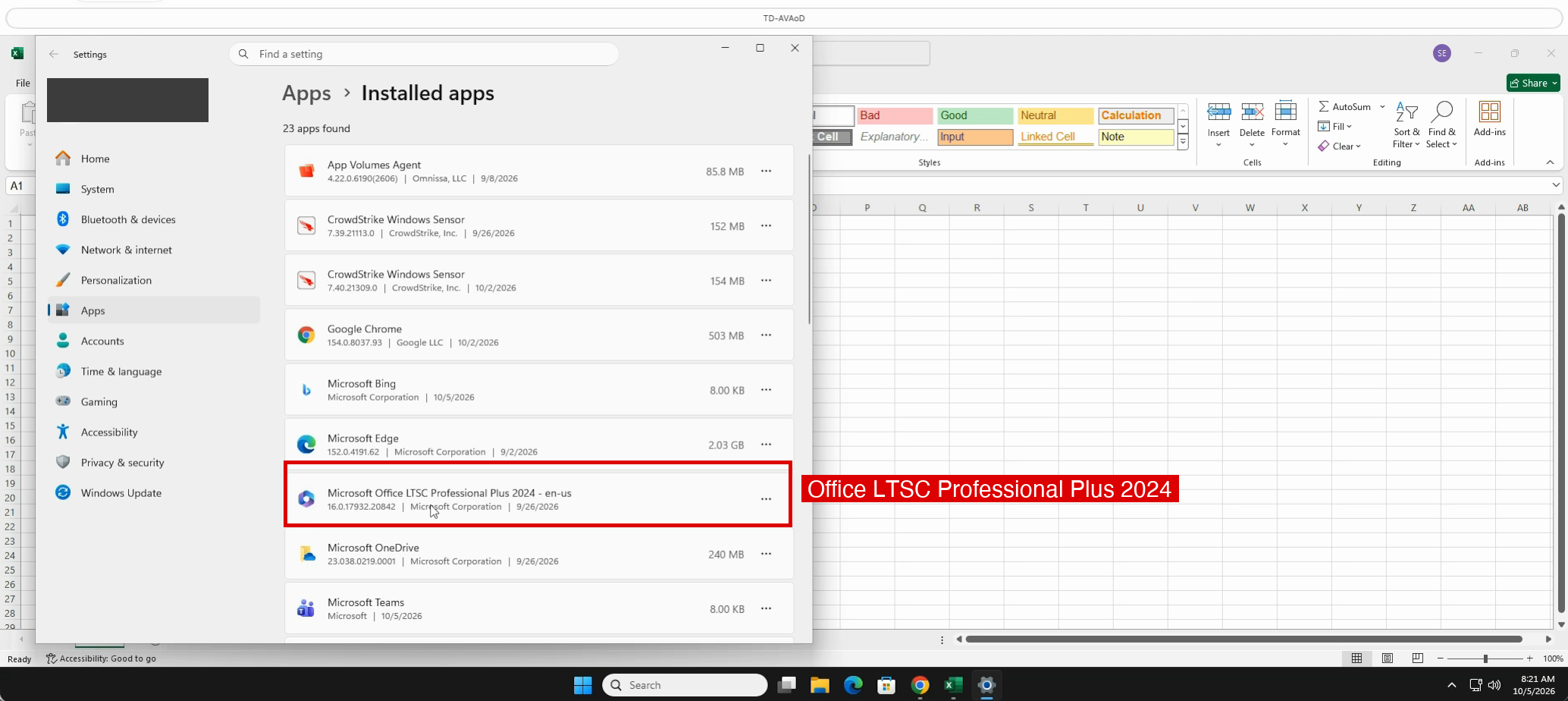
Right-click Start > Installed apps again. The list now shows Microsoft Office LTSC Professional Plus 2024, delivered on demand.
14. View the Attachments list
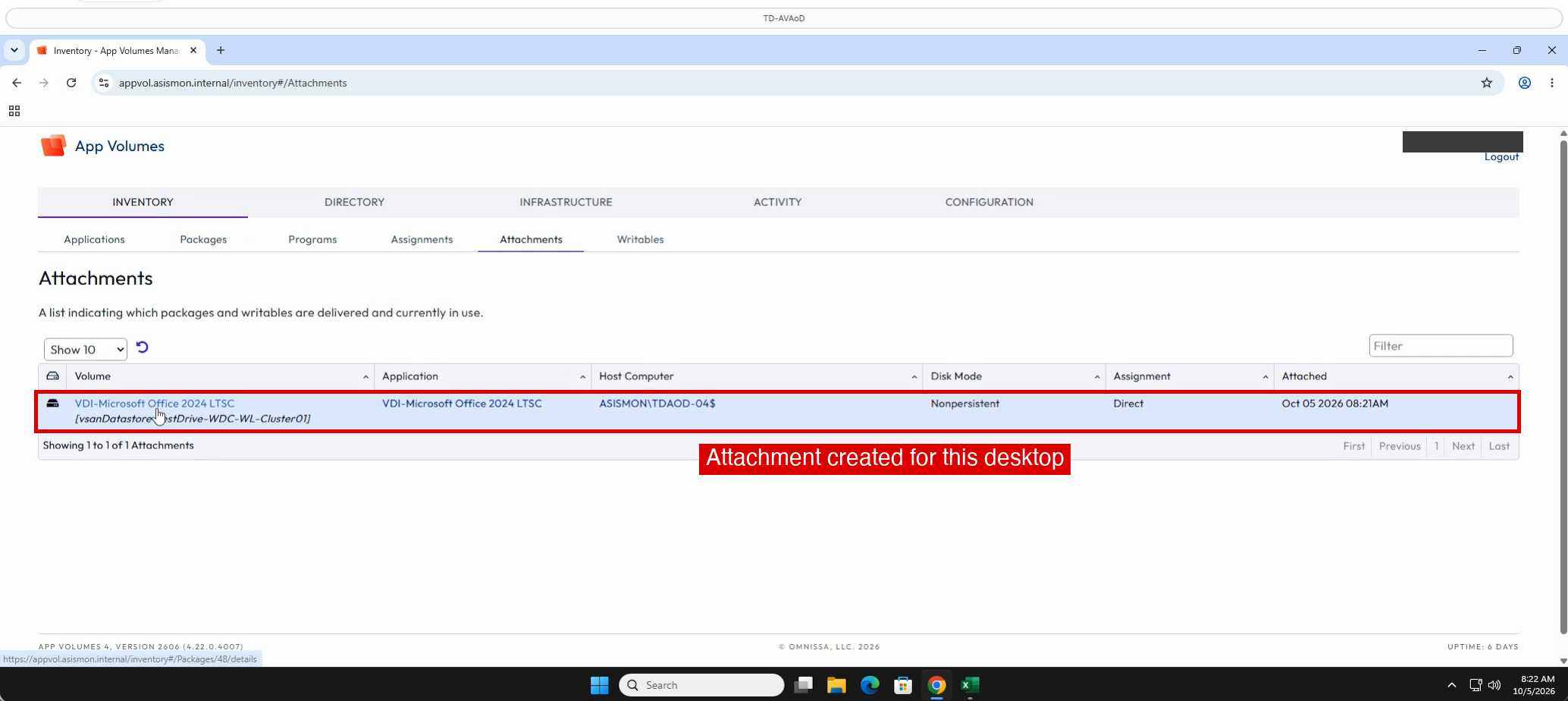
Reopen App Volumes Manager and go to Inventory > Attachments. The VDI-Microsoft Office 2024 LTSC package is listed as delivered to this desktop.
15. Sign out
Click Logout in App Volumes Manager, close Excel, right-click Start, and choose Shut down or sign out > Sign out. Then sign out of Workspace ONE Intelligent Hub.
Summary
- Task 1: You launched TD-AVAoD from Workspace ONE Intelligent Hub with Horizon Client.
- Task 2: You opened App Volumes Manager from the desktop.
- Task 3: You confirmed Microsoft Office was not installed.
- Task 4: You reviewed the application and its on-demand package.
- Task 5: You launched Excel, watched Microsoft Office 2024 LTSC arrive on demand, and confirmed the delivery in App Volumes Manager.
This concludes the walkthrough. You saw Microsoft Office 2024 LTSC delivered on demand by App Volumes and confirmed it in App Volumes Manager.