Home > Demo Guides > AppVolumes
Omnissa App Volumes - Adobe Acrobat Application Lifecycle
Overview
This walkthrough demonstrates how App Volumes delivers applications dynamically using VHD-based packages, without rebuilding desktop images.
Users observe the application lifecycle and versioning behavior as it is managed centrally by IT administrators.
Access the Demo Desktop
- Open a browser and sign in to Workspace ONE at https://testdrive.us0.wss.workspaceone.com/ using TestDrive credentials.
- Go to Apps or Favorites.
- Search for
TD-AVAoDv2, then click the star on that tile to add it to Favorites for faster future access.
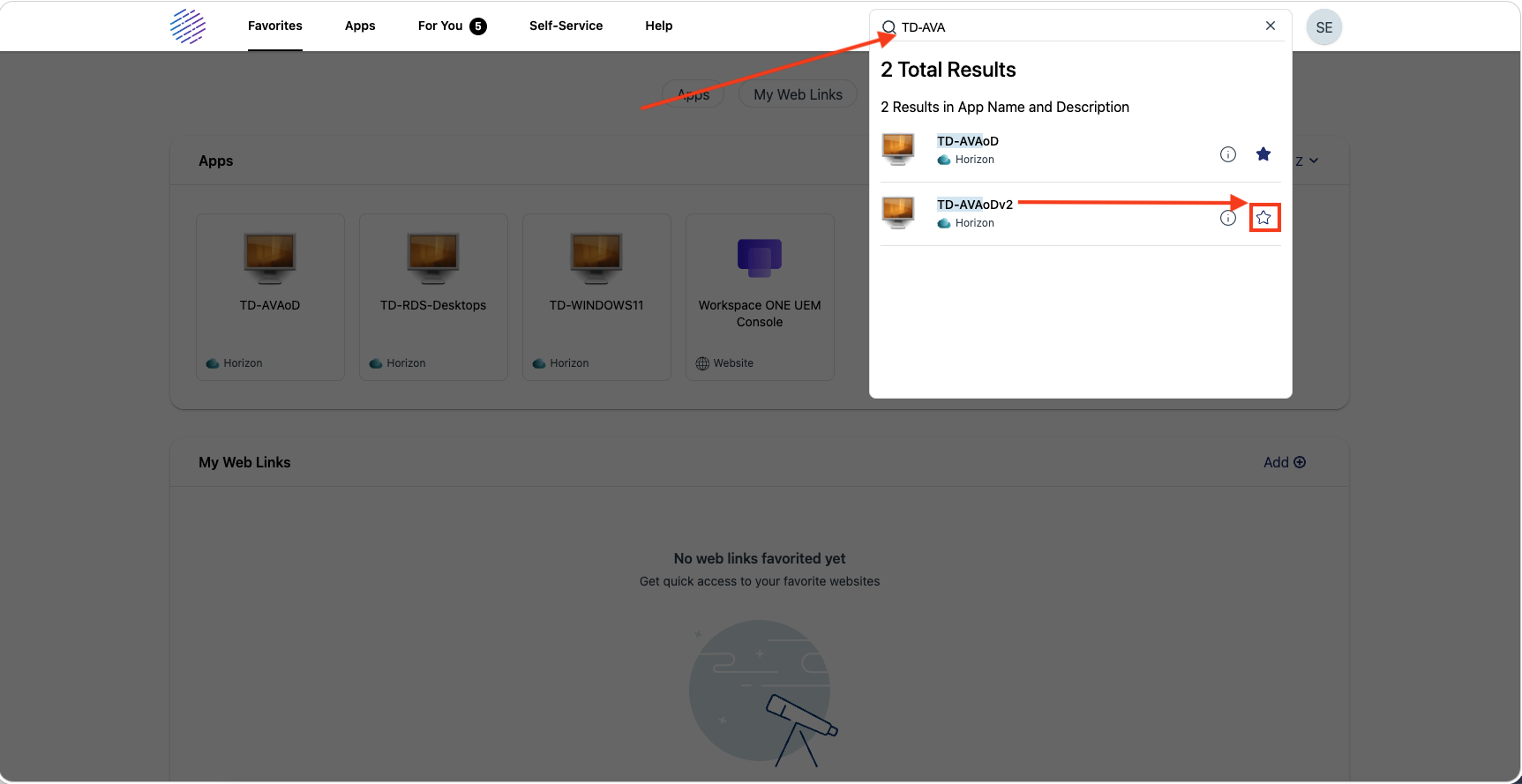
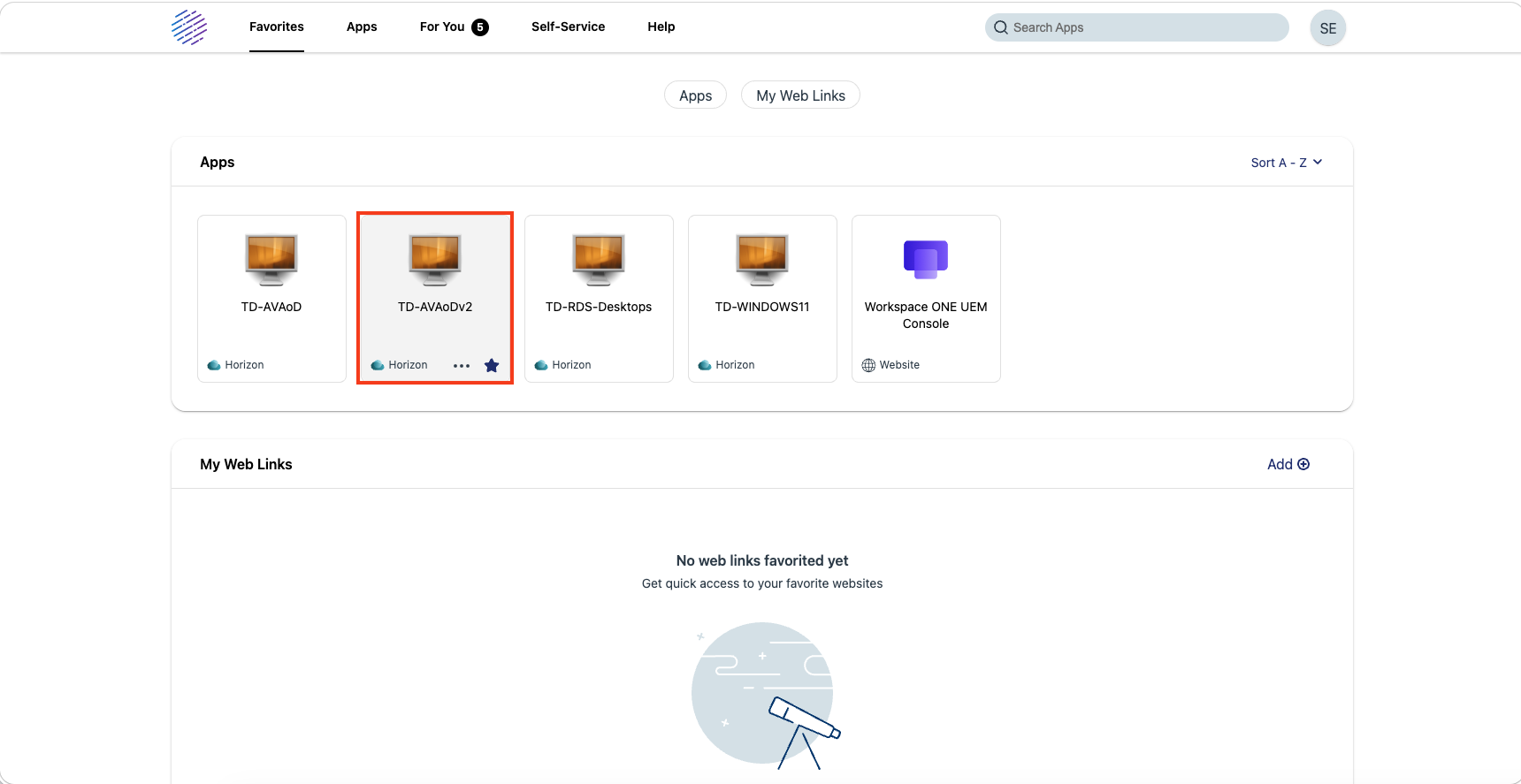 4. Launch the desktop from the tile actions menu.
- Launch from Browser is recommended for consistency in demo recordings.
- Launch from Client is acceptable when Horizon Client is already installed.
5. Continue when the Windows desktop is fully visible and responsive.
4. Launch the desktop from the tile actions menu.
- Launch from Browser is recommended for consistency in demo recordings.
- Launch from Client is acceptable when Horizon Client is already installed.
5. Continue when the Windows desktop is fully visible and responsive.
Desktop Pool
Users launch desktops from:
- TD-AVAoDv2
Walkthrough Steps
Step 1: Launch the Desktop
Log in to the TestDrive environment and launch the desktop pool TD-AVAoDv2.
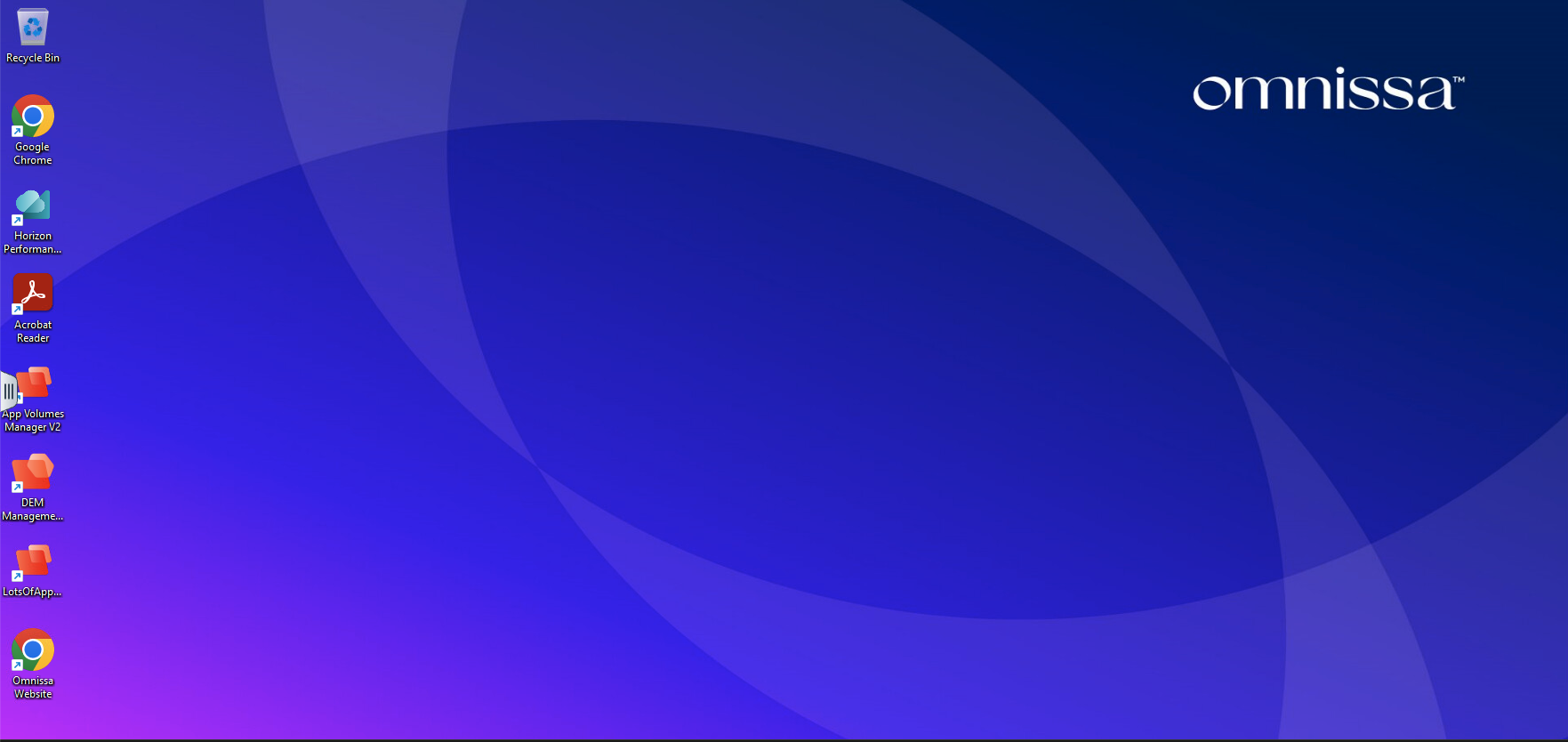
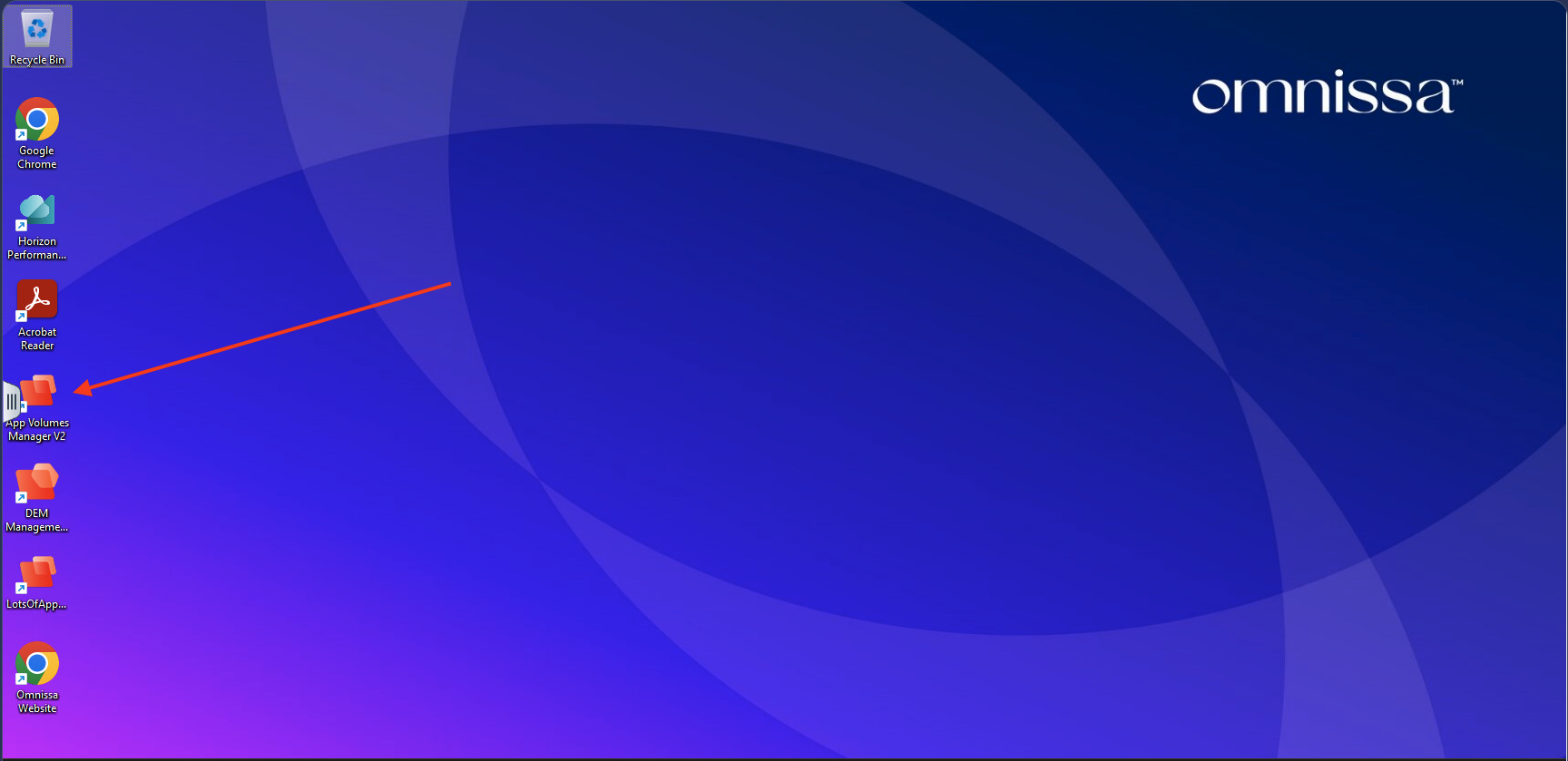
Step 2: Access the App Volumes Manager
From the desktop, locate the App Volumes Manager shortcut.
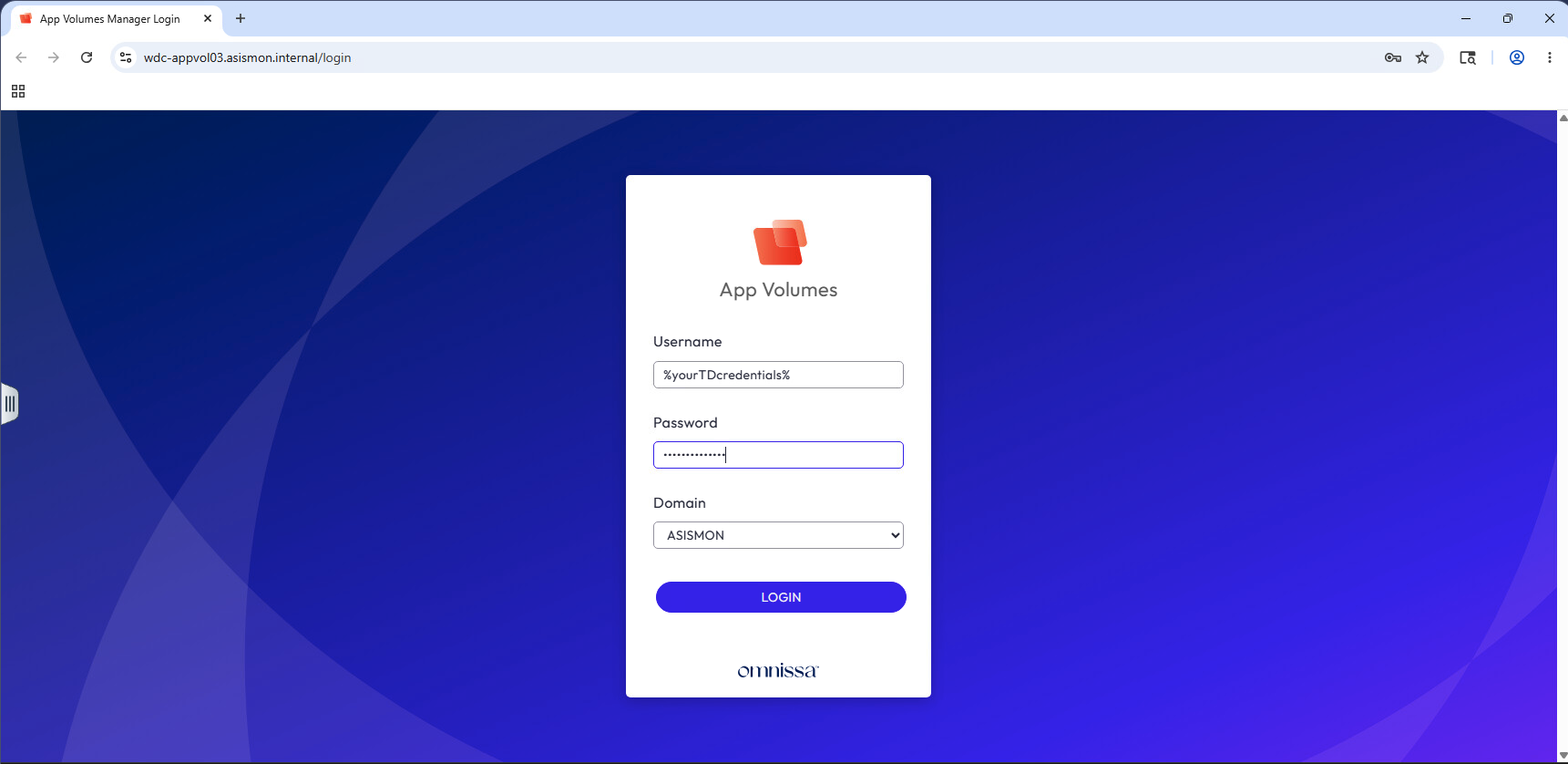
Step 3: Log In to App Volumes Manager
Launch App Volumes Manager, enter your TestDrive credentials, and click Connect.
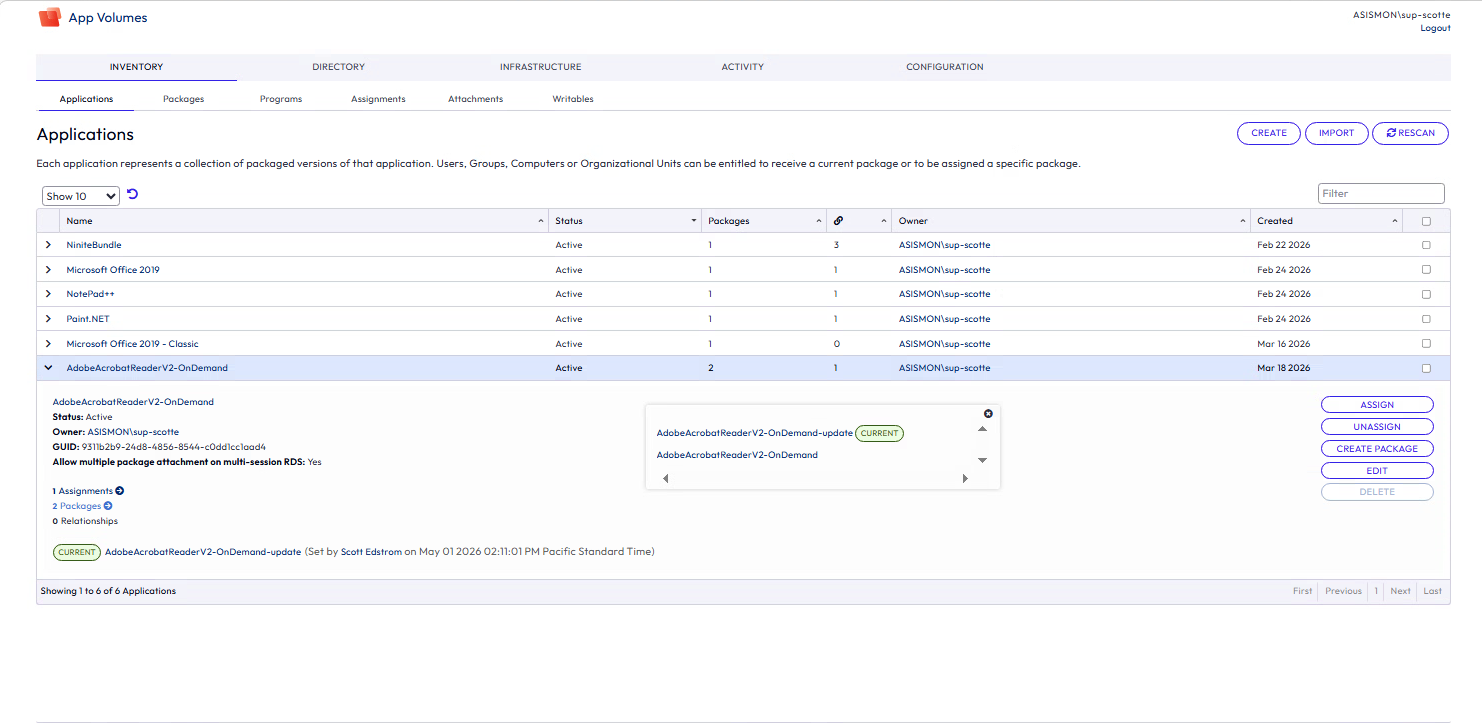
Step 4: How Application Versions Are Managed (Illustrative)
In App Volumes, review the lifecycle state that determines which Adobe Acrobat package version is active for users.
This view is illustrative only. Application lifecycle actions are performed by administrators.
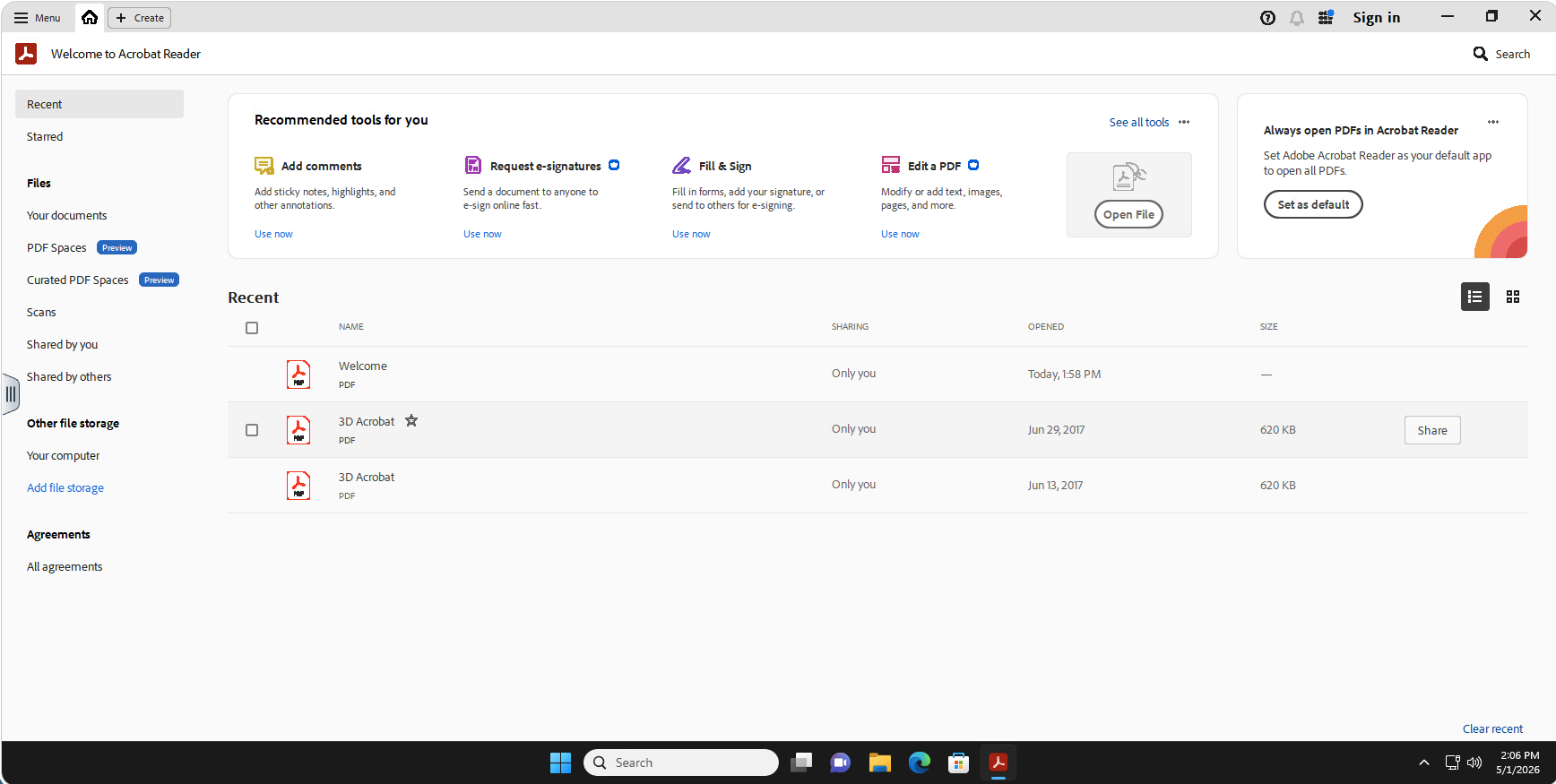
Step 5: Launch Adobe Acrobat from the Desktop
Double-click the Adobe Acrobat icon on the desktop.
Step 6: Confirm Adobe Acrobat Launch
After launch, confirm Adobe Acrobat opens successfully in the user session.
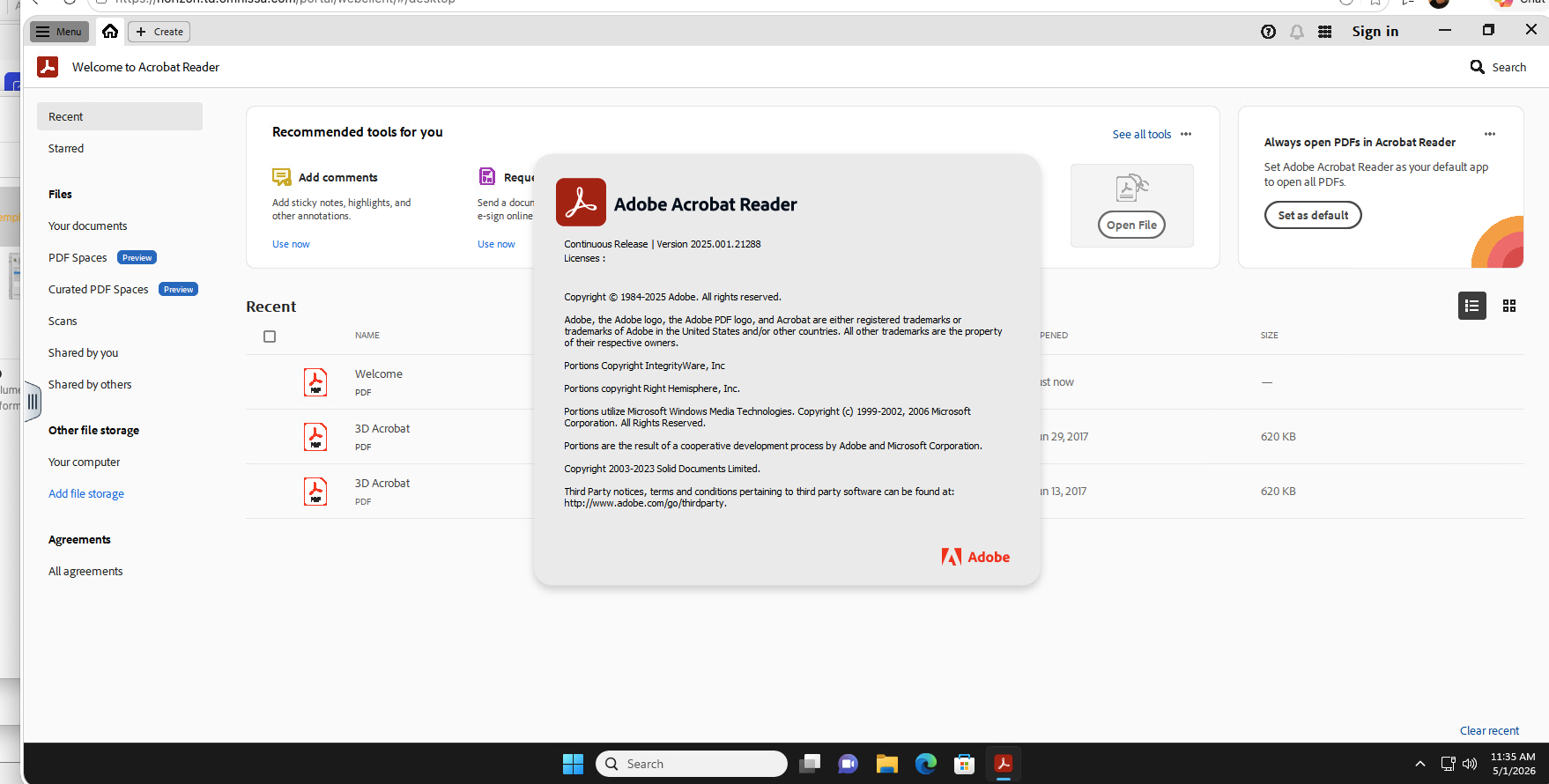
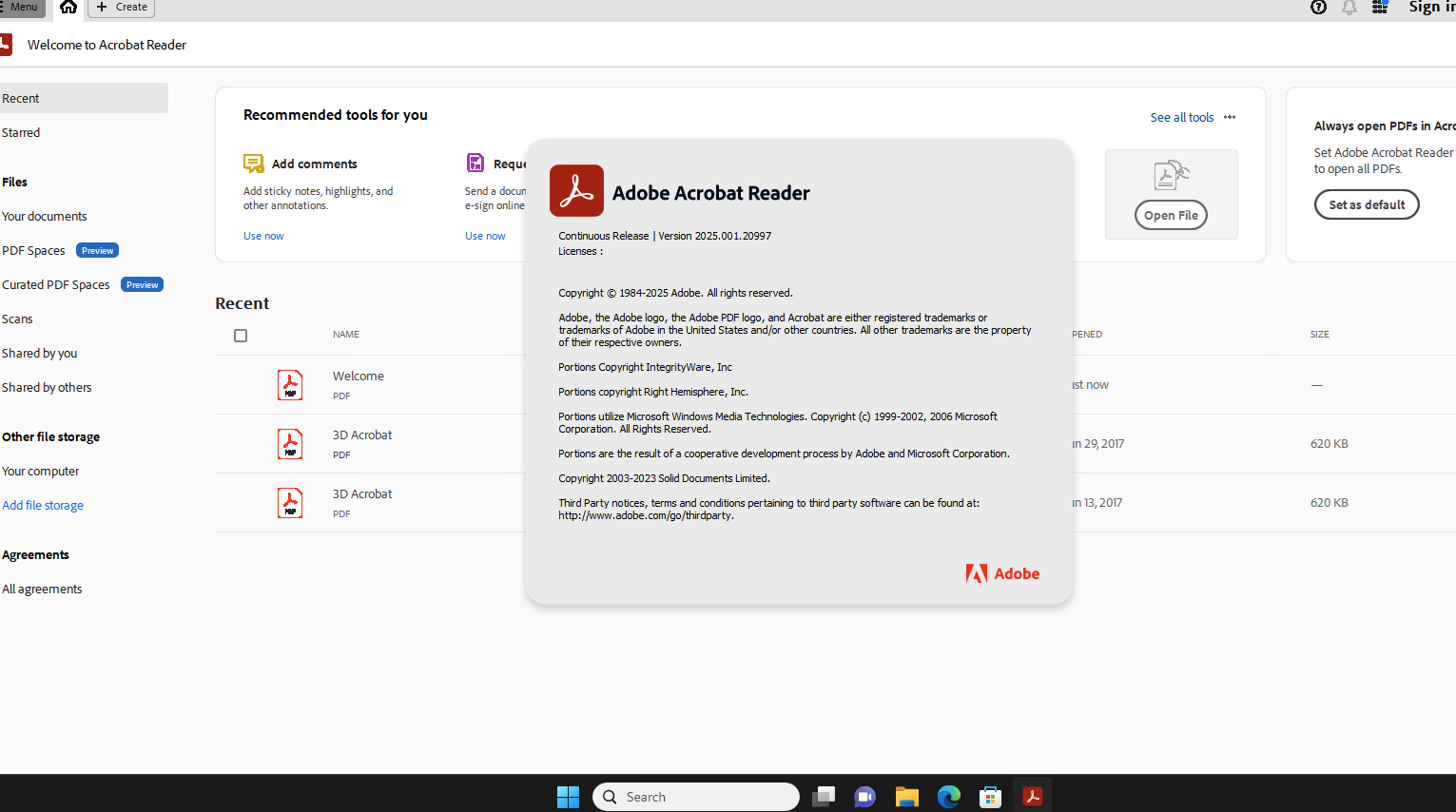
Step 7: Confirm Version in Help > About
In Adobe Acrobat, open Help > About to verify the currently delivered version.
Step 8: How Version Updates Are Delivered (Illustrative)
When an administrator sets the application package version as Current for a different package version, users automatically receive the updated version on their next login—without any base image changes or manual reinstalls.
Key Takeaways
- Applications are delivered dynamically using App Volumes.
- Desktop images are not rebuilt or recomposed.
- Version changes are managed centrally by IT.
- Users receive updates automatically and consistently.
- If needed, administrators can quickly roll back to a previous package version without rebuilding images or manually reinstalling the app.
Summary
This walkthrough demonstrates how App Volumes decouples application lifecycle management from the desktop image, enabling faster updates with less operational overhead.
It also highlights operational resilience: updates and rollbacks are both handled centrally through package version state, so IT can respond quickly when change control or issue mitigation is needed.