Home > DIY > Proving Ground Guides
PG Organization Owner Change — Omnissa Employee
Omnissa Connect Proving Ground Organization
A Proving Ground (PG) environment is contained within its own Omnissa Connect organization. Just like any other Omnissa Connect organization, the same security rules apply. All Omnissa Connect organizations exist independently of TestDrive.
Overview
Omnissa Connect (OC) manages all organizations. In PG ownership cases, TestDrive Help can facilitate org owner changes. Two common scenarios require updating a PG org owner:
Migration gap: When Omnissa launched, all EUC Cloud Services organizations moved from CSP to OC. That migration carried over the Proving Ground organization, but not its owner. Former VMware employees must complete a separate step to link their Omnissa identity to the migrated PG org.
Departed owner: Some teams created a shared PG for a specific engagement, and the original owner has since changed roles or left. The org still exists, but no one can manage it.
Follow the steps below to add an org owner.
Prerequisite: An Omnissa Account
You need an Omnissa Account. An Omnissa Account is separate from your corporate Omnissa identity but uses your omnissa.com email address. Get an Omnissa Account here.
Steps to Update the Org Owner
- Create a TestDrive support ticket requesting to update the owner of your PG organization.
- TestDrive support will add your email address to the existing Omnissa Connect PG organization.
- You’ll receive an invitation email invitation to the OC organization. This is the standard ‘Get started with Workspace ONE…’ email.
- Use the email’s “get started” button/URL and log in with your Omnissa email address. You will be authenticated with your federated corporate identity.
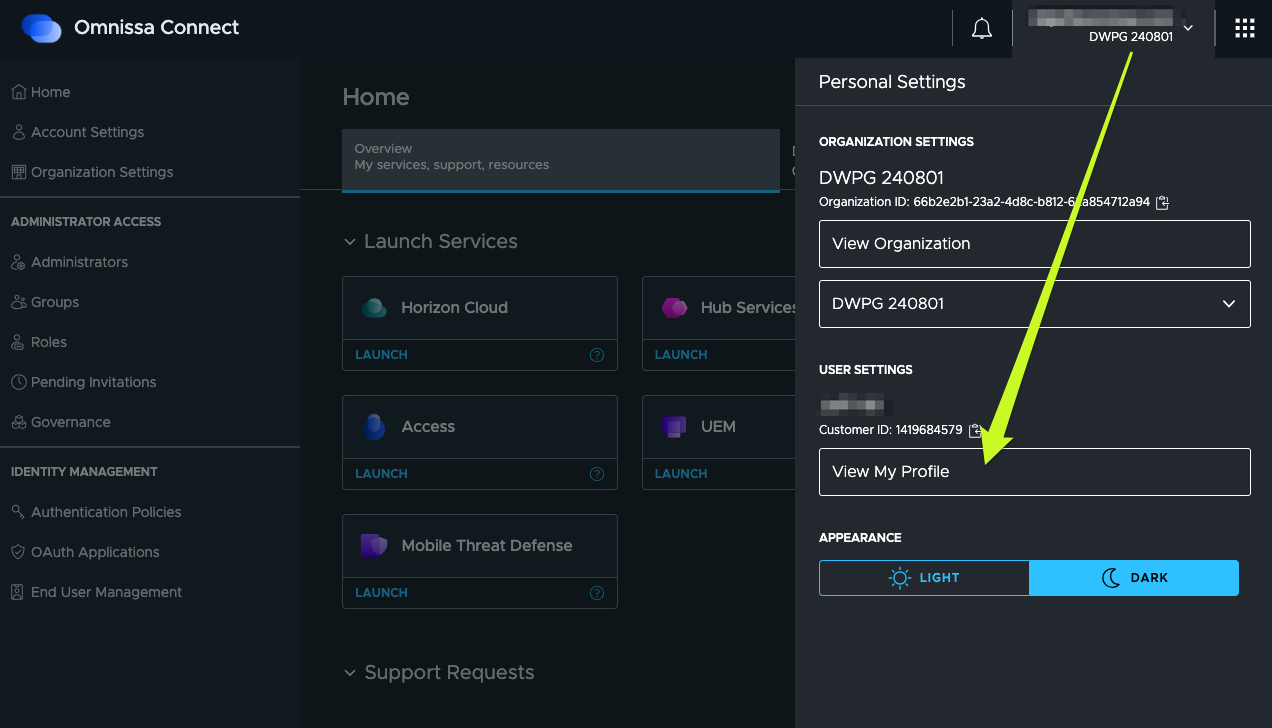
- Go to your PG organization’s Personal Settings → User Settings → View My Profile.
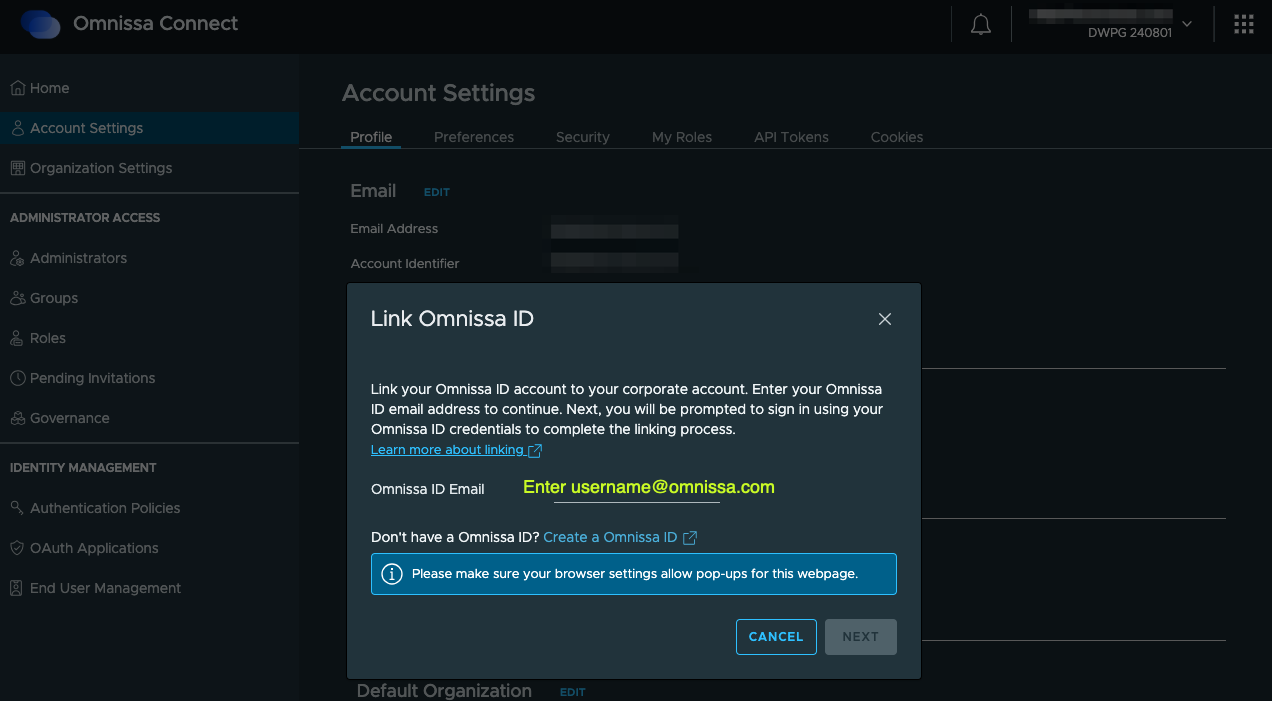
- In Account Settings →Profile tab → in Omnissa Account Details…click 'link an Omnissa Account” and follow the wizard.